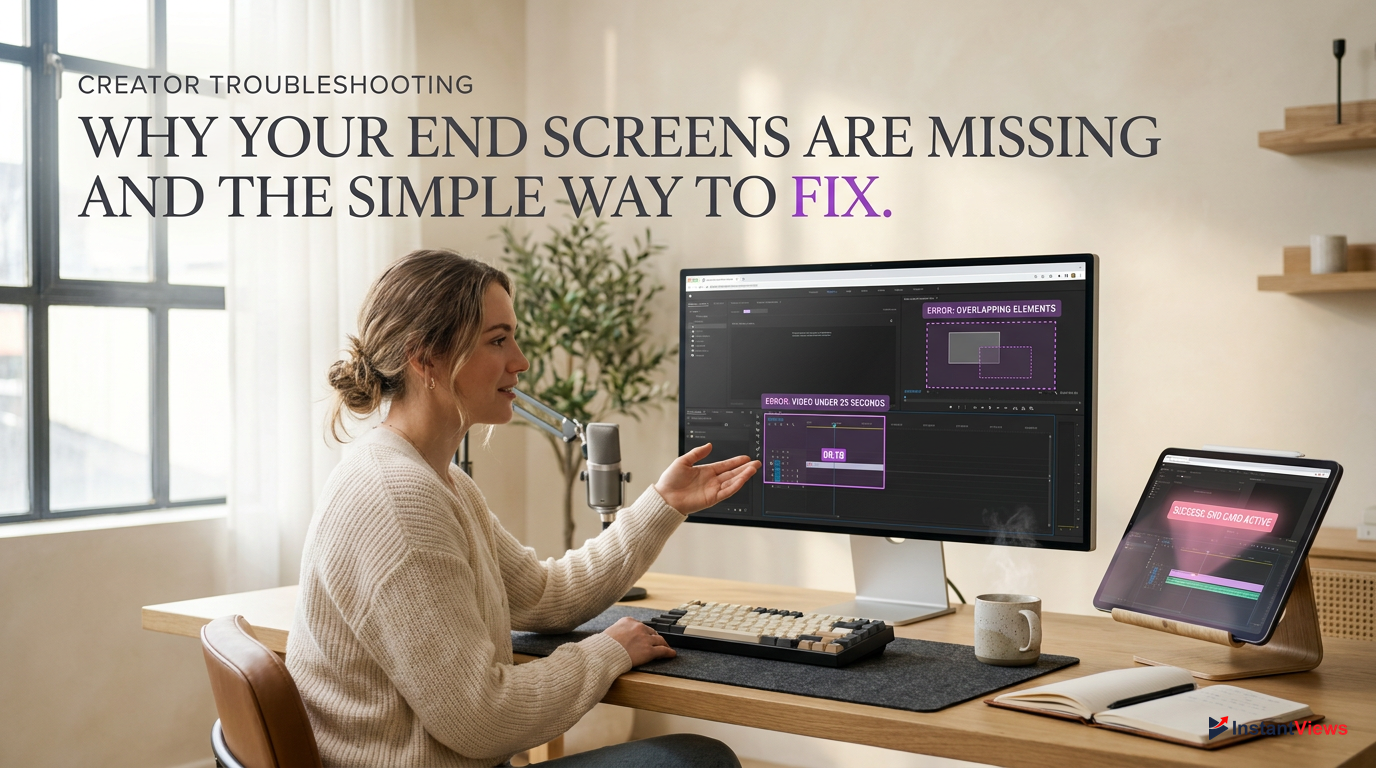
- Videos under 25 seconds cannot display end screens under YouTube's current 2026 guidelines.
- The 'Made for Kids' COPPA setting instantly disables all end screens and interactive elements on your channel.
- Custom aspect ratios outside the standard 16:9 format often cause end screen rendering failures across devices.
- Ad blockers and aggressive browser cache settings are the primary culprits for missing end screens on desktop viewers.
- Always verify your end screen elements are fully published in YouTube Studio and not overlapping with custom watermarks.
You have spent hours editing, optimizing, and uploading your latest YouTube masterpiece. You have perfectly timed your outro, pointing viewers to your best content, only to discover a massive problem: your YouTube end screens are not showing. This frustrating glitch can instantly kill your channel's momentum, tanking your session time and costing you hundreds of potential subscribers.
In the highly competitive landscape of 2026, retaining viewers across multiple videos is the ultimate metric the YouTube algorithm rewards. End screens are your most powerful tool for creating binge sessions. When they fail to render, whether due to a hidden YouTube Studio setting, a viewer-side browser conflict, or an undetected aspect ratio mismatch, your click-through rate plummets dramatically.
Fortunately, diagnosing why your end screens have vanished is a straightforward process once you know exactly where to look. In this comprehensive guide, we will walk you through the most common culprits—from the strict 25-second length rule to COPPA audience settings and hidden ad blocker interferences. Let us dive into the exact step-by-step fixes to restore your interactive elements today.
- Why Are YouTube End Screens Crucial in 2026?
- The 25-Second Rule and Video Length Restrictions
- The 'Made for Kids' (COPPA) Restriction
- Aspect Ratio and Resolution Conflicts
- Browser Cache, Ad Blockers, and Viewer-Side Issues
- Mobile App vs. Desktop Rendering Glitches
- Overlapping Elements and YouTube Studio Errors
- Copyright Claims Blocking Interactive Features
- Third-Party Editing Tools and Template Corruption
- The Ultimate 2026 End Screen Troubleshooting Checklist
- FAQ
Why Are YouTube End Screens Crucial in 2026?
When diagnosing why your youtube end screens not showing error is happening, it is critical to first understand how YouTube's 2026 algorithm processes these interactive elements. End screens are not just decorative overlays; they are the primary mechanism for extending viewer session time. The modern algorithm heavily favors channels that keep viewers on the platform. If your end screen fails to load, the viewer is presented with YouTube's auto-generated 'Up Next' suggestions, effectively handing your hard-earned audience over to a competing channel.
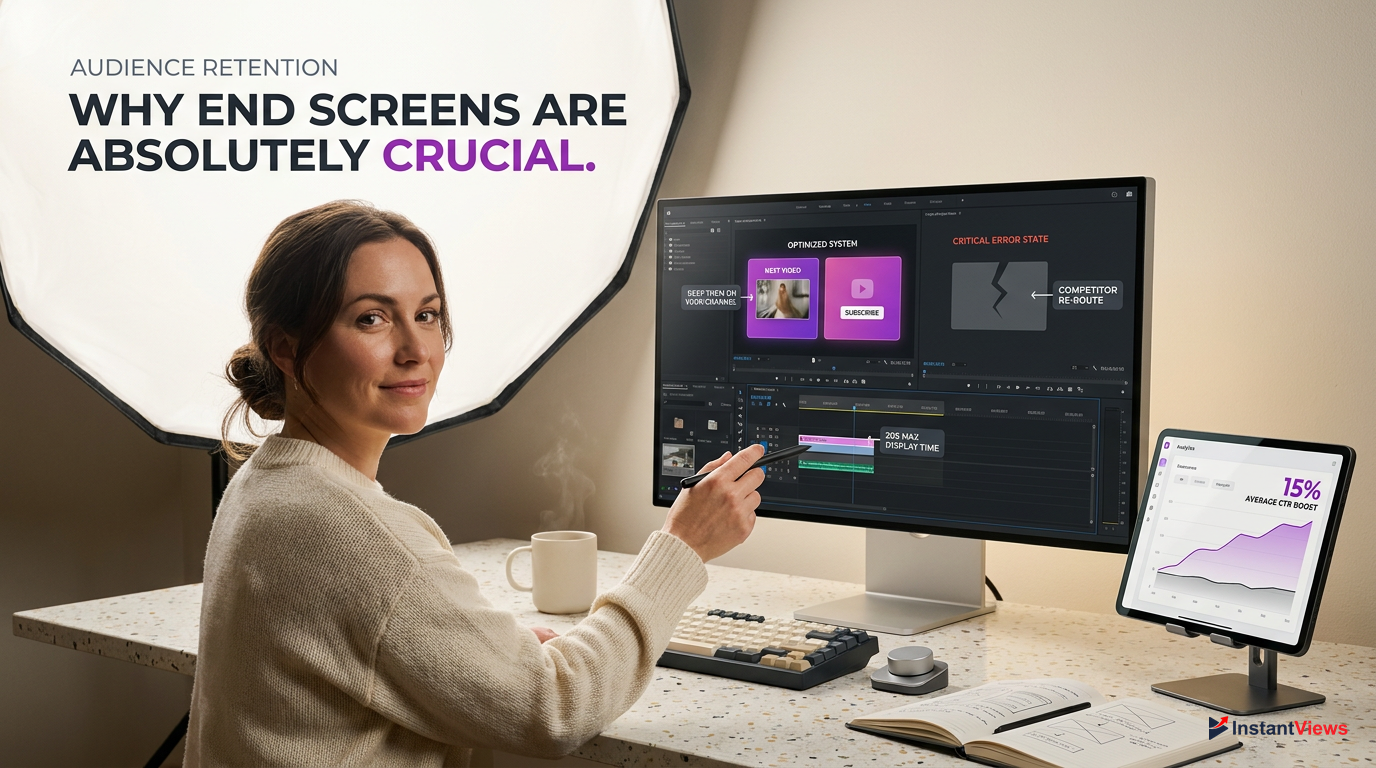
Furthermore, the introduction of smarter, AI-driven viewer behavior tracking means that a missing end screen is a missed data point. YouTube uses the clicks on your end screens to understand topical relevance between your videos. When these elements do not render, you lose out on building semantic clusters within your channel's ecosystem. Resolving this issue is not just about aesthetics; it is a fundamental requirement for channel growth.
Many creators assume that if they added the elements in the editor, they are guaranteed to display. However, rendering is highly dependent on both server-side settings and client-side environments. From mobile app glitches to aggressive desktop ad blockers, the journey from your YouTube Studio dashboard to the viewer's screen is fraught with potential roadblocks. Understanding these technical hurdles is the first step toward permanent resolution.
The 25-Second Rule and Video Length Restrictions
One of the most frequent reasons creators search for a fix to their youtube end screens not showing is a fundamental misunderstanding of YouTube's video length requirements. The platform's architecture strictly dictates that a video must be at least 25 seconds long to support an end screen. This is a hard-coded rule that has persisted into 2026 to ensure that the interactive elements do not dominate the entirety of a short video.
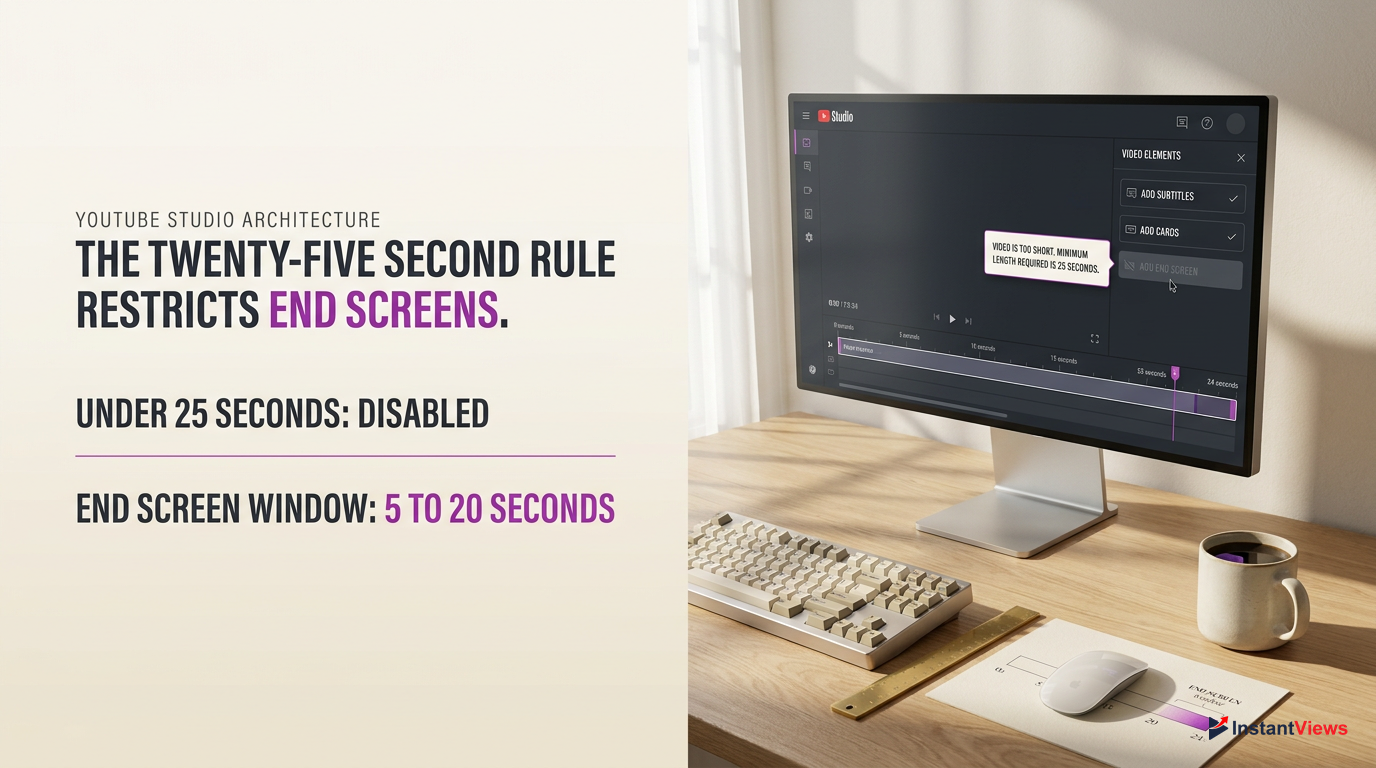
End screens can only be added to the last 5 to 20 seconds of a video. If your video is exactly 25 seconds long, the end screen will consume almost the entire video, which often leads to poor viewer retention.
If you have recently pivoted to creating shorter content or are experimenting with micro-vlogs that fall under this threshold, the YouTube Studio editor will simply grey out the 'End Screen' option. Even if you try to force an upload via third-party API tools, the YouTube player will strip the metadata, and the end screen will fail to render on the viewer's side.
Verify Video Length
Navigate to YouTube Studio > Content. Check the 'Duration' column to ensure your video is 0:26 or longer.
Check Element Timing
Click the 'Details' pencil icon, select 'End Screen' on the right panel, and ensure the elements are placed strictly within the final 20 seconds of the timeline.
Save and Preview
Click 'Save' and use the 'Preview' button to confirm the elements trigger at the correct timestamp.
For creators uploading YouTube Shorts, it is important to remember that Shorts operate on an entirely different infrastructure. Shorts do not support traditional end screens; instead, they utilize the 'Related Video' feature. If you accidentally uploaded a standard video that is under 60 seconds and vertically oriented, YouTube may have automatically classified it as a Short, immediately disabling your standard end screen functionality.
The 'Made for Kids' (COPPA) Restriction
If your youtube end screens not showing issue appeared suddenly across multiple videos, the most likely culprit is the 'Made for Kids' audience setting. Following strict COPPA (Children's Online Privacy Protection Act) regulations, YouTube automatically disables all personalized ads, comments, and interactive features—including end screens and info cards—on any content designated as made for kids. This compliance mechanism is absolute and overrides any settings you may have configured in the video editor.
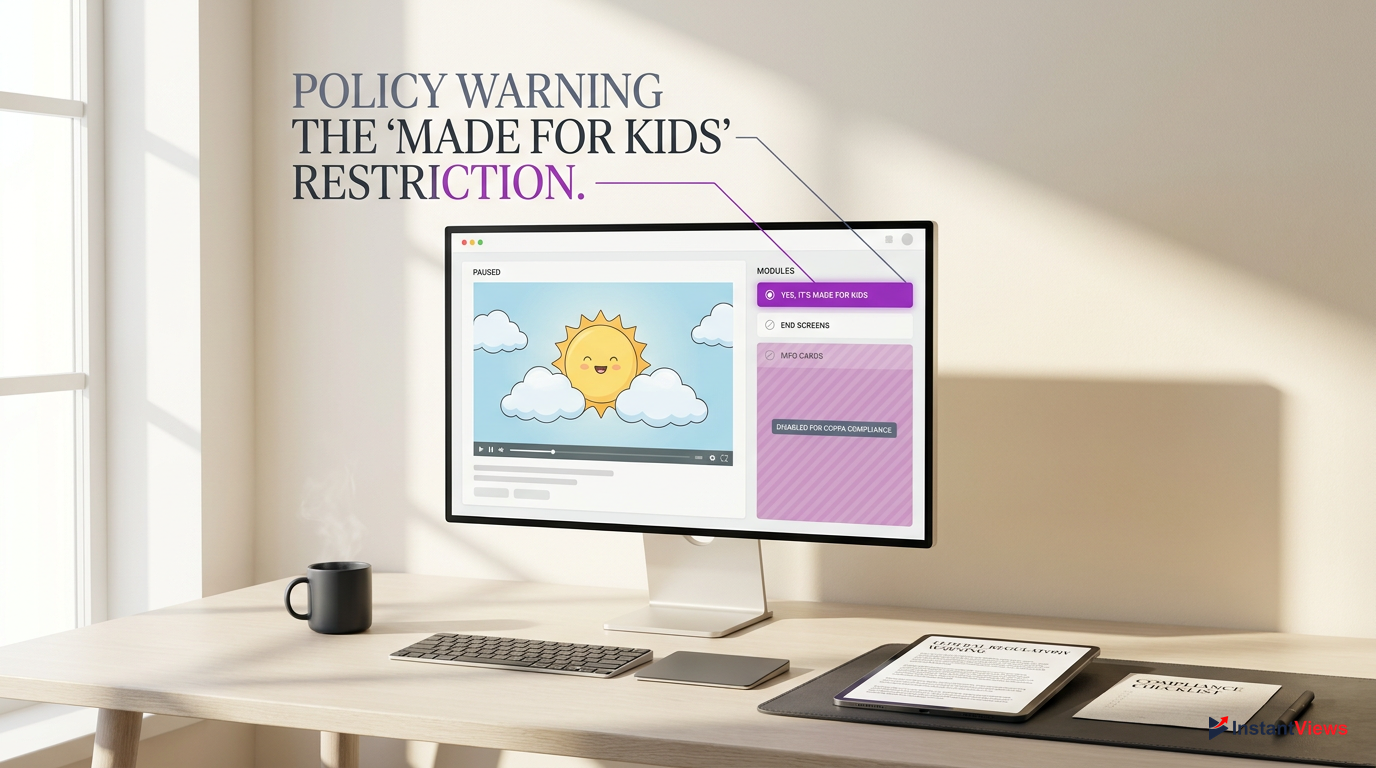
Falsely marking a video as 'Not made for kids' to bypass these restrictions and retain end screens can result in severe channel strikes, demonetization, and massive legal fines from the FTC.
Sometimes, YouTube's automated machine learning algorithms may mistakenly flag your content as kid-friendly, especially if it features animation, toys, or video games popular with younger audiences. When this happens, your end screens are instantly stripped from the video player without any direct notification to you.
Access Audience Settings
Go to YouTube Studio, click on 'Settings' in the bottom left corner, and select the 'Channel' tab.
Check Default Configuration
Navigate to 'Advanced settings' and review the 'Audience' section to ensure your channel is not globally set to 'Made for kids'.
Review Individual Videos
Go to your 'Content' tab, click the details for the affected video, scroll down to 'Audience', and ensure 'No, it's not made for kids' is selected.
If you discover that YouTube has overridden your setting and locked the video as 'Made for Kids', you will need to submit an appeal through the Studio dashboard. Until the appeal is successfully processed and the restriction lifted, your end screens will remain hidden from all viewers across all devices.
Aspect Ratio and Resolution Conflicts
A highly technical but incredibly common reason for your youtube end screens not showing is an aspect ratio mismatch. YouTube's end screen templates are strictly optimized for the standard 16:9 widescreen format. If you upload a video in a non-standard aspect ratio—such as ultra-wide 21:9, square 1:1, or vertical 9:16—the YouTube player struggles to map the interactive elements correctly. In many of these cases, to prevent a broken user interface, YouTube simply suppresses the end screen entirely.
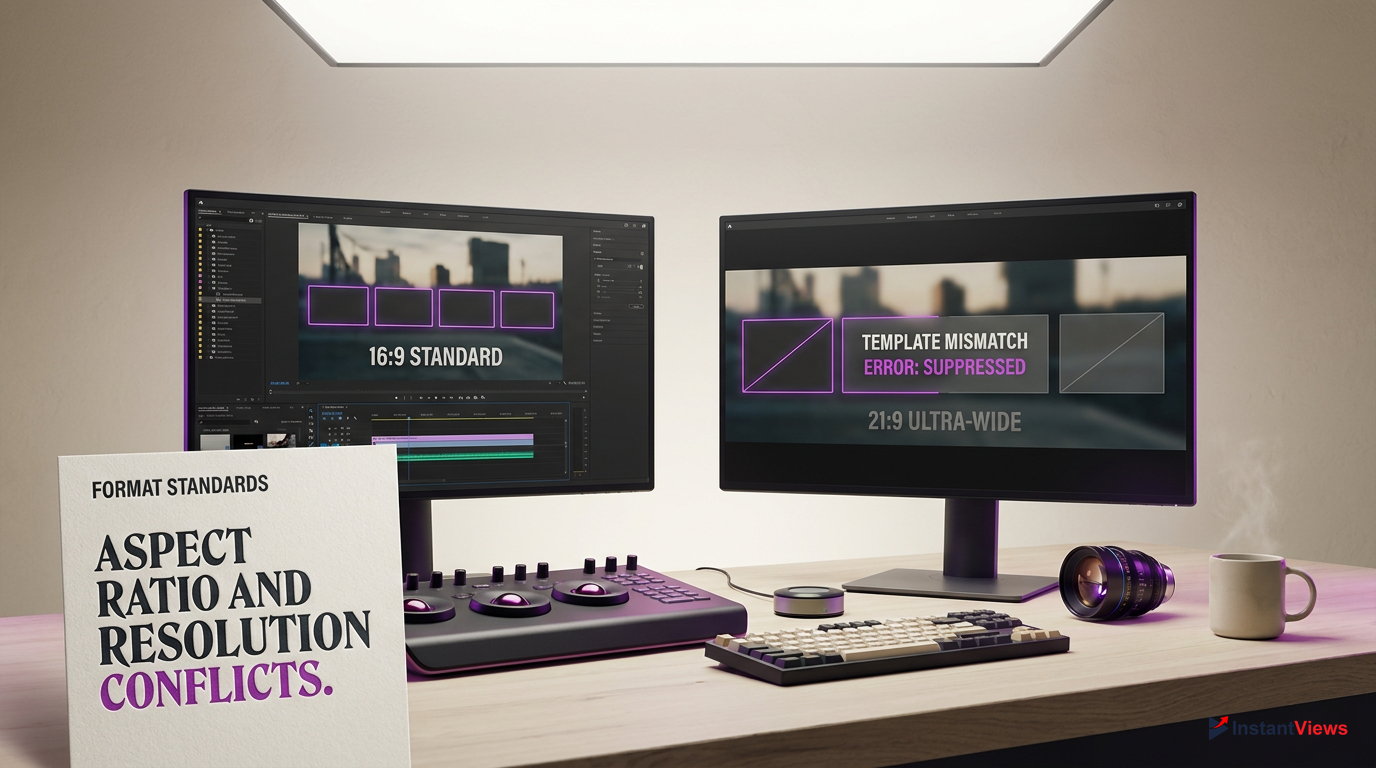
- Fully supports all 4 end screen elements
- Templates map perfectly to corners
- Guaranteed rendering across devices
- Often disables end screens completely
- Elements may render off-screen
- Inconsistent mobile playback
When editing your videos in software like Premiere Pro, Final Cut, or DaVinci Resolve, it is crucial to ensure your sequence settings match YouTube's preferred 1920x1080 or 3840x2160 resolutions. If you export a video with black bars (letterboxing or pillarboxing) baked into the file, the end screen elements might render over the black bars, making them look unprofessional, but they will technically show. However, if the file itself is an odd dimension, the rendering engine fails.
Always use a dedicated 'End Screen Safe Zone' PNG overlay in your editing timeline. This ensures your visual outro elements perfectly align with YouTube's clickable areas, preventing any aspect ratio rendering glitches.
If you are trying to add an end screen to a vertical video (Shorts format), remember that YouTube completely disables traditional end screens for anything under the 9:16 aspect ratio. For vertical videos, you must rely on the 'Related Video' linking feature available in the YouTube Studio details page, which serves as the 2026 equivalent of an end screen for short-form content.
Browser Cache, Ad Blockers, and Viewer-Side Issues
Often, the youtube end screens not showing issue has absolutely nothing to do with your YouTube Studio settings and everything to do with the viewer's local environment. In 2026, the widespread use of aggressive ad blockers, privacy extensions, and customized browser shields frequently interferes with YouTube's JavaScript overlay elements. Tools like uBlock Origin or the Brave Browser's native shields can mistakenly categorize end screen pop-ups as intrusive advertisements or tracking scripts, blocking them from rendering entirely.
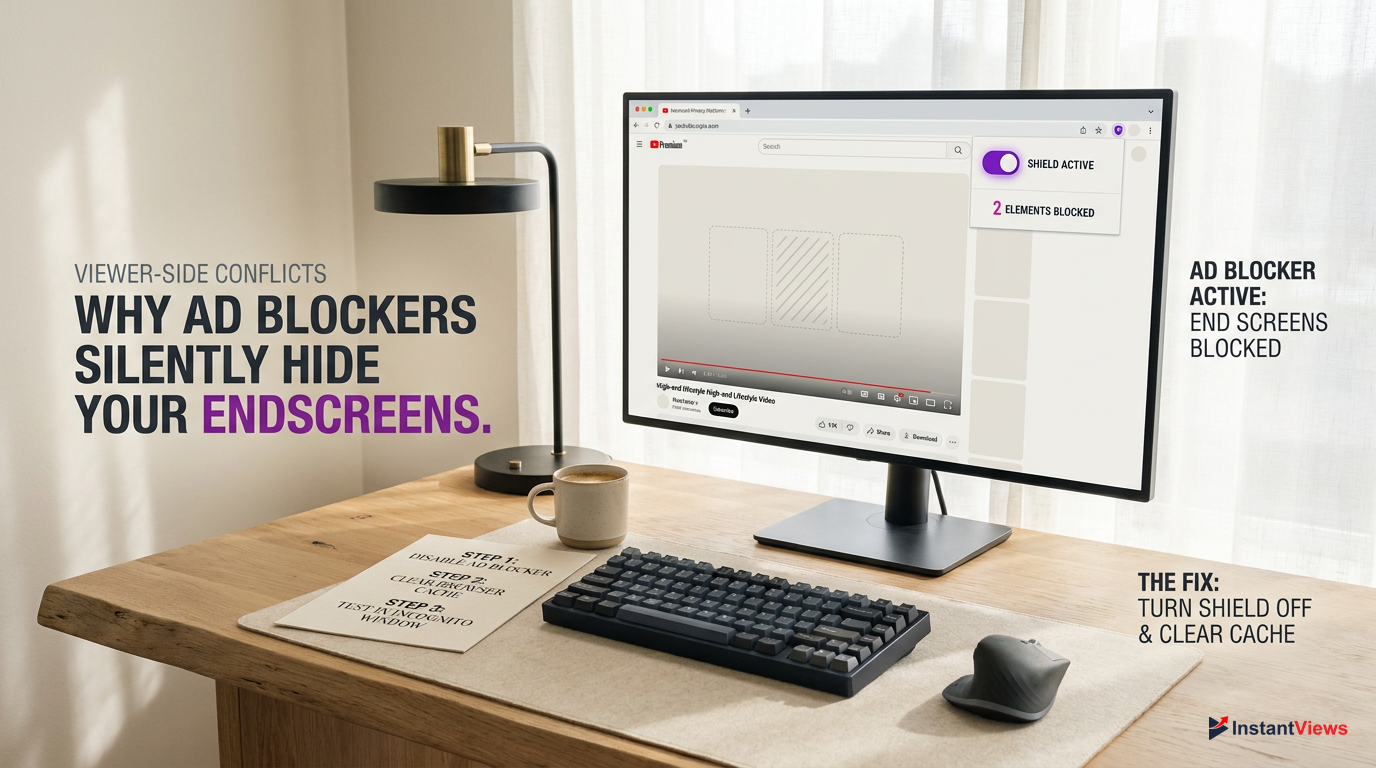
- Disable ad blockers (uBlock Origin, AdBlock Plus) temporarily.
- Turn off aggressive tracking protection in browser settings.
- Clear browser cache and cookies for YouTube.com.
- Test the video in an 'Incognito' or 'Private Browsing' window.
- Update the web browser to the latest 2026 version.
If you are receiving complaints from subscribers that they cannot see your end cards, it is highly recommended to test the video yourself across multiple browsers (Chrome, Firefox, Safari) and devices. If the end screen shows up for you in Incognito mode but not in your standard browser session, a rogue extension or corrupted cache is the definitive culprit.
Over 40% of desktop users in 2026 utilize some form of ad-blocking software. Many of these tools use filter lists that accidentally block YouTube's 'ytd-watch-next-secondary-results-renderer' scripts, which govern end screen visibility.
To troubleshoot your own browser, start by disabling all extensions. Navigate to your browser's extension manager and toggle them off one by one, refreshing the YouTube video page each time. Once the end screen reappears, you have identified the conflicting software. You can then whitelist YouTube.com within that specific extension to ensure your viewing experience remains uninterrupted while keeping your privacy tools active elsewhere.
Mobile App vs. Desktop Rendering Glitches
The YouTube ecosystem is highly fragmented, and a frequent cause of the youtube end screens not showing anomaly is cross-platform rendering discrepancies. How an end screen behaves on a desktop browser is vastly different from how it renders on the iOS native app, the Android native app, the mobile web browser, or a Smart TV application. Often, creators will perfectly configure their end screens on desktop, only to find them missing when viewing their own video on their iPhone.
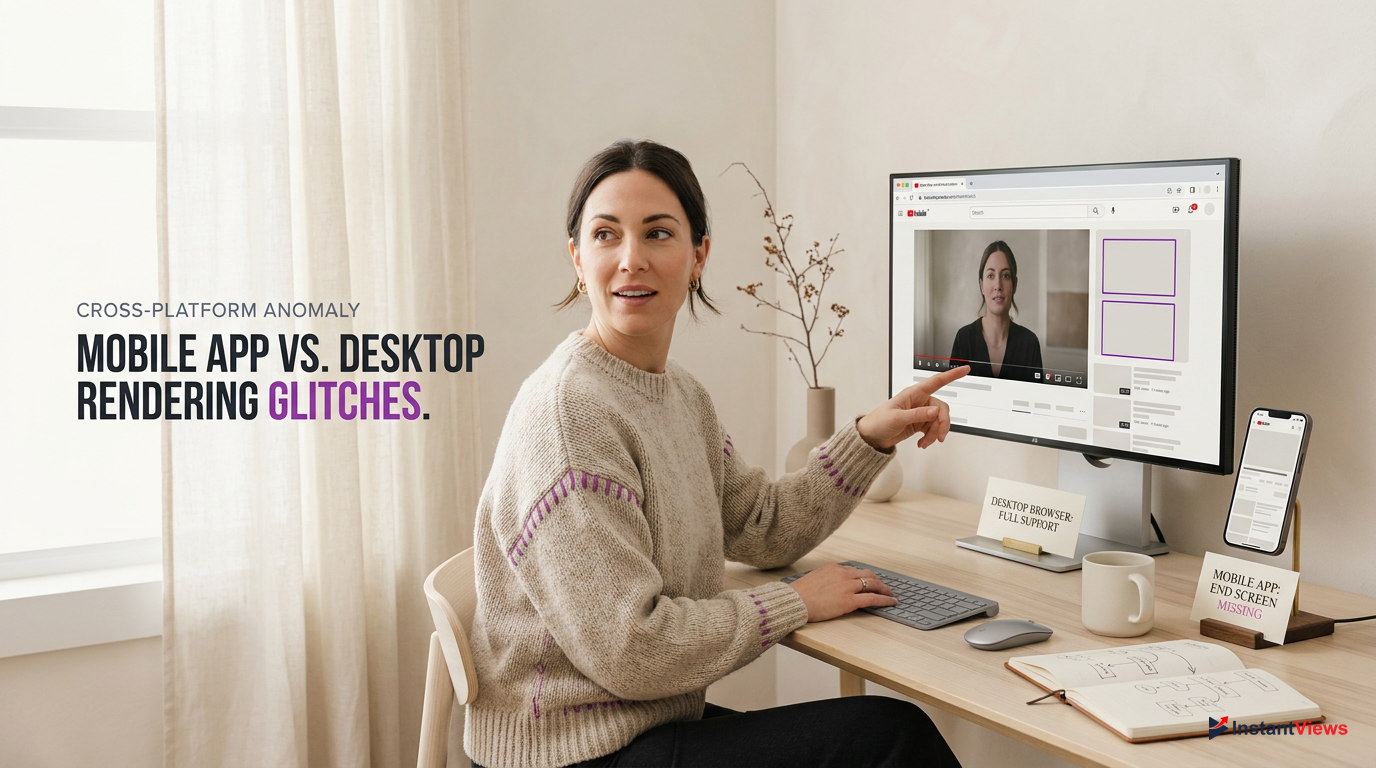
| Platform | End Screen Support | Common Issues |
|---|---|---|
| Desktop Browser | Full Support | Ad blocker interference |
| iOS/Android App | Full Support | Outdated app version, cached data |
| Mobile Web (Safari/Chrome) | Partial | Often disabled to save bandwidth |
| Smart TVs / Consoles | Partial | UI overlays may fail to render |
One of the most common reasons end screens fail on mobile devices is an outdated YouTube application. When YouTube pushes background updates to its video player infrastructure, older versions of the app can lose compatibility with the newest end screen rendering scripts. Always ensure that your viewers (and yourself) are running the latest version from the App Store or Google Play.
End screens are intentionally disabled by YouTube when a video is played via the mobile web browser (e.g., watching YouTube directly inside Safari on an iPhone) to prioritize video playback performance over interactive overlays.
Additionally, if your video is embedded on a third-party website (like a blog or a news article), end screens may behave unpredictably. Depending on the embed parameters used (such as the `rel=0` tag), YouTube might suppress end screens to keep the viewer focused on the embedded player rather than navigating away to the main YouTube platform. Always test your links directly within the native YouTube app to confirm functionality.
Overlapping Elements and YouTube Studio Errors
Sometimes the solution to your youtube end screens not showing is hidden right inside the YouTube Studio editor itself. YouTube has strict spatial rules regarding where interactive elements can be placed. If your end screen elements overlap with each other, extend beyond the designated safe zone, or clash with your channel's custom branding watermark, the Studio editor will technically allow you to place them, but the rendering engine will fail to display them on the live video.
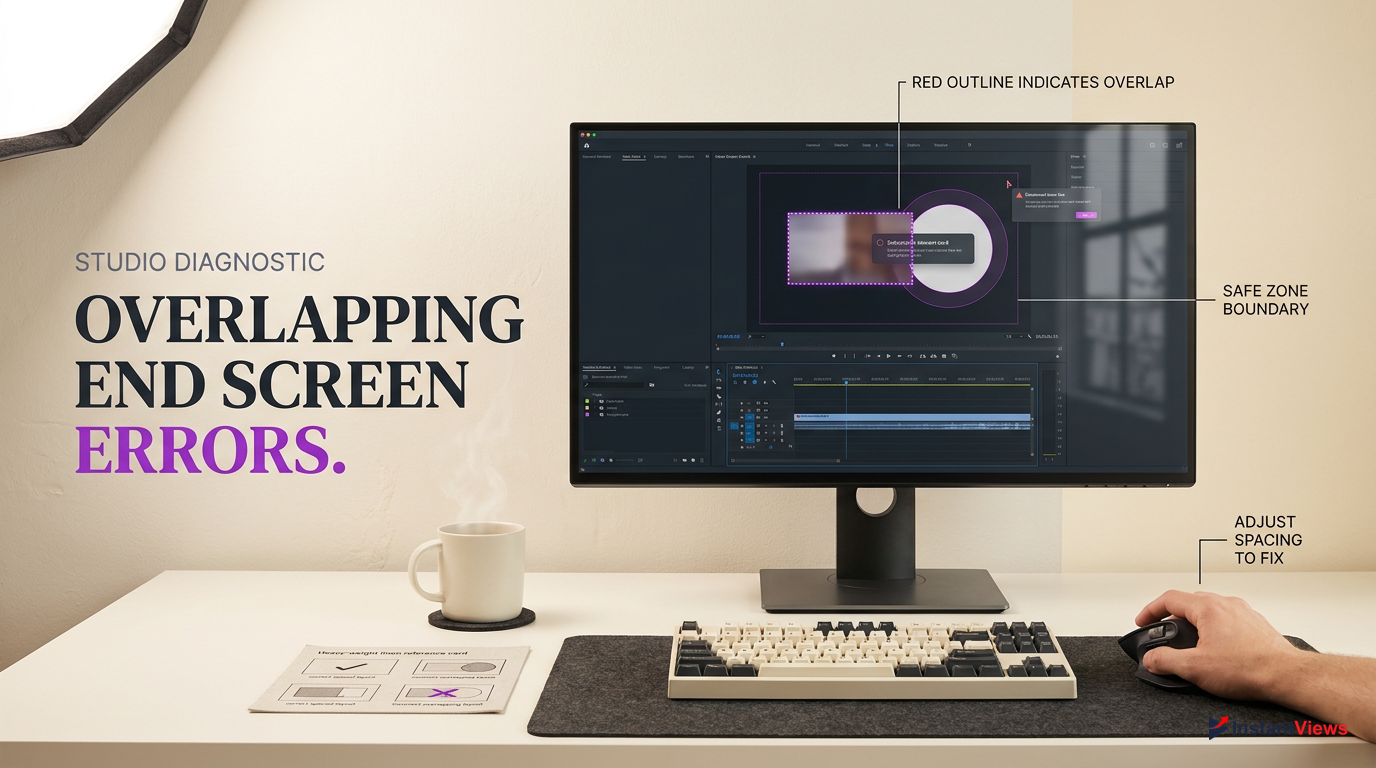
Open the Video Editor
In YouTube Studio, go to Content, click your video, and select 'Editor' from the left-hand menu.
Check Element Spacing
Click on the 'End screen' track. Look for any red outlines around your video or subscribe elements, which indicate an overlap error.
Adjust and Save
Drag the elements so they have clear space between them and are far away from the bottom right corner (where the watermark sits). Click Save.
Another common Studio glitch occurs during the video processing phase. If you attempt to add an end screen while the video is still processing its HD or 4K versions, the changes might not save correctly to the final database. The Studio might display a 'Changes saved' notification, but the elements remain unpublished on the backend.
Never place end screen elements in the bottom right corner, ensure there is no red 'overlap' warning in the editor, and always wait for full 4K processing to complete before adding your final end screen templates.
If you suspect a database glitch, the fastest fix is to completely delete the existing end screen template from your video. Save the video with no end screen, refresh the page, and then build a brand new end screen from scratch. This forces YouTube's servers to rewrite the metadata associated with your video's interactive elements, often resolving the hidden error instantly.
Copyright Claims Blocking Interactive Features
A lesser-known but highly impactful reason for youtube end screens not showing involves YouTube's copyright enforcement system. If your video receives a severe Content ID claim or a formal copyright strike, YouTube may restrict various monetization and interactive features on that specific upload. While standard Content ID claims (where revenue is shared or routed to the copyright owner) usually leave end screens intact, global blocks or strikes can completely disable them.
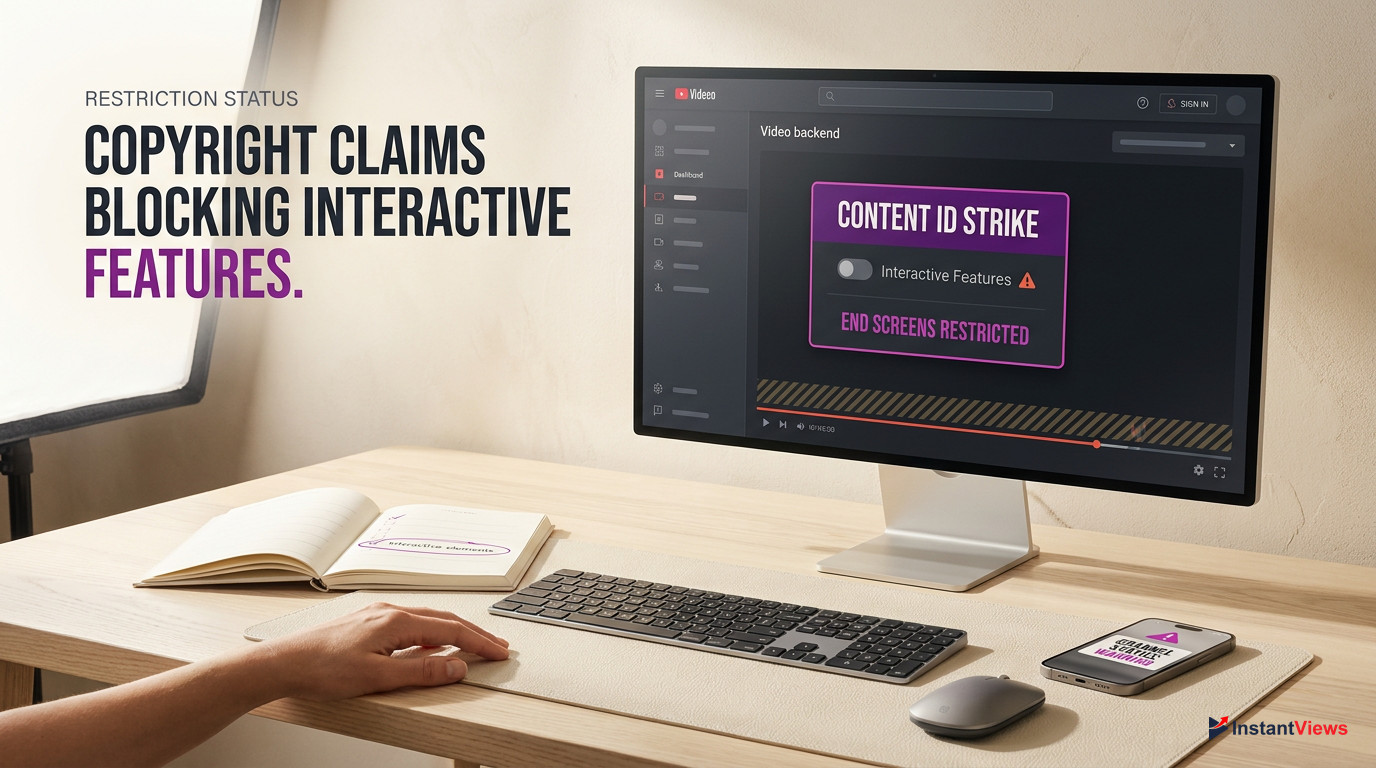
If your channel receives an active Community Guidelines strike, YouTube may temporarily disable your ability to add or edit end screens and custom thumbnails across your entire channel for up to 7 days.
When a video is blocked in certain territories due to a music or footage claim, the player environment often shifts to a restricted mode. In this mode, custom interactive elements, including info cards and end screens, are stripped away to prevent users from navigating away from the copyright notice or the restricted player state.
- Can restore full monetization rights.
- Re-enables missing end screens and cards.
- Clears channel standing and algorithm trust.
- Risk of a formal copyright strike if rejected.
- Can take up to 30 days to resolve.
- Video may remain restricted during the dispute.
To check if copyright is the root cause, navigate to YouTube Studio > Content. Look at the 'Restrictions' column next to your video. If it says 'Copyright', hover over it and click 'See details'. If the claim is severe enough to affect visibility or features, you will need to use the built-in Studio tools to trim out the copyrighted segment, mute the claimed song, or replace the music using the YouTube Audio Library. Once the claim is released, your end screens will automatically reappear.
Third-Party Editing Tools and Template Corruption
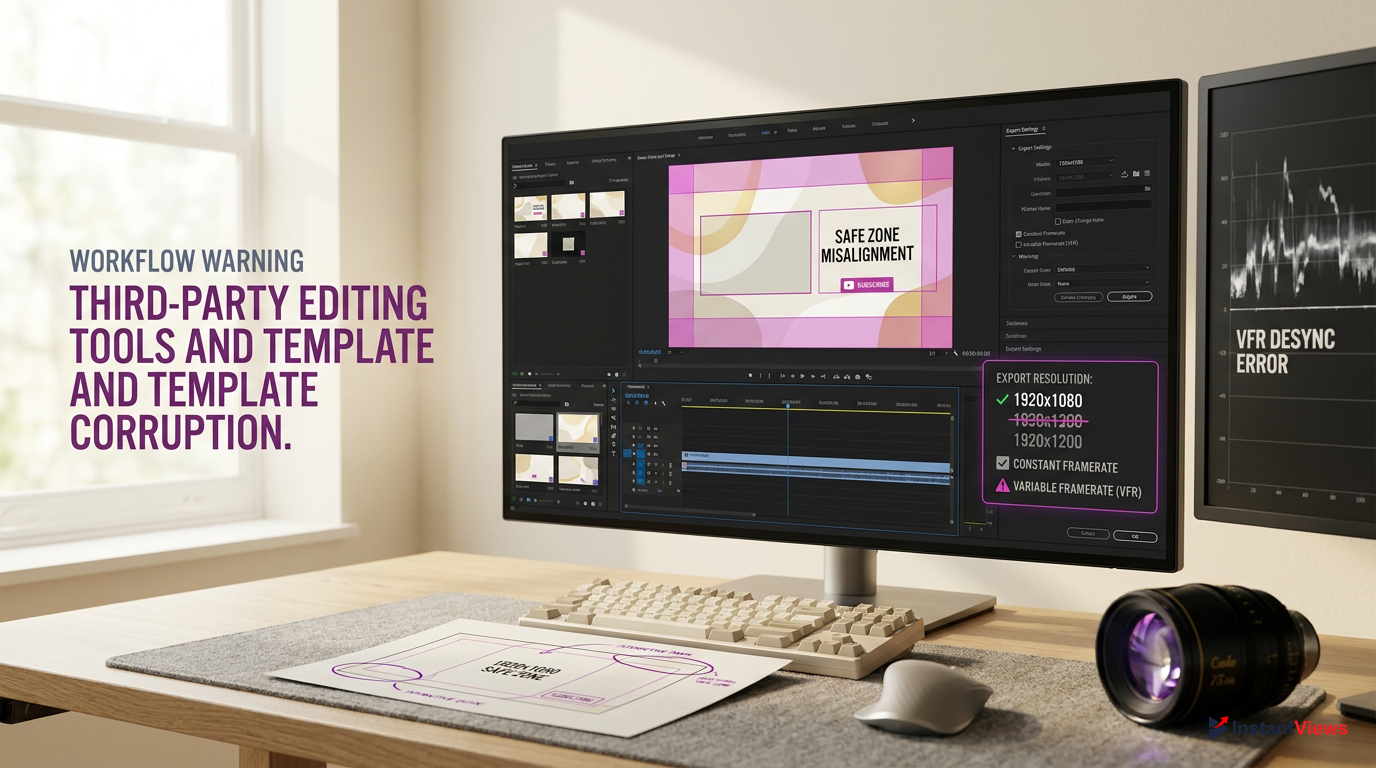
Many creators use external software to design beautiful, animated outro sequences. However, if your youtube end screens not showing properly align with your custom background, it might be an issue with how the template was exported. If you are using templates from Canva, Envato, or custom Premiere Pro Mogrts, a slight shift in export resolution or framerate can cause the YouTube player to misinterpret the safe zones.
Canva Outros
Ensure you are exporting exactly at 1920x1080. Custom resizing can break the 16:9 ratio required for end screens.
Premiere Pro
Avoid exporting with variable framerates (VFR), as this can cause the end screen timestamps to desync with YouTube's player.
When you design a custom background, you must leave specific blank areas for the clickable YouTube elements (the video boxes and the circular subscribe button). If your exported video file has visual glitches in the final 20 seconds, YouTube's processing engine might fail to overlay the interactive HTML5 elements correctly, resulting in a blank or broken outro.
Download YouTube's official End Screen Safe Zone PNG directly from their creator resources. Overlay this PNG on your top video track in your editor at 50% opacity while designing your outro, then delete it before your final export.
Furthermore, if you are using third-party browser extensions like TubeBuddy or VidIQ to bulk-apply end screen templates across hundreds of videos, API rate limits or software bugs can cause the application process to fail silently. The extension might say 'Applied Successfully', but checking the video manually reveals no end screen. Always spot-check 2-3 videos manually after running a bulk update tool to ensure the API correctly communicated with YouTube Studio.
The Ultimate 2026 End Screen Troubleshooting Checklist
Fixing the youtube end screens not showing error requires a systematic approach to eliminate variables. By checking the creator-side settings, the video file integrity, and the viewer-side environment, you can quickly pinpoint the exact cause of the missing elements. Below is the ultimate diagnostic workflow to restore your channel's interactivity and get your session time back on track.
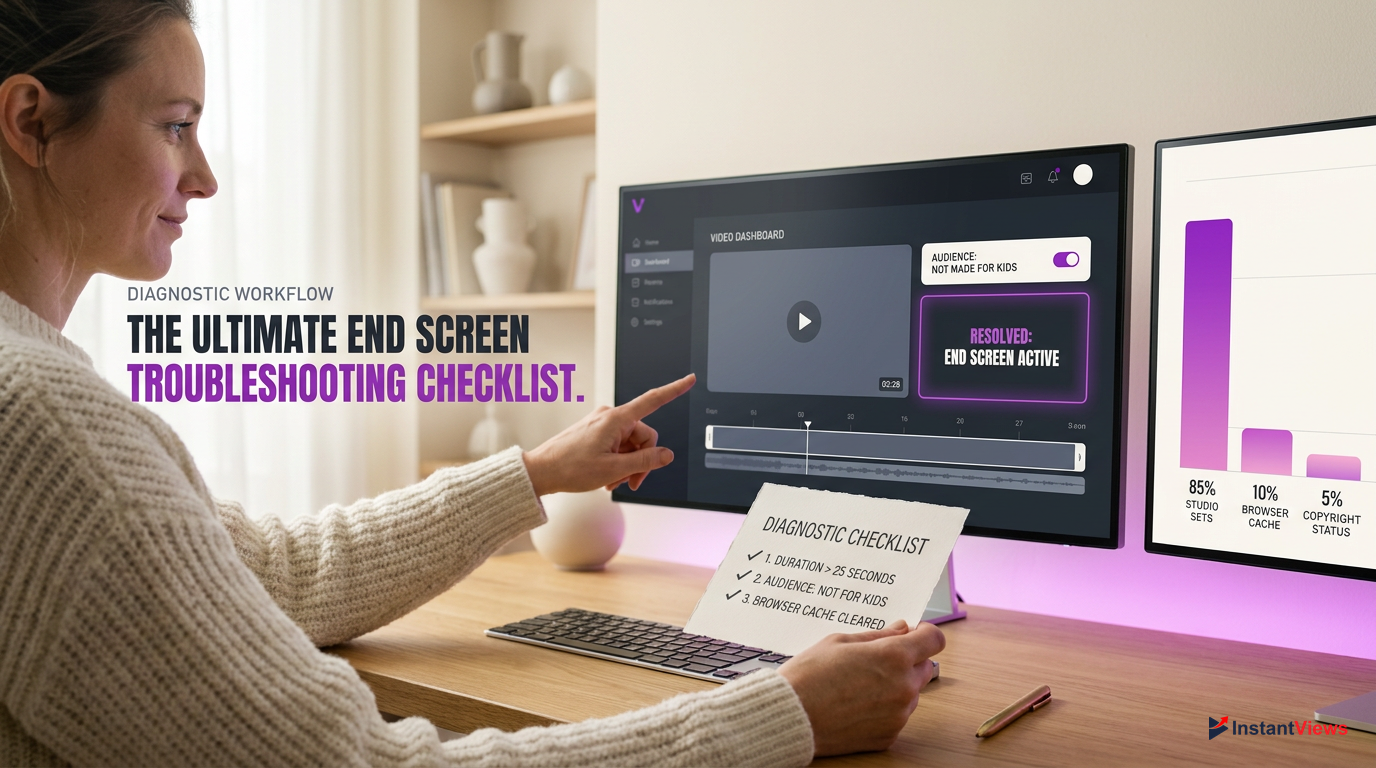
Start with the most common issues: verify the video is over 25 seconds long and ensure the audience setting is strictly set to 'Not made for kids'. These two settings account for the vast majority of missing end screens for new creators. If those are correct, move on to checking for aspect ratio issues and overlapping elements within the Studio editor.
- Video length is 0:26 or longer.
- Audience is set to 'Not made for kids'.
- Video aspect ratio is standard 16:9.
- Elements do not overlap with each other or watermarks.
- No active copyright claims restricting features.
- Tested viewing in an Incognito window with no ad blockers.
- Tested viewing on the latest version of the YouTube mobile app.
If you have exhausted this entire checklist and your end screens are still entirely missing, you may be experiencing a rare, localized server outage on YouTube's end. In these instances, the best course of action is to delete the end screen, wait 24 hours, and reapply it. If the problem persists, reaching out to @TeamYouTube on X (formerly Twitter) or utilizing the Creator Support chat in YouTube Studio is your final and most effective recourse.
Frequently Asked Questions
This usually happens if the video was automatically flagged as 'Made for Kids' by YouTube's algorithm post-upload, or if a severe copyright claim was applied during processing. Check your YouTube Studio 'Restrictions' and 'Audience' settings to verify and appeal if necessary.
No, traditional end screens do not show on YouTube Shorts. Because of the 9:16 vertical format and continuous scroll interface, YouTube disables end screens. Instead, you must use the 'Related Video' feature in YouTube Studio to link to other content.
Viewers cannot natively disable end screens within YouTube's standard settings. However, viewers using aggressive ad blockers, custom browser scripts, or specific third-party extensions can unintentionally block the HTML5 overlays that render the end screens on their desktop browsers.
The end screen editor will be greyed out and inaccessible if your video is shorter than 25 seconds, if the video is set to 'Made for Kids', or if the video is still in the very early stages of SD processing and hasn't generated a timeline yet.
End screens generally work on embedded videos, but their visibility can be affected by the embed code parameters. If the embed uses strict privacy modes or specific player controls (like disabling related videos), the end screen rendering may be suppressed by the host site.
YouTube allows end screens to be displayed for a minimum of 5 seconds and a maximum of 20 seconds at the very end of your video. For optimal viewer retention, a 10 to 15-second custom outro sequence is highly recommended.
Overlapping occurs when you place the video, playlist, or subscribe elements too close to each other or too close to the channel watermark in the bottom right corner. The YouTube Studio editor will highlight overlapping elements in red; they must be separated to save.
Standard Content ID claims (where revenue is shared) usually do not remove end screens. However, if the claim results in a global block, a viewing restriction in certain countries, or escalates to a full copyright strike, interactive features like end screens can be disabled.
Smart TV apps often run on simplified or older versions of the YouTube player infrastructure. If the TV's firmware or the YouTube app itself is outdated, it may struggle to render the interactive overlays. Viewers should update their TV app to the latest version.
You cannot add an end screen while a live stream is actively broadcasting. However, once the live stream ends and converts into a standard VOD (Video on Demand) archive on your channel, you can edit it in YouTube Studio and add an end screen.


