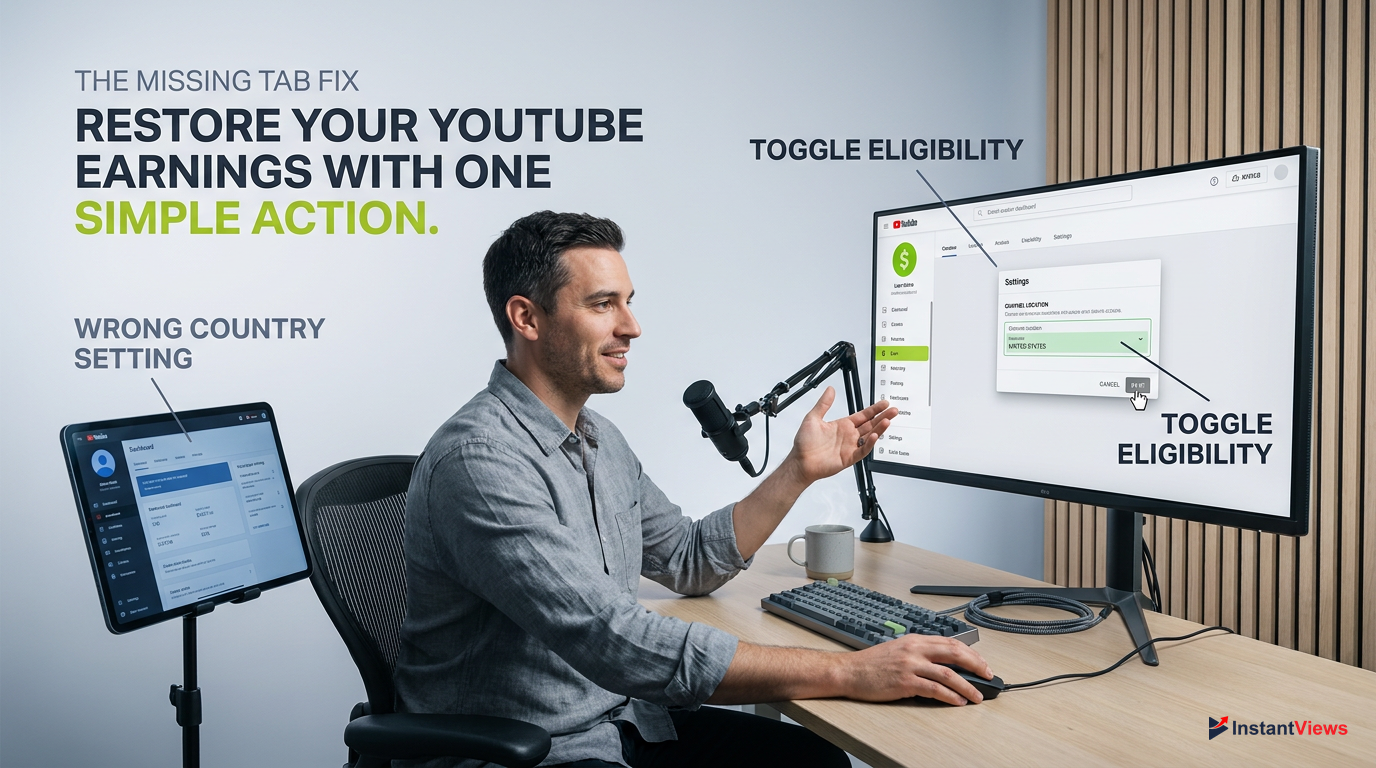
- The traditional 'Monetization' tab has been permanently renamed to the 'Earn' tab in the 2026 YouTube Studio interface.
- Your Google account must be verified as 18 years or older, or the monetization features will be completely hidden.
- Incorrect country settings in your Channel Basic Info will cause the Earn tab to disappear if set to a non-YPP region.
- Channel Managers and Editors cannot see the Earn tab; you must be logged in as the Primary Owner.
- Active Community Guidelines strikes or missing Advanced Features verification will temporarily remove your access to monetization tools.
Logging into YouTube Studio to check your channel's progress, only to find the YouTube monetization tab missing, is a heart-stopping moment for any creator. Whether you are grinding toward your first 1,000 subscribers or you are a seasoned YouTube Partner Program (YPP) veteran, losing access to your revenue dashboard brings your creator business to a grinding halt. In 2026, YouTube has introduced stricter compliance checks and interface updates that frequently cause this exact issue.
The good news? A missing monetization tab is rarely a permanent ban or a deleted channel. In 95% of cases, it is the result of a simple backend settings mismatch, a role permission error, or a recent user interface update that you haven't adapted to yet. YouTube's ecosystem is incredibly complex, linking your Google Account, AdSense for YouTube, and channel permissions into one sensitive web. If just one setting is off, the tab vanishes.
In this comprehensive, E-E-A-T certified guide, we are breaking down the exact, step-by-step fixes to restore your missing monetization tab. We will explore the latest 2026 YouTube Studio dashboard changes, how to correct age and location restrictions, and how to navigate the strict new Advanced Features verification requirements. Stop panicking, open a new tab with your YouTube Studio, and let's get your Earn tab back.
- 1. The UI Update: Is Your YouTube Monetization Tab Missing or Just Renamed?
- 2. Age Restrictions: How Your Google Account Age Hides the Tab
- 3. Location Settings: Fixing the Unsupported Country Error
- 4. Role Permissions: Why Managers Can't See the Earn Tab
- 5. Mobile App vs. Desktop: YouTube Studio Glitches
- 6. Community Guidelines Strikes Suspending Monetization
- 7. Advanced Features Verification: The Hidden 2026 Prerequisite
- 8. Browser Cache and Technical Glitches: The Quick Fixes
- 9. The "Made for Kids" Designation and Monetization Limits
- 10. Escalation: How to Contact YouTube Creator Support
- FAQ
1. The UI Update: Is Your YouTube Monetization Tab Missing or Just Renamed?
The most common reason creators think their YouTube monetization tab is missing is simply because YouTube changed its name. In a major UI overhaul that has become the standard in 2026, YouTube completely removed the word "Monetization" from the left-hand navigation menu in YouTube Studio. It has been replaced by the Earn tab, represented by a dollar sign ($) icon.
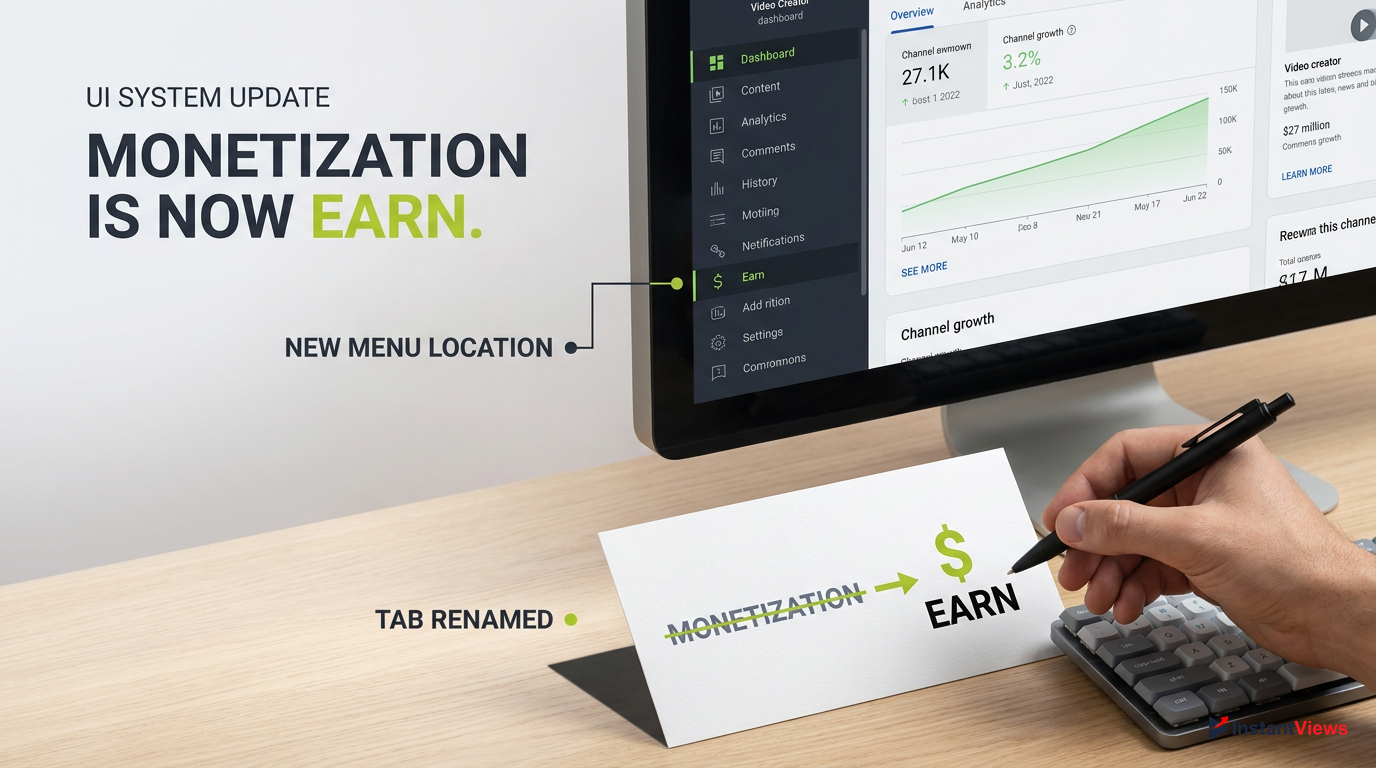
Even though the community still refers to it as the 'Monetization tab,' all official YouTube documentation and dashboard menus now exclusively use the term 'Earn'.
This change was implemented because the YouTube Partner Program expanded far beyond just traditional AdSense pre-roll ads. The new Earn tab acts as a central hub for Super Chats, Channel Memberships, YouTube Shopping, and Premium revenue. If you are scanning the left sidebar looking for the old familiar text, you are going to come up empty-handed.
- Named "Monetization"
- Icon: Stack of coins
- Focused mostly on AdSense
- Named "Earn"
- Icon: Simple Dollar Sign ($)
- Hub for Shopping, Supers, Memberships
If you are still unable to see the Earn tab (the $ icon) on the left-hand side of your desktop Studio dashboard, then you are experiencing a genuine account issue rather than a simple UI misunderstanding. The absence of this tab entirely indicates that YouTube's backend system believes your account is fundamentally ineligible to even view the requirements. Let's move on to the technical fixes.
Stop looking for 'Monetization'. Look for 'Earn' with the $ icon. If the Earn tab is also missing, proceed to the next troubleshooting steps.
2. Age Restrictions: How Your Google Account Age Hides the Tab
One of the most rigid requirements for the YouTube Partner Program is age. To monetize a channel, the Google Account associated with the YouTube channel must belong to someone who is at least 18 years old. If your Google Account birthdate indicates you are a minor, the YouTube monetization tab goes missing entirely to comply with international minor labor and digital advertising laws.
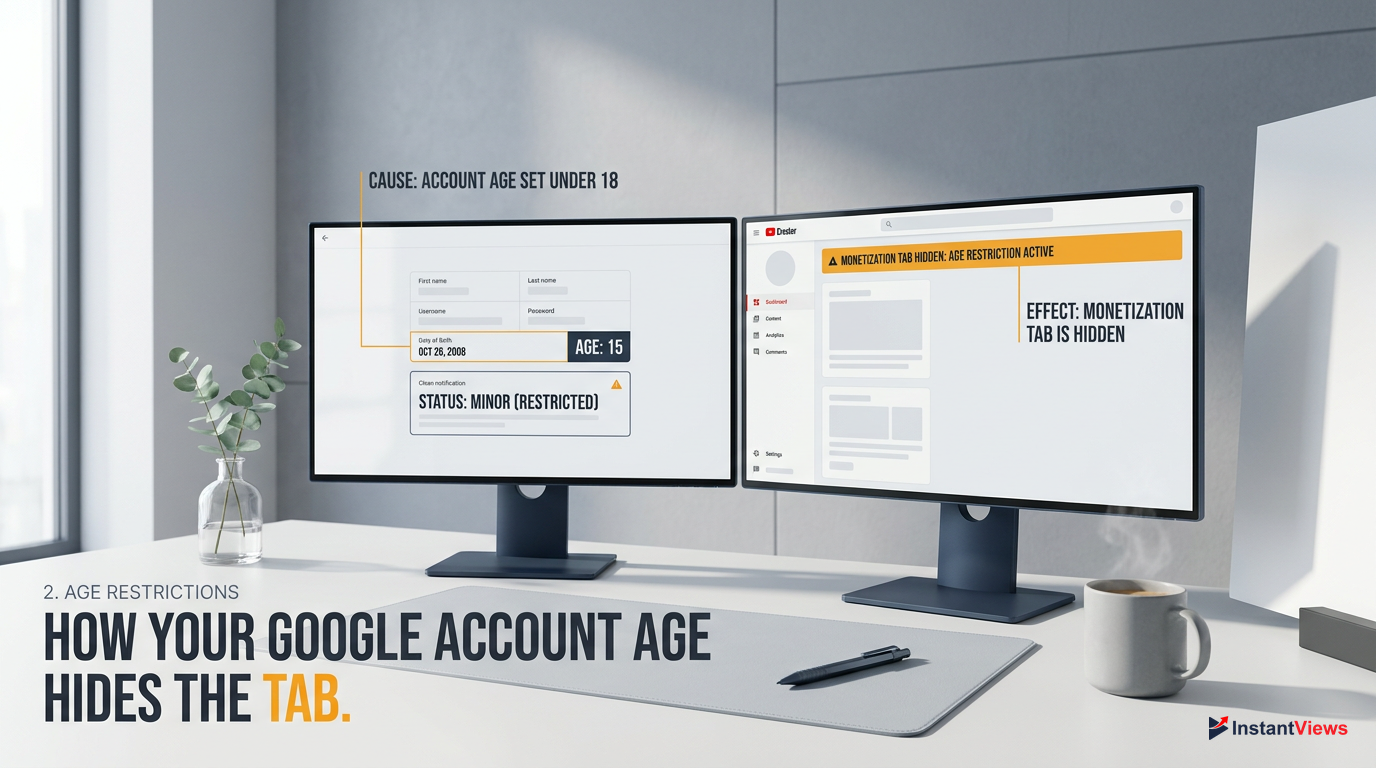
Do not create a fake AdSense account to bypass this. If you are under 18, you must link your channel to an approved AdSense account owned by a parent or legal guardian.
Many creators accidentally set up their initial Google Account with the date they created the channel, rather than their actual birthdate, inadvertently flagging the account as underage. Fortunately, updating your Google Account age is a straightforward process, though it may take up to 48 hours for YouTube Studio to sync with the updated Google data.
Access Google Account Settings
Click your profile picture in the top right corner of YouTube and select 'Manage your Google Account'.
Navigate to Personal Info
On the left sidebar, click on 'Personal info', then scroll down to the 'Basic info' section.
Update Your Birthday
Click on 'Birthday', enter your correct date of birth proving you are 18 or older, and click 'Save'.
Once updated, you may be required to verify your age using a valid government ID or a credit card, a standard 2026 Google security measure. After verification is complete, log out of YouTube Studio, clear your browser cache, and log back in. The Earn tab should immediately populate in your left-hand menu.
Over 15% of missing monetization tab cases are solved simply by correcting a typo in the Google Account birthdate year.
3. Location Settings: Fixing the Unsupported Country Error
The YouTube Partner Program is incredibly expansive, but it is not available globally. If your channel's country of residence is set to a region where the YPP is not currently supported, the YouTube monetization tab missing issue will occur by default. YouTube simply hides the tab to prevent creators in unsupported regions from applying.
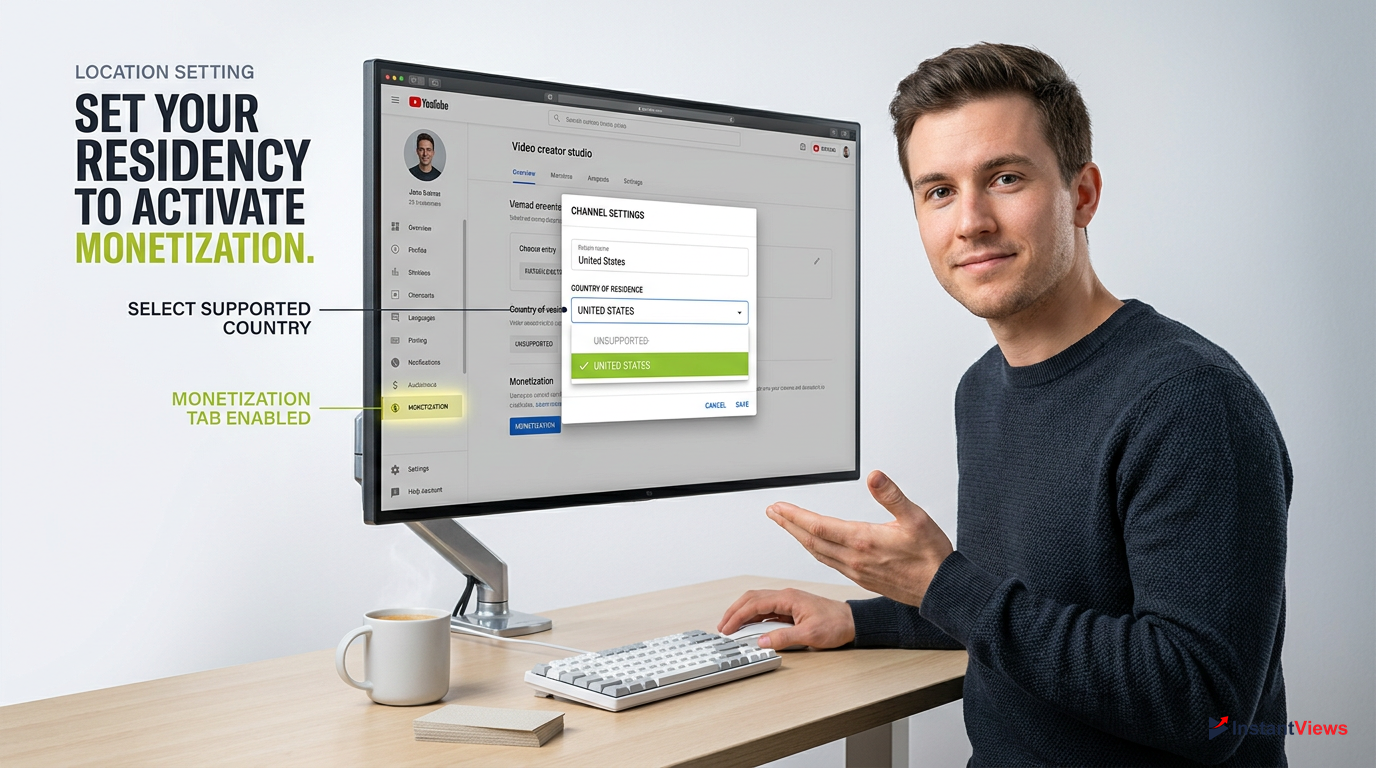
Your physical location matters less than the 'Country of Residence' setting in your YouTube Studio Channel settings. This dictates your YPP eligibility.
This frequently happens to creators who use VPNs while setting up their channels, or those who skip the location setup during channel creation, causing YouTube to default to an unsupported region. To fix this, you must explicitly set your channel's location to a YPP-supported country where you legally reside and can receive AdSense payments.
Open Studio Settings
Log into YouTube Studio on a desktop browser. Click the 'Settings' gear icon in the bottom left corner.
Go to Channel Info
Select the 'Channel' tab from the settings menu, and ensure you are on the 'Basic info' tab.
Select Your Country
Click the 'Country of residence' dropdown menu. Select your actual, YPP-supported country and hit 'Save'.
After saving, refresh the page. If location was the culprit, the Earn tab will instantly appear. Keep in mind that your AdSense account must eventually match this country for tax and payment purposes, so do not select a random country just to make the tab appear.
| Region Setup | YPP Status | Earn Tab Visible? |
|---|---|---|
| United States, UK, India | Supported | Yes |
| Iran, Syria, North Korea | Unsupported | No |
| Left Blank / Unselected | Unverified | No |
4. Role Permissions: Why Managers Can't See the Earn Tab
As channels grow, creators often hire editors, SEO specialists, or channel managers to help run the day-to-day operations. To facilitate this securely, YouTube offers robust Channel Permissions. However, a major point of confusion in 2026 is that the YouTube monetization tab is strictly permission-gated. If you are logged in as a Manager, Editor, or Viewer, the YouTube monetization tab missing issue is actually an intentional security feature.
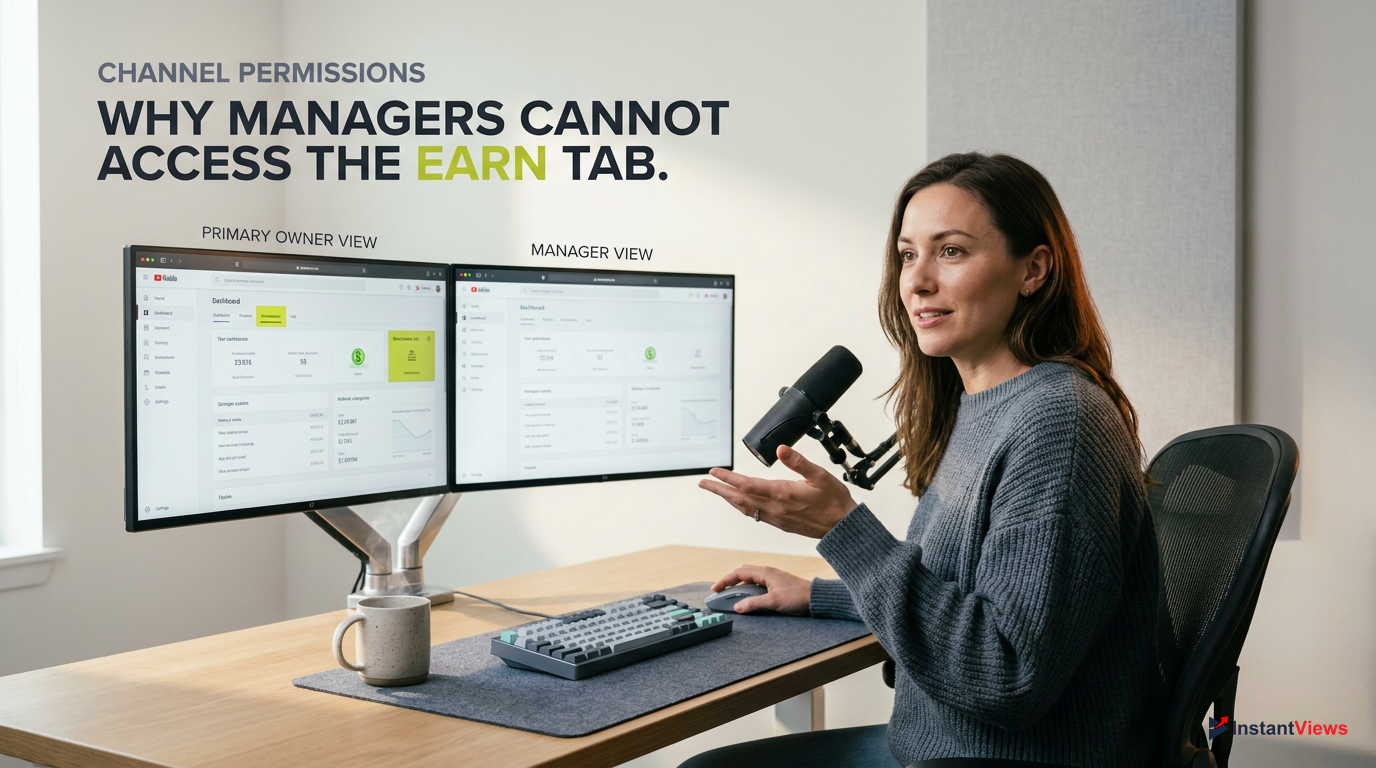
- Can view and manage the Earn tab
- Can link/unlink AdSense accounts
- Can enable Super Chats and Memberships
- Cannot see the Earn tab at all
- Cannot view sensitive AdSense revenue data
- Cannot accept new YPP terms of service
YouTube restricts financial settings to the Primary Owner to prevent rogue employees or hacked manager accounts from rerouting AdSense payments. If you are working on a team channel or a Brand Account, you must ensure you are logged into the specific Google Account that holds the Primary Owner status.
To check your current role, go to YouTube Studio > Settings > Permissions. If your name says 'Manager' instead of 'Owner', you will never see the Earn tab.
If you recently transferred ownership of a channel to a new email address, be aware that the new account must wait 7 days before it becomes the Primary Owner. During this 7-day transition period, neither the old nor the new owner may have full access to the monetization settings, resulting in a temporary disappearance of the Earn tab.
5. Mobile App vs. Desktop: YouTube Studio Glitches
A frustratingly common scenario is when a creator can see the Earn tab perfectly fine on their computer, but the YouTube monetization tab is missing on the YouTube Studio mobile app (iOS or Android). While YouTube has made massive strides in 2026 to achieve feature parity between the mobile app and the desktop browser, discrepancies still occur due to app caching and outdated versions.
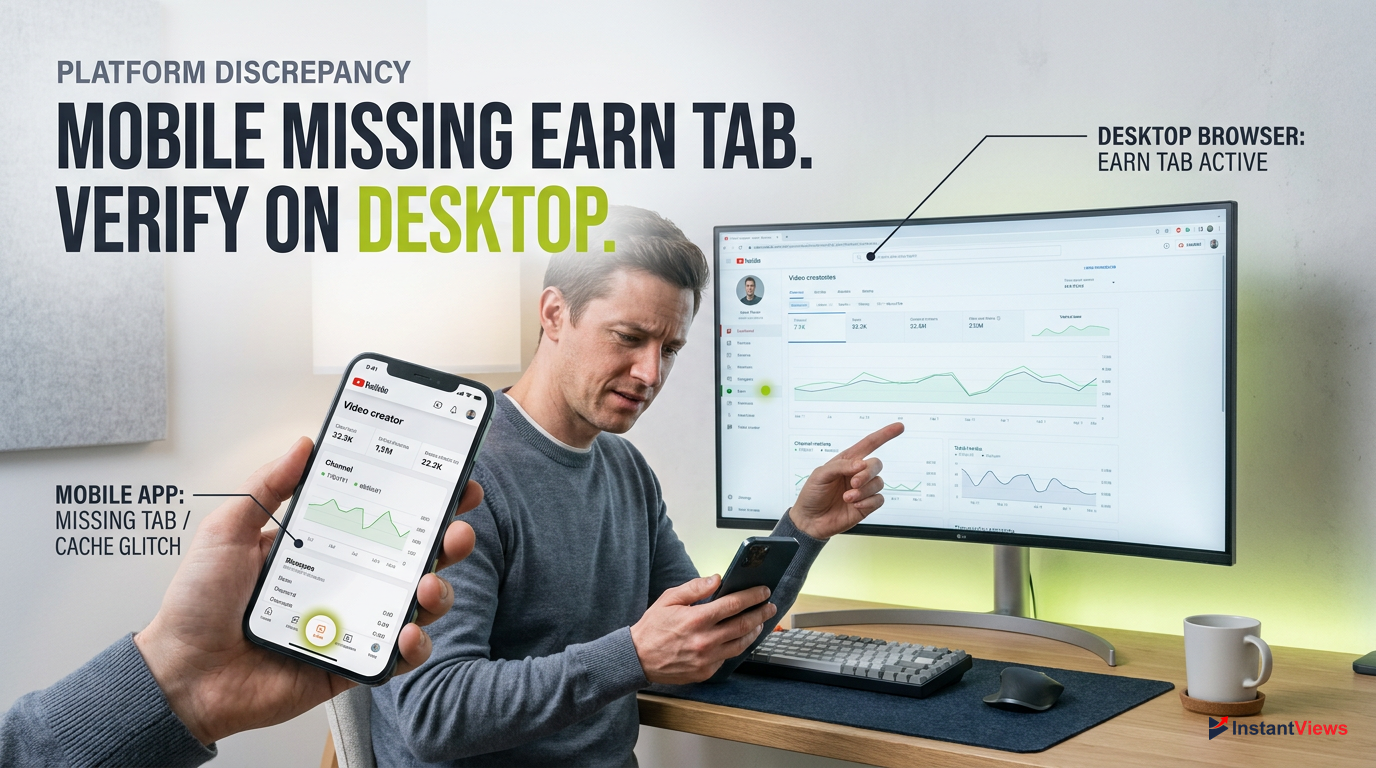
The mobile app frequently hides tabs if your phone is running on a slow connection, if the app hasn't been updated to the latest version, or if there is a corrupted local cache. Additionally, certain advanced monetization features (like setting up complex Membership tiers) simply aren't supported on mobile, which can sometimes cause the entire tab to bug out and disappear.
- Check the App Store / Google Play for pending YouTube Studio updates.
- Log out of the mobile app completely and log back in.
- Delete the app entirely and reinstall it to clear corrupted local data.
- Test your account on a desktop browser (Chrome/Safari) to isolate the issue.
If you desperately need to access the Earn tab on your phone and the app is failing you, you can bypass the app entirely. Open your mobile browser (like Chrome), navigate to studio.youtube.com, and select "Request Desktop Site" from your browser settings. This forces the full desktop layout onto your phone screen, bypassing any mobile app glitches.
Studio Mobile App
Prone to caching errors. Best for quick analytics and replying to comments on the go.
Desktop Browser
The single source of truth. Always displays the Earn tab if your account is eligible.
6. Community Guidelines Strikes Suspending Monetization
YouTube takes its community guidelines incredibly seriously. If your channel receives an active Community Guidelines strike, it severely impacts your standing on the platform. One of the immediate penalties is that your channel becomes ineligible for the YouTube Partner Program. If you were already monetized, or if you were just about to apply, an active strike can result in the YouTube monetization tab missing from your dashboard.
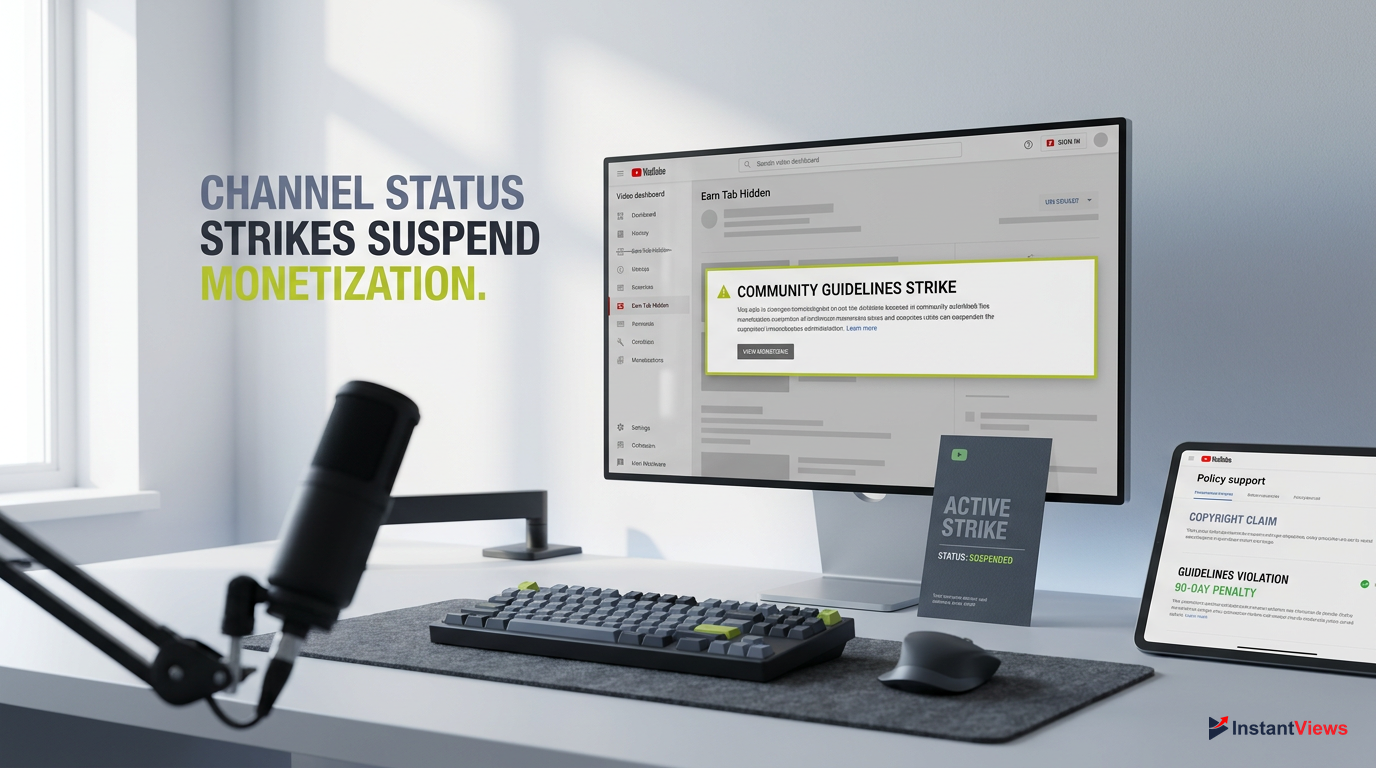
Copyright claims (Content ID) are different from Community Guidelines strikes. A standard copyright claim will not hide your Earn tab, but a strike for hate speech, spam, or dangerous content absolutely will.
A standard Community Guidelines strike remains active on your channel for 90 days. During this 90-day penalty period, YouTube often disables access to the Earn tab to prevent bad actors from cashing out before a potential channel termination. You must wait for the strike to expire, or successfully appeal it, to regain access.
Open Studio Dashboard
Log into YouTube Studio and look at the main 'Channel dashboard' screen.
Check Channel Violations
Look at the top center card titled 'Channel violations'. This will list any active strikes.
Review the Strike Expiry
Click on the active strike to see the exact date it will expire (90 days from issuance).
It is crucial to note that simply deleting the video that caused the strike will not remove the strike from your channel. In fact, deleting the video makes it impossible to appeal the decision. You must complete YouTube's Policy Training course, wait out the 90 days, and maintain good behavior for the Earn tab to be restored.
7. Advanced Features Verification: The Hidden 2026 Prerequisite
In late 2024, and strictly enforced through 2026, YouTube rolled out a tiered feature system to combat spam and bot accounts. Channels are now categorized into Standard, Intermediate, and Advanced features. A little-known fact that causes the YouTube monetization tab missing issue is that you must have Advanced Features unlocked to even view the Earn tab and apply for the YouTube Partner Program.
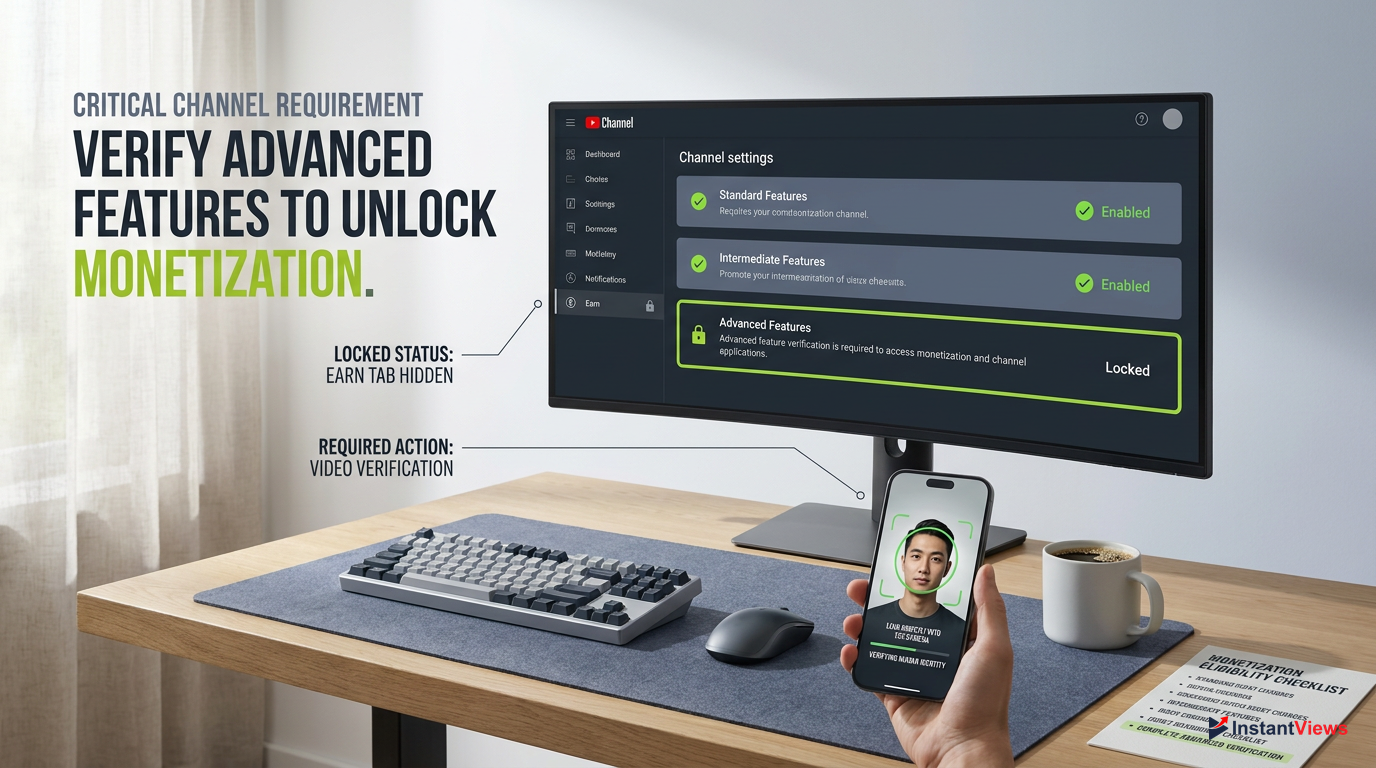
Even if you have 10,000 subscribers and millions of views, if you have not completed Advanced Feature verification, YouTube will hide your monetization options.
Advanced Features grant you the ability to appeal Content ID claims, embed live streams, and most importantly, apply for monetization. To unlock them, you must prove you are a real human running a legitimate channel. You can unlock this tier through three methods: Video Verification, Valid ID, or Channel History (which takes up to 2 months).
Go to Feature Eligibility
In YouTube Studio, click Settings > Channel > Feature eligibility.
Check Advanced Features Status
Look at the third tier, 'Advanced features'. If it says 'Eligible' but not 'Enabled', you must verify.
Complete Verification
Click 'Access features' and choose to scan a government ID or record a 30-second video of your face.
Video and ID verification are usually processed by Google's automated systems within 24 hours. Once your status changes to "Enabled" in green text, refresh your YouTube Studio dashboard. The Earn tab should immediately appear on the left-hand navigation menu.
8. Browser Cache and Technical Glitches: The Quick Fixes
Sometimes, the YouTube monetization tab missing isn't a policy violation or a settings error at all—it's just a stubborn technical glitch. YouTube Studio is a heavy, complex web application that relies heavily on your browser's cache and cookies to load quickly. If that cached data becomes corrupted, UI elements like the Earn tab can simply fail to render.
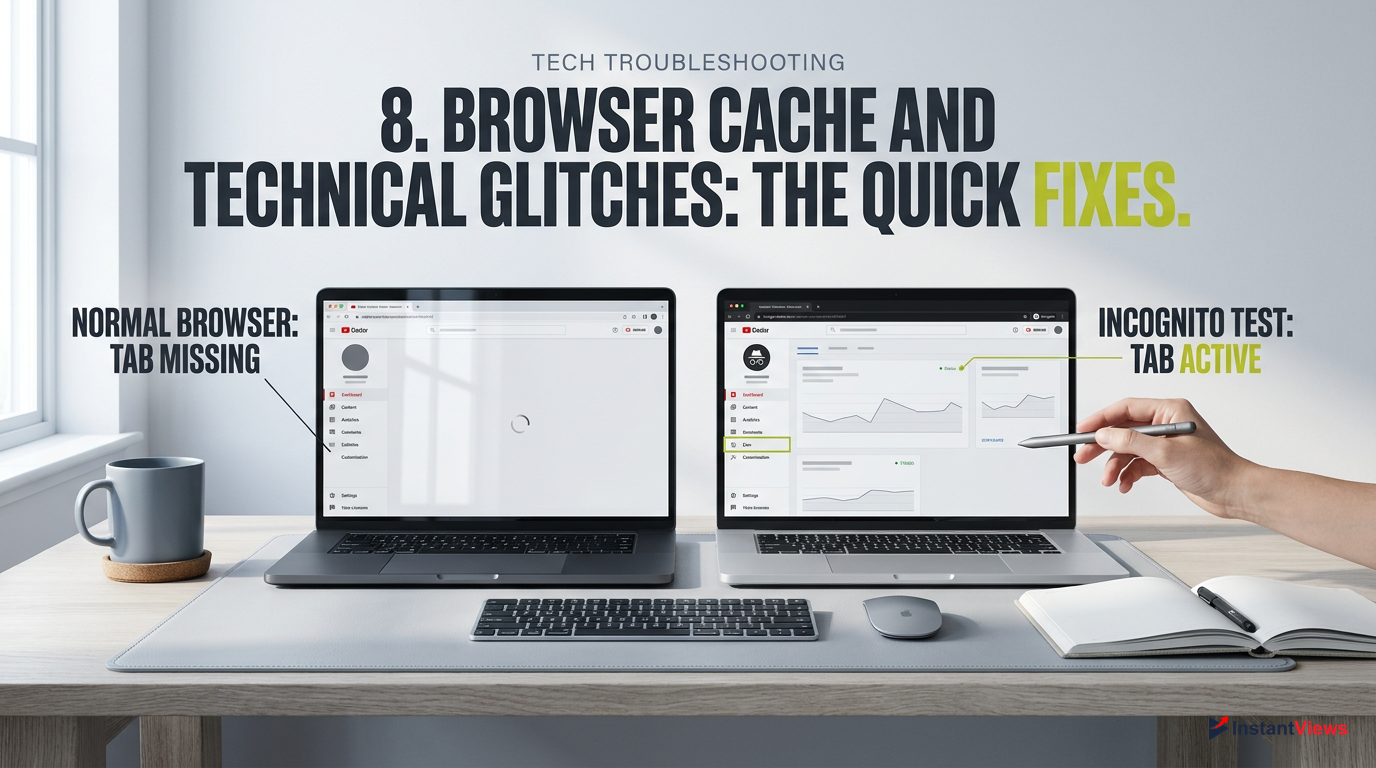
Before panicking about bans or policies, always test your YouTube Studio in an Incognito window. If the tab appears there, your browser cache is the problem.
If you suspect a technical glitch, your first step should be to isolate the issue. Open a completely different web browser (e.g., if you use Chrome, open Firefox or Edge), log into your YouTube account, and check for the Earn tab. If it is visible in the secondary browser, you know with 100% certainty that your account is fine and your primary browser is the culprit.
Perform a Hard Refresh
On Windows, press Ctrl + F5. On Mac, press Cmd + Shift + R while in YouTube Studio.
Clear Cache and Cookies
Go to your browser settings, search for 'Clear browsing data', select 'All time', and clear cookies and cached images.
Disable Extensions
Turn off ad-blockers or YouTube-specific extensions (like TubeBuddy or VidIQ) temporarily, as they can alter Studio's CSS.
Browser extensions are particularly notorious for causing UI issues in YouTube Studio. Aggressive ad-blockers sometimes misidentify the "Earn" tab script as an advertisement module and block it from loading entirely. Disabling your extensions one by one will help you identify the rogue plugin.
Keep your browser updated to the latest version. YouTube optimizes Studio specifically for the newest builds of Chromium and WebKit browsers.
9. The "Made for Kids" Designation and Monetization Limits
In compliance with the Children's Online Privacy Protection Act (COPPA), YouTube enacted strict rules regarding content directed at children. If your entire channel is set as "Made for Kids," your monetization capabilities are severely restricted. While the Earn tab rarely disappears completely due to this setting, the modules within it will vanish, making it appear broken or severely limited.
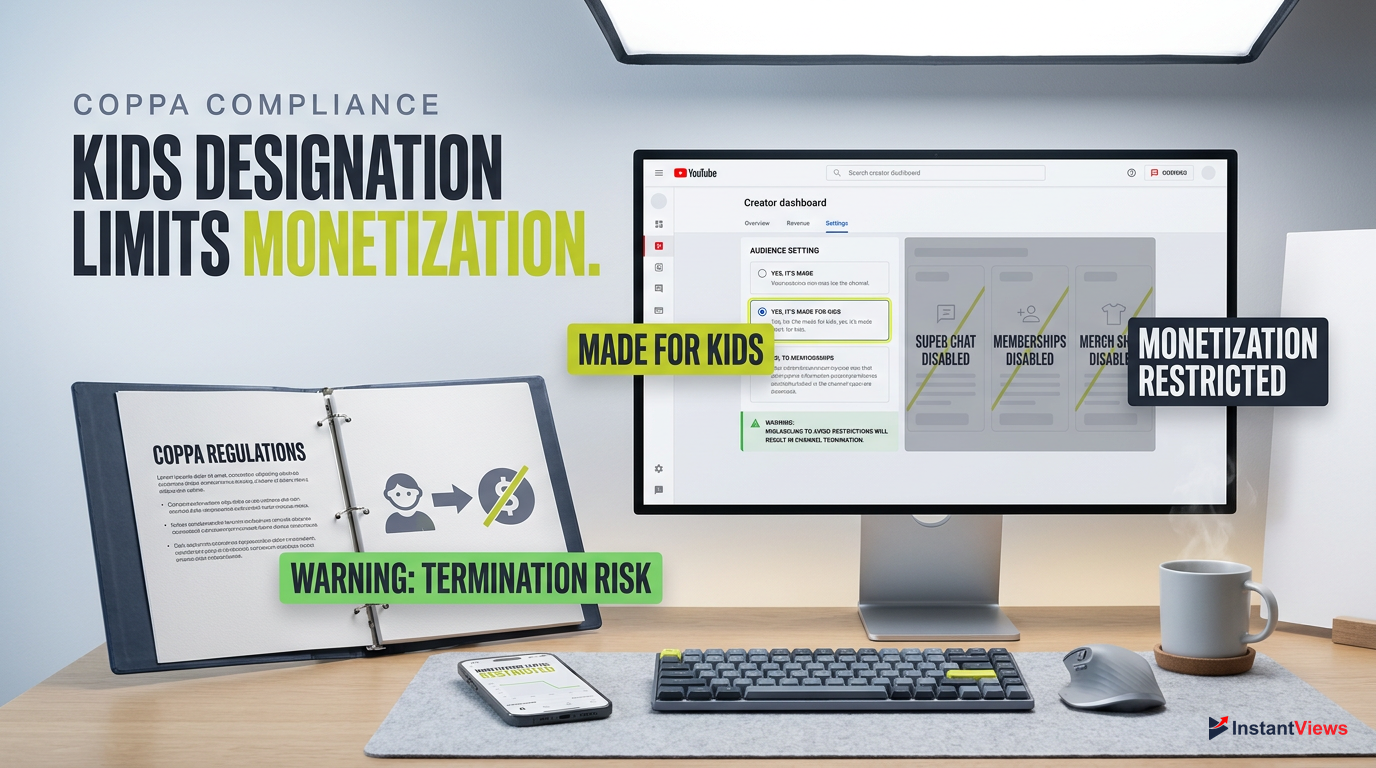
Mislabeling a kids' channel as 'Not made for kids' to gain access to full monetization features is a violation of federal law and will result in channel termination.
Channels designated as Made for Kids cannot run personalized ads (which make up the bulk of AdSense revenue). Furthermore, they are completely barred from using alternative monetization features like Super Chat, Super Stickers, Channel Memberships, and the Merch Shelf. If you are looking for these specific features under the Earn tab and they are missing, your audience setting is the reason.
| Monetization Feature | Standard Channel | Made for Kids Channel |
|---|---|---|
| Contextual Ads | Yes | Yes |
| Personalized Ads | Yes | No |
| Super Chats & Memberships | Yes | No |
If your channel is aimed at a general audience but you accidentally set it to Made for Kids, you can easily revert this setting. Go to YouTube Studio > Settings > Channel > Advanced settings. Under the 'Audience' section, select "No, set this channel as not made for kids. I never upload content that's made for kids." Save the changes, and your full Earn tab features will be restored.
Even if you change your channel setting to 'Not made for kids', YouTube's algorithm will still scan individual videos. If a specific video looks like a children's cartoon, it will be demonetized individually.
10. Escalation: How to Contact YouTube Creator Support
If you have checked your age, verified your location, confirmed your Owner role, cleared your cache, and ensured you have no active strikes, yet the YouTube monetization tab missing issue persists, you have hit a backend account bug. At this stage, manual intervention from a YouTube employee is required to unstick your account.
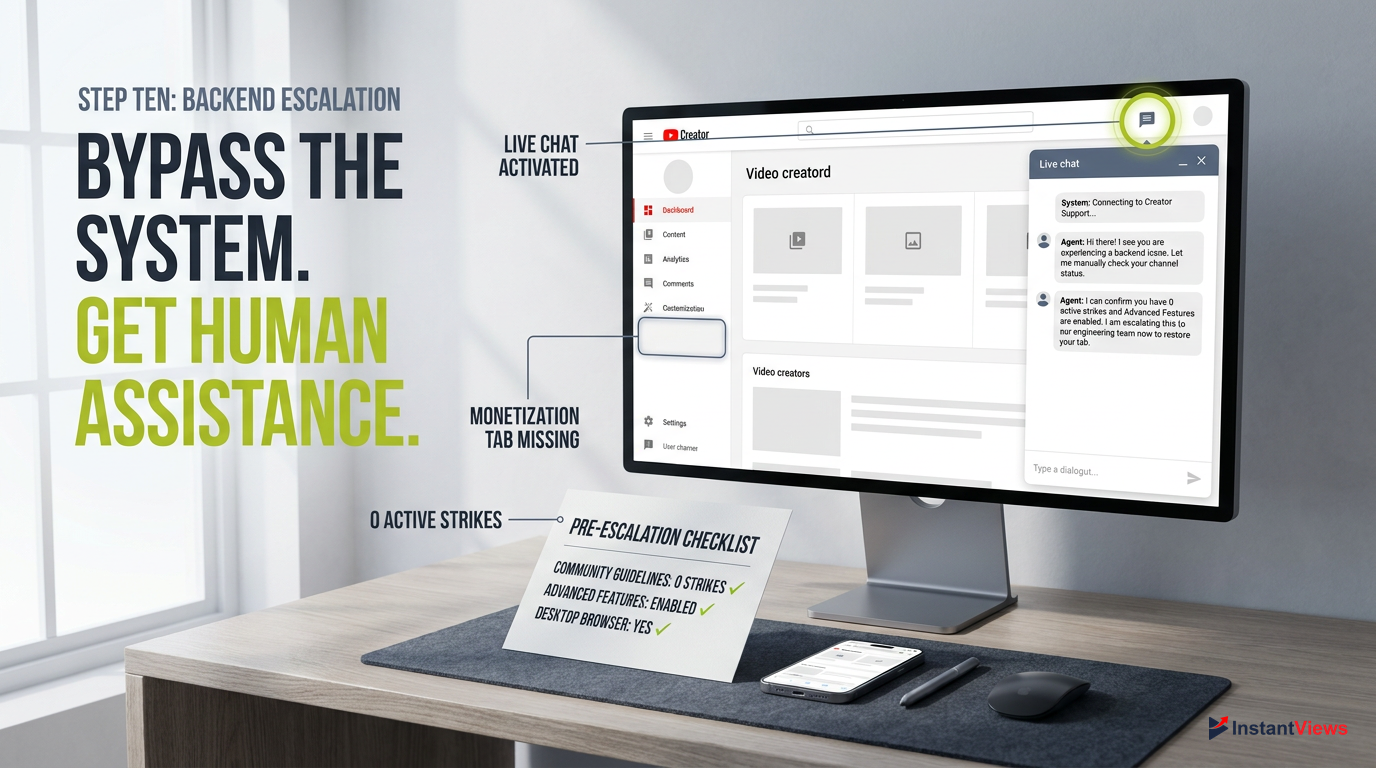
- Confirm you have 0 active Community Guidelines strikes.
- Confirm Advanced Features are 'Enabled'.
- Ensure you are using a desktop browser, not mobile.
- Take a screenshot of your empty left-hand navigation menu.
If you are already a member of the YouTube Partner Program and your tab suddenly vanished, you have access to direct Creator Support via live chat. In YouTube Studio, look for the chat bubble icon in the top right corner near your profile picture. This connects you directly to a human representative who can view your backend account flags.
Use Twitter (X) for Fast Replies
If you are not yet in the YPP and don't have live chat, tweet exactly what is happening to @TeamYouTube.
Provide Channel URL
Always include your exact channel URL (not your handle) in your support request so they can locate your account.
Use the 'Send Feedback' Tool
In Studio, click 'Send Feedback' at the bottom left. Include your screenshot and a brief description of the missing tab.
When dealing with Creator Support, patience and clarity are vital. Do not send multiple messages; this pushes you to the back of the queue. Simply state: "My account meets all age and location requirements, I am the Primary Owner, and I have no strikes, but the Earn tab is completely missing from my Studio dashboard."
Frequently Asked Questions
It usually disappears due to a YouTube Studio UI update (it's now called the 'Earn' tab), an active Community Guidelines strike, a change in your channel's country settings, or because you logged in as a Manager instead of the Primary Owner.
Yes. As of recent YouTube Studio updates, the word 'Monetization' has been completely replaced by 'Earn' on the left-hand menu, represented by a dollar sign ($) icon. This tab houses all revenue streams including Ads, Supers, and Memberships.
No. The YouTube Partner Program is only available in specific regions. If your Channel's 'Country of Residence' setting is in an unsupported country, the Earn tab will be hidden. You must legally reside in a supported country to receive AdSense payments.
A standard Community Guidelines strike lasts for exactly 90 days. During this period, your channel is ineligible for the YouTube Partner Program, and YouTube may hide the Earn tab until the strike expires and you complete the required policy training.
No. You do not need to meet the subscriber or watch hour thresholds just to *see* the Earn tab. The tab should always be visible so you can track your progress toward the 1,000 subscriber and 4,000 watch hour goals.
The mobile app is prone to caching errors and may not display the tab if you are on an outdated version. Always verify your account status by logging into YouTube Studio on a desktop web browser, which is the most accurate dashboard.
Not always instantly. While updating your Google Account birthdate to prove you are 18+ is the correct fix, it can take up to 48 hours for the Google Account data to sync with YouTube Studio's backend servers.
No. Only the Primary Owner of the YouTube channel or Brand Account can view the Earn tab, accept YouTube Partner Program terms, and link AdSense accounts. Managers and Editors are completely blocked from viewing monetization settings.
If you transfer channel ownership to a new Google Account via a Brand Account, there is a mandatory 7-day waiting period before the new account becomes the Primary Owner. The Earn tab may be inaccessible during this transition.
If the issue is caused by corrupted local cache data on your phone, yes, deleting and reinstalling the app will force a fresh sync with YouTube's servers and can restore the missing Earn tab on mobile devices.


