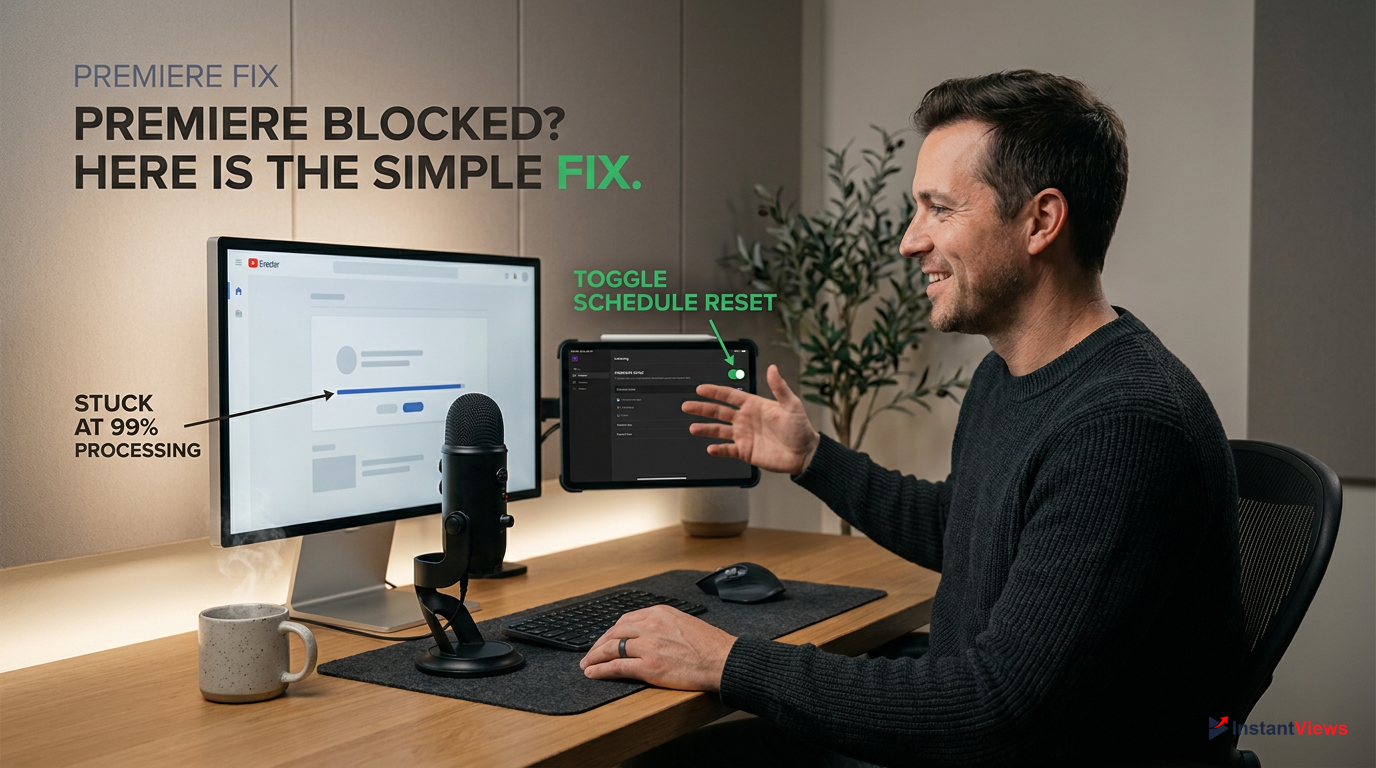
- Video processing stalls, especially with 4K and AV1 codecs, are the #1 reason premieres fail to launch.
- Browser extensions like strict ad-blockers can break the YouTube Studio scheduling interface.
- Active Community Guideline strikes will instantly revoke your ability to host a YouTube Premiere.
- Time zone mismatches in your device settings can cause premieres to launch hours early or late.
- Uploading your video at least 24 hours in advance is the safest way to prevent premiere glitches.
You have spent weeks scripting, filming, and editing your latest video. You hyped up your audience, scheduled the launch, and watched the countdown clock tick closer to zero. But when the moment arrives, disaster strikes: your YouTube Premiere is not working. The video is stuck on processing, the countdown loops endlessly, or the premiere simply publishes as a standard video without the live chat experience. It is a creator's worst nightmare, leading to lost momentum and confused subscribers.
In 2026, YouTube's backend architecture is more complex than ever. With the platform's aggressive push toward AV1 video encoding, stricter AI-content disclosure guidelines, and heavily updated YouTube Studio React interfaces, the points of failure for scheduled content have multiplied. A broken premiere isn't just an annoyance; it actively hurts your early engagement metrics, which are critical for the algorithm to push your content to the broader Browse and Suggested feeds.
If you are currently staring at a stalled premiere, do not panic. Whether the "Set as Premiere" button is missing, your video is stuck at 99% processing, or the live chat refuses to load, this guide has you covered. We have reverse-engineered the most common YouTube Studio glitches to bring you exact, step-by-step solutions. Let's dive into diagnosing exactly why your YouTube Premiere is not working and implement the concrete fixes to get your video live.
- Understanding Why Your YouTube Premiere Is Not Working
- Fix 1: Resolve Video Processing and Encoding Stalls
- Fix 2: Correct Scheduling and Time Zone Mismatches
- Fix 3: Clear Browser Cache and Disable Conflicting Extensions
- Fix 4: Address Account Strikes and Feature Eligibility
- Fix 5: Fix "Premiere Button Missing" (Visibility Settings)
- Fix 6: Resolve Mobile App Premiere Glitches (iOS/Android)
- Fix 7: Troubleshoot Premiere Countdown Theme Errors
- Advanced Fix: Re-uploading vs. Editing Existing Drafts
- Best Practices to Prevent YouTube Premiere Failures in 2026
- FAQ
Understanding Why Your YouTube Premiere Is Not Working
Before diving into the technical fixes, it is crucial to understand the underlying mechanics of how YouTube processes scheduled content in 2026. A YouTube Premiere is essentially a hybrid between a standard Video on Demand (VOD) and a Livestream. When you schedule a premiere, YouTube's servers must complete several background tasks: encoding the video into multiple resolutions (SD, HD, 4K), generating the specialized two-minute countdown theme, and provisioning a live chat server instance dedicated specifically to your video's URL.
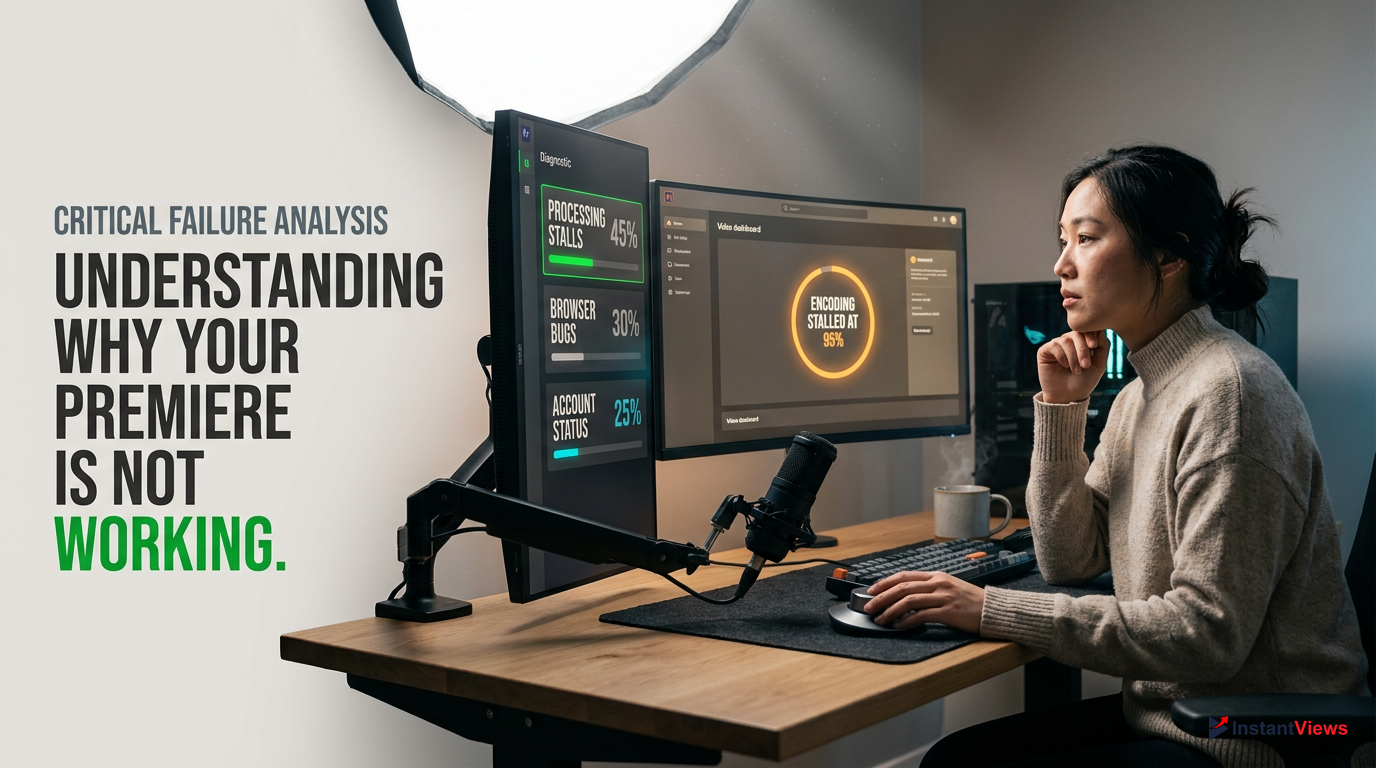
When a youtube premiere not working scenario occurs, it almost always traces back to a failure in one of these three core pillars. For instance, if YouTube's ingestion servers are overwhelmed, your video might finish its Standard Definition (SD) processing but stall on High Definition (HD). A premiere cannot legally initiate its countdown sequence unless the HD processing phase is 100% complete. Furthermore, the 2026 rollout of the AV1 codec means higher compression efficiency but significantly longer server-side rendering times.
YouTube's 2026 algorithm requires both SD and HD processing to be completely finished before a Premiere can trigger. If your video is stuck on "Checking" or "Processing HD," the countdown will indefinitely stall.
Beyond server-side encoding, user-end errors are incredibly common. Corrupted browser caches, aggressive privacy extensions blocking YouTube Studio's JavaScript payloads, and hidden account strikes can silently disable the Premiere functionality. By isolating whether your issue is server-side (processing), client-side (browser), or account-side (strikes), you can apply the exact fix needed to salvage your launch.
Fix 1: Resolve Video Processing and Encoding Stalls
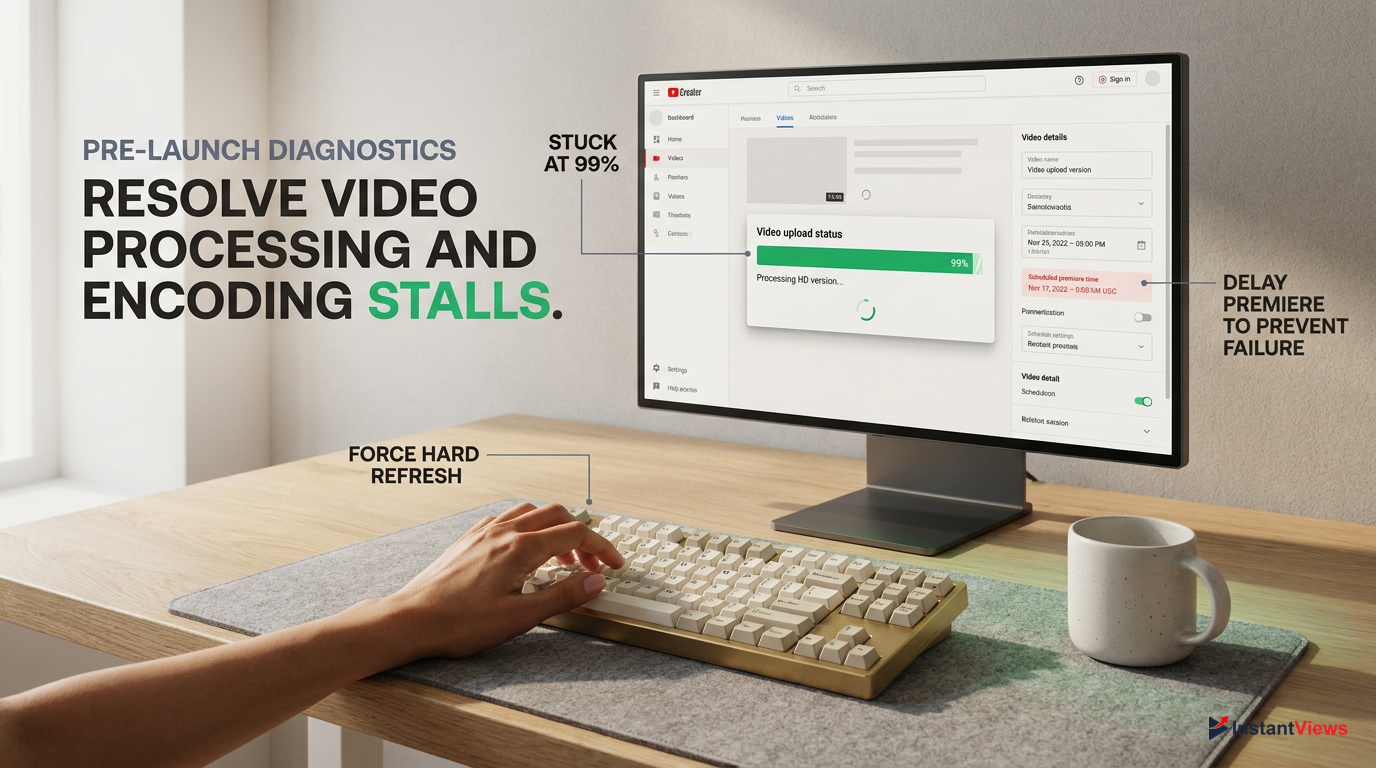
The most frequent culprit behind a failed premiere is a stalled processing pipeline. In YouTube Studio, you will typically see this manifested as a progress bar stuck at 99%, or a persistent "Processing HD version" notification that refuses to clear. If the scheduled time arrives and the video hasn't finished processing, the premiere will fail to launch, leaving your audience staring at a blank screen or a "Starting Soon" loop.
Check Processing Status
Navigate to YouTube Studio > Content. Hover over your scheduled video and look at the 'Visibility' column. If it says 'Processing', do not edit the video.
Force a Studio Refresh
Sometimes the UI desyncs from the server. Press Ctrl+F5 (Windows) or Cmd+Shift+R (Mac) to hard-refresh the YouTube Studio page and fetch the true server status.
Delay the Premiere
If you are within 15 minutes of launch and HD processing is incomplete, click 'Edit Draft', navigate to the 'Visibility' tab, and push the scheduled time back by 1 hour to allow servers to catch up.
In 2026, exporting your videos in highly complex formats (like ProRes or uncompressed AVI) forces YouTube's ingestion engines to work overtime. To minimize processing stalls, always render your final video in H.264 or H.265 (HEVC) MP4 format with a constant bitrate before uploading. This aligns perfectly with YouTube's native ingestion standards, drastically reducing the time your video spends in the processing queue.
Never close the browser tab during the initial SD upload phase. While HD/4K processing happens on YouTube's servers, the initial upload relies entirely on your active browser connection. Closing it will corrupt the file and permanently break the Premiere.
If your video has been stuck on "Processing HD" for more than 12 hours, the encoding job has likely crashed on YouTube's end. In this specific scenario, tweaking the schedule will not help. You must delete the draft entirely and re-upload the original file. To avoid losing your scheduled URL, you can try using the "Replace Video" function if your channel has access to that advanced feature.
Fix 2: Correct Scheduling and Time Zone Mismatches
Have you ever scheduled a premiere for 5:00 PM, only to have it unexpectedly launch at 12:00 PM, or fail to launch at all? This is a classic symptom of a time zone synchronization error between your local operating system, your browser, and YouTube's backend servers. When a youtube premiere not working issue involves incorrect timing, it usually means the Studio interface logged the schedule in Coordinated Universal Time (UTC) instead of your local time.
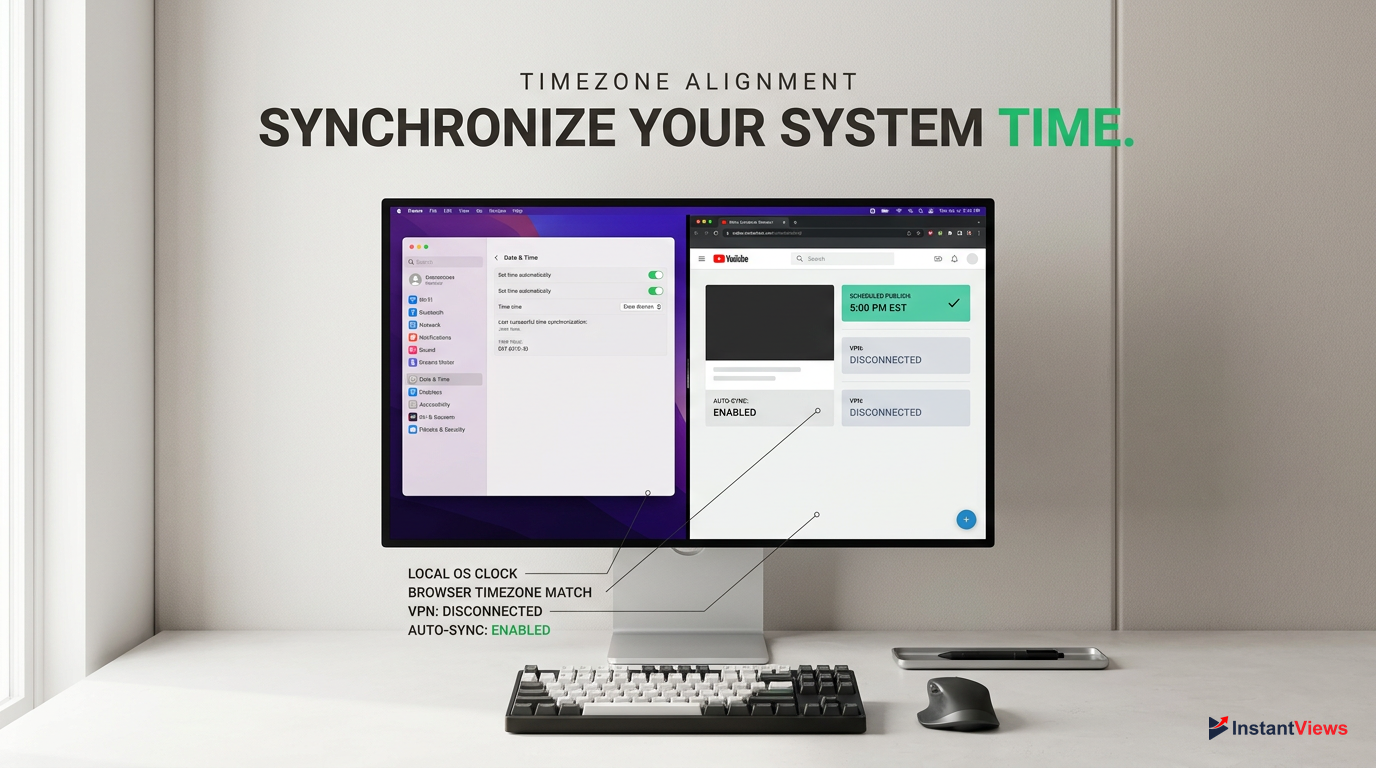
YouTube Studio relies on your browser's local time data to display schedules. If you are using a VPN or if your PC's clock is manually set rather than synced to a time server, the Premiere will misfire.
To fix this, you need to ensure absolute parity across your system. First, disable any active Virtual Private Networks (VPNs) that might be spoofing your location to a different country. Next, open your computer's Date & Time settings and ensure "Set time automatically" is toggled on. Once your system time is verified, you must reset the premiere schedule within YouTube Studio to force the system to register the correct local time.
Access Visibility Settings
Go to YouTube Studio > Content > Details (pencil icon) > Visibility.
Reset the Schedule
Change the visibility from 'Schedule' back to 'Save or publish' and select 'Private'. Click Save. This clears the buggy time data.
Re-apply the Premiere
Open Visibility again, select 'Schedule', pick your exact date and local time, check 'Set as Premiere', and hit Save.
By toggling the video back to Private, you effectively wipe the slate clean. This forces YouTube to generate a fresh scheduling token based on your newly corrected browser time. Always double-check the final scheduled time displayed on the public watch page (using an incognito window) to confirm the countdown aligns with your intended launch hour.
Fix 3: Clear Browser Cache and Disable Conflicting Extensions
In 2026, YouTube Studio is a heavy, React-based web application that relies on continuous background scripts to communicate with YouTube's servers. If you find that the "Set as Premiere" checkbox is unclickable, the save button is greyed out, or the scheduling calendar refuses to open, you are almost certainly dealing with a browser-level conflict. The most common offenders are aggressive ad-blockers, anti-tracking extensions, and corrupted cache files.
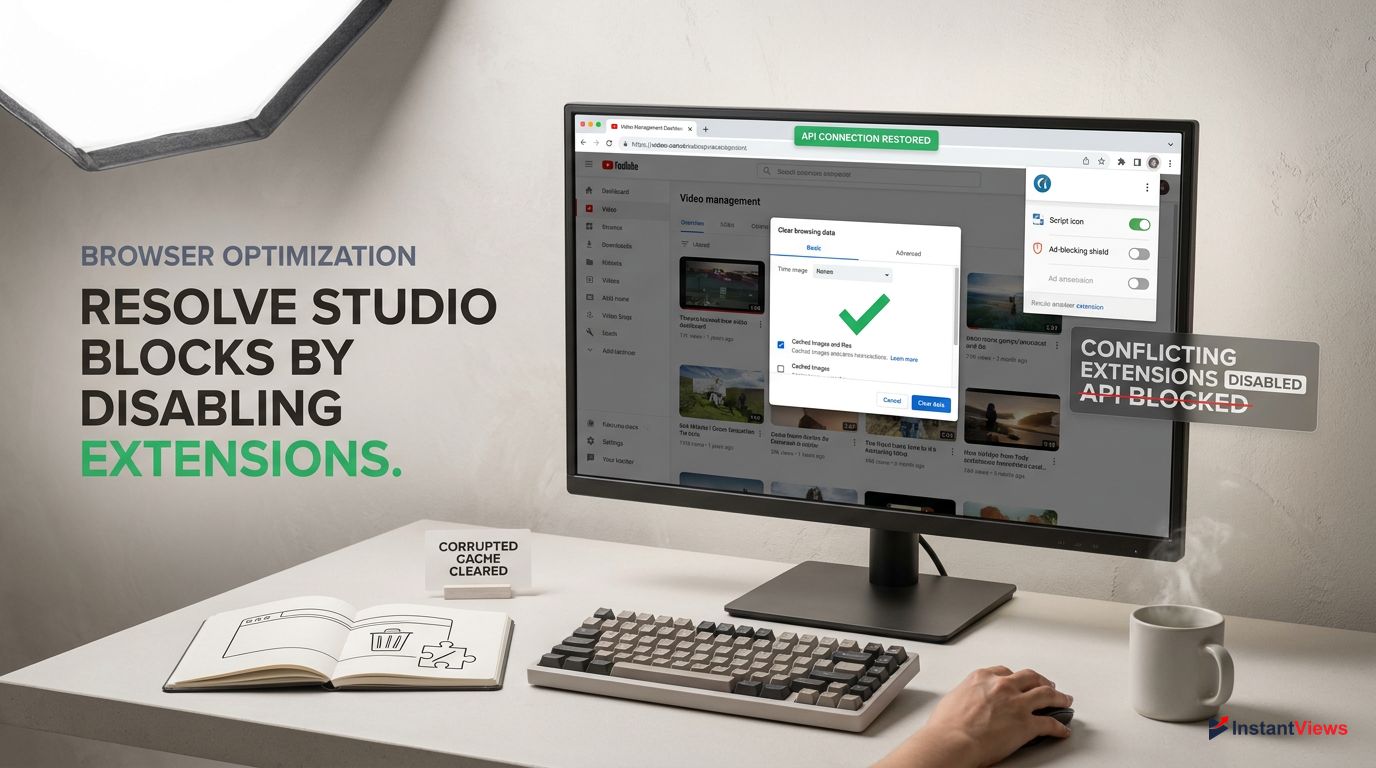
- uBlock Origin / AdBlock Plus (Disable specifically for studio.youtube.com)
- Privacy Badger / Ghostery (Can block essential tracking scripts used by Studio)
- Grammarly / LanguageTool (Known to interfere with text input fields in the Details tab)
- Custom YouTube UI modifiers (e.g., Return YouTube Dislike, Enhancer for YouTube)
When these extensions block YouTube's API calls, the Studio interface fails to send the necessary "Premiere=True" boolean flag to the server. Consequently, your video might just publish as a standard VOD or remain stuck in draft mode. The fastest way to diagnose if an extension is causing your youtube premiere not working issue is to bypass them entirely using a clean browsing environment.
Before clearing your entire browser history, open an Incognito or Private Browsing window. Log into YouTube Studio and try scheduling the premiere there. If it works perfectly, an extension in your main browser is definitively the culprit.
If the Incognito trick works, return to your main browser window and clear your cache. Go to Chrome/Edge Settings > Privacy and Security > Clear Browsing Data. Select "Cookies and other site data" and "Cached images and files" for the last 7 days. Restart your browser. Moving forward, whitelist `studio.youtube.com` in all your ad-blocking and privacy extensions to ensure uninterrupted communication between your browser and YouTube's scheduling servers.
Fix 4: Address Account Strikes and Feature Eligibility
Many creators are completely unaware that YouTube silently disables certain channel features when an account receives a Community Guidelines strike or a severe Copyright strike. If you are wondering why the "Set as Premiere" option has completely vanished from your Visibility tab, or why your scheduled premieres keep reverting to private drafts, your channel's feature eligibility has likely been restricted.
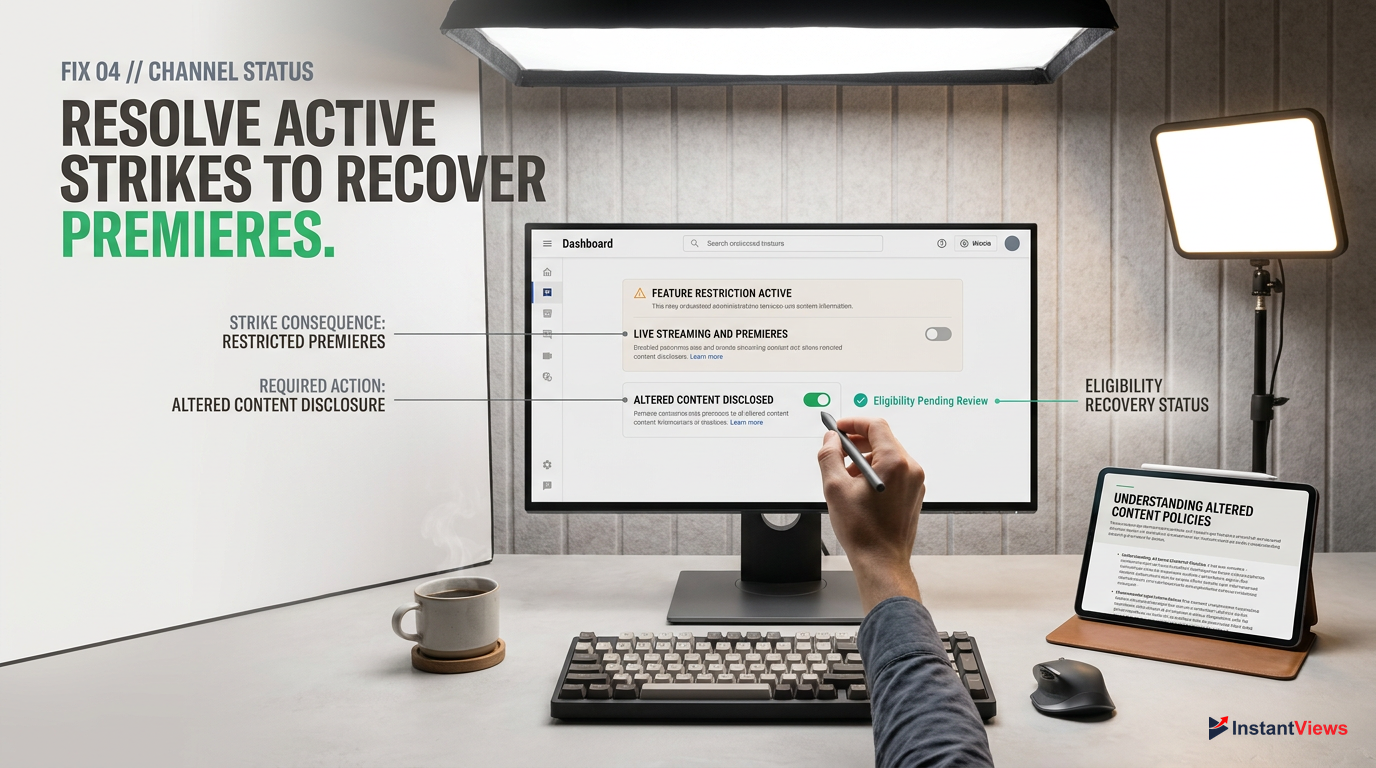
Under YouTube's 2026 policies, failing to use the "Altered Content" disclosure label for AI-generated videos can result in a strike that immediately revokes your live streaming and premiere privileges for 14 days.
YouTube treats Premieres as a subset of Live Streaming features. Therefore, any penalty that affects your ability to go live will simultaneously break your ability to host a premiere. To verify if this is the root cause of your issue, you need to dive into your channel's backend settings and review your current standing.
Open Channel Settings
Navigate to YouTube Studio. In the bottom left corner, click the 'Settings' gear icon.
Check Feature Eligibility
Click on the 'Channel' tab, then select 'Feature eligibility'. Look at the 'Intermediate features' and 'Advanced features' sections.
Review Strike Status
If either section is marked as 'Disabled' or 'Ineligible', click the dropdown arrow to see if an active strike is preventing you from using Live/Premiere features.
If you discover an active strike, there is unfortunately no technical bypass. You must either wait for the restriction period to expire (usually 14 days for a first offense) or successfully appeal the strike through the YouTube Studio dashboard. While restricted, you can still schedule videos to publish at a specific time as standard VODs, but the interactive Premiere countdown and live chat will remain locked.
Fix 5: Fix "Premiere Button Missing" (Visibility Settings)
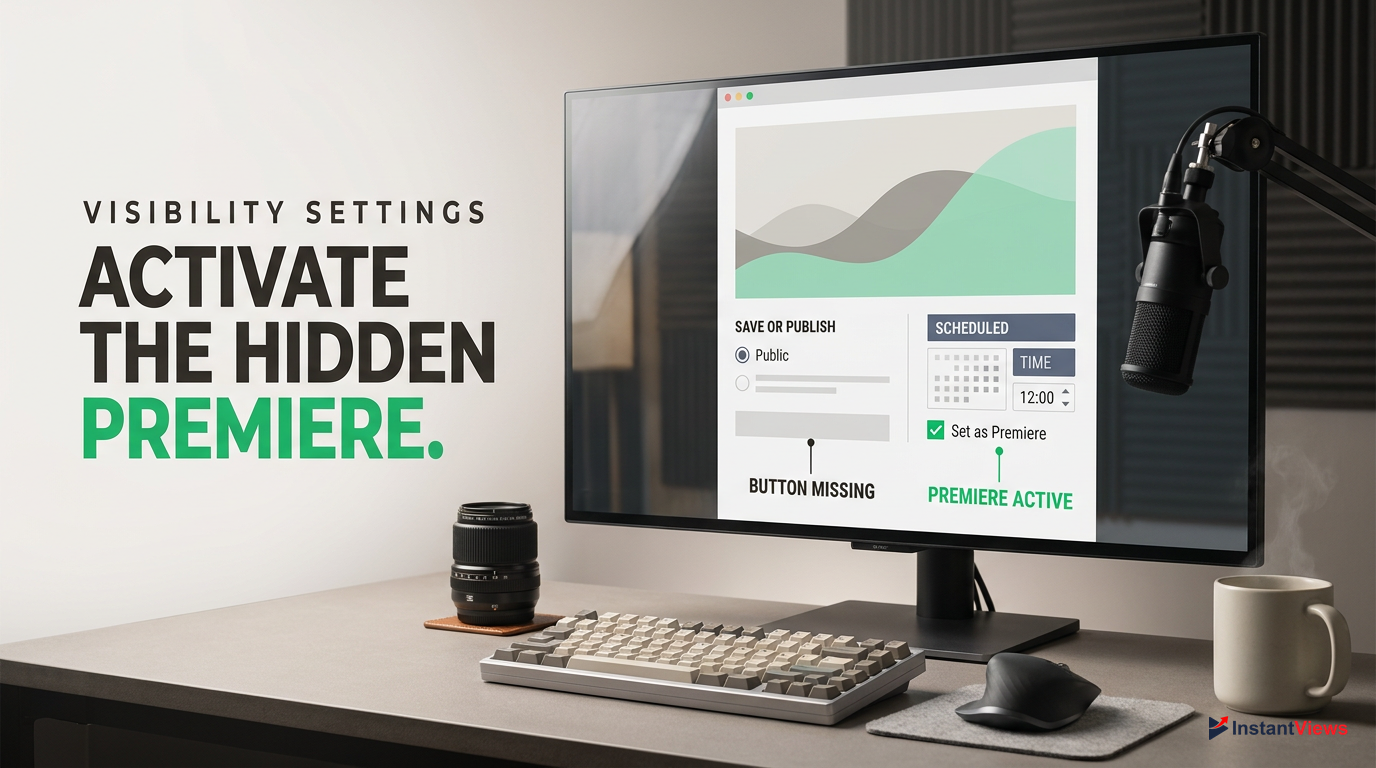
A highly specific but incredibly common issue is the literal disappearance of the "Set as Premiere" checkbox. Creators often upload their video, navigate to the Visibility tab, and find that they simply cannot make it a premiere. This usually happens because of a fundamental misunderstanding of how YouTube's visibility states interact with the scheduling system.
| Visibility State | Can be Premiered? | Who can watch? |
|---|---|---|
| Private | No | Only you and chosen emails |
| Unlisted | No | Anyone with the direct link |
| Public (Instant) | No | Everyone (Instant publish) |
| Scheduled | Yes | Public at chosen future time |
You cannot turn a video that is currently set to "Private" or "Unlisted" directly into a premiere without moving it through the "Schedule" pipeline first. If you select "Save or publish" and choose Public, the video will instantly go live as a standard upload. The premiere feature is exclusively tied to the "Schedule" radio button.
To reveal the missing button, ensure you are in the Details > Visibility section of your video draft. Click the Schedule radio button. Only after you select a future date and time will the Set as Premiere checkbox dynamically appear below the calendar. Furthermore, if your video is a YouTube Short (under 60 seconds and vertical), the premiere button will never appear, as YouTube strictly prohibits Premieres for the Shorts format in 2026.
If you want to share a preview link with sponsors before the premiere, upload the video as Unlisted first. Once approved, go back to Visibility, change it to Schedule, check 'Set as Premiere', and save. The URL remains exactly the same.
Fix 6: Resolve Mobile App Premiere Glitches (iOS/Android)
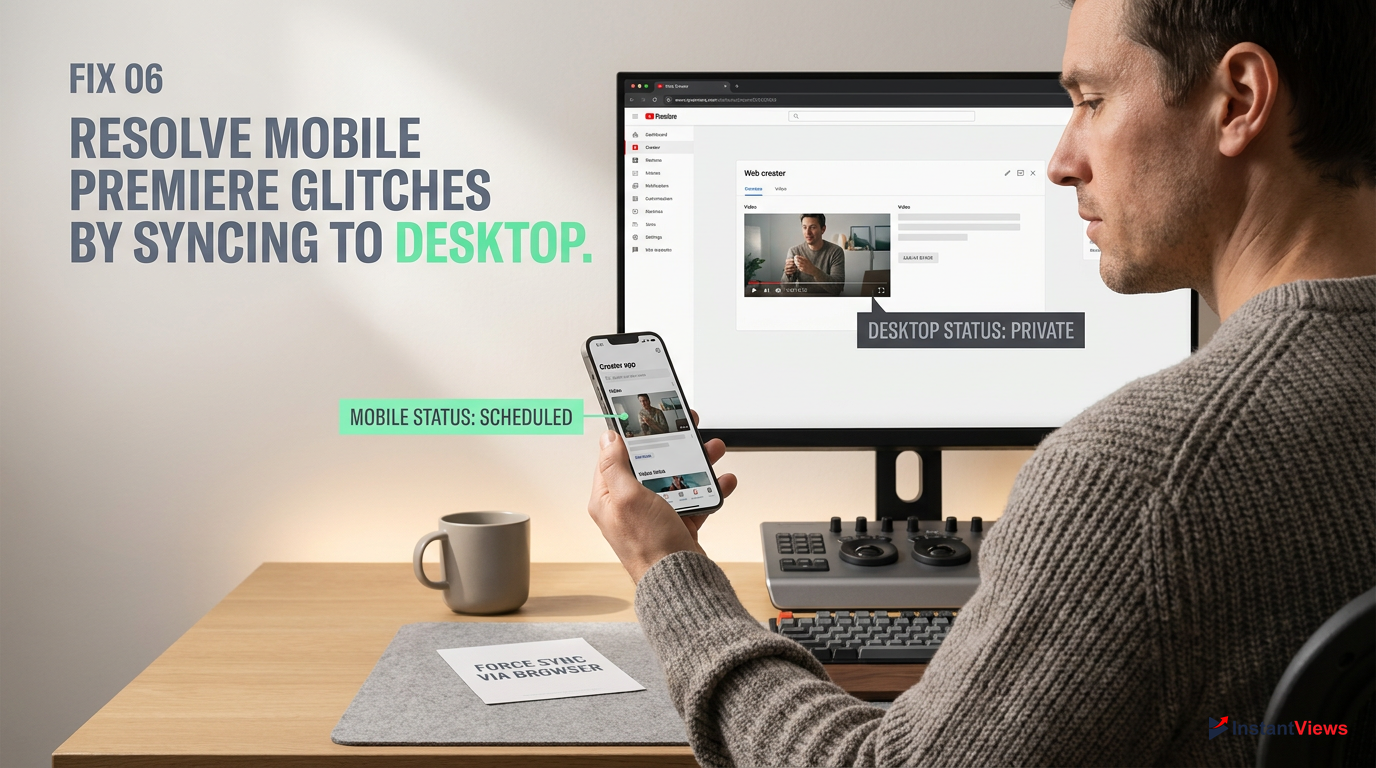
While the YouTube Studio mobile app has seen massive improvements, scheduling a premiere via iOS or Android remains a gamble in 2026. Mobile networks are inherently less stable than desktop connections, and background app refreshing can interrupt the API calls necessary to lock in a premiere schedule. If you scheduled your video on your phone and the youtube premiere is not working, the mobile app's cache is likely desynced from the desktop servers.
- Stable API connections
- Full access to countdown themes
- Reliable timezone syncing
- Prone to cache desyncs
- Limited trailer/theme options
- Background refresh interruptions
A common symptom of a mobile glitch is the video appearing as "Scheduled" on your phone, but showing as "Private" when you log into YouTube Studio on a desktop browser. To fix this, you must clear the mobile app's corrupted cache and force it to pull the correct data from YouTube's central servers.
Clear Cache (Android)
Go to your phone's Settings > Apps > YouTube Studio > Storage > Clear Cache. Do not click Clear Data, just Cache.
Offload App (iOS)
Go to Settings > General > iPhone Storage > YT Studio > Offload App. Reinstall it from the App Store.
Reschedule via Desktop
Open a desktop browser, log into studio.youtube.com, and manually re-apply the Premiere settings to override the broken mobile command.
As a best practice for 2026, we strongly recommend using the mobile app strictly for monitoring analytics and replying to comments. Whenever possible, execute the actual uploading and premiere scheduling processes from a hardwired desktop or laptop computer to guarantee a flawless launch.
Fix 7: Troubleshoot Premiere Countdown Theme Errors
One of the most engaging features of a YouTube Premiere is the customizable countdown timer. However, this feature is also a frequent point of failure. When you select a custom countdown theme, YouTube's servers must dynamically stitch that 2-minute video file to the beginning of your actual upload. If this stitching process fails, the premiere will stall at the "Starting Soon" screen, and your actual video will never begin playing.
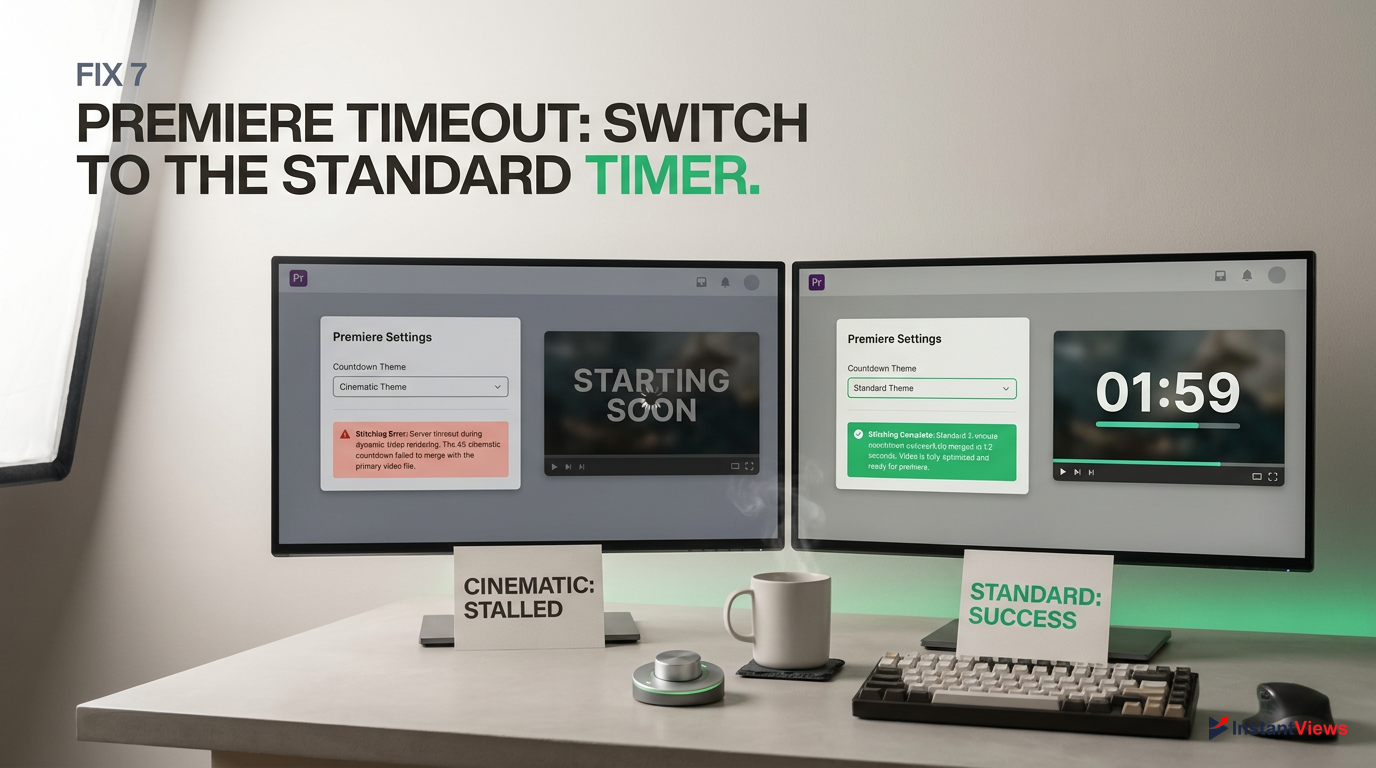
Cinematic Theme
High visual fidelity, but prone to rendering stalls on longer 4K videos.
Standard Theme
The default 2-minute timer. Lowest failure rate and fastest server processing.
Ambient Theme
Relaxing audio. Often triggers false-positive copyright checks if glitched.
If your premiere is stuck on the countdown, or if you receive an error when trying to save your premiere settings, the countdown theme engine has likely crashed. This usually happens if you try to change the countdown theme less than 30 minutes before the scheduled launch time, interrupting the server's pre-rendering phase.
Never attempt to change the countdown length or theme within 1 hour of the premiere. Doing so forces YouTube to re-render the entire file structure, which almost guarantees your premiere will launch late or fail entirely.
To fix a broken countdown theme, you need to revert to the safest possible settings. Edit your scheduled video, navigate to the Set up Premiere menu, and change the countdown theme back to Standard. Set the duration to exactly 2 minutes. Save the changes. This uses YouTube's default, pre-cached assets, bypassing the need for complex server-side rendering and drastically increasing the chances of a successful launch.
Advanced Fix: Re-uploading vs. Editing Existing Drafts
When you are an hour away from your scheduled launch and your youtube premiere is not working, you face a critical decision: do you keep tweaking the settings of the current draft, or do you delete it and start over? Knowing when to cut your losses and re-upload is a vital skill for any serious YouTube creator in 2026.
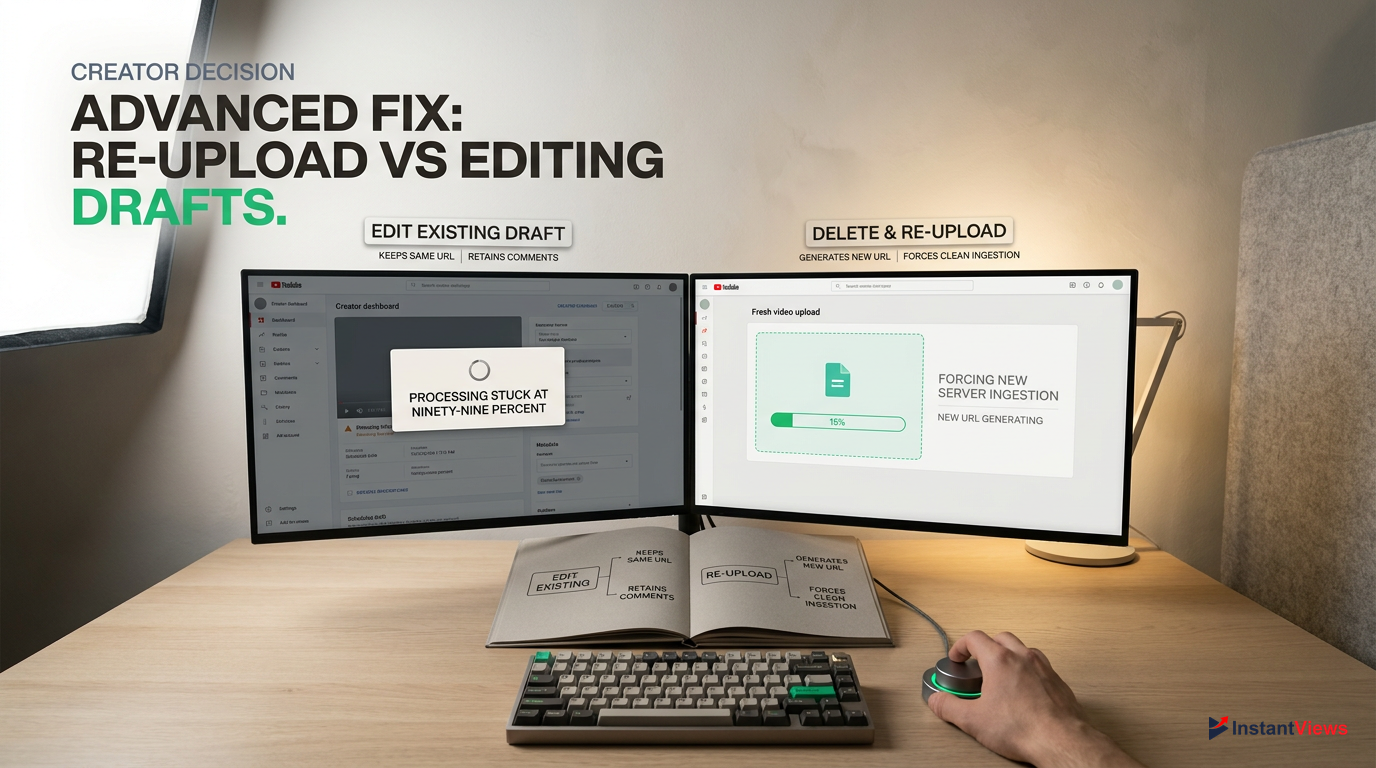
- Keeps the same URL
- Retains early comments/likes
- Best for UI or timezone bugs
- Fails if processing is permanently stuck
- Generates a brand new URL
- Loses pre-premiere engagement
- Best for corrupted video files
- Forces a clean server ingestion
If your issue is related to visibility settings, time zones, or browser glitches, you should absolutely stick with your current draft. Editing the metadata or pushing the schedule back by an hour will usually resolve the problem without sacrificing the URL you have already shared on Twitter, Instagram, or your Community Tab.
If the video is stuck on "Processing HD" for more than 4 hours, the file is corrupted on YouTube's end. Delete the draft and re-upload. If the issue is just a greyed-out button, fix your browser and edit the existing draft.
However, if your video is suffering from a hard processing stall (e.g., the SD version hasn't even finished after 2 hours), the ingestion pipeline has failed. No amount of refreshing will save it. You must delete the video, re-export it from your editing software (preferably dropping the bitrate slightly to ensure stability), and upload it fresh. You will need to generate a new premiere link and immediately update your audience via a Community Post with the new URL.
Best Practices to Prevent YouTube Premiere Failures in 2026
The best way to fix a broken YouTube Premiere is to ensure it never breaks in the first place. As YouTube's infrastructure evolves, creators must adapt their workflows to match the platform's technical requirements. Rushing an upload 30 minutes before you want it to go live is a recipe for disaster. By implementing a strict pre-launch protocol, you can eliminate 99% of technical glitches.
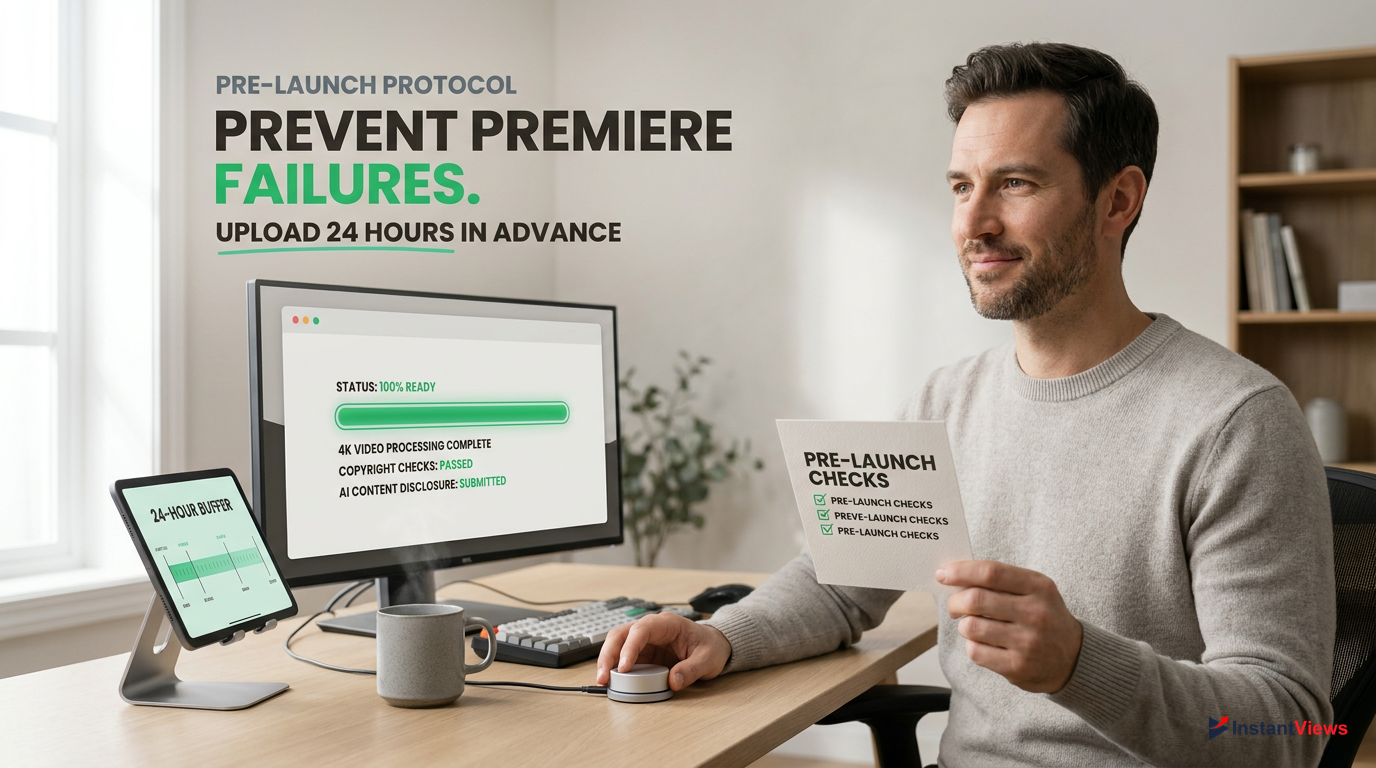
- Upload the video at least 24 hours before the intended Premiere time.
- Verify HD and 4K processing are 100% complete before announcing the time.
- Check the 'Checks' tab to ensure no copyright claims or ad-suitability issues are pending.
- Complete all AI-generated content disclosures in the Details tab.
- Test the public Premiere URL in an Incognito browser window.
Uploading 24 hours in advance is the golden rule. It gives YouTube's servers ample time to process the AV1 codec, run its automated copyright Content ID scans, and fully render your chosen countdown theme. It also gives you a buffer to fix any unexpected monetization yellow icons before your audience arrives.
Finally, always communicate with your audience. If a technical failure does occur and the premiere stalls, immediately drop a message in your Community Tab and pin a comment in the live chat if it's accessible. Transparency builds trust, and your true fans will gladly wait an extra 15 minutes for a re-upload if they know you are actively working to deliver the content.
Frequently Asked Questions
This usually happens when the High Definition (HD) processing of your video hasn't finished, or the countdown theme failed to render. YouTube's servers stall the launch to prevent showing a low-quality stream. Pushing the scheduled time back by 30 minutes usually resolves this.
Yes. You can edit the scheduled time by going to YouTube Studio > Content > Visibility. However, you should avoid changing the time within 1 hour of the launch, as this can disrupt the backend rendering and cause the premiere to fail.
You likely selected 'Public' under the 'Save or publish' option instead of using the 'Schedule' option. The 'Set as Premiere' checkbox only functions properly when tied to a specific future date and time in the scheduling calendar.
A standard Content ID claim (where the owner takes ad revenue) will not stop a premiere. However, a global block or a full Copyright Strike will instantly halt the premiere and restrict your account's live features for up to 14 days.
In 2026, YouTube allows you to choose countdown lengths ranging from 1 minute to 5 minutes. The standard and most reliable default is 2 minutes. Using longer countdowns increases the risk of viewer drop-off before the video actually begins.
If subscribers aren't seeing the reminder, the video might still be stuck in 'Private' mode due to a saving error, or they have their channel notifications turned off. Ensure the visibility is set to 'Scheduled' and test the public link yourself.
No, if done correctly. Premieres can boost early engagement through live chat. However, if a premiere fails technically and viewers leave in frustration, the resulting poor retention metrics will negatively impact the video's performance in the Browse features.
No. YouTube strictly prohibits the Premiere feature for Shorts (vertical videos under 60 seconds). If you upload a Short, the 'Set as Premiere' checkbox will automatically be hidden from the Visibility tab.
Live chat is automatically disabled if your video's audience is set to 'Made for Kids'. It can also be disabled if you have an active Community Guidelines strike, or if you manually turned off live chat in the video's advanced settings.
If you change the visibility to Private while the countdown is running, the premiere will instantly abort. Viewers will be kicked out, the chat will close, and you will have to set up a brand new schedule to try again.


