- YouTube's aggressive 2026 AI moderation often hides legitimate comments as spam.
- Restricted Mode at the network or account level is the #1 reason viewers cannot see comments.
- Channel-wide moderation settings can be overridden by individual video settings.
- Browser extensions and aggressive ad-blockers frequently prevent the comment section from rendering.
- Clearing app cache and updating to the latest iOS/Android version fixes most mobile glitches.
It is incredibly frustrating when you upload a high-quality video, see the engagement metrics ticking upward, but realize your youtube comments not showing up. In 2026, YouTube's algorithm relies heavily on community interaction to rank content. Missing comments do not just silence your audience; they actively harm your video's search visibility, click-through rate, and overall channel growth potential on the platform.
The root cause of missing comments usually falls into one of three categories: aggressive AI moderation filters, misconfigured YouTube Studio settings, or localized device and browser glitches. As YouTube continues to update its spam detection protocols this year, many creators are finding legitimate viewer interactions automatically swept into hidden review queues without any direct notification or warning.
Fortunately, resolving this issue is usually straightforward once you know where to look. Whether you are a creator trying to unhide your community's feedback or a viewer staring at a perpetually loading circle beneath a video, this comprehensive guide provides exact, step-by-step fixes. Let us dive into the most effective methods to restore your comment section immediately.
- Understanding the 2026 YouTube Comment Ecosystem
- Checking Your Default Comment Moderation Settings
- Fixing Video-Specific Comment Overrides
- The Impact of YouTube's Restricted Mode
- Browser & Cache Issues Blocking Comments
- App-Specific Glitches on iOS & Android
- Shadowbans & AI Spam Filtering
- Third-Party Tool Conflicts
- Network & VPN Interference
- When to Contact YouTube Creator Support
- FAQ
Understanding the 2026 YouTube Comment Ecosystem
To effectively fix the issue of youtube comments not showing, it is crucial to understand how YouTube's moderation infrastructure has evolved by 2026. The platform now processes billions of interactions daily, relying on a highly aggressive, AI-driven filtering system designed to combat bot nets, crypto scams, and malicious links. While this protects the community, it frequently results in false positives, hiding legitimate viewer feedback from public view.
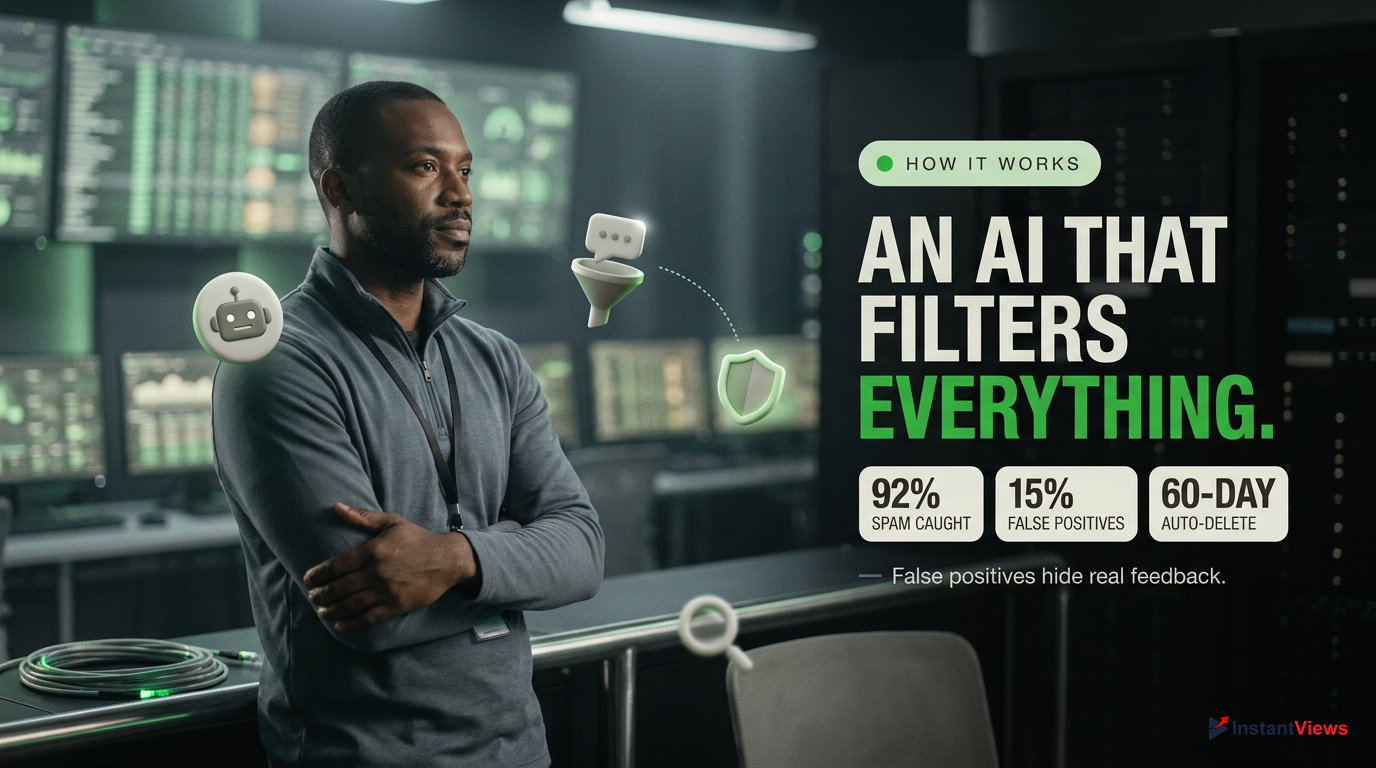
When viewers complain that their comments are disappearing, it is rarely a technical glitch on YouTube's server side. Instead, it is usually the platform's "Strict" moderation threshold acting exactly as programmed. In late 2025, YouTube rolled out the "Pause" feature, allowing creators to freeze new comments while keeping old ones visible. If a creator accidentally triggers this or if the AI flags a user's account history as suspicious, the comment section will appear broken or incomplete.
YouTube's algorithm now evaluates the 'trust score' of the commenting account. Brand new accounts or those that frequently copy-paste the same message across multiple videos are automatically shadowbanned from comment sections.
Furthermore, YouTube's interface seamlessly hides the fact that a comment has been filtered. A viewer will see their own comment when logged in, leading them to believe it posted successfully. However, if you view the video from an incognito window, the comment is invisible. This ghost-banning technique prevents spammers from knowing they have been caught, but it causes immense confusion for regular users trying to support their favorite creators.
By understanding these underlying mechanics, you can stop troubleshooting your internet connection and start adjusting the specific account or channel settings that are actually responsible for the missing text.
Checking Your Default Comment Moderation Settings
If you are a creator experiencing youtube comments not showing across your entire channel, your first stop must be the YouTube Studio default settings. Many channels have their defaults set to overly aggressive moderation levels without realizing it, especially if the channel was created years ago and never updated to reflect YouTube's 2026 interface changes.
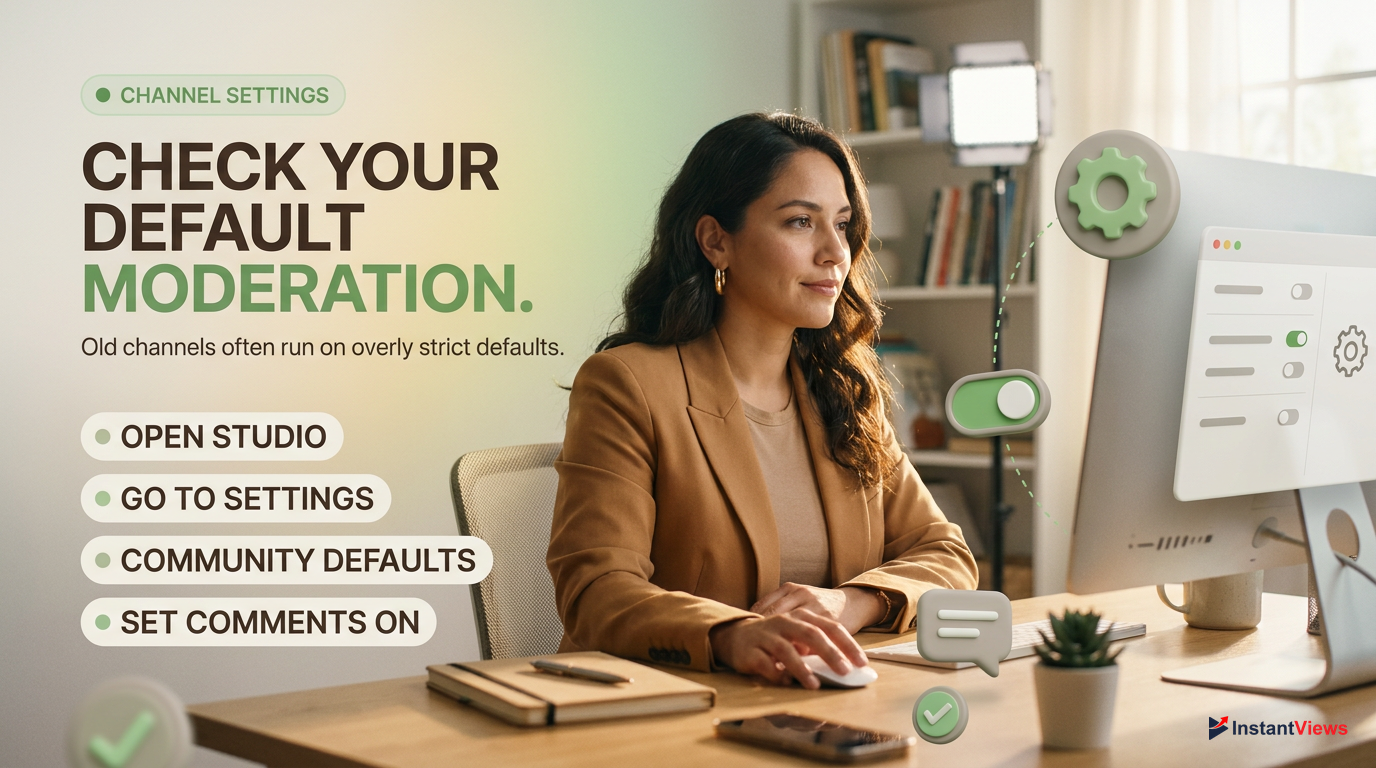
Open YouTube Studio
Log in to your channel on a desktop browser and click on 'YouTube Studio' from your profile dropdown menu in the top right corner.
Navigate to Settings
Look at the bottom left sidebar and click the gear icon labeled 'Settings'. A new dialog box will appear.
Access Community Defaults
Click on 'Community' in the left menu of the dialog box, then select the 'Defaults' tab at the top.
Adjust Comment Moderation
Under 'Comments on your channel', ensure 'On' is selected. If you have 'Hold potentially inappropriate comments for review' checked, ensure the 'Increase strictness' box is UNCHECKED if you are missing legitimate comments.
The "Increase strictness" setting is notorious for catching regular, supportive comments simply because they contain certain keywords or slang that the AI misinterprets. If your comments are vanishing, lowering this strictness level is the most effective immediate fix.
Changing your default settings in the Community tab will ONLY apply to future video uploads. It will not retroactively restore comments or change settings on videos you have already published.
Additionally, you must check your "Held for Review" tab regularly. In the left sidebar of YouTube Studio, click "Comments," then navigate to the "Held for review" tab. You will likely find dozens of perfectly normal comments trapped here. Approving them trains YouTube's AI to recognize that these types of comments are acceptable on your channel.
Regularly clearing out your 'Held for Review' queue is essential in 2026. Comments left here for more than 60 days are permanently deleted by YouTube, meaning lost engagement for your video.
Fixing Video-Specific Comment Overrides
A common scenario leading to youtube comments not showing is when a creator's channel-wide settings are perfectly configured, but individual video settings are overriding them. When you upload a video, you have the option to customize moderation for that specific piece of content. If you use third-party upload tools or accidentally click the wrong preset, comments may be disabled or paused for just one video.
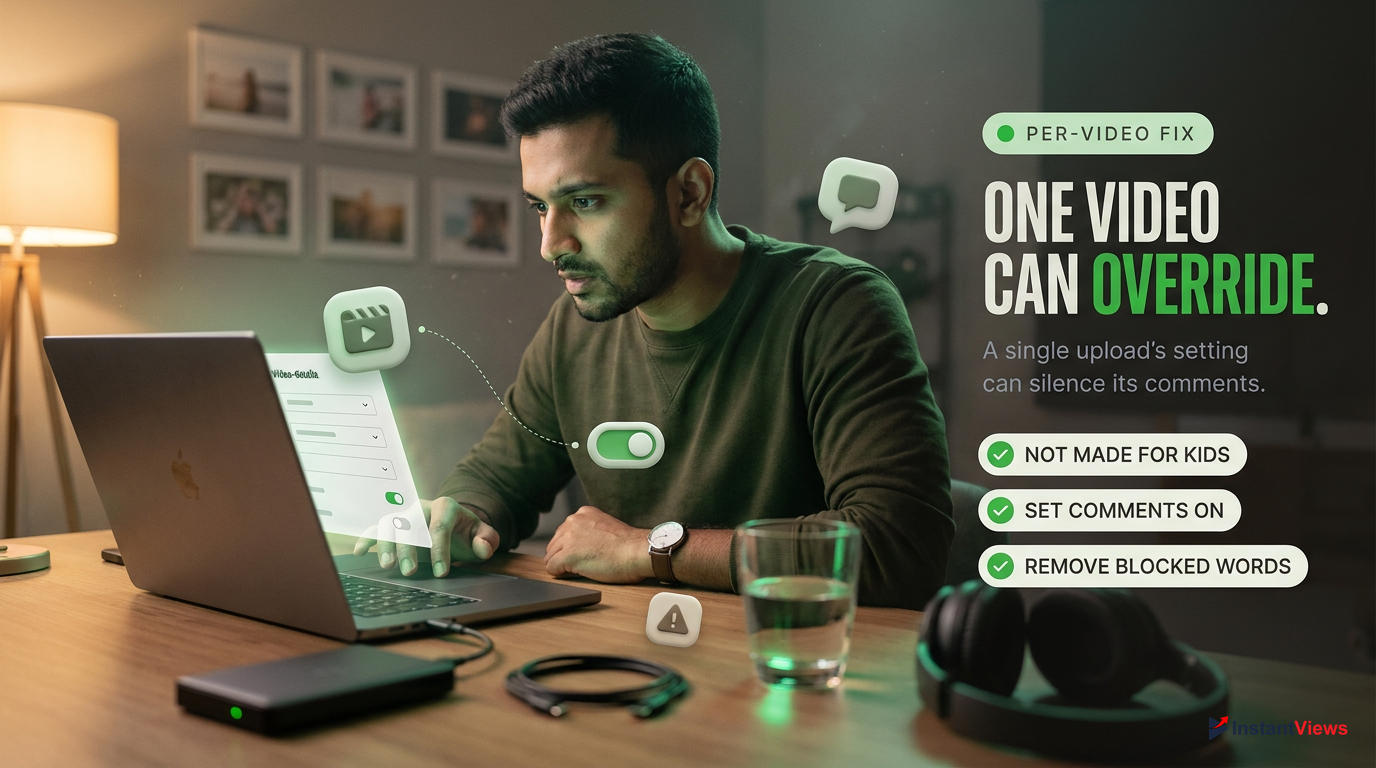
- Verify the video is NOT marked as 'Made for Kids' (COPPA regulations automatically disable comments).
- Ensure the video's specific comment setting is set to 'On' rather than 'Pause' or 'Off'.
- Check if you have added specific blocked words in your community settings that happen to be in the video's title or subject matter.
To fix this issue on a video-by-video basis, you need to dive into the specific details page of the affected upload. The 2026 YouTube Studio interface buries this setting slightly deeper than in previous years, requiring you to expand the advanced options.
Go to Content
In YouTube Studio, click on 'Content' in the left sidebar to view all your uploaded videos.
Edit Video Details
Hover over the video with missing comments and click the pencil icon (Details).
Show More
Scroll to the very bottom of the Details page and click the blue 'Show More' text to reveal advanced settings.
Change Comment Settings
Scroll down to the 'Comments and ratings' section. Change the setting from 'Disable comments' or 'Pause' to 'On'. Click Save in the top right.
If you have hundreds of older videos where comments are not showing due to outdated settings, you do not need to edit them one by one. YouTube provides a bulk editing feature that can save you hours of manual work.
To bulk update comments: Go to Content, check the 'Select All' box at the top of your video list, click 'Edit' on the black bar that appears, select 'Comments', choose your desired setting, and click 'Update videos'.
The Impact of YouTube's Restricted Mode
If you are a viewer and you consistently find youtube comments not showing on almost every video you watch, the most likely culprit is "Restricted Mode." This is an opt-in setting designed to screen out potentially mature content. When Restricted Mode is activated, YouTube completely disables the comment section to protect users from inappropriate text or links.
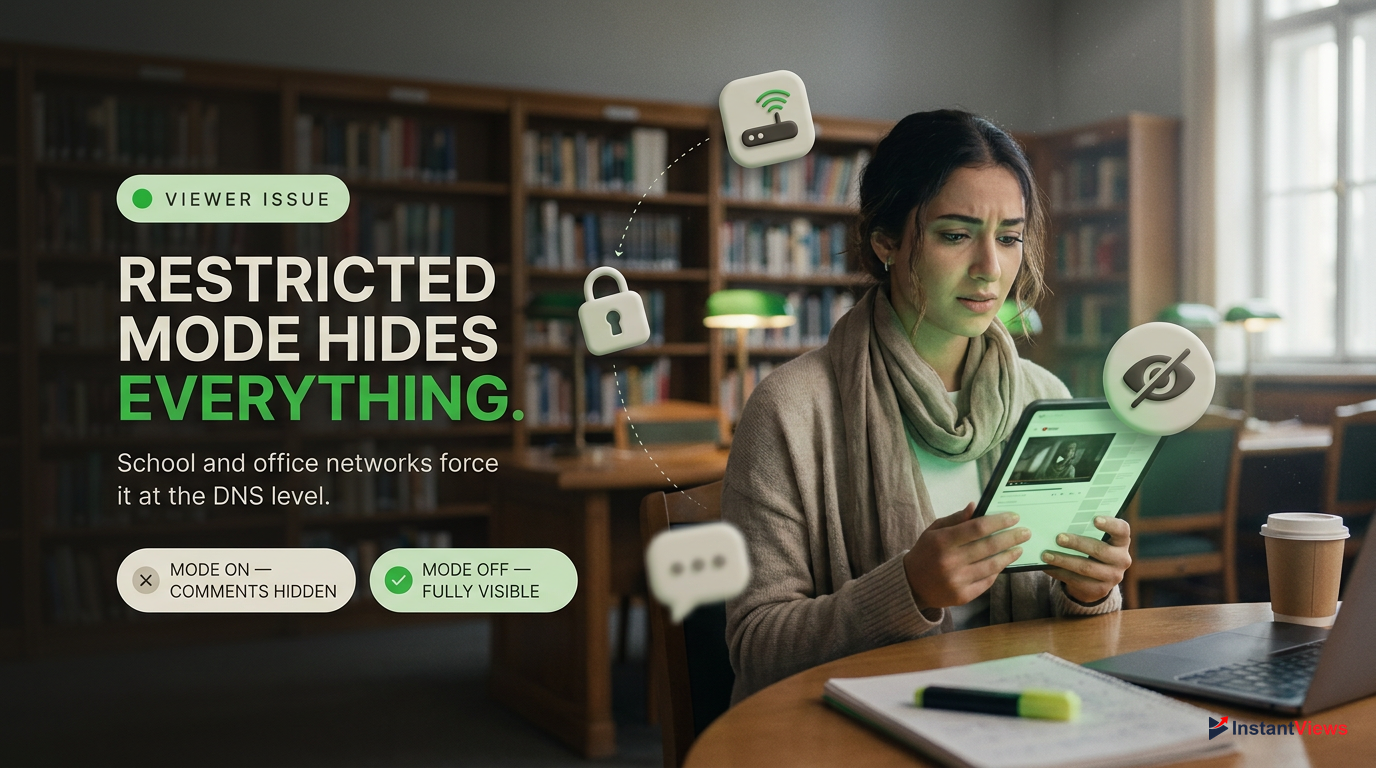
| Feature | Restricted Mode ON | Restricted Mode OFF |
|---|---|---|
| Comment Visibility | Hidden entirely | Fully visible |
| Mature Content | Filtered out | Accessible |
| Live Chat | Disabled | Active |
Restricted Mode can be enabled intentionally by a user, but it is frequently turned on automatically by network administrators. If you are browsing YouTube on a school, university, or corporate Wi-Fi network, the IT department often forces Restricted Mode at the DNS level. In these cases, you cannot turn it off from your account settings until you disconnect from that specific network.
Click Your Profile Picture
On desktop or mobile, tap your profile icon in the top right corner of the YouTube interface.
Locate Restricted Mode
Scroll down the menu. Near the bottom, you will see 'Restricted Mode'. It will indicate whether it is On or Off.
Toggle Off
Click on it and toggle the switch to the OFF position. The page will automatically refresh, and comments should appear.
If the toggle is greyed out and accompanied by a lock icon, it means the restriction is being enforced by your device's parental controls (like Google Family Link) or your network administrator. You will need to switch to cellular data or use a personal VPN to bypass this network-level block.
In 2026, many public Wi-Fi networks in coffee shops and airports automatically enforce Restricted Mode to comply with public browsing safety standards, immediately hiding all YouTube comments.
Browser & Cache Issues Blocking Comments
Sometimes the settings are perfectly fine, but a technical glitch prevents the page from rendering properly. When youtube comments not showing is accompanied by an endlessly spinning loading circle, the issue is almost always related to your browser's cache or conflicting browser extensions. Over time, cached scripts become corrupted, preventing the specific JavaScript required to load YouTube's comment module from executing.
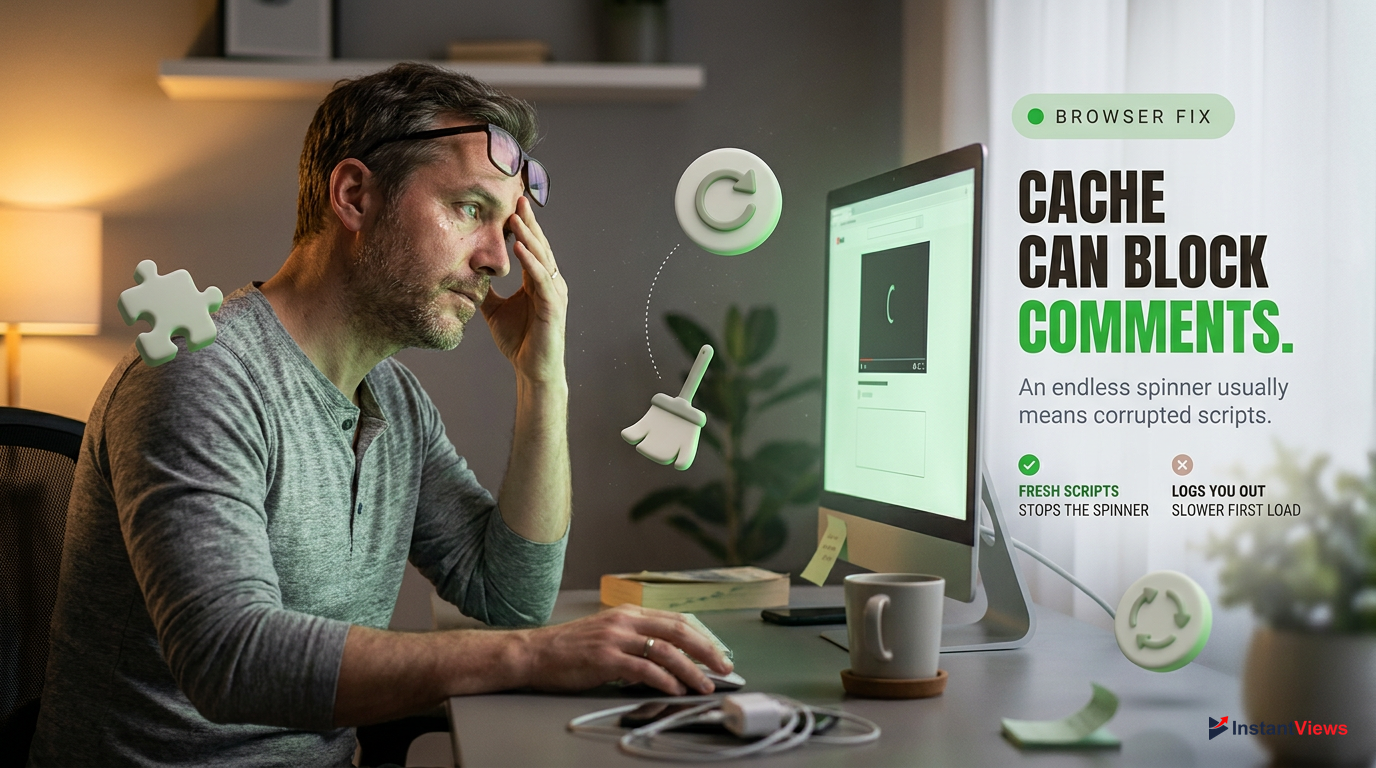
- Forces YouTube to fetch fresh, uncorrupted scripts.
- Resolves infinite loading circles instantly.
- Improves overall browser speed and video load times.
- Logs you out of active sessions on other websites.
- Temporarily slows down initial page loads across the web.
Aggressive ad-blockers are another major culprit in 2026. As YouTube escalates its war against ad-blockers, extension developers constantly update their filter lists. Occasionally, these filters mistakenly identify the HTML <div> containing the comments as a sponsored element and block it entirely. To troubleshoot this, you need to systematically disable extensions and clear your local data.
Test in Incognito Mode
Open an Incognito or Private Browsing window (Ctrl+Shift+N on Chrome) and navigate to the video. If comments load, an extension or cache is the problem.
Disable Ad-Blockers
Pause your ad-blocker specifically for youtube.com and refresh the page to see if the comment section renders.
Clear Browser Cache
Go to your browser settings > Privacy and Security > Clear browsing data. Select 'Cached images and files' and clear data from the last 7 days.
If you are using Chromium-based browsers like Chrome, Edge, or Brave, ensure your browser is updated to the latest version. YouTube frequently pushes backend updates that deprecate older web standards, causing modular elements like comments to fail on outdated browsers.
If comments spin endlessly, your browser is failing to execute YouTube's scripts. Test in Incognito mode, disable your ad-blocker, and clear your cache to force a fresh load.
App-Specific Glitches on iOS & Android
Mobile users frequently encounter youtube comments not showing due to app-specific glitches. The YouTube app for iOS and Android caches massive amounts of data to keep scrolling smooth. However, when this cache exceeds a certain threshold or becomes corrupted during an interrupted background update, the app prioritizes loading the video player while dropping peripheral elements like the comment section.
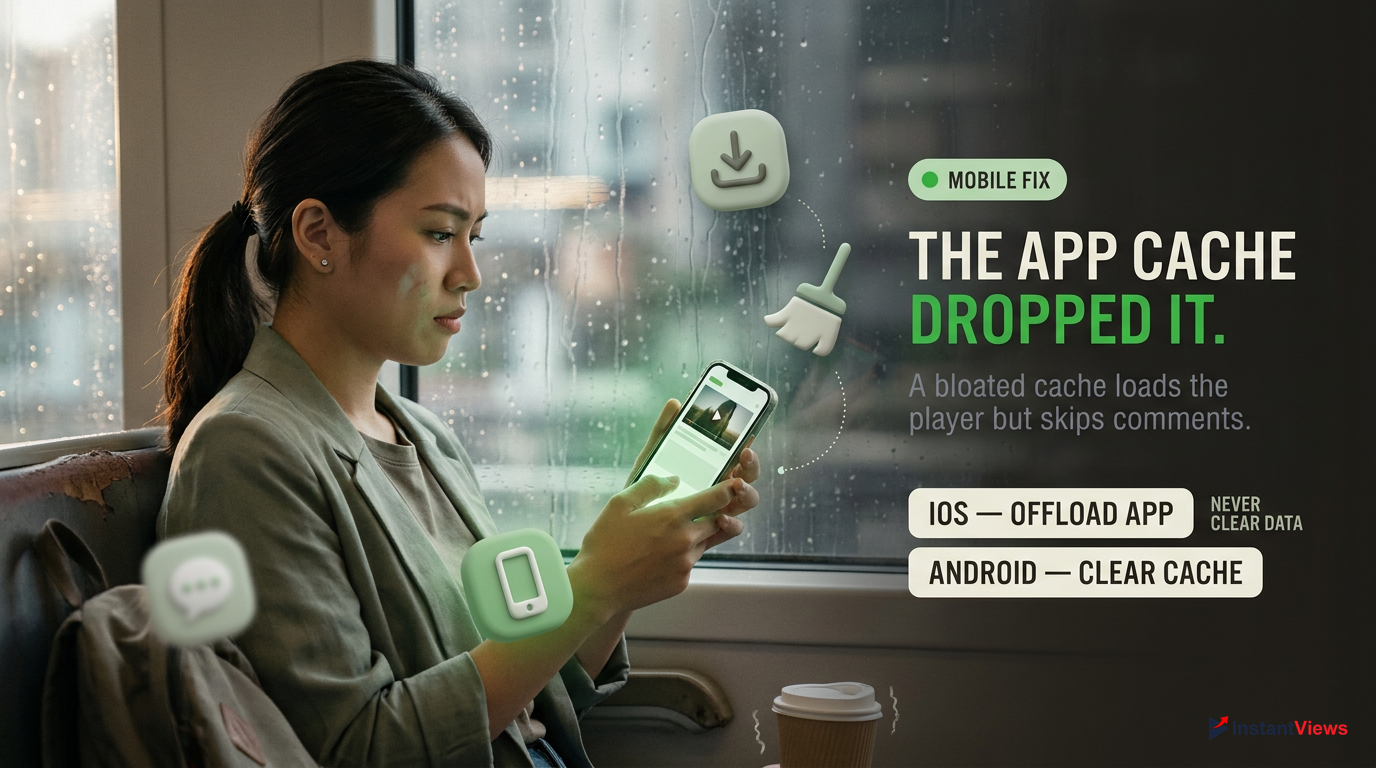
iOS Fix: Offload App
Go to Settings > General > iPhone Storage > YouTube. Tap 'Offload App' to clear core files without losing downloaded videos, then reinstall.
Android Fix: Clear Cache
Go to Settings > Apps > YouTube > Storage. Tap 'Clear Cache'. Do NOT tap 'Clear Data' unless you want to delete your offline downloads.
If clearing the cache does not work, the issue might be related to your mobile data settings. In 2026, mobile operating systems have strict background data restrictions to save battery. If YouTube is restricted from using background data, it may fail to fetch the comment API when transitioning from a Short to a long-form video.
Check App Updates
Open the App Store or Google Play Store and ensure you are running the absolute latest build of the YouTube app.
Force Stop the App
Swipe up from the bottom of your screen and swipe the YouTube app away to force close it entirely, then reopen.
Toggle Wi-Fi/Cellular
Switch from Wi-Fi to cellular data (or vice versa) to force the app to re-establish a fresh connection to YouTube's servers.
Occasionally, YouTube rolls out A/B testing for new UI layouts on mobile. During these tests, the comment section might be moved to a different part of the screen or hidden behind a new button. Always double-check the visual interface before assuming the comments are completely broken.
Uninstalling the YouTube app completely or tapping 'Clear Data' on Android will permanently delete all your offline downloaded videos and music. Always try clearing the cache first.
Shadowbans & AI Spam Filtering
One of the most insidious reasons for youtube comments not showing is shadowbanning. Unlike a formal account suspension, a shadowban provides no notification. You can type a comment, hit reply, and see it perfectly fine on your screen. But the moment you log out or ask a friend to check, the comment is nonexistent. This happens when YouTube's AI categorizes your account behavior as spam-like.
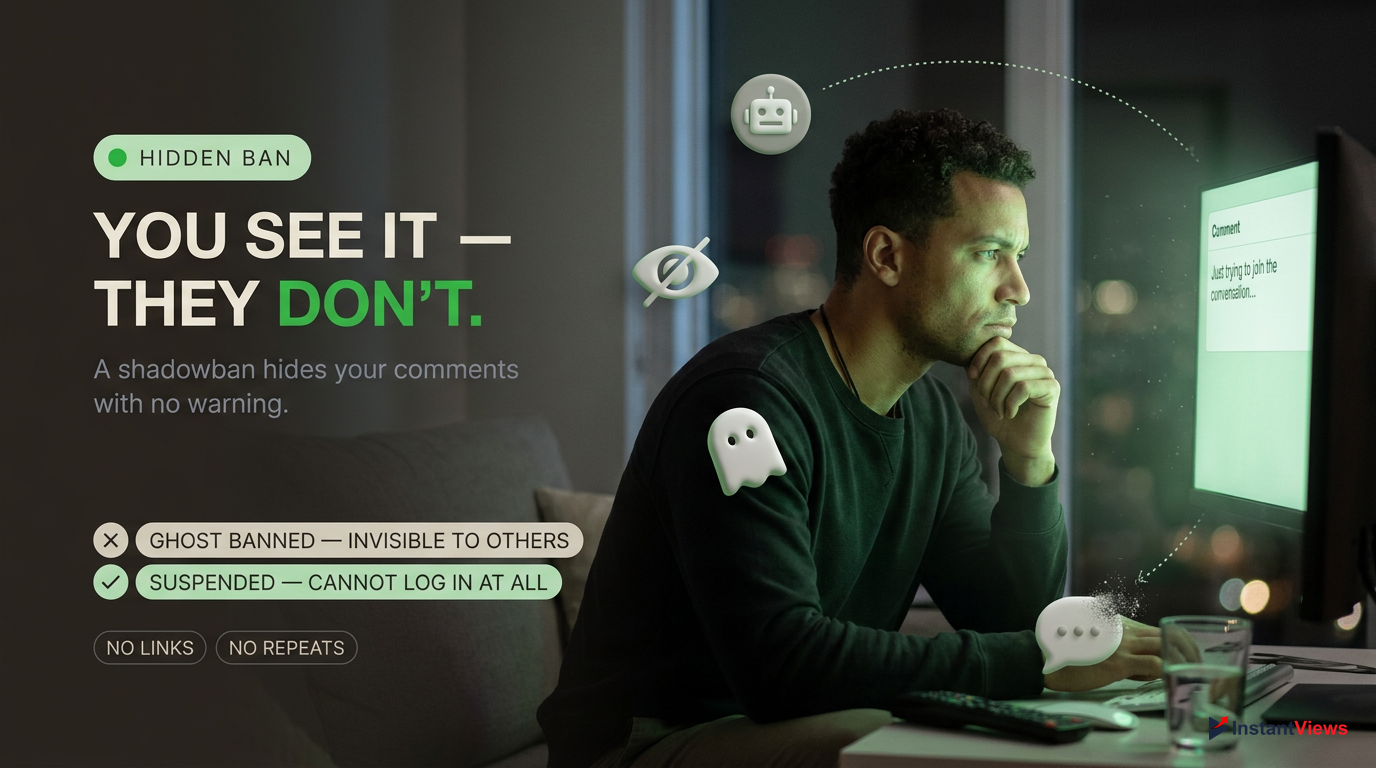
- Can log in and watch videos
- Sees own comments
- No warnings or strikes
- Comments invisible to others
- Cannot log into YouTube
- Cannot post comments at all
- Email notification received
- Channel completely removed
In 2026, the AI triggers shadowbans for several specific behaviors. Dropping links in comments is the fastest way to get filtered. Pasting the exact same comment on multiple videos within a short timeframe will also instantly trigger the spam filter. Even excessive use of emojis without accompanying text can lower your account's trust score.
If you suspect you are shadowbanned, the only fix is a cooling-off period. Stop commenting entirely for at least 48 hours. When you resume, ensure you are watching at least 50% of a video before leaving a highly contextual, text-based comment without any links or excessive capitalization. This signals to the algorithm that you are a genuine human viewer.
Creators cannot un-shadowban a viewer. Even if a creator manually approves a shadowbanned comment from their 'Held for Review' folder, YouTube may still hide future comments from that user until their overall trust score improves.
Third-Party Tool Conflicts
Many creators and power-users rely on browser extensions like TubeBuddy, VidIQ, or Return YouTube Dislike to enhance their viewing experience. While these tools are incredibly useful, they inject custom code directly into YouTube's interface. When YouTube updates its site architecture—which happens almost weekly in 2026—these extensions can break, resulting in youtube comments not showing or the entire page layout collapsing.
If you utilize any YouTube-specific extensions, they should be your primary suspects when elements fail to load. The conflict usually occurs because the extension is trying to read or modify the comment section before YouTube's own native scripts have finished rendering it, causing a critical JavaScript error.
- Disable all YouTube-specific extensions temporarily to isolate the issue.
- Check the extension's official subreddit or Discord for known 2026 bug reports.
- Ensure the extension has permission to read data on 'youtube.com' in your browser settings.
- Update the extension manually via your browser's developer mode.
To definitively prove if an extension is at fault, restart your browser in "Safe Mode" (which disables all extensions) or use a completely different browser like Edge or Firefox that has no add-ons installed. If the comments appear immediately, you know you need to update or remove the conflicting third-party tool.
Instead of disabling all extensions permanently, use a browser extension manager to create a 'YouTube Profile' that automatically toggles off heavy ad-blockers and conflicting scripts only when you navigate to youtube.com.
Network & VPN Interference
A frequently overlooked cause for youtube comments not showing is interference at the network level. YouTube does not load a video page as a single static file. Instead, it uses dynamic API calls to fetch different elements. The video streams from one server, while the comments are fetched from another (often youtubei/v1/next). If your network blocks the specific API endpoint responsible for comments, the video will play flawlessly, but the comment section will remain blank.
This issue is incredibly common for users running Pi-hole, strict firewall configurations, or aggressive VPN services. Many ad-blocking DNS servers mistakenly categorize YouTube's comment API requests as tracking telemetry and drop the connection. Similarly, if you are using a VPN IP address that has been flagged for spam by Google, YouTube may silently restrict your ability to read or write comments while still allowing you to consume video bandwidth.
If you are using a network-wide ad blocker like Pi-hole, you must whitelist 's.youtube.com' and related domains. Blocking these can break the modular loading of the comment section.
To resolve network interference, try disconnecting from your VPN and flushing your DNS cache. On Windows, you can do this by opening Command Prompt and typing ipconfig /flushdns. If you are on a mobile device, toggling Airplane Mode on and off will reset your network routing.
If you must use a VPN, try switching to a different server location. Often, simply obtaining a fresh IP address is enough to bypass the silent restrictions causing the comments to fail.
When to Contact YouTube Creator Support
If you have exhausted every troubleshooting step in this guide—cleared your cache, checked Restricted Mode, verified Studio settings, and disabled extensions—and you are still facing youtube comments not showing, it is time to escalate the issue. Occasionally, backend database errors occur that only YouTube engineers can resolve. This is particularly true if your channel was recently hit by a mass bot attack, which can cause the system to lock your comment section defensively.
Access Creator Support
Log into YouTube Studio on desktop. Look for the chat bubble icon in the top right corner next to your profile picture.
Initiate Live Chat
Click the icon to open a direct line to the Creator Support team. Note: This feature is only available to monetized channels in the Partner Program.
Provide Video URLs
Have the specific URLs of the affected videos ready. Tell the agent you have already checked your default settings and video-specific overrides.
If you are not part of the YouTube Partner Program and do not have access to live chat, your best escalation route in 2026 is Twitter (X). The @TeamYouTube account is highly responsive. Send a public tweet explaining the issue, and they will typically reply within a few hours with a link to open a direct message support ticket.
When contacting @TeamYouTube, including a screenshot of your Studio settings showing comments are set to 'On' will bypass their automated troubleshooting script and get you to a human engineer faster.
Do not panic if it takes a few days to resolve a backend database glitch. Continue uploading consistently. YouTube will often run batch scripts over the weekend that automatically repair broken database links, suddenly restoring thousands of missing comments overnight.
If all local fixes fail, monetized creators should use Studio Live Chat. Non-monetized channels should tweet @TeamYouTube with screenshots of their correct settings for the fastest resolution.
Frequently Asked Questions
YouTube automatically disables comments if your video is designated as 'Made for Kids' to comply with COPPA regulations. Additionally, if the AI detects severe safety issues, such as minors in dangerous situations, it will forcefully disable the comment section to protect the subjects in the video.
Yes. Creators can use the 'Hide user from channel' feature. You will still be able to watch their videos and leave comments, but your comments will be completely invisible to the creator and all other viewers. You receive no notification when this happens.
An endless loading circle usually indicates a browser-side issue. It happens when corrupted cache data or an aggressive ad-blocker prevents YouTube's JavaScript from executing. Clearing your browser cache or disabling extensions for youtube.com will almost always resolve this infinite loading glitch.
In 2026, YouTube holds potentially inappropriate comments in the 'Held for Review' tab in YouTube Studio for a maximum of 60 days. If the creator does not manually approve them within that timeframe, the system permanently deletes them to save server space.
No, clearing the 'Cache' on Android or 'Offloading' the app on iOS will not delete your downloaded offline videos. However, if you tap 'Clear Data' or completely uninstall and delete the app, you will lose all saved content and have to redownload it.
YouTube Shorts use the exact same moderation settings as long-form videos. If comments are missing, check the specific Short's details in YouTube Studio. Occasionally, mobile UI glitches hide the comment button; force-closing the app usually restores the proper Shorts interface.
Yes. When Restricted Mode is enabled on an account or forced by a network administrator, the entire comment section is removed from the page layout. This is by design to ensure no inappropriate text or links can be viewed by the user.
Yes. In YouTube Studio, go to the Content tab, check the 'Select All' box, click 'Edit' on the bulk action bar, select 'Comments', and choose 'On'. This allows you to update the moderation settings for hundreds of videos simultaneously.
The 'Pause' feature, heavily utilized in 2026, freezes the comment section. All previously published comments remain visible to the public, but the input box is removed, preventing viewers from leaving any new comments until you unpause it in Studio.
This is a classic shadowban or AI spam filter action. YouTube allows you to see your own filtered comment to prevent spammers from realizing they've been caught. It usually happens if you post links, spam emojis, or copy-paste identical text across multiple videos.


