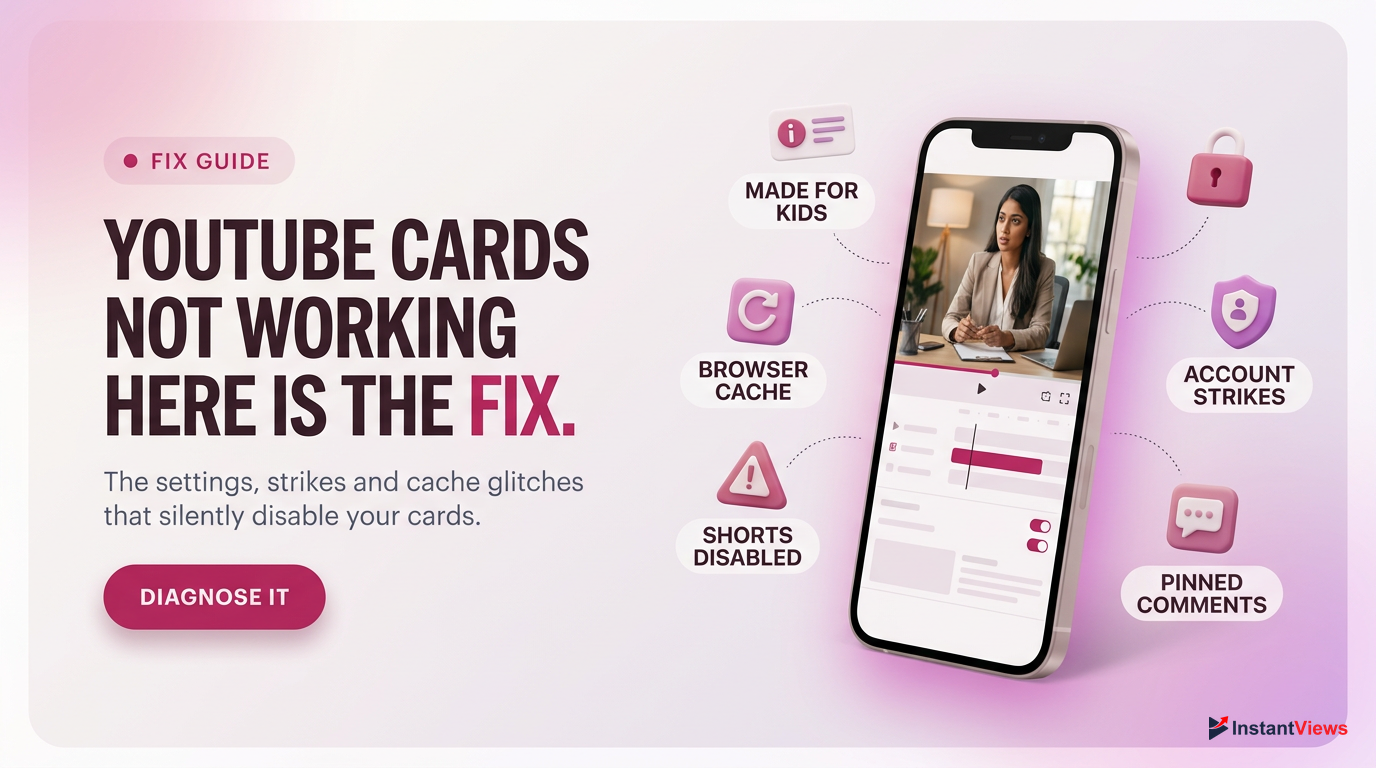
- YouTube cards will automatically disable if your video is marked as 'Made for Kids' due to COPPA regulations.
- Traditional info cards do not work on YouTube Shorts; you must use the 'Related Video' feature instead.
- Browser cache and outdated extensions are the #1 cause of cards failing to save in YouTube Studio.
- Viewers on older mobile apps or specific smart TVs may not see cards due to device limitations.
- Overlapping card placements near your End Screen will cause display errors and suppress your links.
You’ve spent hours editing your latest video, meticulously timing your call-to-action, only to realize your YouTube cards are not working. In 2026, interactive elements like info cards are non-negotiable for driving viewer retention, funneling traffic to your website, or promoting your older content. When these interactive 'i' buttons fail to appear or refuse to save in YouTube Studio, your channel's growth takes an immediate, measurable hit.
The frustration of dealing with missing YouTube cards is a common hurdle for both new and veteran creators. Whether it is a viewer-side glitch on the mobile app, a strict COPPA compliance restriction, or a browser cache issue preventing you from saving changes, diagnosing the root cause requires a systematic approach. YouTube’s algorithm heavily favors channels that keep viewers on the platform, making internal linking essential.
Fortunately, resolving this issue is usually straightforward once you know exactly where to look. In this comprehensive guide, we will break down the exact technical fixes, platform restrictions, and hidden settings causing your cards to malfunction. From navigating the latest 2026 YouTube Studio interface to understanding why Shorts handle links differently, we have compiled the definitive troubleshooting steps to get your interactive cards back online.
- Why Are YouTube Cards Not Showing Up?
- Check Your Video's 'Made for Kids' Settings
- The 'Shorts' Restriction: Do Cards Work on YouTube Shorts?
- Fixing Browser and Cache Issues in YouTube Studio
- Mobile App Limitations: Viewing vs. Adding Cards
- Copyright Claims and Community Guideline Strikes
- Card Placement and Timing Errors
- Updating Your YouTube App and Clearing App Data
- Alternative Strategies if YouTube Cards Keep Failing
- Best Practices for YouTube Cards in 2026
- FAQ
Why Are YouTube Cards Not Showing Up?
When YouTube cards are not working, the issue generally falls into one of three categories: creator-side saving errors, viewer-side playback glitches, or platform-level policy restrictions. In 2026, YouTube's infrastructure handles billions of requests, and sometimes the integration between YouTube Studio and the front-end player experiences latency. However, most issues are configuration-based.
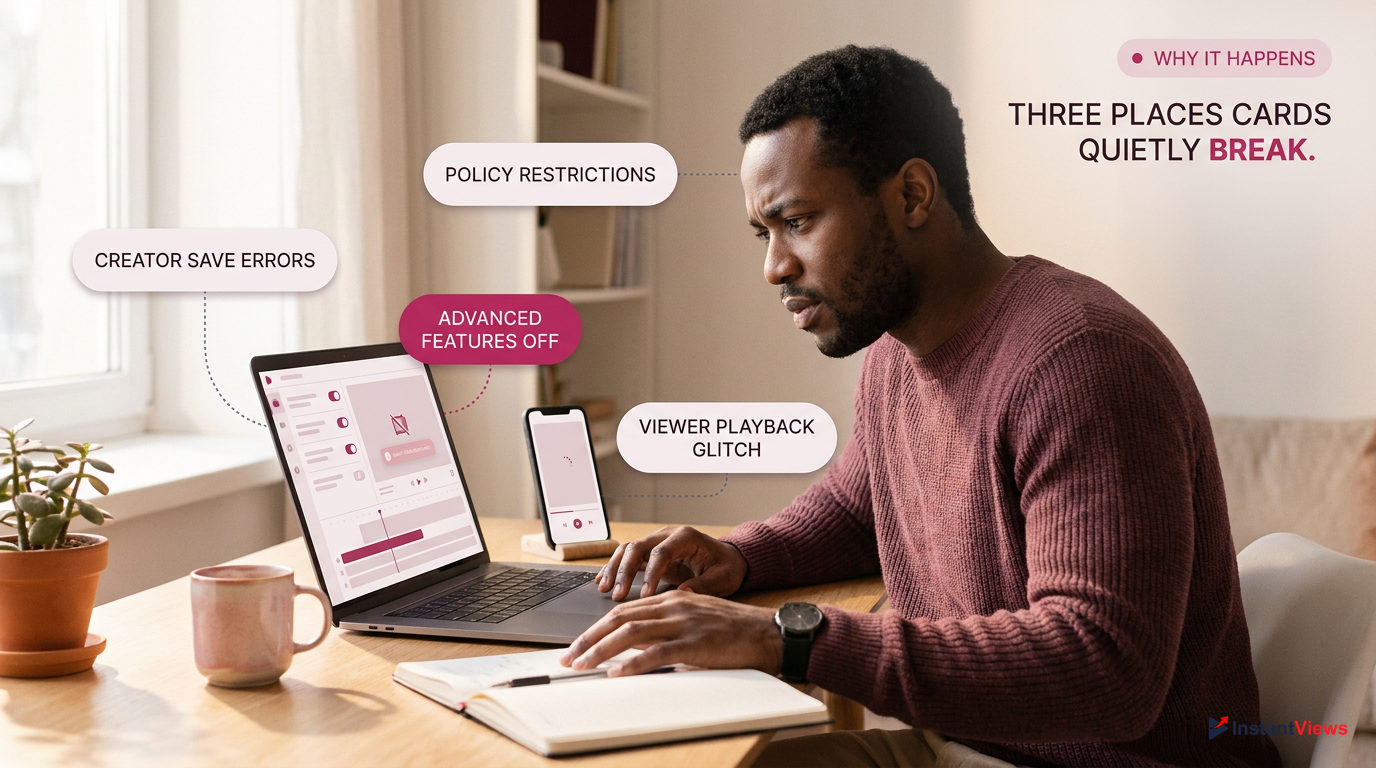
If your cards are missing, it's almost always due to audience settings (Made for Kids), device incompatibility, or browser cache issues preventing the save in Studio.
If you are trying to link to an external website, you must be part of the YouTube Partner Program (YPP) and have Advanced Features enabled. If you recently dropped below the monetization threshold or received a Community Guidelines strike, external linking cards will silently fail or disappear from your existing videos.
Furthermore, viewer device compatibility remains a significant factor. While the desktop web player and the primary iOS/Android apps fully support info cards, viewers watching via smart TVs, older gaming consoles, or embedded players on third-party websites might not see them at all. This is an intentional design choice by YouTube to maintain a clean UI on non-interactive displays. Understanding these primary causes is the first step in troubleshooting the issue effectively.
Check Your Video's 'Made for Kids' Settings
One of the most absolute, non-negotiable reasons your YouTube cards are not working is the Children's Online Privacy Protection Act (COPPA). Since the major policy shifts, YouTube has strictly enforced feature limitations on any content designated as "Made for Kids." If your video is set to this audience category, interactive features like info cards and end screens are instantly disabled.
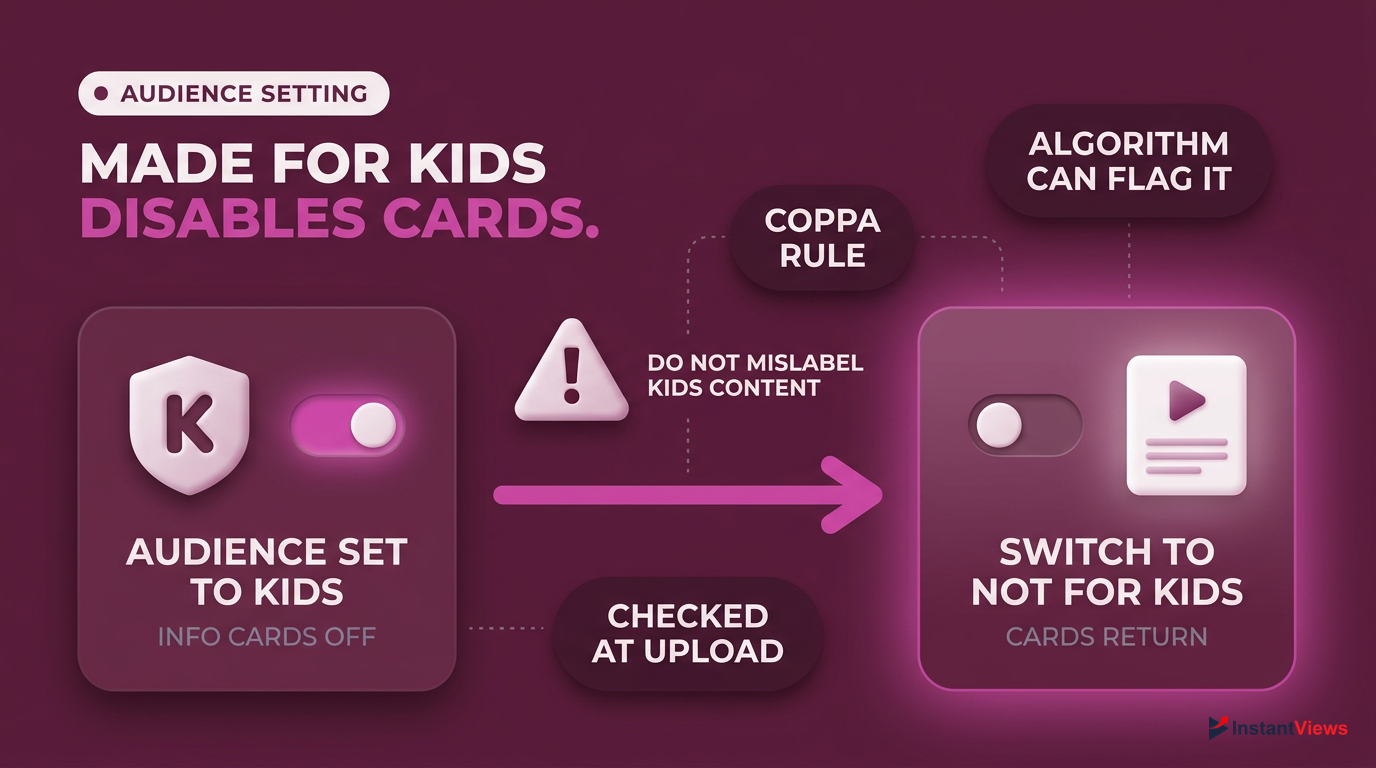
Intentionally mislabeling child-directed content as 'Not Made for Kids' to bypass card restrictions can lead to severe channel penalties, demonetization, and potential legal fines under COPPA.
This restriction exists because info cards can track user behavior and direct viewers outside the YouTube Kids ecosystem, violating privacy laws regarding minors. Many creators accidentally check this box during the upload process, or YouTube's automated algorithms flag the video as appealing to children based on the thumbnail or content.
Open YouTube Studio
Log in to studio.youtube.com and navigate to the 'Content' tab on the left sidebar.
Select Your Video
Hover over the video missing its cards and click the pencil icon (Details) to edit metadata.
Scroll to Audience Settings
Scroll down to the 'Audience' section. Ensure 'No, it's not made for kids' is selected if appropriate.
Save and Verify
Click the blue 'Save' button in the top right. Refresh the page and try adding your cards again.
If you are certain your content is intended for a general or adult audience, you must manually verify and adjust this setting. Failing to do so not only breaks your cards but severely limits your monetization and algorithmic reach.
The 'Shorts' Restriction: Do Cards Work on YouTube Shorts?
A massive point of confusion for creators in 2026 is the integration of interactive elements within short-form content. If you are wondering why your YouTube cards are not working on your latest 60-second vertical video, the answer is simple: YouTube Shorts do not support traditional info cards.
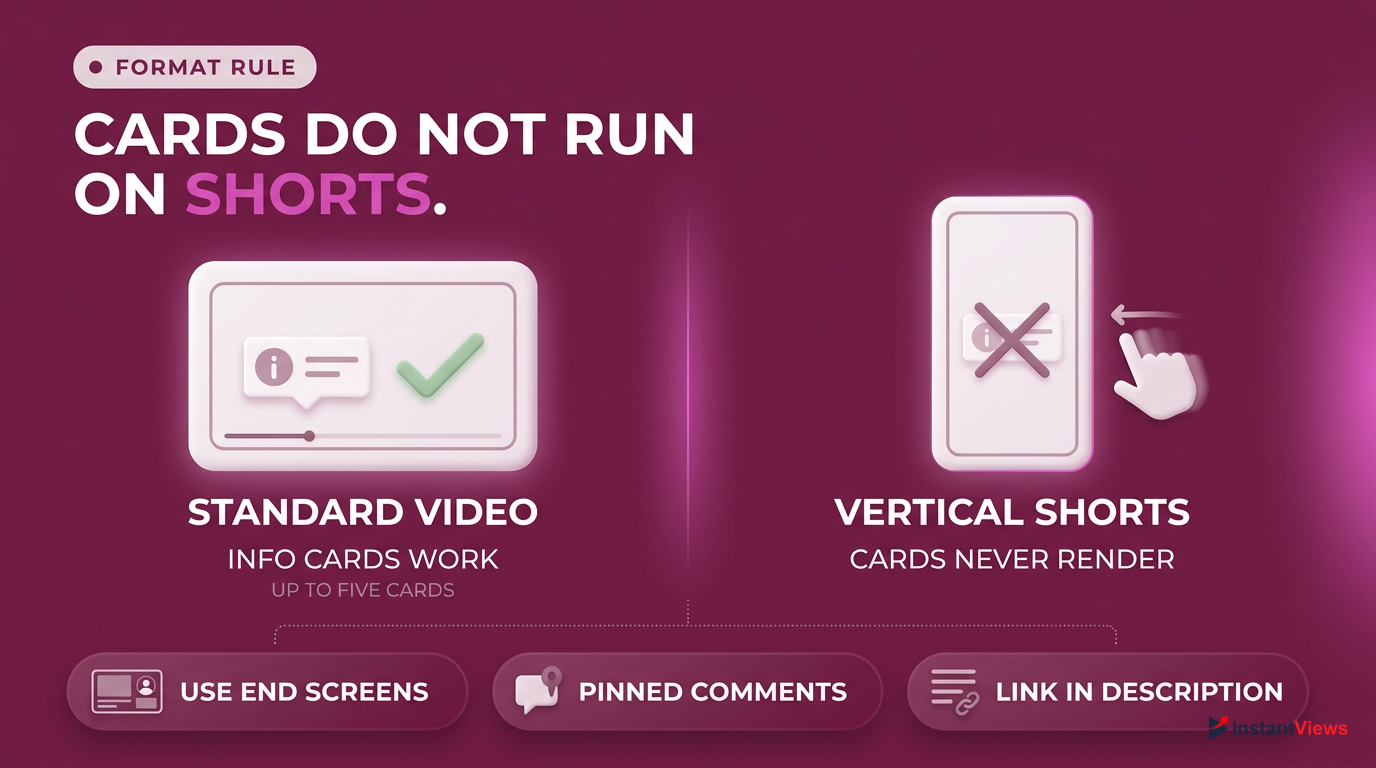
The standard 'i' icon info cards are exclusively reserved for standard VOD (Video on Demand) and live stream formats. They will never render in the Shorts feed.
The Shorts player is designed for rapid, swipe-based consumption. Introducing a clickable icon in the top right corner would clutter the minimalist interface and disrupt the infinite scroll experience. Therefore, the traditional cards you add via desktop are completely disabled when that video is viewed in the Shorts feed.
| Video Format | Info Cards Support | Alternative Linking Method |
|---|---|---|
| Standard VOD | Yes (Up to 5) | End Screens, Pinned Comments |
| Live Streams | Yes | Live Chat Pinned Messages |
| YouTube Shorts | No | 'Related Video' Feature |
However, YouTube recognized that creators still need a way to funnel Shorts viewers to their main channel content. Instead of standard cards, YouTube introduced the "Related Video" feature. This allows you to link one long-form video, live stream, or another Short directly to your Short. This link appears prominently above the channel name and subscribe button. If you have been trying to force standard info cards onto your Shorts, you must pivot to using the Related Video tool in Studio.
Fixing Browser and Cache Issues in YouTube Studio
Sometimes the issue isn't with YouTube's policies or the viewer's device, but rather a technical glitch on your end. If you find that YouTube cards are not working because you physically cannot save them in YouTube Studio—perhaps the "Save" button remains grayed out, or the card placement keeps resetting—you are likely dealing with a browser cache or extension conflict.
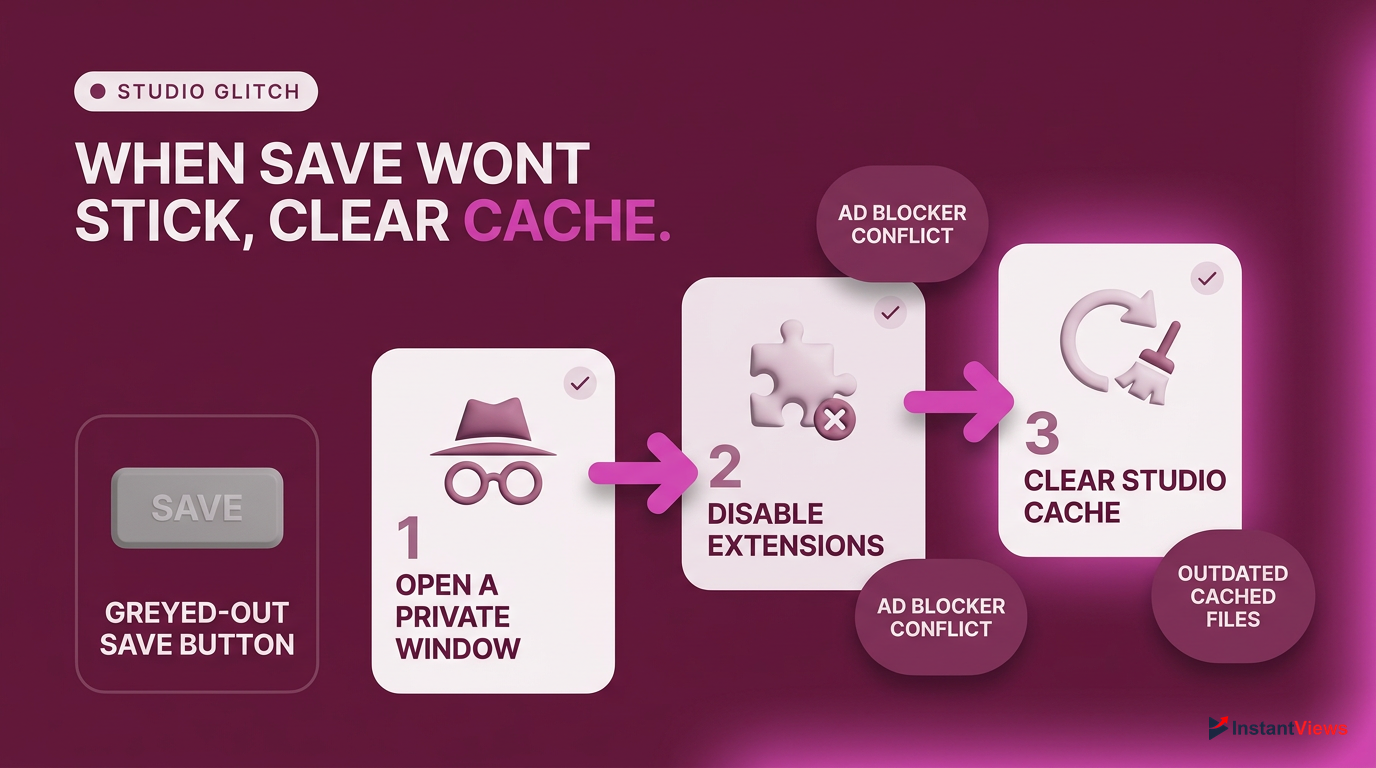
Before clearing your entire browser history, try opening YouTube Studio in an Incognito or Private Browsing window. If the cards save perfectly there, an extension is definitely the culprit.
In 2026, YouTube Studio is a heavy, JavaScript-dependent web application. Outdated cached files or aggressive ad-blocking extensions can block the background API requests required to save your video metadata. Extensions designed to enhance YouTube (like older versions of SEO tools) can sometimes conflict with native Studio updates.
Disable Extensions
Navigate to your browser's extension manager (chrome://extensions) and temporarily toggle off all ad-blockers and YouTube tools.
Clear Cache and Cookies
Go to your browser settings, select 'Privacy and Security', and clear cached images and files for the last 24 hours.
Hard Refresh Studio
Go back to the YouTube Studio video editor and press Ctrl + F5 (Windows) or Cmd + Shift + R (Mac) to force a hard reload.
When you encounter an infinite loading loop or unresponsive UI, isolating the variable is key. By performing a hard refresh and clearing your localized browser data, you force your browser to download the latest, uncorrupted version of the YouTube Studio interface directly from Google's servers.
Mobile App Limitations: Viewing vs. Adding Cards
The mobile experience on YouTube is fundamentally different from the desktop experience. A frequent complaint is "my YouTube cards are not working on my phone," which requires us to differentiate between the YouTube viewing app and the YouTube Studio creator app.
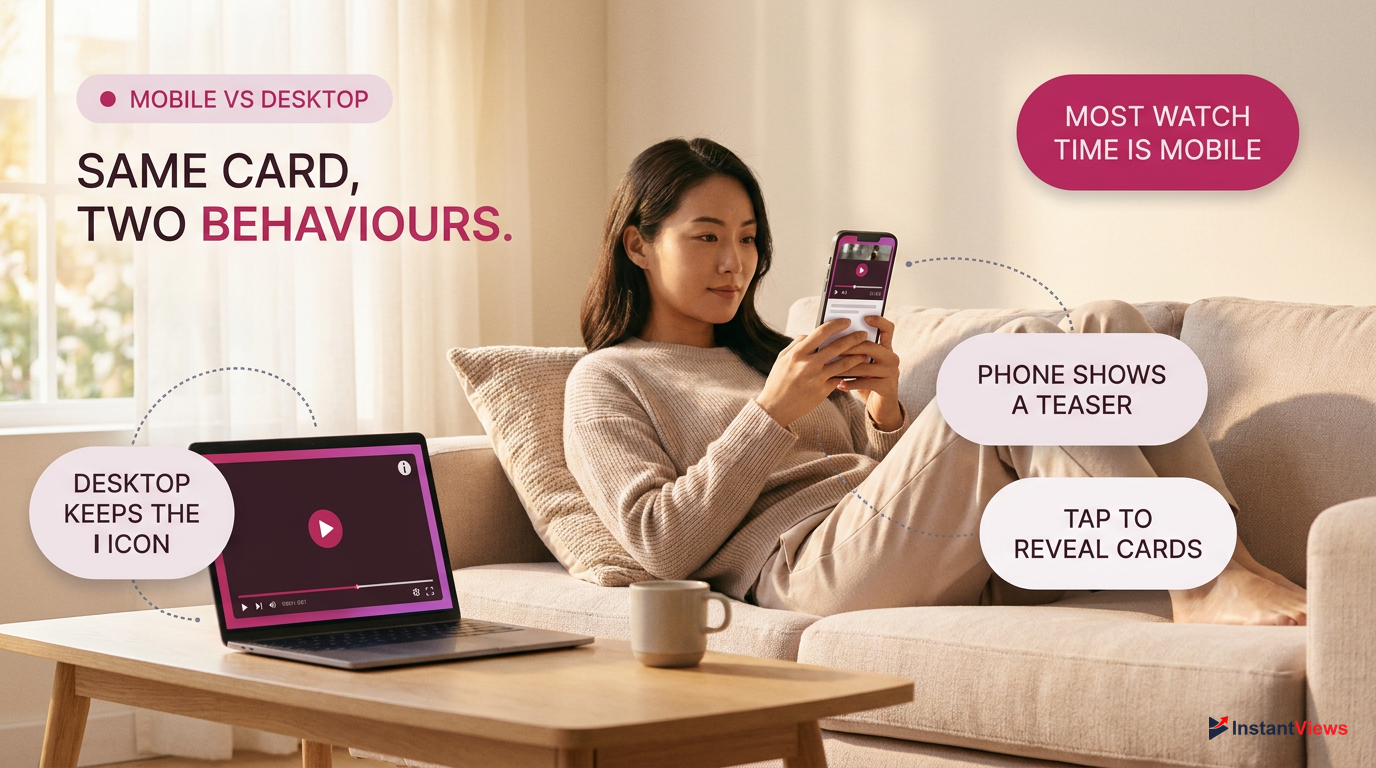
Over 70% of YouTube watch time happens on mobile devices, making it critical to ensure your interactive elements are optimized for smaller screens.
For viewers, info cards are fully supported on the official YouTube app for iOS and Android. However, they behave differently. Instead of a persistent "i" icon that expands on hover, mobile viewers often see a brief teaser text slide out from the top right corner at the designated timestamp. If they miss it, they have to tap the screen to bring up the player controls and manually tap the info icon.
- Persistent 'i' icon visible
- Expands on mouse hover
- Easy to click multiple cards
- Teaser text slides out briefly
- Requires screen tap to open
- Cards hidden behind settings menu
For creators, the limitation is much stricter. As of 2026, the YouTube Studio mobile app still lacks the full functionality of the desktop version when it comes to the granular placement of info cards. While you can edit titles and tags, adding a new video card at a specific timestamp requires the desktop interface. Creators attempting to bypass this by using Safari or Chrome on their phones must request the "Desktop Site," which can be clunky and prone to touch-input errors.
Copyright Claims and Community Guideline Strikes
Your channel's standing with YouTube directly impacts the features you have access to. If your YouTube cards are not working—specifically, if you have lost the ability to add external link cards to your website or merchandise—you must immediately check your channel for copyright strikes or Community Guideline violations.
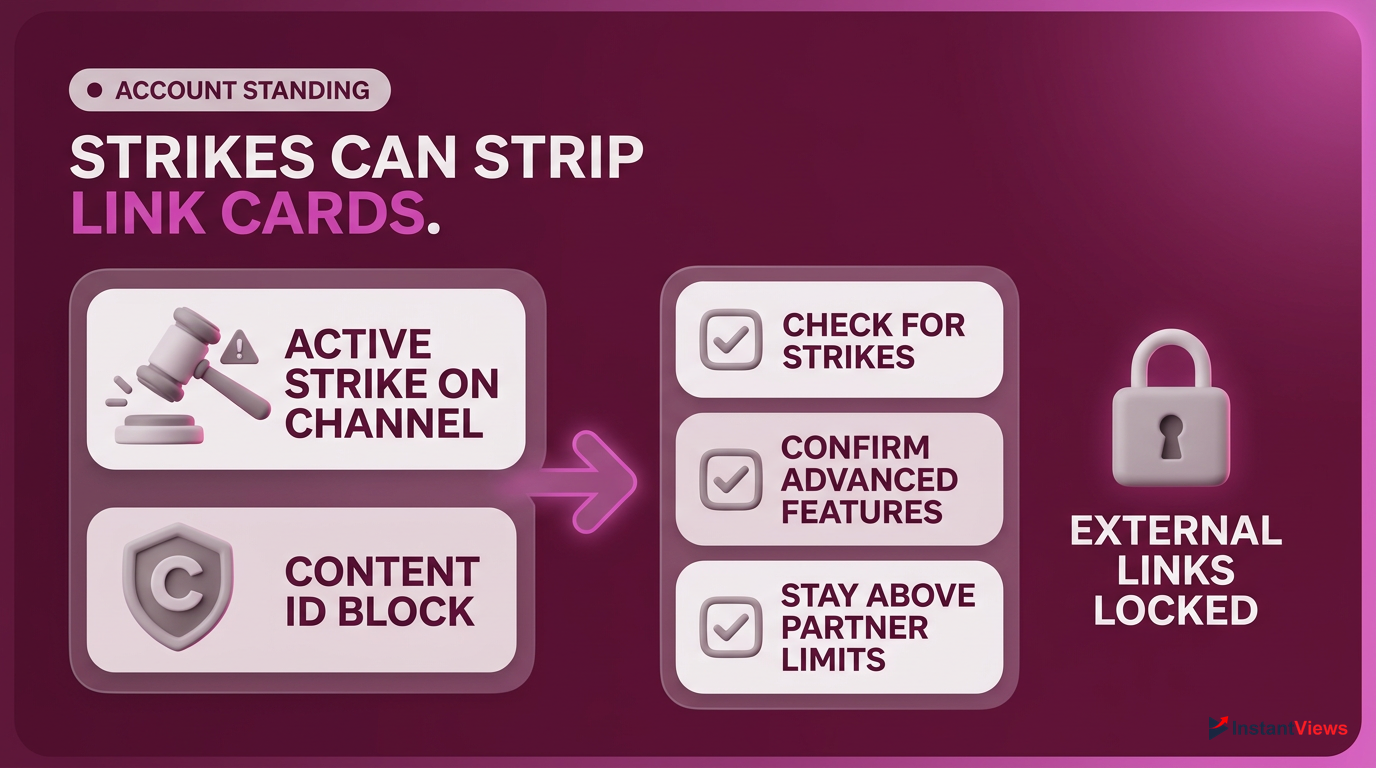
- Check the YouTube Studio Dashboard for active strikes.
- Verify your 'Advanced Features' eligibility in Settings > Channel > Feature Eligibility.
- Ensure you haven't dropped below the YouTube Partner Program thresholds.
- Review the specific video for severe Content ID blocks.
YouTube restricts advanced features for accounts that violate their terms of service. To use external link cards, your channel must have "Advanced Features" enabled. This requires a solid history of policy compliance and, typically, identity or video verification. If you receive an active Community Guidelines strike, your access to these advanced features is often suspended for the duration of the strike (usually 90 days).
Attempting to circumvent a link ban by using URL shorteners in video cards while under a strike can lead to permanent channel termination for deceptive practices.
Furthermore, if a specific video receives a severe Content ID claim or is blocked in certain territories due to copyright infringement, YouTube may disable interactive elements on that specific upload. The logic is that YouTube does not want to facilitate traffic routing from content that the creator does not fully own. A sudden loss of card functionality is often the first symptom of a broader account penalty.
Card Placement and Timing Errors
Even if your account is in perfect standing and your browser is functioning flawlessly, your YouTube cards might not work effectively due to poor placement and timing. YouTube's player has specific UI rules to prevent creators from spamming viewers with overlapping interactive elements.
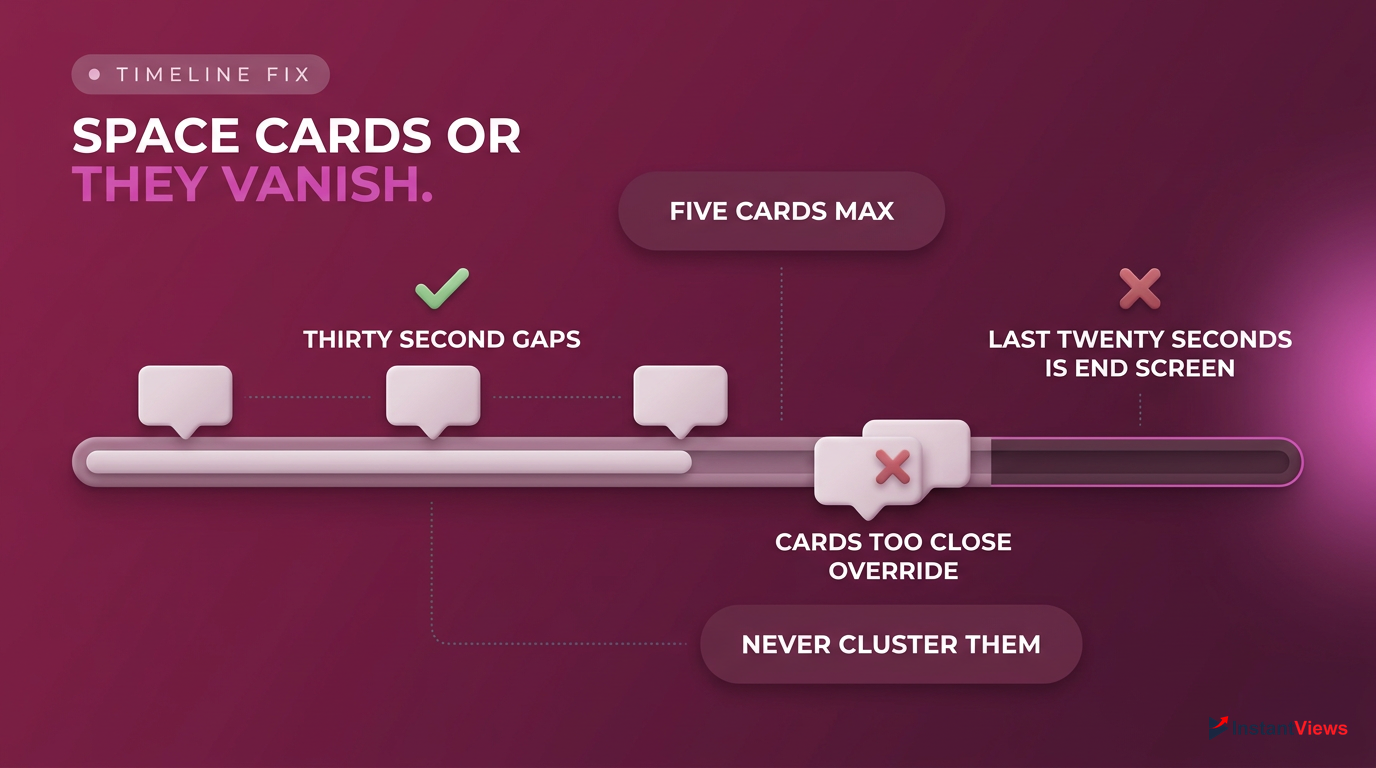
Never place an info card within the last 20 seconds of your video. This is the designated End Screen zone, and overlapping elements will cause the card to be suppressed.
You are allowed a maximum of five cards per video. However, if you place these cards too close together on the timeline, YouTube's system may glitch, or the teaser text for the second card will override the first before the viewer has a chance to read it. A common error occurs when creators cluster cards together.
Space Cards Evenly
Ensure there is at least a 30-second gap between each info card on your video timeline.
Avoid the End Screen Window
Check that no card markers are placed in the final 20 seconds of the video duration.
Align with Audio Cues
Zoom in on the timeline editor to align the card's appearance exactly with your verbal call-to-action.
Additionally, the timing of your verbal call-to-action (CTA) must align perfectly with the card's appearance. If you point to the top right corner of the screen at the 3:15 mark, but the card doesn't appear until 3:25, viewers will assume the feature is broken. Precision in the YouTube Studio editor is paramount to ensure a seamless viewer experience.
Updating Your YouTube App and Clearing App Data
When your audience complains that your YouTube cards are not working, the issue is frequently on their device rather than your channel. Mobile viewers using outdated versions of the YouTube app are prone to a myriad of playback bugs, including missing interactive UI elements.
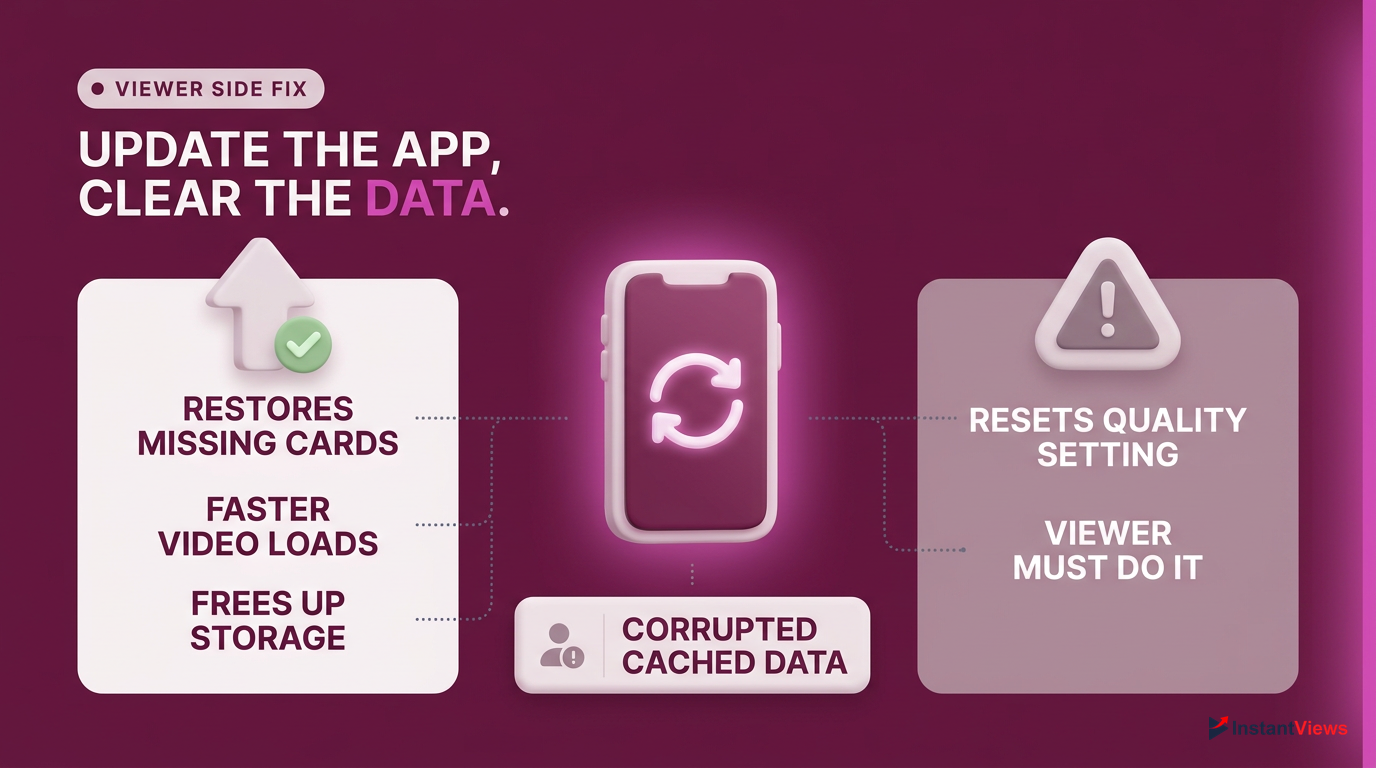
- Instantly fixes missing UI elements like info cards.
- Improves overall app speed and video load times.
- Frees up storage space on the mobile device.
- May temporarily reset video quality preferences.
- Requires the viewer to actively perform the troubleshooting.
Over time, the YouTube app accumulates a massive amount of cached data—thumbnails, video fragments, and interface scripts. When this cache becomes corrupted, the app struggles to render overlays like info cards and end screens properly. The most effective viewer-side fix is to clear this cached data and ensure the application is updated to the latest 2026 build.
Open Device Settings
On Android, go to Settings > Apps > YouTube. On iOS, you will need to offload or reinstall the app.
Clear Cache
Tap 'Storage' and then select 'Clear Cache'. Do not clear 'Data' unless necessary, as it will log the user out.
Update the App
Visit the Google Play Store or Apple App Store and ensure the YouTube app is updated to the latest version.
As a creator, pinning a comment advising viewers to update their apps can mitigate complaints. If clearing the cache does not work, a full uninstallation and reinstallation of the app forces the device to download fresh UI assets, which almost always restores the missing "i" icon.
Alternative Strategies if YouTube Cards Keep Failing
While diagnosing why YouTube cards are not working is crucial, you cannot afford to halt your channel's traffic flow while waiting for a fix. If you are dealing with an unresolvable platform bug, a COPPA restriction, or a temporary strike, you must pivot to alternative linking strategies immediately.
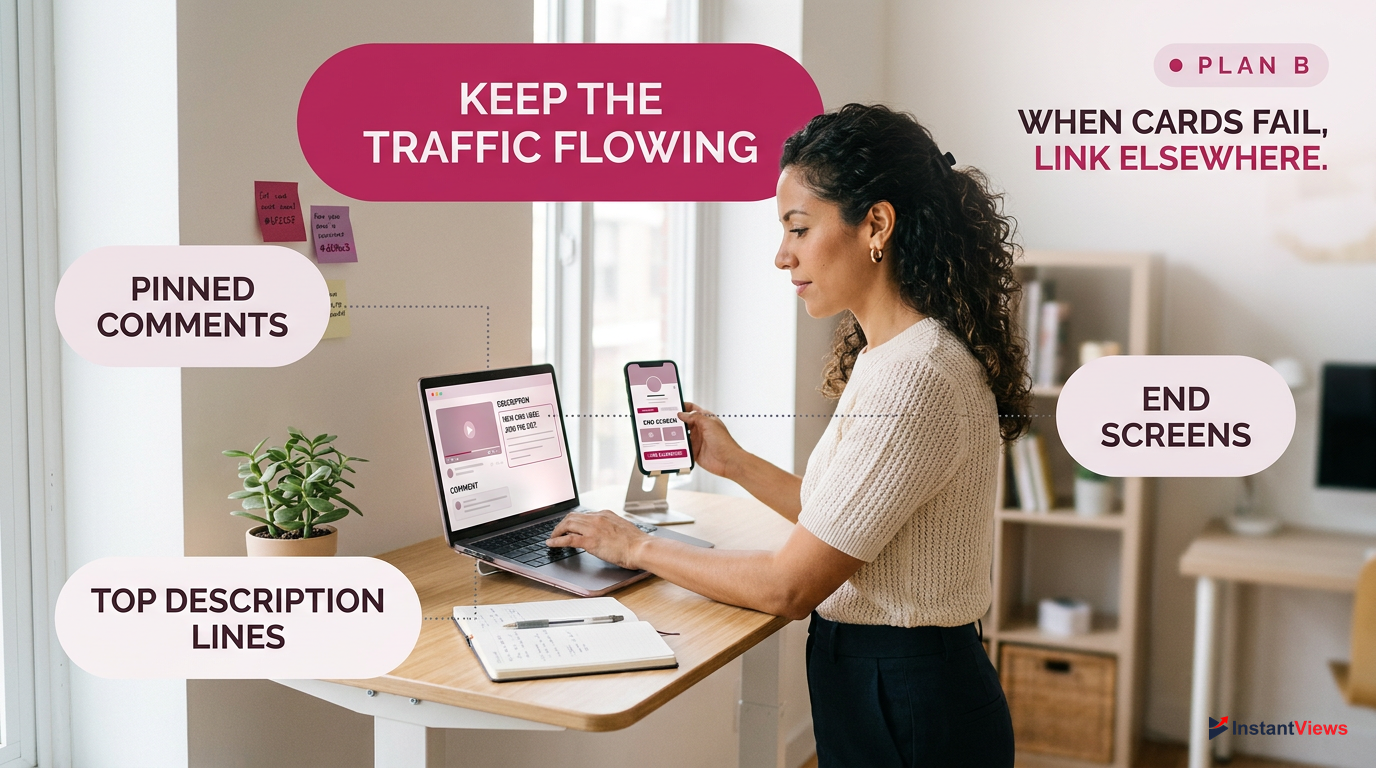
Pinned Comments
Highly visible on mobile devices. Often generates a higher CTR than info cards due to placement.
Top Description Lines
Place crucial links in the first two lines of your description so they are visible 'above the fold'.
End Screens
The ultimate tool for binge-watching. Captures highly engaged viewers at the end of your video.
In 2026, the YouTube ecosystem offers several robust ways to drive viewers to external sites or other videos. The most effective alternative is the Pinned Comment. A pinned comment sits at the very top of the comment section, making it highly visible to mobile users who often scroll down while the video is playing.
When using a pinned comment as an alternative to a broken card, use emojis to draw the eye and create a clear, trackable bit.ly link so you can measure its effectiveness.
Another vital real estate area is the top two lines of your video description. Because this text is visible before the viewer has to click "Show more," it is prime territory for your primary CTA. Mastering these alternatives ensures your growth doesn't stagnate due to a minor technical glitch with info cards.
Best Practices for YouTube Cards in 2026
Once you have resolved the issues causing your YouTube cards to malfunction, it is time to optimize their usage. Simply throwing five cards into a video at random intervals is a strategy of the past. In 2026, audience retention is the ultimate metric, and poorly placed cards can actually hurt your channel by clicking viewers away prematurely.
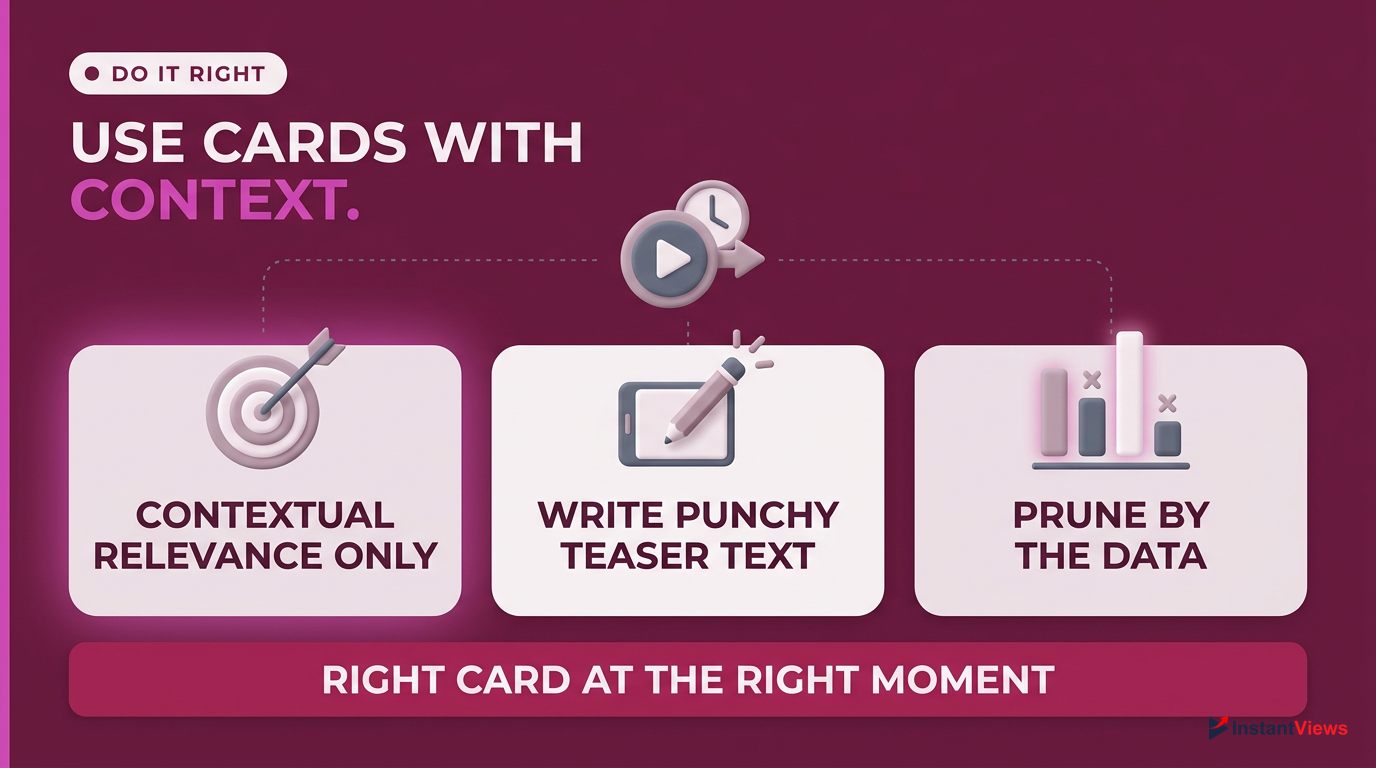
The golden rule for modern YouTube cards is contextual relevance. A card should only appear when it directly enhances the point you are making in the video. If you mention a specific tutorial you recorded last year, that is the exact millisecond the card should slide out. This creates a seamless viewing experience.
Furthermore, customize the teaser text. By default, YouTube uses the title of the linked video. If that title is long or truncated, it won't entice a click. Use the custom teaser text option in YouTube Studio to write a curiosity-inducing hook. Lastly, monitor your YouTube Analytics. The "Interactive Features" tab provides granular data on which cards are getting clicked. Data-driven refinement is the key to maximizing the utility of your fixed YouTube cards.
Frequently Asked Questions
To add external links to websites or merchandise via info cards, your channel must be in the YouTube Partner Program (YPP) and have 'Advanced Features' enabled. If you lack monetization status or have an active Community Guidelines strike, this feature is disabled.
Yes, info cards work on the official YouTube iOS and Android apps. However, they appear as a brief slide-out teaser text rather than a persistent 'i' icon. Viewers may need to tap the screen to access the hidden info card menu.
YouTube Shorts do not support traditional info cards. To link content within a Short, you must use the 'Related Video' feature in YouTube Studio, which places a clickable link directly above your channel name in the Shorts player.
You can add a maximum of five info cards per standard YouTube video. However, it is recommended to space them out evenly and avoid placing them in the last 20 seconds to prevent conflicts with your End Screen elements.
A grayed-out save button in YouTube Studio is typically caused by a browser cache issue or a conflicting browser extension (like an ad-blocker or outdated SEO tool). Try editing in Incognito mode or clearing your browser's cache.
The native YouTube Studio mobile app does not currently support adding or editing info cards. You must use a desktop computer or force your mobile browser to load the 'Desktop Site' version of YouTube Studio to manage cards.
Yes. Under COPPA regulations, any video designated as 'Made for Kids' will have interactive features, including info cards, end screens, and comments, permanently disabled to protect the privacy of minors.
If cards vanished from older videos, your channel likely received a Community Guidelines strike, dropped out of the YouTube Partner Program, or the videos were automatically re-categorized as 'Made for Kids' by YouTube's algorithm.
No, YouTube automatically pulls the thumbnail of the linked video, playlist, or channel. For external links, it pulls the featured image from the website's metadata. You cannot upload a separate custom image specifically for the card.
You can track card performance by going to YouTube Studio Analytics. Navigate to 'Advanced Mode' and select 'Interactive Features' or look at the 'Cards' metric to see impressions, clicks, and the overall click-through rate (CTR) for each card.


