- YouTube's data pipeline separates real-time estimates from verified standard analytics, often causing a natural 24 to 48-hour delay.
- Aggressive browser caching and outdated service workers are the leading causes of YouTube Studio dashboards failing to load new data.
- If your view count completely freezes, YouTube's automated systems are likely auditing your traffic for bots, spam, or invalid playback loops.
- Third-party extensions like ad blockers or outdated YouTube management tools frequently block the background scripts required to render analytics charts.
- Revenue analytics always operate on a strict 48-hour delay due to the complex ad-verification process required before final payouts are calculated.
There is nothing quite as anxiety-inducing for a creator as logging into YouTube Studio, expecting to see the results of a newly published video, only to find your dashboard completely frozen. When you see your YouTube analytics not updating, it is easy to assume the worst: a shadowban, a broken channel, or lost revenue. However, in the vast majority of cases, this is a temporary technical hiccup rather than a catastrophic failure.
In 2026, YouTube's backend architecture processes over 100 petabytes of video data and user interactions daily. To handle this immense load, the platform utilizes a multi-tiered data pipeline. This means the numbers you see on a public video page, the real-time card in your Studio app, and your official analytics dashboard are all pulled from different databases that sync at entirely different intervals. Understanding this architecture is the first step to resolving your panic.
This comprehensive guide breaks down exactly why your data is delayed and provides actionable, step-by-step fixes. Whether you are dealing with a localized browser cache issue, a mobile app sync failure, or a platform-wide server outage, we will walk you through the exact settings and menus you need to navigate to get your analytics flowing again. Let’s dive into the technical realities of YouTube Studio and get your dashboard back on track.
- 1. Understanding Why YouTube Analytics Not Updating is Often Normal
- 2. Real-Time Analytics vs. Standard Metrics: The 48-Hour Rule
- 3. Step-by-Step Fix: Clearing Cache and Service Workers
- 4. How to Check for YouTube Server Outages in 2026
- 5. The "Frozen View Count" Phenomenon and Traffic Audits
- 6. Fixing YouTube Studio Mobile App Sync Issues
- 7. How Third-Party Extensions Interfere with Studio Data
- 8. Why Revenue Analytics Are Always Delayed
- 9. Advanced Troubleshooting: Account Permissions and Syncing
- 10. When and How to Contact YouTube Creator Support
- FAQ
1. Understanding Why YouTube Analytics Not Updating is Often Normal
Before assuming your channel is broken, it is crucial to understand how YouTube processes data in 2026. When you experience youtube analytics not updating, you are usually witnessing the gap between YouTube's edge servers (which handle immediate user interactions) and its core analytics databases (which verify and store permanent data). YouTube intentionally delays official analytics to filter out invalid traffic, bots, and accidental clicks.
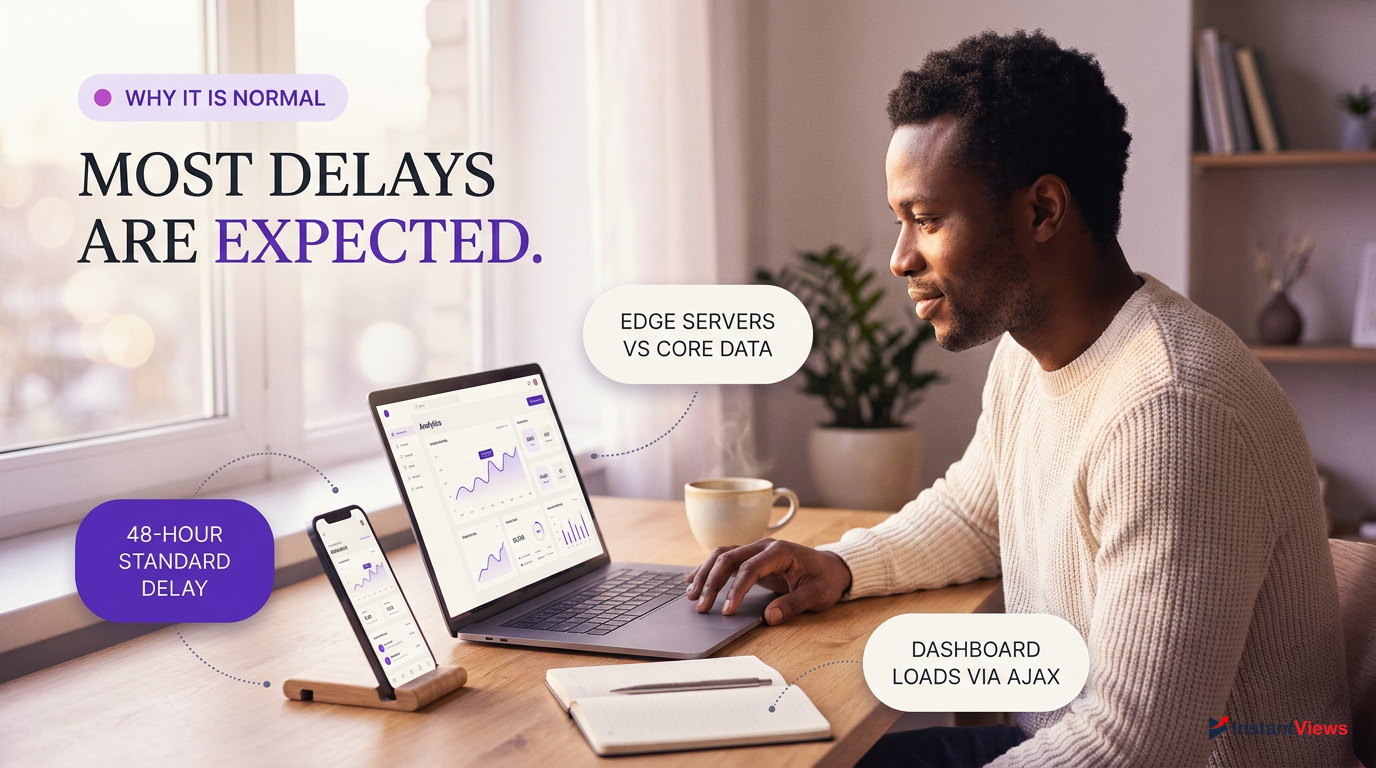
The YouTube Studio dashboard is built as a Single Page Application (SPA). This means it relies heavily on asynchronous JavaScript (AJAX) to pull data payloads from YouTube's servers without reloading the webpage. If there is a slight network interruption, or if YouTube's API rate-limits your session, these data requests fail silently. You will be left staring at a dashboard that looks perfectly normal but contains data from hours ago.
The public view counter on your video page is designed for speed, while YouTube Studio Analytics are designed for accuracy. They will rarely match perfectly during the first 72 hours of a video's life.
Furthermore, YouTube's 2026 algorithm updates have introduced stricter real-time auditing. If a video suddenly spikes in traffic—especially from external sources like Reddit or TikTok—YouTube's automated systems will temporarily pause standard analytics updates to verify the legitimacy of the traffic source. During this auditing phase, your real-time views might continue to tick up slightly, but your primary overview charts will remain completely static. This is a protective measure to ensure advertisers are not billed for fraudulent impressions.
2. Real-Time Analytics vs. Standard Metrics: The 48-Hour Rule
One of the most common points of confusion for creators is the discrepancy between the "Realtime" card on the right side of the YouTube Studio dashboard and the main "Overview" charts. If you are panicking about your youtube analytics not updating, you must first identify which analytics you are looking at. Real-time metrics are rough estimates designed to give you a pulse on current performance, while standard metrics are verified, finalized data points.
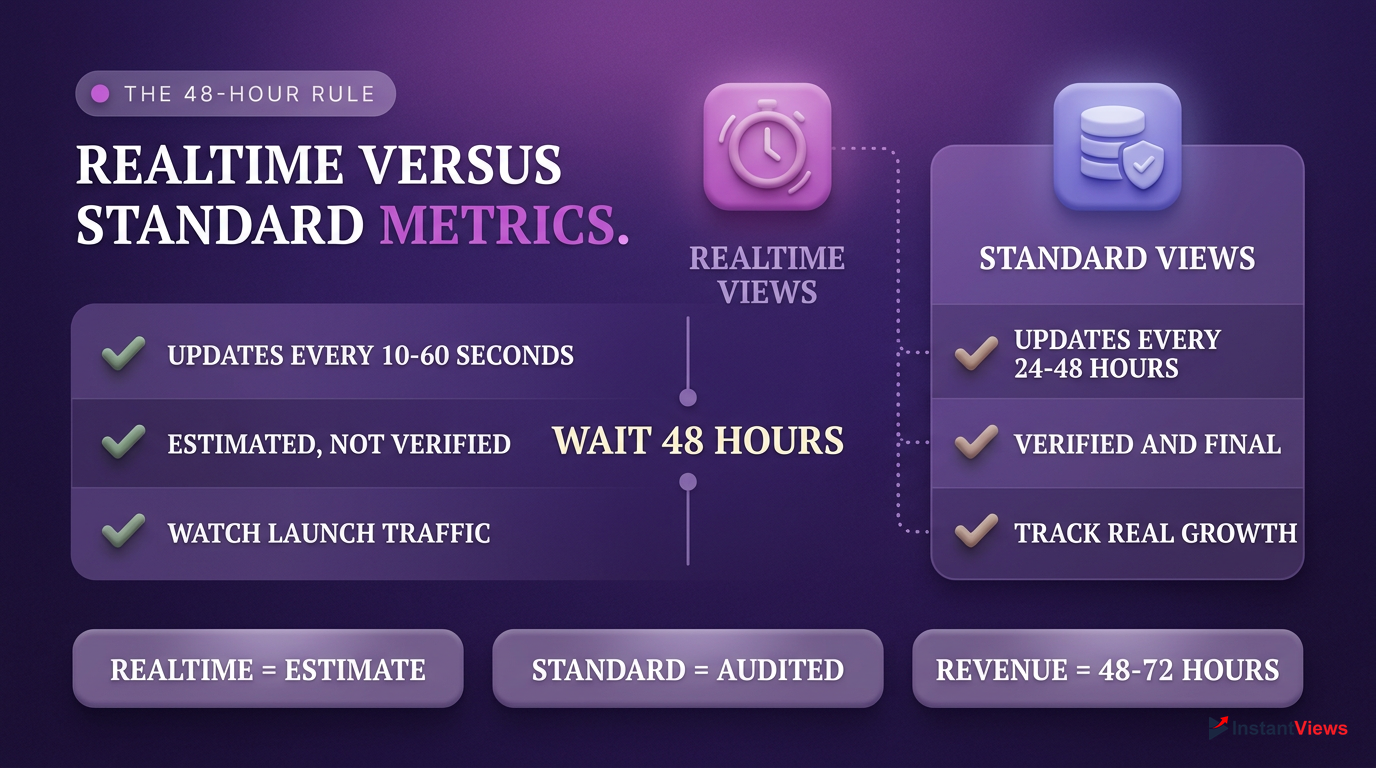
| Metric Type | Update Frequency | Accuracy Level | Primary Use Case |
|---|---|---|---|
| Real-Time Views | Every 10-60 seconds | Estimated | Monitoring immediate launch traffic |
| Standard Views / CTR | Every 24-48 hours | Verified | Long-term channel growth analysis |
| Revenue (RPM/CPM) | Every 48-72 hours | Audited | Financial tracking and accounting |
YouTube explicitly states that standard analytics operate on a 48-hour delay. This is not a glitch; it is a feature of their data processing pipeline. When a user watches your video, that event is logged on a local server. Once a day, these local servers batch-send their logs to YouTube's central databases. Here, the data is scrubbed for anomalies. Did the same IP address watch the video 50 times? Did a viewer click away after 1 second? These events are removed from your final count.
As of the late 2025 Studio update, YouTube now displays a small "Data is underreported for some dates" warning banner at the top of your screen if they are experiencing global processing delays. Always check for this banner before troubleshooting.
If your real-time views are moving but your main graph is stuck, there is nothing to fix—you simply need to wait. However, if your real-time card has been completely flat at zero for hours despite knowing you have active traffic, you are likely dealing with a localized browser issue or a YouTube server outage, which we will address in the following sections.
3. Step-by-Step Fix: Clearing Cache and Service Workers
If your youtube analytics not updating issue is isolated to your desktop browser, the culprit is almost always aggressive local caching. Modern browsers store website data locally to speed up load times. YouTube Studio uses "Service Workers"—background scripts that cache the dashboard's layout and recent data payloads. If these workers get stuck, they will continually serve you a stale, outdated version of your analytics, regardless of how many times you hit the refresh button.
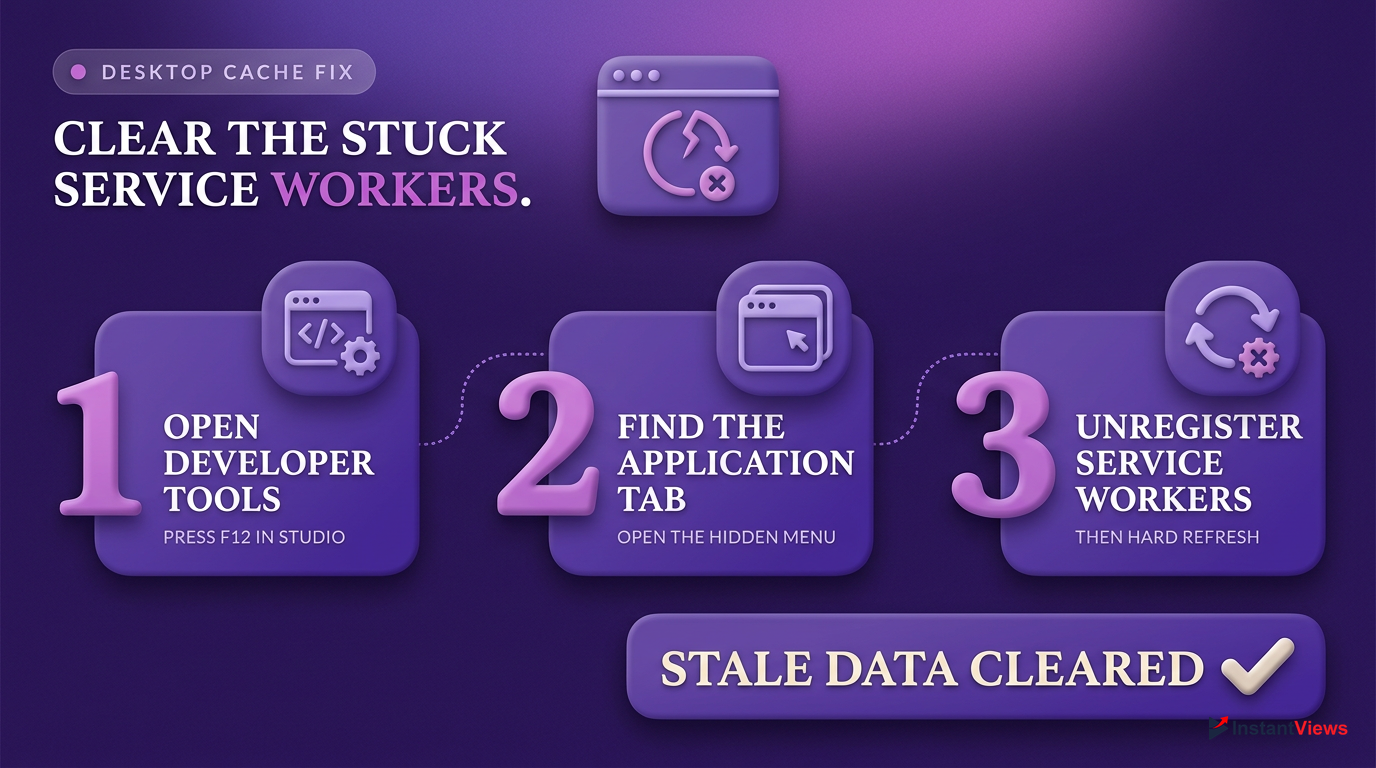
Open Developer Tools
Navigate to your YouTube Studio dashboard. Press F12 (or Ctrl+Shift+I / Cmd+Option+I on Mac) to open your browser's Developer Tools.
Locate the Application Tab
In the top menu of the Developer Tools panel, click on the Application tab. (If you don't see it, click the "double arrow" icon to reveal hidden tabs).
Unregister Service Workers
In the left sidebar, click on Service Workers. Check the box that says "Update on reload". Then, click the Unregister button next to any YouTube-related workers.
Hard Refresh the Dashboard
Close the Developer Tools panel. Perform a hard refresh by pressing Ctrl + F5 (or Cmd + Shift + R on Mac) to force the browser to fetch fresh data from YouTube's servers.
This method is far more effective than simply clearing your general browser history, as it specifically targets the background scripts responsible for loading YouTube Studio's dynamic charts. If you are using a Chromium-based browser (like Google Chrome, Microsoft Edge, or Brave), this architectural quirk is a frequent offender.
To quickly test if caching is your issue without deleting your data, open an "Incognito" or "Private Browsing" window, log into your YouTube account, and check your Studio dashboard. If the analytics are updated there, you 100% have a local cache issue.
We recommend performing this hard reset at least once a month, especially after YouTube pushes major updates to the Studio interface, to ensure your dashboard remains responsive and accurate.
4. How to Check for YouTube Server Outages in 2026
Sometimes, the problem isn't on your end at all. YouTube is a massive platform, and despite its robust infrastructure, API endpoints responsible for analytics frequently go down for maintenance or suffer unexpected outages. If you notice your youtube analytics not updating across multiple devices (both desktop and mobile), a platform-wide issue is highly probable. Before you start deleting apps or changing channel settings, you need to verify YouTube's current server status.
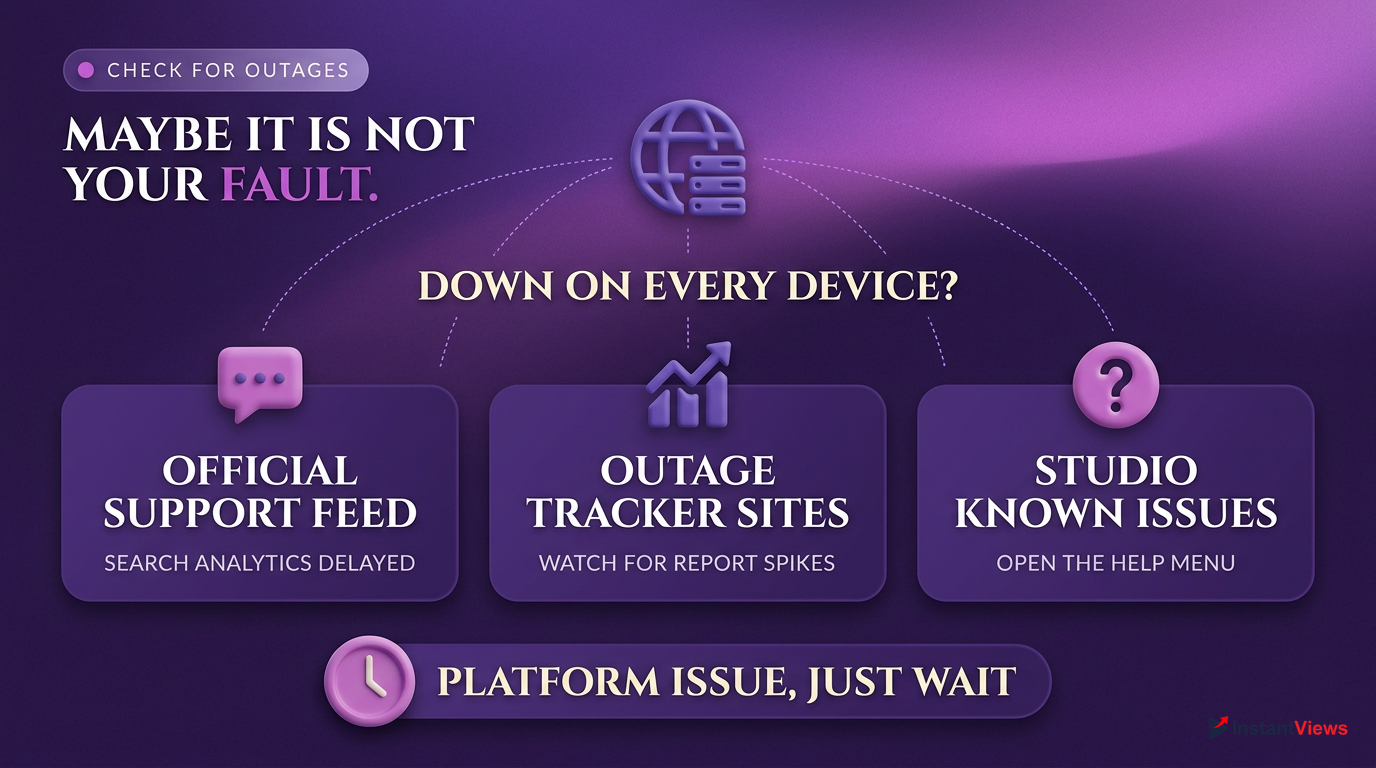
@TeamYouTube on X
The official support account is always the first to announce known analytics bugs. Search their recent replies for "analytics delayed".
Downdetector
Check the YouTube community reports on Downdetector. A massive spike in reports usually indicates an API failure affecting Studio.
Studio Known Issues Page
Navigate to the "Help" icon in YouTube Studio. The pop-up menu will list any active, platform-wide "Known Issues" currently being investigated.
When YouTube's analytics servers experience downtime, they do not lose your data. The raw view and engagement logs are still securely stored on local edge servers. The issue is simply that the pipeline responsible for aggregating that data and pushing it to your visual dashboard is temporarily severed. Once the engineers resolve the outage, the backlog of data will process, and your charts will catch up—usually in a massive, sudden spike.
Never delete and re-upload a video just because its analytics are frozen during its first few hours. You will permanently lose the initial algorithmic momentum, and the analytics freeze is almost always a temporary server-side delay.
During a known outage, the best course of action is patience. Do not attempt to alter video metadata, change monetization settings, or adjust visibility, as these actions rely on the same backend systems and could result in saving errors while the servers are unstable.
5. The "Frozen View Count" Phenomenon and Traffic Audits
Veteran creators remember the days when every viral video got stuck at "301 views." While YouTube retired that specific visual freeze years ago, the underlying mechanism still exists in 2026. If you are experiencing a severe case of youtube analytics not updating—specifically where your view count halts entirely while comments and likes continue to grow—your video has triggered an automated traffic audit.
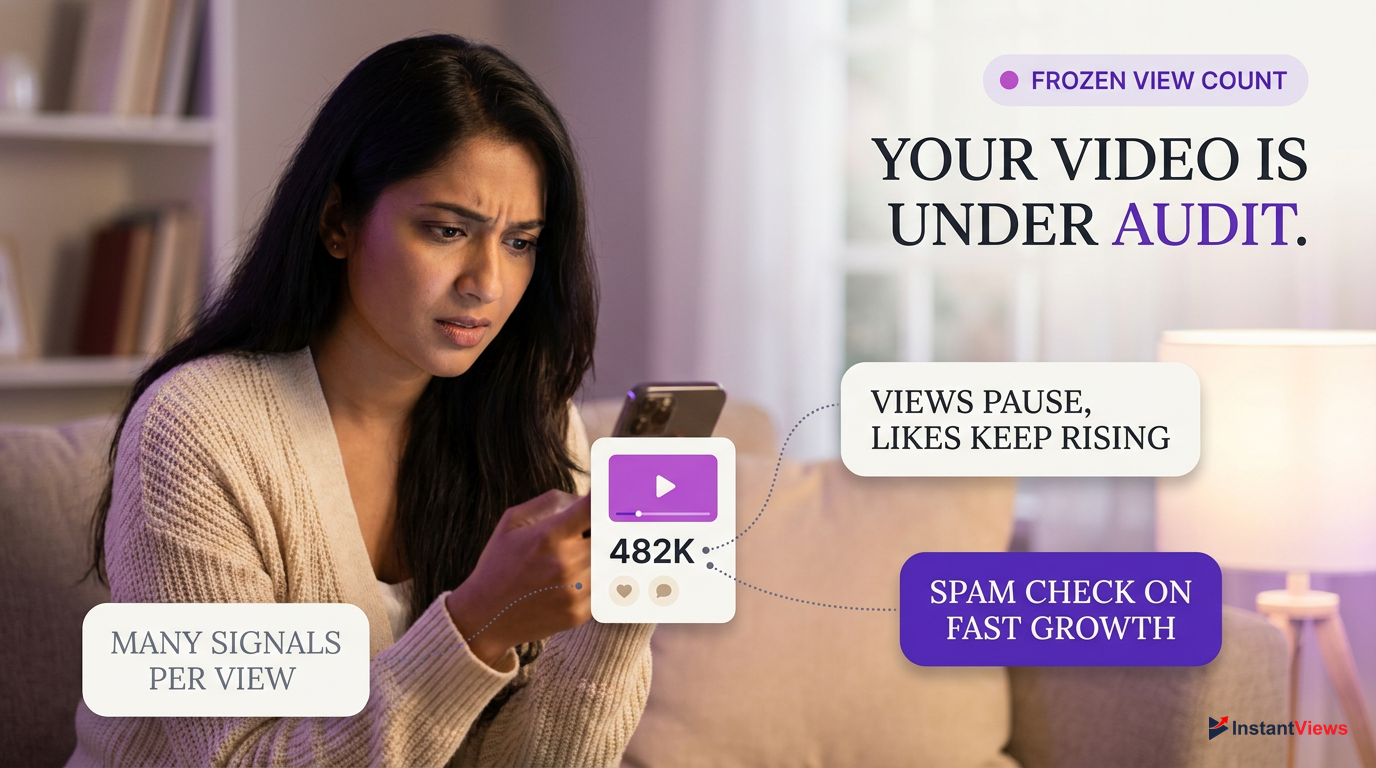
YouTube's anti-spam algorithms evaluate over 200 data points per view—including mouse movement, browser fingerprinting, and session duration—to determine if a view is from a legitimate human or a bot farm.
When a video's velocity (views per hour) exceeds a certain threshold relative to your channel's historical average, YouTube temporarily freezes the public view counter and the standard analytics dashboard. During this freeze, the system meticulously analyzes the traffic sources. This is particularly common if your video was embedded on a high-traffic external website, shared in a massive Discord server, or if a competitor maliciously sent bot traffic to your channel to trigger a penalty.
This auditing process typically lasts between 12 and 24 hours. You cannot bypass or speed up this process. Once the algorithm finishes scrubbing the data, the invalid views are discarded, and the legitimate views are dumped into your analytics all at once. It is completely normal for your final, updated view count to be slightly lower than what you expected, as the system will have successfully purged the low-quality or bot-driven traffic.
6. Fixing YouTube Studio Mobile App Sync Issues
Many creators rely exclusively on their smartphones to monitor channel performance. However, the YouTube Studio mobile app is notorious for caching issues and background sync failures. If your desktop analytics are fine but your mobile youtube analytics not updating, the problem lies within the app's local data storage or your device's background app refresh settings.
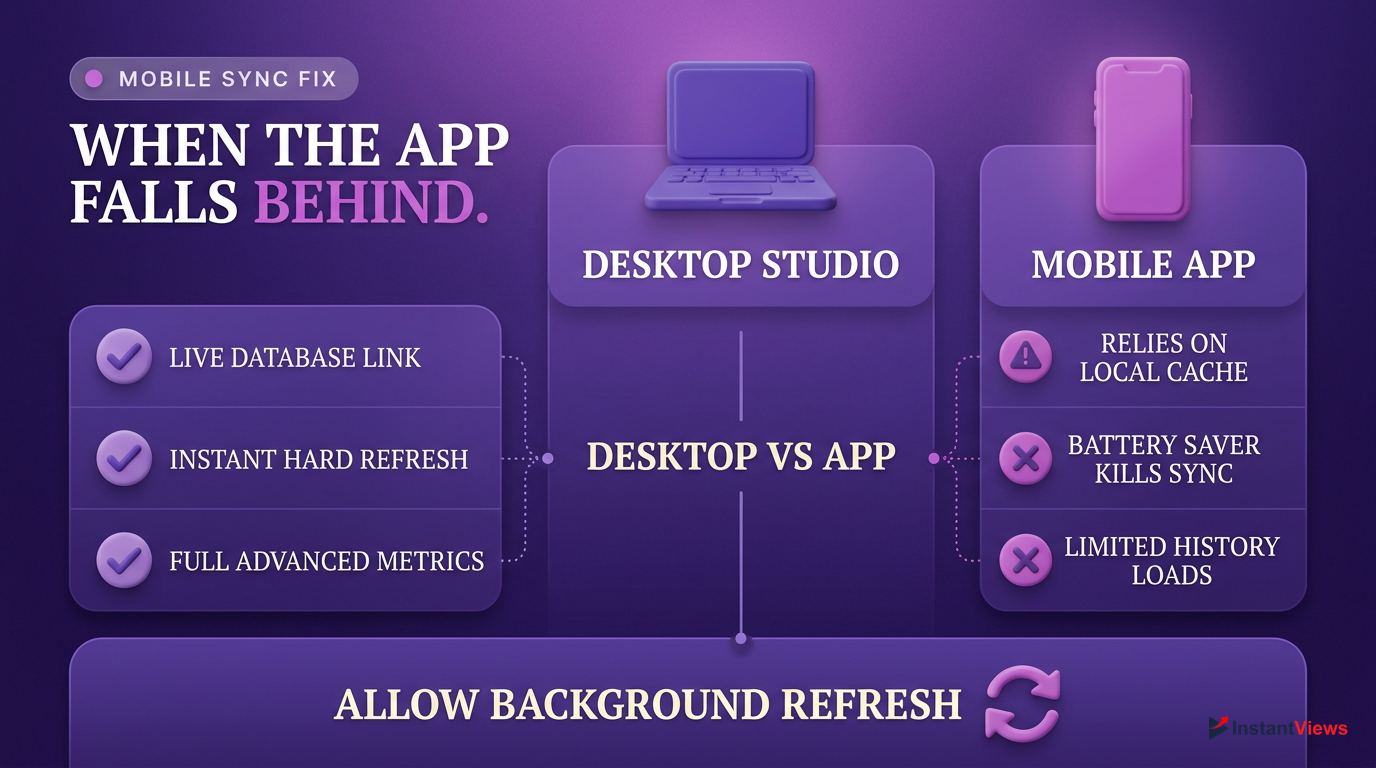
- Direct connection to live databases
- Immediate updates on hard refresh
- Full access to advanced mode metrics
- Relies heavily on local device caching
- Background sync can be killed by OS battery savers
- Limited historical data rendering
Both iOS and Android operating systems aggressively manage background apps to save battery life. If your phone has placed the YouTube Studio app into a "deep sleep" state, it will not fetch new analytics data even when you open it, resulting in a frozen dashboard. To resolve this, you need to force the app to dump its stored memory and re-establish a fresh connection to YouTube's servers.
Force Close the App
Swipe up from the bottom of your screen to open the app switcher. Swipe the YouTube Studio app away to force close it completely.
Clear App Cache (Android)
Go to your phone's Settings > Apps > YT Studio > Storage. Tap Clear Cache. (Do not tap Clear Data, or you will have to log in again).
Offload the App (iOS)
Go to Settings > General > iPhone Storage > YT Studio. Tap Offload App, then reinstall it. This clears the cache while keeping your login data.
Check Background Sync
Ensure that "Background App Refresh" (iOS) or "Allow background data usage" (Android) is enabled for the YT Studio app in your device settings.
Additionally, ensure you are running the latest version of the app from the App Store or Google Play. YouTube frequently deprecates older API endpoints, meaning outdated versions of the app will simply fail to load newer analytics modules, resulting in blank screens or endless loading spinners.
7. How Third-Party Extensions Interfere with Studio Data
If you have tried clearing your cache and checking for outages, but you still find your youtube analytics not updating, it is time to audit your browser extensions. YouTube Studio relies on complex, obfuscated JavaScript to render its interactive charts. Third-party extensions that manipulate the Document Object Model (DOM) or block network requests can easily break these scripts, causing your dashboard to freeze or fail to load entirely.
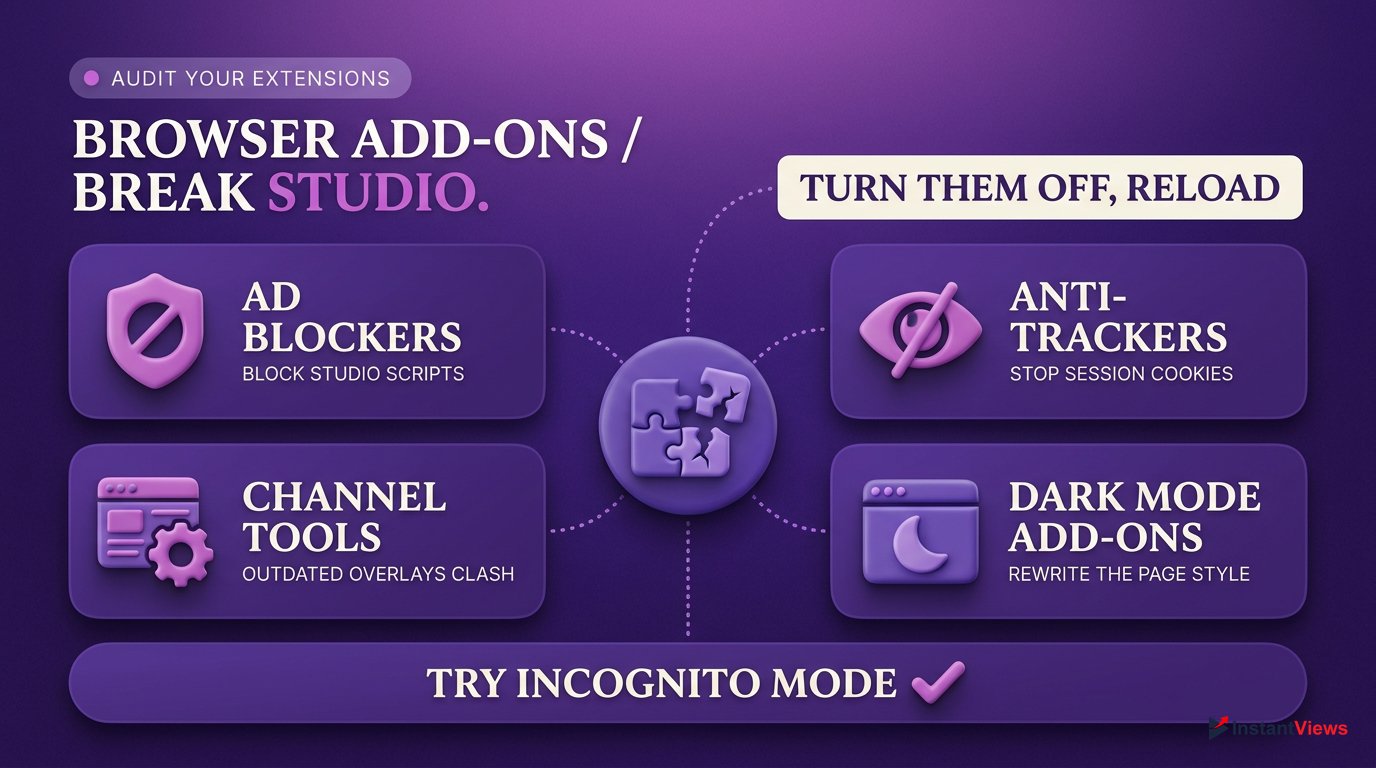
- Ad Blockers (uBlock Origin, AdBlock Plus): Often mistake YouTube's internal analytics tracking scripts for external advertising trackers and block them.
- Privacy Badgers / Anti-Trackers: Can block the cross-site cookies required for YouTube Studio to authenticate your Google session.
- YouTube Management Tools (VidIQ, TubeBuddy): If outdated, their custom UI overlays can conflict with YouTube's native code, breaking the page layout.
- Dark Mode Extensions: Can inadvertently hide or break the CSS rendering of the analytics charts, making them appear blank.
In 2026, YouTube has become increasingly aggressive against ad blockers, which has had unintended consequences for creators using Studio. If an ad blocker is running, it may sever the connection to `youtube-creator-analytics.google.com`, the specific background domain used to fetch your data. When this happens, the UI loads, but the data fields remain blank or frozen.
Disable ALL browser extensions, restart your browser, and log back into YouTube Studio. If your analytics suddenly update, turn your extensions back on one by one to identify the culprit causing the conflict.
To prevent this, you should always whitelist `studio.youtube.com` in your ad blocker and privacy extensions. Furthermore, ensure that any creator tools like VidIQ or TubeBuddy are updated to their latest versions, as their developers frequently release patches to maintain compatibility with YouTube's ever-changing Studio architecture.
8. Why Revenue Analytics Are Always Delayed
Of all the metrics on your dashboard, the "Revenue" tab is the most notorious for causing panic. When creators see their youtube analytics not updating in the revenue section, they immediately fear their monetization has been suspended. However, revenue data is subjected to the strictest processing pipeline on the platform, and a significant delay is entirely normal and expected.
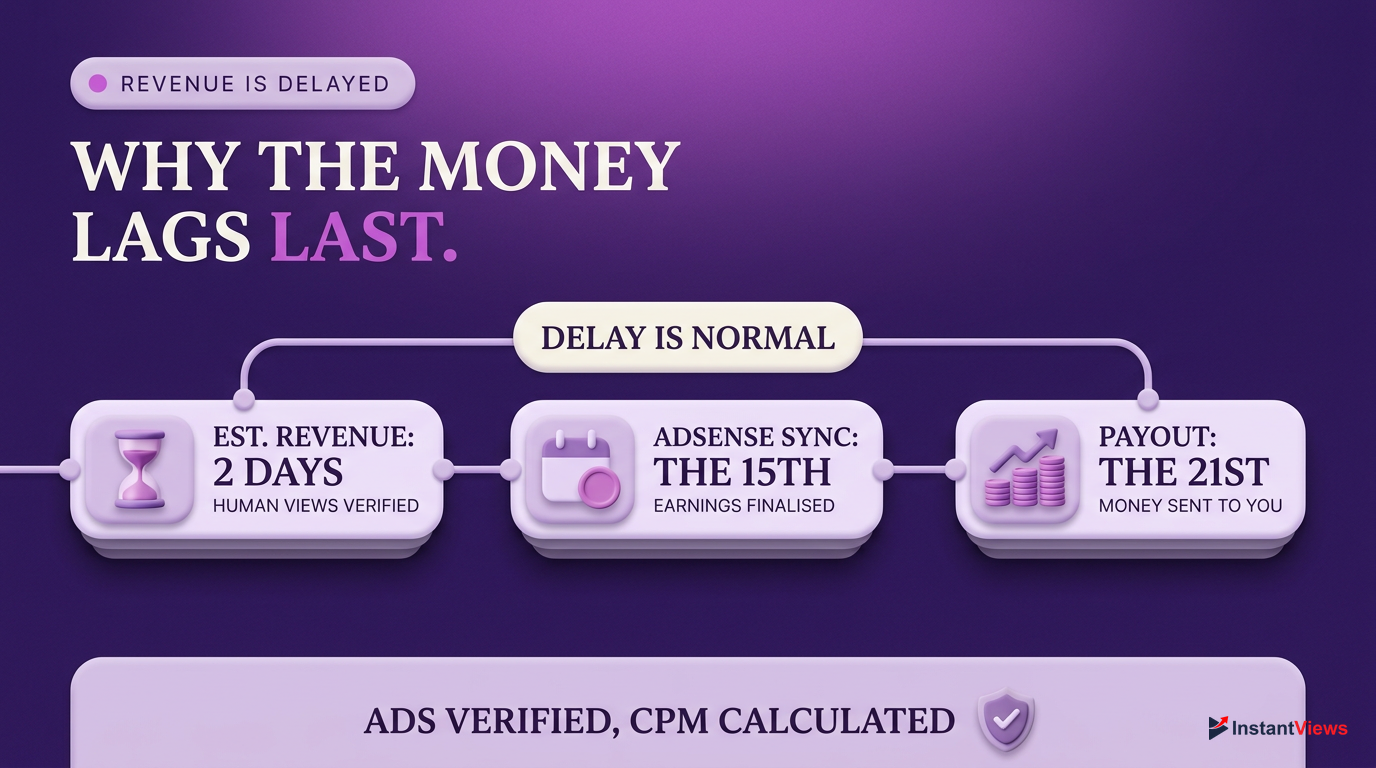
Unlike views or watch time, revenue involves real money and multiple third parties (advertisers). YouTube cannot simply display estimated revenue instantly because they must first verify that the ads were actually viewed by humans, calculate the exact CPMs based on the viewer's demographic, and deduct any invalid traffic. This complex reconciliation process takes a minimum of 48 hours. Therefore, if today is Wednesday, the most recent revenue data you will see is from Monday.
At the end of every month, YouTube performs a final audit of your earnings. The "Estimated Revenue" shown in YouTube Studio may fluctuate slightly during the first week of the new month before the finalized amount is sent to your Google AdSense account between the 7th and 12th.
Furthermore, if you recently joined the YouTube Partner Program (YPP), it can take up to 5 days for the revenue tab to fully populate with its initial data. The backend systems must generate your specific billing profile and link it to the live ad exchanges. If your revenue tab has been stuck on the exact same number for more than 4 days, check your Google AdSense account for any "Action Required" banners, such as tax form requests or identity verification holds, which can pause data syncing.
9. Advanced Troubleshooting: Account Permissions and Syncing
If you manage a channel as part of a team, or if you recently transferred channel ownership, your youtube analytics not updating might not be a technical glitch, but rather a permissions issue. In 2026, YouTube Studio's robust "Permissions" architecture allows channel owners to restrict access to specific data points. If you are logged in as an "Editor" or a "Viewer," you might be locked out of real-time data or revenue metrics without realizing it.
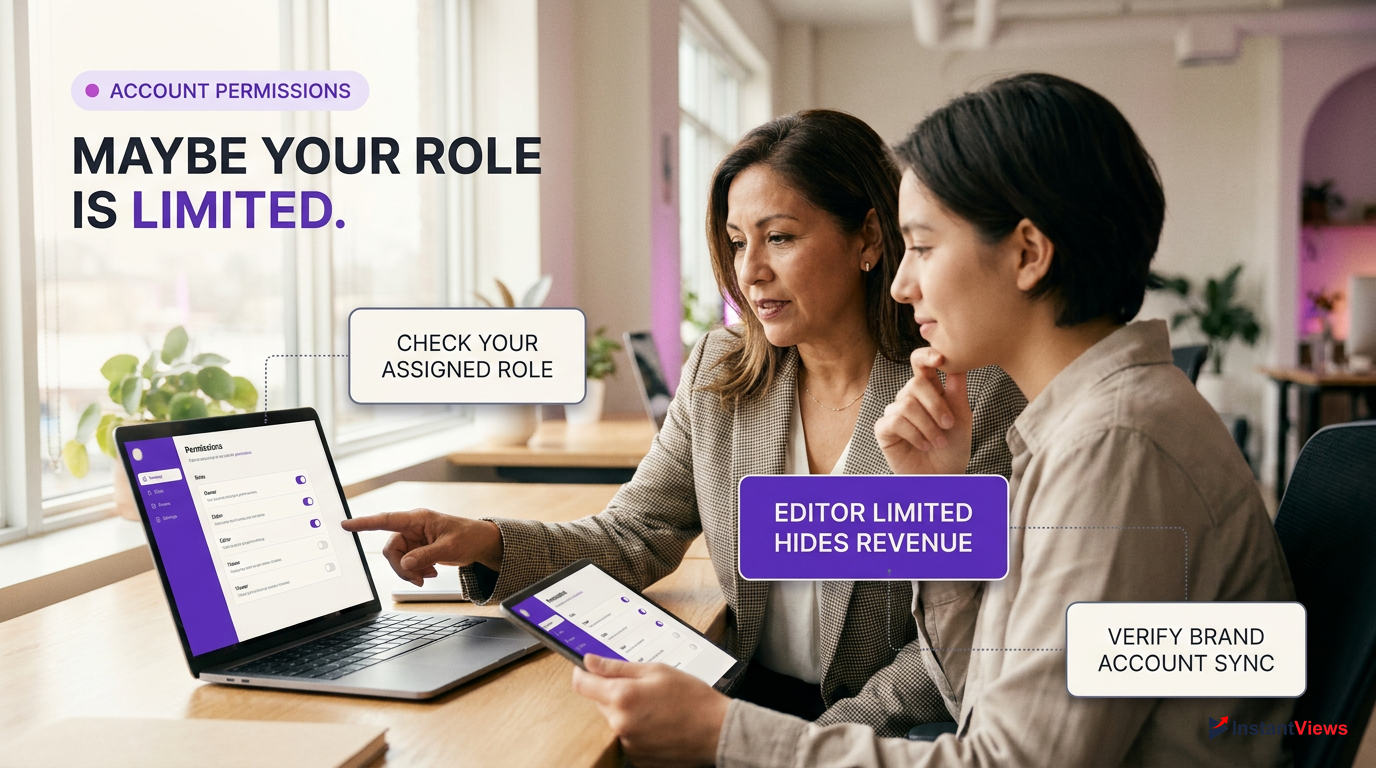
Check Your Role
Go to Settings (gear icon bottom left) > Permissions. Look at your email address and verify your assigned role (Owner, Manager, Editor, Viewer).
Verify Revenue Access
If you are an Editor or Viewer, ensure you do not have the "(Limited)" tag next to your role. "Editor (Limited)" specifically blocks access to revenue analytics.
Check Brand Account Sync
If using a legacy Brand Account, navigate to your Google Account settings and ensure the underlying Google profile hasn't triggered a security hold, which halts Studio data sync.
Another advanced issue involves multi-account switching. If you frequently switch between multiple YouTube channels in the same browser session, the authentication tokens can become crossed. The browser attempts to fetch analytics for Channel A using the security token for Channel B. The server rejects this request, resulting in a blank or frozen dashboard.
Using third-party multi-login tools or unauthorized API scrapers can trigger YouTube's security protocols, temporarily revoking your account's access to the Analytics API and freezing your dashboard.
To resolve token conflicts, log out of all Google accounts entirely, clear your cookies specifically for `google.com` and `youtube.com`, and log back in using only the primary account associated with the channel you wish to view.
10. When and How to Contact YouTube Creator Support
If you have waited the standard 48 hours, cleared your cache, disabled extensions, and verified there are no platform-wide outages, but you are still facing the youtube analytics not updating issue, it is time to escalate. While automated systems handle most data processing, severe database desynchronizations occasionally require manual intervention from YouTube's engineering team.
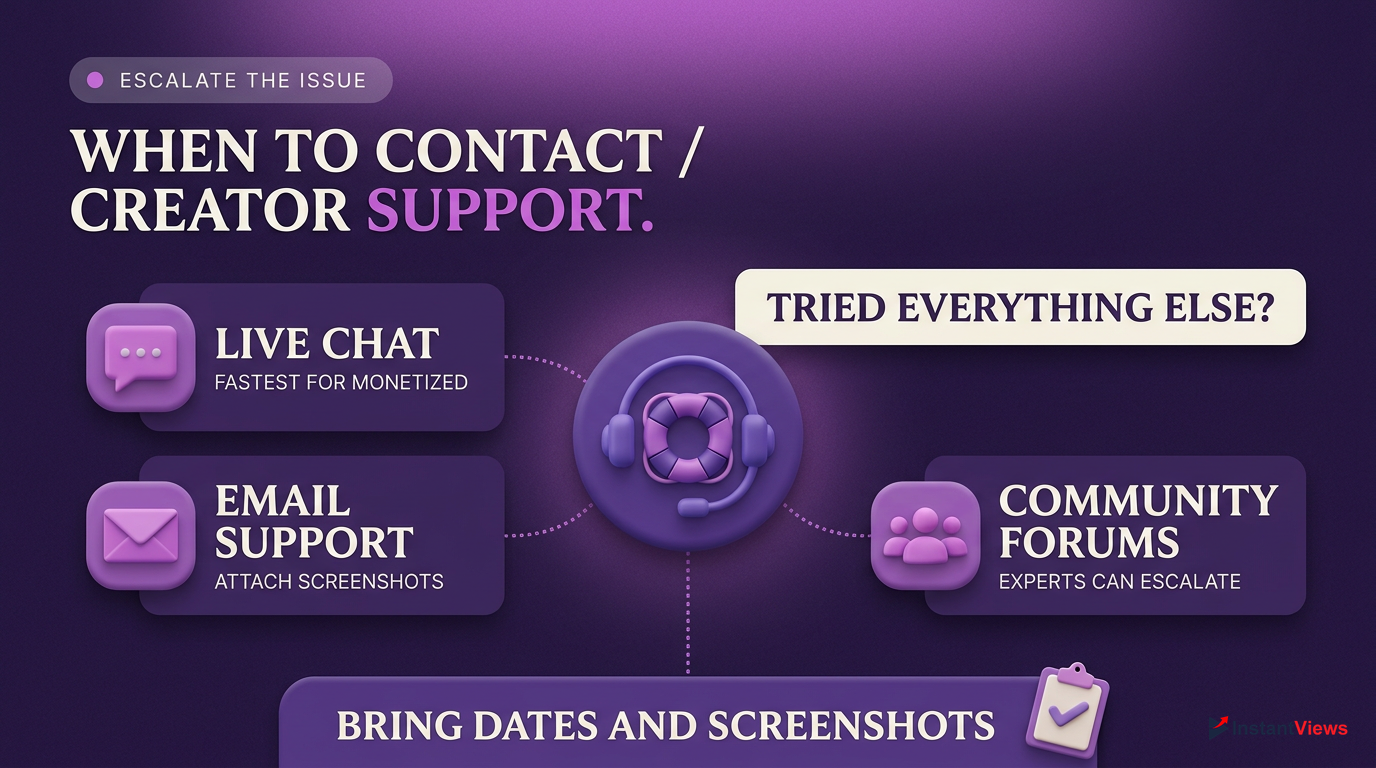
Live Chat (YPP Only)
Monetized creators can access 24/7 live chat by clicking the "Chat" icon in the top right corner of YouTube Studio. This is the fastest resolution method.
Email Support
Available via the "Help" > "Contact Us" menu in Studio. Best for complex issues requiring screenshots and detailed explanations of the missing data.
Community Forums
Non-monetized channels must use the YouTube Help Community. "Product Experts" (volunteers) can escalate severe bugs directly to YouTube staff.
When contacting support, do not just say "my analytics are broken." You must provide specific, actionable details for them to investigate. Include the exact date and time the data stopped updating, the specific metric that is frozen (e.g., "Real-time views on video ID X"), and whether the issue is happening on desktop, mobile, or both. Provide full-screen screenshots showing the frozen charts alongside your system's current time and date.
Always include your Channel ID (found in Settings > Advanced Settings) and the specific Video IDs affected when opening a support ticket. This saves the representative a step and speeds up your resolution time.
Remember that frontline support representatives cannot manually edit your analytics or "fix" a view count. Their job is to verify that a bug exists and escalate the ticket to the backend engineering team. Once escalated, a specialized database reset usually resolves the frozen data within 3 to 5 business days.
Frequently Asked Questions
Standard YouTube analytics operate on a 24 to 48-hour delay. Real-time analytics update every 10 to 60 seconds, but these are only estimates. Revenue data takes a minimum of 48 to 72 hours to process and display in your dashboard.
Real-time views can drop if YouTube's auditing system identifies a portion of your recent traffic as invalid, such as bot views, spam, or accidental clicks. The system actively removes these illegitimate views to maintain accurate metrics.
Yes. If you delete a video, its associated views, watch time, and revenue will eventually be removed from your channel's lifetime analytics. However, due to caching, it may take a few days for the main dashboard to reflect this deletion.
If you just joined the YouTube Partner Program, it takes up to 5 days for the revenue tab to initialize. If you are an established creator, an empty tab usually indicates a browser extension conflict or an unresolved issue in your connected AdSense account.
The mobile app pulls from the same database as the desktop version, but it is highly prone to local caching issues. If the data seems inaccurate or frozen, force close the app and clear its cache to force a fresh server sync.
The public view counter is designed to update quickly and may include unverified views. Studio analytics are strictly audited and delayed by 48 hours to ensure accuracy. The Studio number is the official, finalized count used for monetization.
Yes. If YouTube detects a massive spike in suspicious traffic (like view-botting or embedded loop abuse), they will temporarily freeze your analytics for 12 to 24 hours to conduct a thorough audit before updating your dashboard.
The real-time subscriber counter updates almost instantly. However, the exact number displayed on your public channel page and main overview charts updates in abbreviated milestones (e.g., 1.1K, 1.2K) depending on your channel's total size.
The "Earn" tab (formerly monetization) updates much slower than standard analytics, often taking 3 to 4 days. Additionally, watch time from Shorts, ad campaigns, or private videos does not count toward the 4,000-hour requirement and will be filtered out.
On desktop, open Developer Tools (F12), go to the Application tab, unregister the Service Workers, and perform a hard refresh (Ctrl+F5). This forces the browser to bypass local storage and pull the newest data payloads directly from YouTube.


