- You can edit timestamps on published videos without affecting views or rankings
- Changes appear within 1-5 minutes after saving the description
- Adding chapters to old videos can boost watch time and engagement
- No limit on how many times you can update timestamps
- Prioritize updating videos that still get consistent traffic
You've got a backlog of videos without timestamps. Maybe you uploaded them before chapters became important, or you simply didn't have time to add them. Now you're wondering: can I add timestamps to videos I already published?
The answer is yes—and you absolutely should. Adding or updating timestamps on existing videos is not only possible, it's one of the fastest ways to improve your channel's performance without creating new content.
In this guide, I'll show you exactly how to update timestamps on published videos, whether you're editing one video or hundreds. Plus, we'll cover what happens to your analytics, how the algorithm responds, and the best time to make these changes.
- Why Update Timestamps on Old Videos?
- How to Edit Descriptions on Published Videos
- Step-by-Step: Adding Timestamps After Upload
- Does Updating Timestamps Affect the Algorithm?
- Best Time to Add Timestamps to Old Videos
- Bulk Updating Timestamps on Multiple Videos
- How Changes Propagate to YouTube
- Updating vs Replacing Timestamps
- FAQ
Why Update Timestamps on Old Videos?
Before we dive into the how, let's establish why this matters. Updating timestamps on your existing videos isn't busywork—it's strategic optimization.
The Performance Impact of Adding Chapters
Videos with chapters typically see improvements in:
- Watch time: Viewers can jump to relevant sections, reducing early exits
- Click-through rate: Google search shows "Key Moments" with chapters
- Session time: Easier navigation keeps viewers on YouTube longer
- Mobile experience: Chapters make long videos more mobile-friendly
These aren't theoretical gains. Data from creators who've timestamped their backlogs shows consistent improvements, especially for tutorial, educational, and long-form content.
Low Effort, High Return
Compared to creating new videos, updating timestamps is incredibly efficient:
- Takes 2-5 minutes per video with AI tools
- No filming, editing, or production work required
- Improvements apply to videos already ranking in search
- Can be done in batches during downtime
Real example: A tech tutorial channel added timestamps to their top 50 performing videos from the past 2 years. Total time investment: 3 hours. Result: 14% increase in overall watch time within 30 days.
How to Edit Descriptions on Published Videos
YouTube makes it simple to edit video details after publication. Here's what you need to know:
What You Can Edit
On published videos, you can freely modify:
- Title
- Description (including timestamps)
- Thumbnail
- Tags
- Playlist assignments
- End screens and cards
- Subtitles/captions
Editing the description does NOT reset your view count, watch time, or any other analytics. Your video keeps all its existing data and ranking signals.
What Happens When You Edit
When you save changes to a published video:
- YouTube processes the new description immediately
- Chapters appear within 1-5 minutes (usually faster)
- Search engines re-index the updated metadata within hours
- No notification is sent to subscribers
- Video stays in its current position in search/browse
Step-by-Step: Adding Timestamps After Upload
Here's the complete process for updating a single video with timestamps:
Open YouTube Studio
Select Your Video
Generate or Prepare Your Timestamps
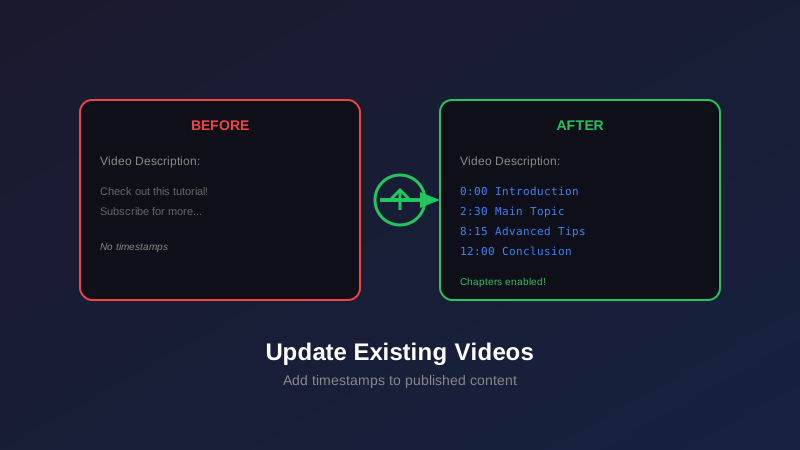
0:00 Chapter Title
Edit the Description Field
Preview and Verify Format
Save Your Changes
Verify Chapters Appear
Does Updating Timestamps Affect the Algorithm?
This is the question most creators worry about. The short answer: editing descriptions and timestamps does not negatively impact your video's algorithmic performance.
What YouTube's Algorithm Cares About
YouTube's recommendation algorithm focuses on viewer behavior, not metadata changes:
- Click-through rate (CTR)
- Watch time and average view duration
- Engagement (likes, comments, shares)
- Session starts (did this video begin a viewing session?)
- Viewer satisfaction signals
Editing the description changes none of these factors retroactively. Your video's historical performance remains intact.
Potential Positive Effects
While description edits don't hurt, adding chapters can help:
- Improved watch time: Better navigation means viewers watch longer
- Higher CTR from Google: "Key Moments" in search make your listing more clickable
- Reduced bounce rate: Viewers find what they need faster, fewer immediate exits
- Better mobile retention: Chapters make long videos accessible on mobile
These behavioral improvements can signal to the algorithm that your video deserves more impressions.
If your video is currently being reviewed for monetization approval, avoid making changes until the review completes. While unlikely to cause issues, it's safer to wait.
Best Time to Add Timestamps to Old Videos
Timing matters when updating your back catalog. Here's how to prioritize:
Start With Your Best Performers
Focus on videos that:
- Still get 100+ views per month
- Rank in search results (check YouTube Analytics → Traffic Sources → Search)
- Have long runtimes (10+ minutes) where chapters add value
- Cover evergreen topics that will continue to get traffic
These videos will deliver the biggest immediate impact from timestamp updates.
When to Update During the Video Lifecycle
| Video Age | Priority | Why |
|---|---|---|
| 0-7 days | High | Chapters can boost initial performance |
| 1-6 months | Medium | Video is still being discovered in search |
| 6-24 months | High | Mature videos with steady traffic benefit most |
| 2+ years | Low-Medium | Only if video still gets meaningful views |
Seasonal Considerations
Update timestamps strategically around traffic patterns:
- Before peak seasons: Update holiday content 2-3 weeks before the season starts
- During traffic spikes: If a video suddenly gets views, add timestamps immediately
- After algorithm changes: When YouTube updates search/discovery, optimize your top performers
Bulk Updating Timestamps on Multiple Videos
If you have dozens or hundreds of videos to update, here's how to work efficiently:
The AI Batch Generation Method
Export Your Video List
Generate Timestamps in Batches
Quick Review Pass
Paste Into YouTube Studio
Keyboard Shortcuts for Faster Editing
When updating many videos, these shortcuts save significant time:
- Ctrl/Cmd + S: Save changes
- Ctrl/Cmd + A: Select all text in description
- Ctrl/Cmd + V: Paste timestamps
- Tab: Move to next field
Batch Update Strategy
Set realistic goals to avoid burnout:
- Day 1: Update top 10 performing videos
- Week 1: Complete top 30 videos
- Month 1: Finish all videos with 50+ views/month
- Ongoing: Add timestamps to new uploads immediately
While browser automation scripts exist, using them violates YouTube's Terms of Service. Stick to manual updates or official API tools to avoid account penalties.
Generate Timestamps for Your Entire Channel
Our AI tool analyzes any YouTube video and creates perfect chapters in seconds. Free to use, no signup required.
Start Generating Timestamps →How Changes Propagate to YouTube
Understanding how YouTube processes your updates helps you verify everything worked correctly:
Timeline of Visibility
| Platform/Location | Update Time | What Changes |
|---|---|---|
| YouTube Video Page | 1-5 minutes | Chapters appear on progress bar |
| YouTube Mobile App | 5-15 minutes | Chapters visible in player |
| Google Search Results | 2-48 hours | Key Moments feature added |
| YouTube Search | 15-60 minutes | Description indexed for keywords |
| Third-Party Sites | Varies | Depends on their update frequency |
How to Verify Timestamps Are Live
After saving, confirm your changes worked:
- Immediate check: Refresh the video page, hover over progress bar—chapters should appear as segments
- Mobile verification: Open in YouTube app within 15 minutes, tap on video, chapters should be listed below player
- Incognito test: Open video in incognito/private window to see what non-subscribers see
- Google search: Wait 24-48 hours, search for your video title + topic, look for "Key Moments"
Updating vs Replacing Timestamps
There's a difference between editing existing timestamps and adding them for the first time. Here's what you need to know:
Adding Timestamps for the First Time
When your video has no chapters yet:
- Simply paste timestamps into the description
- No previous chapter data to worry about
- Analytics will show chapter click data going forward only
- Zero risk—you're only adding, not removing
Replacing Existing Timestamps
If your video already has chapters and you're updating them:
- Old chapter names disappear completely
- Chapter click analytics reset to zero for new chapter names
- Historical data is preserved but no longer visible
- Consider editing instead of full replacement
Best Practices for Editing Existing Chapters
Edit existing timestamps when:
- Fixing spelling errors in chapter titles
- Adjusting timestamps by a few seconds for accuracy
- Adding 1-2 missing chapters to an otherwise good structure
- Making chapter titles more SEO-friendly
Replace entirely when:
- Current chapters are poorly structured (too many/too few)
- Timestamps are significantly wrong
- Chapter titles are generic and unhelpful
- You're implementing a new chapter strategy across all videos
Tracking the Impact of Changes
After updating timestamps, monitor these metrics in YouTube Analytics:
- Average view duration: Should increase if chapters improve navigation
- Average percentage viewed: Look for improvements in 7-day comparison
- Audience retention graph: Check for reduced drop-offs at key points
- Traffic from YouTube Search: May increase as chapters improve relevance
Give it 7-14 days to see meaningful changes in the data.
Common Mistakes When Updating Timestamps
Avoid these pitfalls when adding chapters to existing videos:
- Not testing before bulk updates: Update one video first, verify chapters work, then do the rest
- Over-optimizing old, dead videos: Focus on videos that still get traffic, not 5-year-old videos with 12 views
- Changing timestamps too frequently: Set them and leave them alone unless there's an error
- Making chapters too granular: 15-20 chapters on a 20-minute video is overkill. Aim for 5-10.
- Forgetting mobile viewers: Test how your chapters look on mobile before finalizing
Workflow for Efficient Timestamp Updates
Here's the complete workflow to update your back catalog efficiently:
Audit Your Channel
Prioritize Your Queue
Batch Generate Timestamps
Review and Refine
Update in YouTube Studio
Verify and Track
Optimize Your Entire Video Library
Generate professional timestamps for all your videos. Works with any YouTube video—even competitors' content for research.
Try Our Free Timestamp Tool →Frequently Asked Questions
No, adding or updating timestamps does not negatively affect your video's performance. YouTube doesn't treat description edits as new uploads. In fact, adding chapters can improve watch time and engagement, which may boost your video in recommendations.
Timestamps typically appear within 1-5 minutes after saving the description. If chapters don't show up immediately, wait 10 minutes and refresh. Very rarely, it can take up to an hour during YouTube server delays.
Yes, you can freely edit descriptions and timestamps on monetized videos. This doesn't affect monetization status or trigger re-review. However, avoid making changes to videos under review for monetization approval.
No. Editing the description and timestamps has zero impact on view count, watch time, or any analytics. Your existing data remains unchanged. The only new data is how viewers interact with the chapters going forward.
Prioritize videos that still get views. Check Analytics for videos with 100+ views in the last 28 days. These will benefit most from chapters. Videos with no traffic can wait or be skipped entirely.
YouTube Studio doesn't have a native bulk edit for descriptions. You can batch generate timestamps using AI tools, then manually paste them into each video. Browser automation tools can help, but use carefully to avoid violating TOS.
The old timestamps are completely overwritten. Any analytics data showing chapter clicks is reset. If your current chapters work well, consider editing instead of replacing. Always preview changes before saving.
No, updating the description doesn't trigger notifications to subscribers. They won't know you made changes unless they see the chapters on the video. This lets you optimize quietly without spam.
Final Thoughts
Updating timestamps on existing YouTube videos is one of the easiest, highest-ROI optimizations you can make. Unlike creating new content, it takes minutes per video and improves performance for content that's already ranking and getting views.
The key points to remember:
- No negative effects: Editing descriptions doesn't hurt rankings or reset analytics
- Fast implementation: With AI tools, you can update 20+ videos per hour
- Immediate benefits: Chapters appear within minutes and start improving UX right away
- Prioritize smartly: Focus on videos that still get traffic for maximum impact
- Batch for efficiency: Update in focused sessions rather than one-off edits
Start with your top 10 performing videos today. Generate timestamps using an AI tool, paste them into the descriptions, and verify they appear correctly. Then work through the rest of your catalog in weekly batches.
The videos are already published. The work is already done. Now you're just making it easier for viewers to find exactly what they need—and YouTube rewards that with better visibility and retention.
Related guides:
- How to Add Chapters to YouTube Videos (Complete Guide)
- Add Timestamps Without Watching Your Videos
- YouTube Chapters Not Working? Here's the Fix