- AI tools can generate accurate timestamps in under 60 seconds per video
- You can use transcripts, auto-captions, or AI analysis to create chapters
- The 5 methods range from fully automated to semi-manual approaches
- Time saved: 10-30 minutes per video compared to manual timestamping
- Quick review (2-3 min) is recommended to polish AI-generated titles
Let's be honest: watching your own video from start to finish just to add timestamps is painful. You already know what's in it—you made it. Yet there you are, scrubbing through footage trying to note when each topic starts.
The good news? You don't have to watch your videos to add timestamps anymore. With AI tools, transcripts, and smart workflows, you can generate accurate chapter timestamps in minutes instead of hours.
In this guide, I'll show you 5 proven methods to add timestamps to YouTube videos without watching them. Whether you're a solo creator or managing multiple channels, these techniques will save you hours every week.
Why Add Timestamps Without Watching?
Before diving into the methods, let's look at why this matters:
For a creator uploading 3 videos per week, manual timestamping eats up 2-3 hours weekly. That's 100+ hours per year spent on a task that AI can handle in seconds.
Beyond time savings, automated methods offer:
- Consistency: Every video gets chapters, not just when you have time
- Batch processing: Timestamp your entire backlog in one session
- Objectivity: AI finds topic breaks you might miss
- Multi-language support: Works with videos in any language
Generate Timestamps in 30 Seconds
Our free AI tool analyzes any YouTube video and generates accurate chapter timestamps automatically. No signup required.
Try Free Timestamp Generator →
Method 1: AI Timestamp Generators (Fastest)
AI-Powered Timestamp Tools
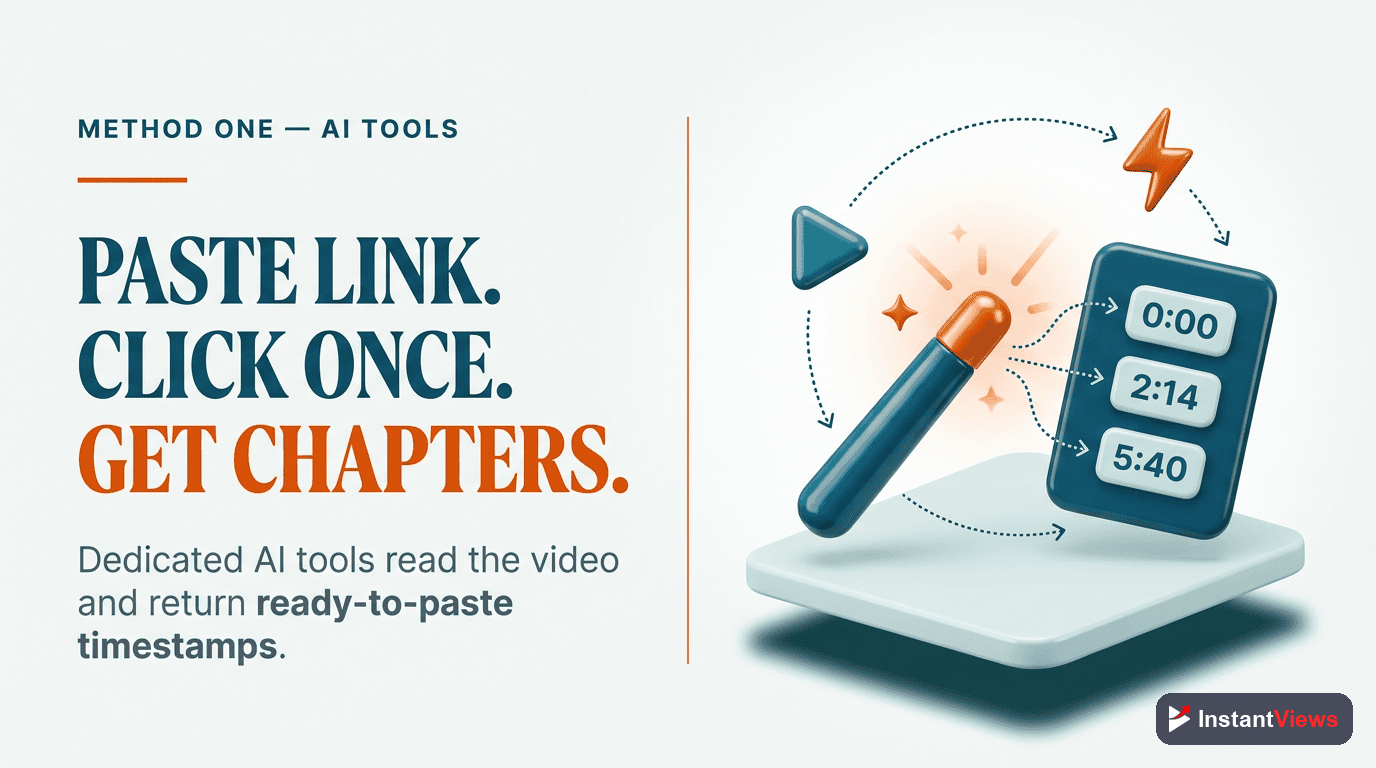
AI timestamp generators are purpose-built tools that analyze video content and automatically identify chapter breaks. They're the fastest and most accurate method for most creators.
How it works:
- Paste any YouTube video URL
- AI extracts and analyzes the transcript
- Topic changes are detected using NLP
- Timestamps with chapter titles are generated
- Copy formatted output to your description
Best tools:
- InstantViews Timestamp Generator — Free, supports 99 languages
- Descript — Part of full editing suite
- Kapwing — Web-based with free tier
Method 2: Transcript Analysis
YouTube Transcript Method
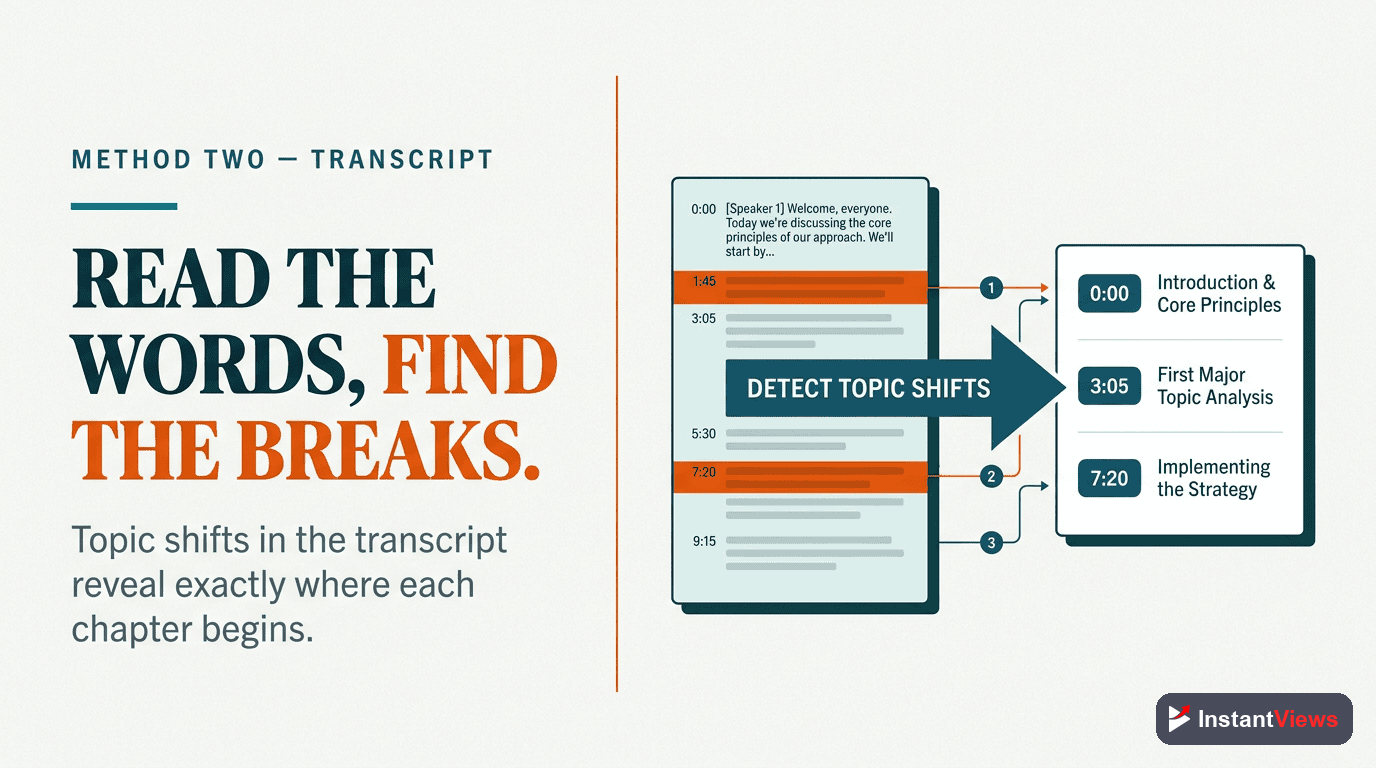
Every YouTube video with audio has an auto-generated transcript. You can skim this transcript to identify topic changes without watching the video.
Step-by-step:
Open the Video Transcript
Toggle Timestamps
Skim for Topic Changes
Note Timestamps and Create Titles
Method 3: ChatGPT + Transcript
ChatGPT Transcript Analysis
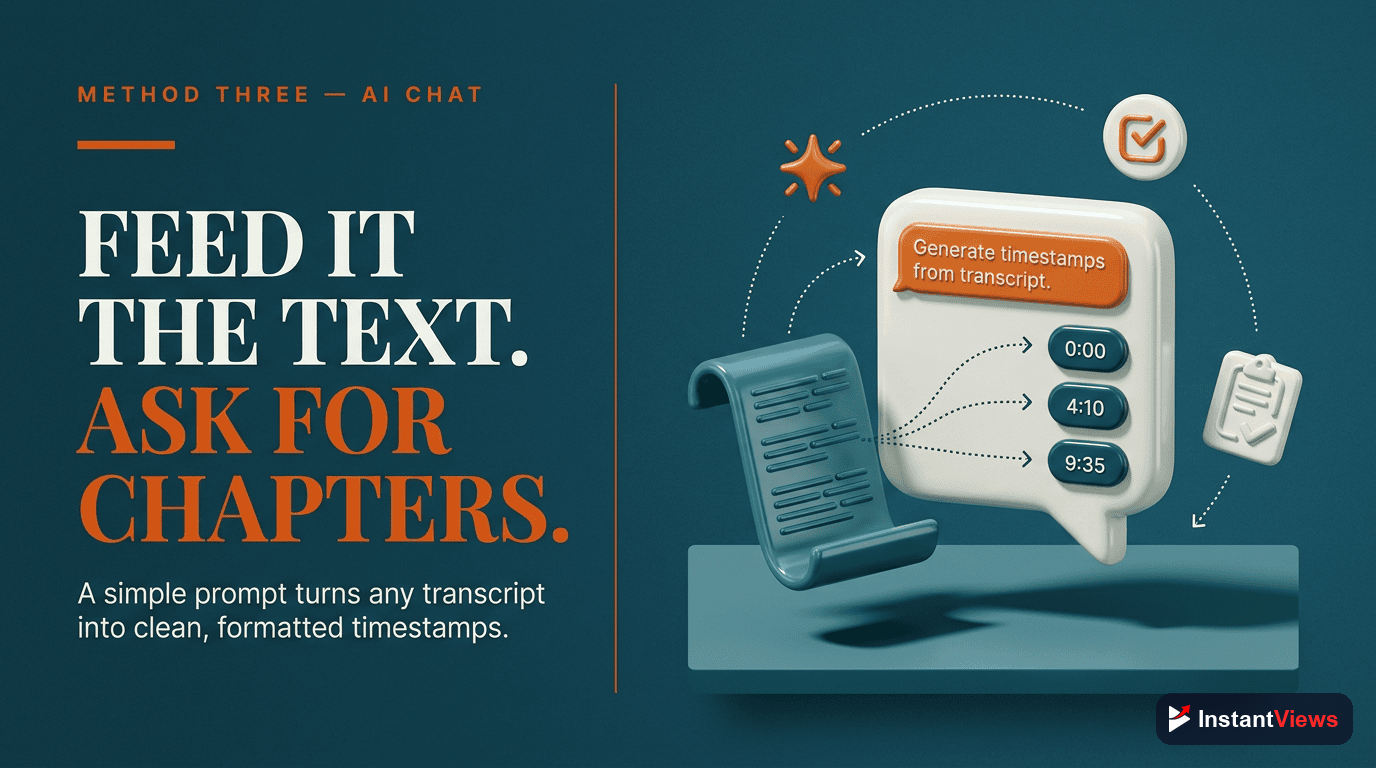
ChatGPT can analyze a video transcript and generate timestamps with chapter titles. This method is free and surprisingly accurate.
The prompt that works:
Analyze this YouTube video transcript and create chapter timestamps.

Rules:
- Start at 0:00
- Identify 5-10 major topic changes
- Write concise chapter titles (under 40 characters)
- Format: MM:SS Title

Transcript:
[PASTE TRANSCRIPT HERE]
Where to get the transcript:
- YouTube's built-in transcript feature
- Transcript extraction tools like Tactiq
- Browser extensions that copy transcripts
ChatGPT may not have exact timestamps for auto-generated transcripts. Cross-reference with the video if timestamps seem off by more than 10 seconds.
Method 4: Video Script Method
Pre-Production Script Method
If you script your videos, you already have your chapters planned. This method works best for creators who write detailed scripts or outlines before filming.
How to implement:
- Add chapter markers to your script while writing
- During editing, note the actual timestamps for each section
- Or use your editing software's chapter markers
- Export chapters directly from Premiere Pro, Final Cut, etc.
Script template with chapters:
INTRO (0:00)
- Hook: Why this matters
- What you'll learn

SECTION 1: [Topic] (estimated: 2:00)
- Key point 1
- Key point 2

SECTION 2: [Topic] (estimated: 5:00)
- Key point 1
- Key point 2

CONCLUSION (estimated: 8:00)
- Summary
- CTA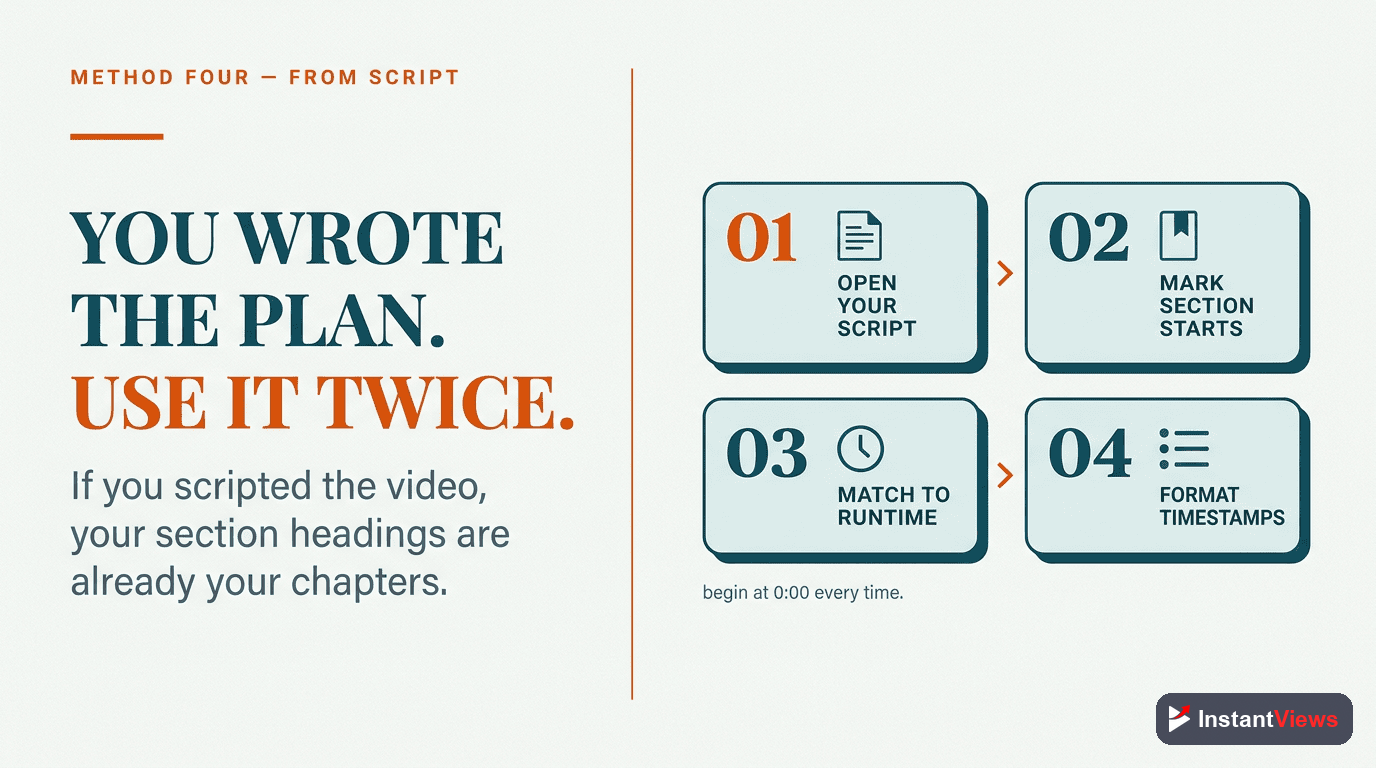
Method 5: Audio Waveform Scanning
Visual Waveform Analysis
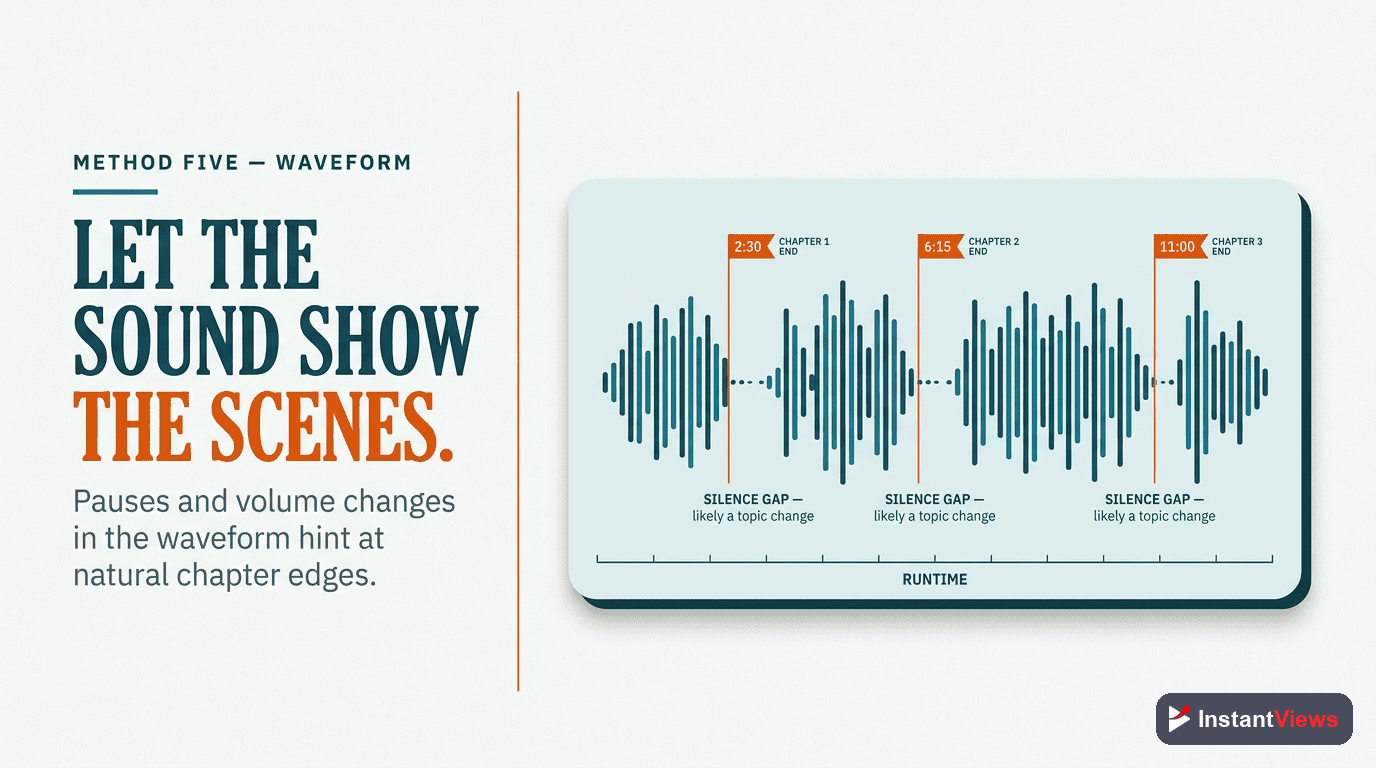
Your video's audio waveform visually shows topic changes. Pauses, volume changes, and silence gaps often indicate chapter breaks. This method is faster than watching because you can scan visually.
How to use waveform analysis:
- Open your video in any editor (even free ones like DaVinci Resolve)
- Look at the audio waveform in the timeline
- Identify gaps/pauses—these often mark topic transitions
- Jump to those points and verify with a quick listen (5 seconds)
- Note the timestamp and create a chapter title
Visual cues that indicate chapters:
- Silence gaps (0.5-2 seconds of low audio)
- Volume increases after quiet sections
- Music/sound effect transitions
- Dramatic pauses before new topics
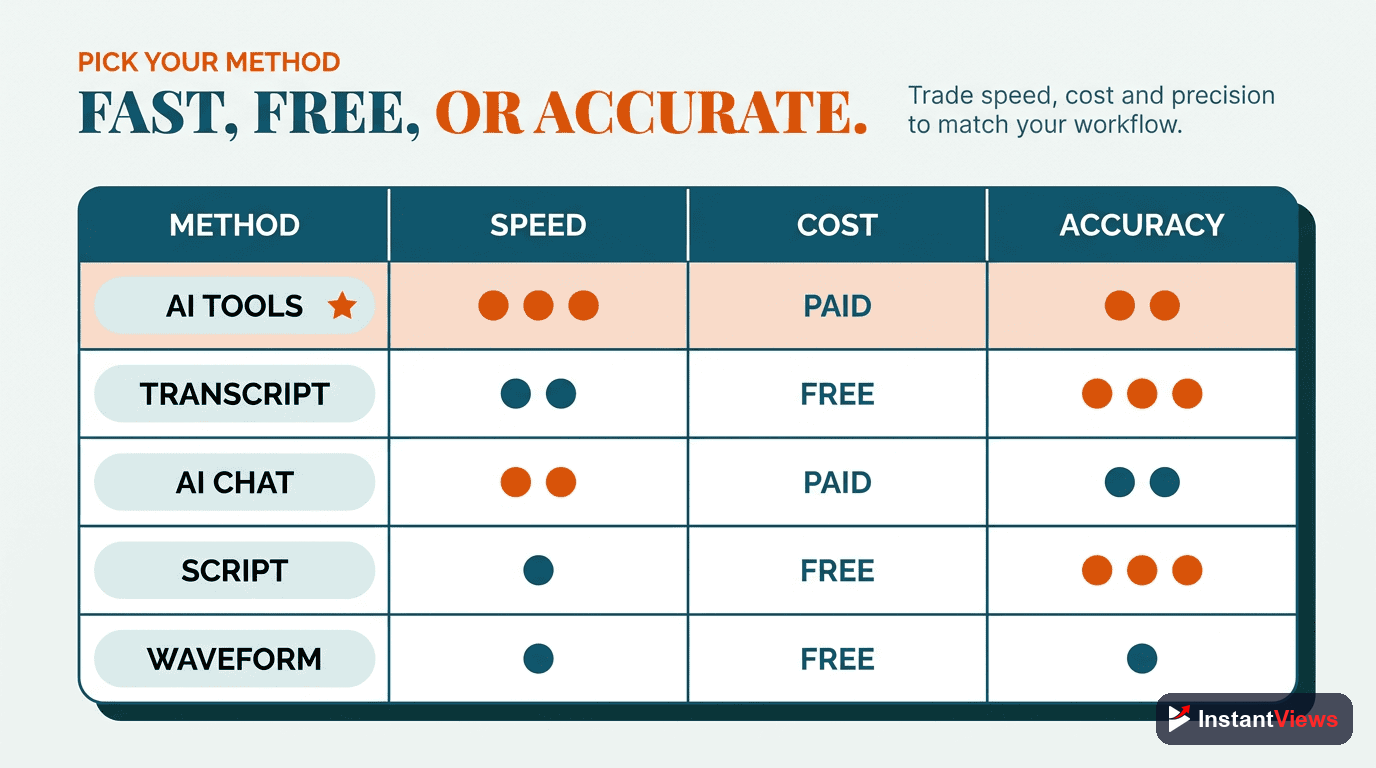
Method Comparison: Which Should You Use?
Here's how each method stacks up:
| Method | Speed | Accuracy | Best For |
|---|---|---|---|
| AI Generators | ⭐⭐⭐⭐⭐ | ⭐⭐⭐⭐ | Most creators, batch processing |
| Transcript Analysis | ⭐⭐⭐ | ⭐⭐⭐⭐ | Free option, full control |
| ChatGPT | ⭐⭐⭐⭐ | ⭐⭐⭐ | Flexible, creative titles |
| Script Method | ⭐⭐⭐⭐⭐ | ⭐⭐⭐⭐⭐ | Scripted content creators |
| Waveform | ⭐⭐⭐ | ⭐⭐⭐⭐ | Editors, visual learners |
My recommendation: Start with AI generators for speed, then use the script method for future videos. The 2-minute investment during scripting saves 15+ minutes after upload.
Best Practices for Generated Timestamps
Regardless of which method you use, follow these practices:
1. Always Review AI Output
AI is 80-90% accurate. A 2-minute review catches errors like:
- Timestamps slightly off (adjust by a few seconds)
- Generic titles that could be more specific
- Missing an important topic
- Too many or too few chapters
2. Optimize Chapter Titles for SEO
AI generates functional titles, but you can improve them:
| AI-Generated | SEO-Optimized |
|---|---|
| 0:00 Introduction | 0:00 YouTube Timestamps Tutorial |
| 2:15 First method | 2:15 AI Timestamp Generator (Fastest) |
| 5:30 Tips | 5:30 5 Pro Tips for Better Chapters |
3. Maintain Consistent Chapter Structure
Viewers learn your format. Keep chapter styles consistent:
- Same number of chapters for similar video lengths
- Consistent naming conventions
- Always include intro and outro chapters
4. Add Timestamps to Existing Videos
Don't just timestamp new uploads. Your backlog is missing out on:
- Better watch time retention
- Google "Key Moments" search features
- Improved viewer experience
Timestamp Your Entire Channel
Stop leaving watch time on the table. Generate timestamps for all your videos with our free tool.
Generate Free Timestamps →Common Mistakes to Avoid
These mistakes will waste your time or break your chapters:
- Not starting at 0:00 — First timestamp must always be 0:00 or chapters won't appear
- Trusting AI blindly — Always do a quick review pass
- Overly long chapter titles — Keep under 40 characters or they get cut off
- Too many chapters — 5-10 is optimal for most videos
- Forgetting to save — Verify chapters appear on the published video
Workflow for Maximum Efficiency
Here's my recommended workflow combining these methods:
During Scripting
After Editing
Quick Review (2 min)
Paste and Publish

Frequently Asked Questions
AI tools can generate 80-90% accurate timestamps, but a quick human review (2-3 minutes) is recommended to catch any errors and optimize chapter titles for SEO. The AI does the heavy lifting, you just polish.
Use an AI timestamp generator with batch processing. Upload multiple video URLs, let the AI analyze transcripts, and generate timestamps for all videos at once. You can timestamp 10+ videos in under 30 minutes.
Not always. AI tools can work with auto-generated YouTube captions. However, having a proper transcript improves accuracy. Many tools can extract transcripts automatically from any YouTube video.
The timestamp placement will be accurate since AI analyzes the actual audio/transcript. The main difference is chapter title quality - AI titles are functional but may lack creative flair. A quick edit pass fixes this.
You can only add timestamps to videos on channels you manage. However, you can generate timestamps for any public video using AI tools - useful for creating your own notes or suggesting timestamps to other creators.
Most AI tools generate timestamps in 30-60 seconds per video, regardless of video length. A 2-hour video takes the same time as a 10-minute video because the AI processes the transcript, not the actual video.
Yes! Tools like InstantViews Timestamp Generator offer free tiers. ChatGPT can also generate timestamps if you paste the transcript. YouTube's auto-chapters are free but less accurate than dedicated tools.
AI analyzes topic changes in the transcript, so clearly spoken topic transitions are detected. If something is missed, simply add that timestamp manually. Most creators add 1-2 custom timestamps to AI-generated lists.
Final Thoughts
Adding timestamps to YouTube videos doesn't have to mean watching every second of your content. With AI tools, transcript analysis, and smart workflows, you can generate accurate chapters in minutes.
The key is finding the method that fits your workflow:
- Fastest: AI timestamp generators (30-60 seconds)
- Most control: Transcript analysis (5-10 minutes)
- Best long-term: Script method (2-3 minutes per video)
Start with your next video upload. Try an AI generator first, review the output, and see how much time you save. Then work backwards through your backlog—every video with chapters is earning more watch time.
Related guides:
- How to Add Chapters to YouTube Videos (Complete Guide)
- Best YouTube Chapter Generator Tools Compared
- YouTube Chapters Not Working? Here's the Fix