- Chapters can be added to stream archives immediately after the broadcast ends
- Note timestamps during streams with a second monitor or mobile device for accuracy
- Stream VODs with chapters see 30-45% higher average view duration
- Premiere videos support chapters before they go live
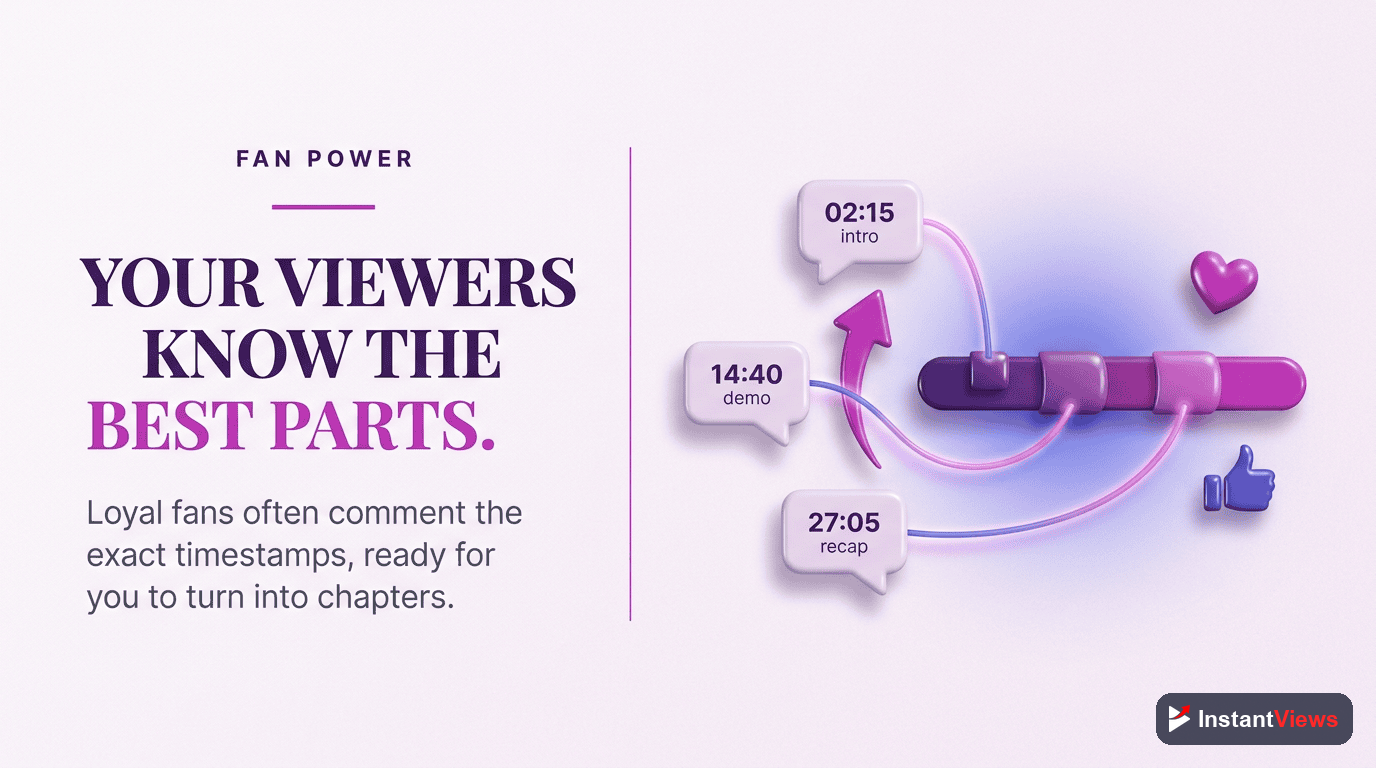
- Community timestamp suggestions in comments can crowdsource chapter creation
Live streaming has exploded on YouTube, with millions of hours broadcast daily. But here's the problem: most stream archives become dead weight—long, unstructured videos that nobody watches beyond the first few minutes.
The solution? YouTube chapters transform your stream archives from intimidating 3-hour blocks into navigable, rewatchable content. Viewers can jump directly to highlights, specific topics, or moments they heard about in chat.
This comprehensive guide covers everything streamers need to know about adding chapters to live stream recordings, noting timestamps in real-time, optimizing VOD archives, and maximizing replay value for your broadcasts.
Why Chapter Your Live Stream Archives
Most streamers focus on live viewership and forget that stream archives represent long-term content value. Chapters unlock that value.
Stream archives with chapters typically see 3-4x higher average view duration compared to unchaptered VODs. Here's why chapters matter for streams:
1. Discoverability Beyond Live Viewers
Most people won't catch your stream live. Chapters make archives searchable and discoverable through YouTube and Google search, bringing in viewers days, weeks, or months after the broadcast.
2. Highlight Reel Navigation
Viewers who heard about an epic moment can jump directly to it. "Did you see when [streamer] beat that boss?" becomes a direct timestamp link instead of "somewhere around the 2-hour mark."
3. Multi-Session Content
Long streams covering multiple games, topics, or segments become digestible. A 4-hour variety stream transforms into 8-10 distinct pieces of content through chapters.
4. Algorithm-Friendly Structure
YouTube's algorithm struggles with unstructured 3-hour VODs. Chapters signal content organization, improving recommendations and suggested video placements.
Noting Timestamps During Streams
The best time to capture chapter timestamps is during the stream itself. Here's how to do it without disrupting your broadcast:
Second Monitor / Mobile Device Method
How it works: Keep a notepad open on a second monitor or use your phone to log timestamps as your stream progresses.
Setup:
- Open a text file, Google Doc, or note-taking app before streaming
- Create a quick timestamp template with planned segments
- When switching activities, glance at your stream timer and note the time
- Write brief chapter titles next to each timestamp
Example template:
0:00 Stream Starting Soon
[timestamp] Intro & Stream Plans
[timestamp] Game 1 - [Game Name]
[timestamp] Break / Chat Session
[timestamp] Game 2 - [Game Name]
[timestamp] Q&A / ClosingChat Bot / Mod Timestamp Commands
How it works: Configure your stream bot (Nightbot, StreamElements, etc.) to log timestamps via chat commands.
Setup example:
- Create a bot command like
!timestamp [description] - Bot logs current time and description to a file or spreadsheet
- Type
!timestamp Started Valorant gameplayin chat - After stream, compile logged timestamps into chapters
Benefits:
- Hands-free timestamp logging during gameplay
- Chat can see when chapters are being marked
- Automatic time capture ensures accuracy
Mod / Community Assistant Method
How it works: Have a trusted mod or community member log timestamps during your stream.
Best for:
- High-intensity streams where you can't break focus (competitive gaming, speedruns)
- Multi-hour broadcasts with frequent segment changes
- Channels with dedicated moderators or community helpers
Provide your helper with:
- Access to watch the stream with visible timer
- List of planned segments or activities
- Timestamp format template to follow
- Shared document for real-time logging
Timestamp from your stream timer (visible in OBS/streaming software), not your computer clock. Stream delays mean these won't match.
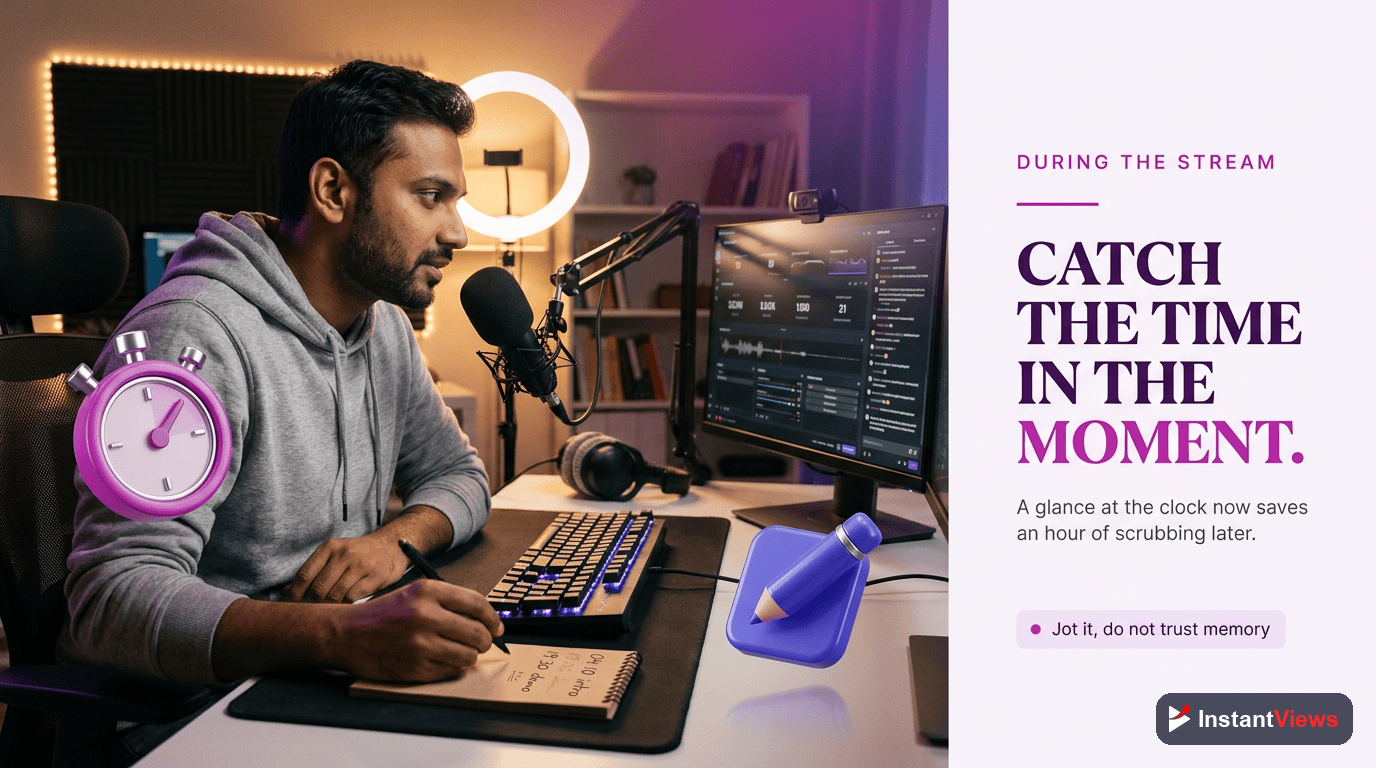
Adding Chapters After Streams
Once your stream ends, YouTube processes it into a regular video. Here's the complete post-stream chapter workflow:
Wait for VOD Processing
Verify Timestamp Accuracy
Format Chapter Timestamps
Add to Video Description
Verify Chapters Display
Example Stream Chapter Format
Stream Chapters:

0:00 Stream Starting Soon Screen
4:23 Intro - What's Happening Today
8:15 Valorant Ranked Gameplay Begins
45:32 Switching to Apex Legends
1:18:44 Subscriber Game Join Session
1:52:20 Break - AFK (Music Stream)
2:05:15 Minecraft Server Build Session
2:48:30 Stream Q&A and Chilling
3:15:00 Final Game - Among Us
3:42:18 Closing Thoughts & Raid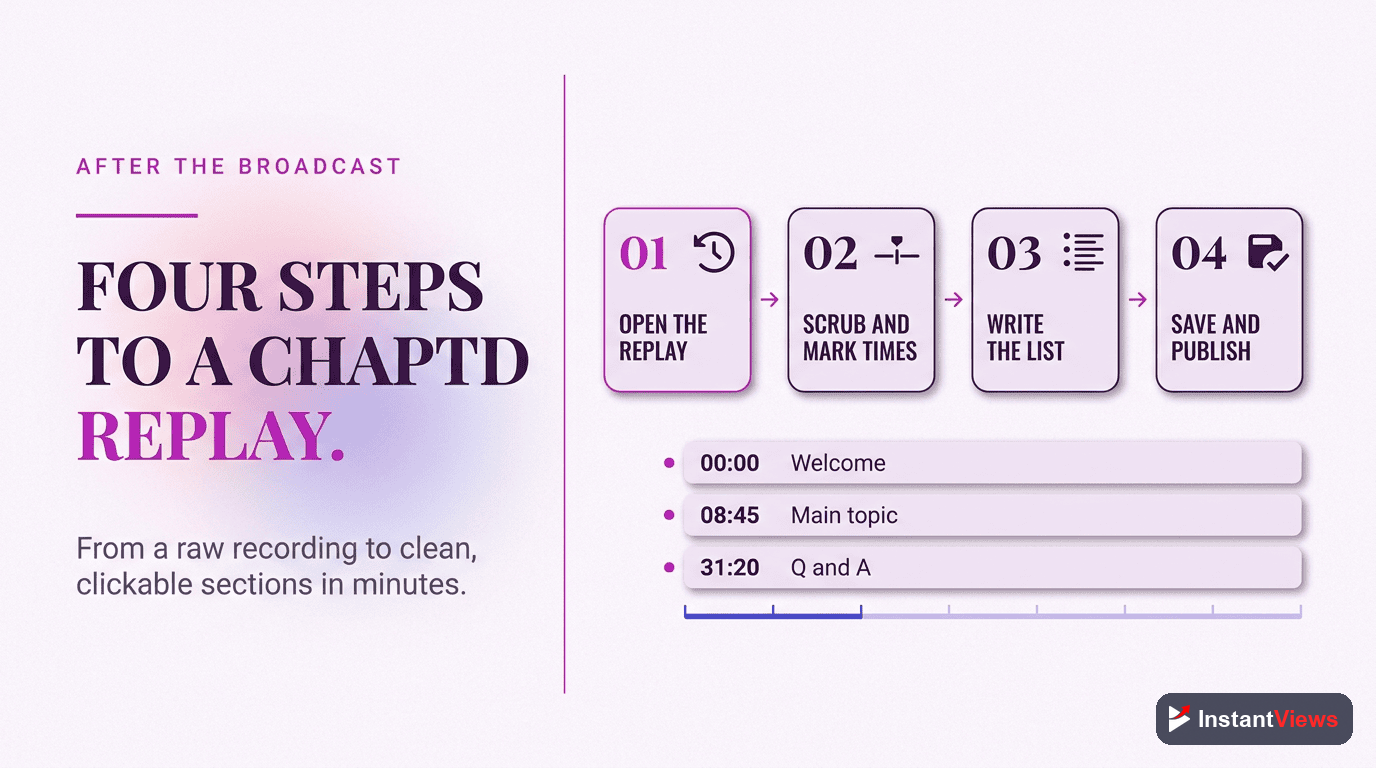
Chapters for Premiere Videos
YouTube Premieres let you schedule video debuts with live chat. You can (and should) add chapters before the Premiere goes live.
How Premiere Chapters Work
Unlike live streams, Premieres use pre-recorded videos. This means you can add chapters when uploading, just like any regular video:
- Add during upload: Include chapters in the description when scheduling the Premiere
- Visible at Premiere start: Chapters are functional as soon as the Premiere begins
- Available after Premiere: Chapters remain on the video after Premiere ends
- Edit before going live: You can adjust chapters anytime before the scheduled Premiere time
Best Practices for Premiere Chapters
| Content Type | Chapter Strategy | Example |
|---|---|---|
| Music Videos | Song sections, verses, chorus | 0:00 Intro / 0:45 Verse 1 / 1:30 Chorus |
| Short Films | Act breaks, scene changes | 0:00 Opening / 5:20 Act I / 15:45 Act II |
| Gaming Montages | Game segments, highlight types | 0:00 Intro / 0:30 Best Plays / 5:15 Funny Moments |
| Tutorials | Step-by-step sections | 0:00 Overview / 2:15 Step 1 / 8:30 Step 2 |
Premieres use pre-recorded video (chapters available immediately). Live streams become VODs after ending (chapters added post-stream). Don't confuse the two workflows.
Generate Chapters for Any Video
Our free AI tool analyzes your videos and generates perfectly formatted chapter timestamps in seconds. Works for streams, Premieres, and regular uploads.
Try Free Chapter Generator →
How Chapters Work on Live Replays
When viewers watch your stream replay (VOD), chapters function identically to regular video chapters with some key differences:
Replay-Specific Chapter Behaviors
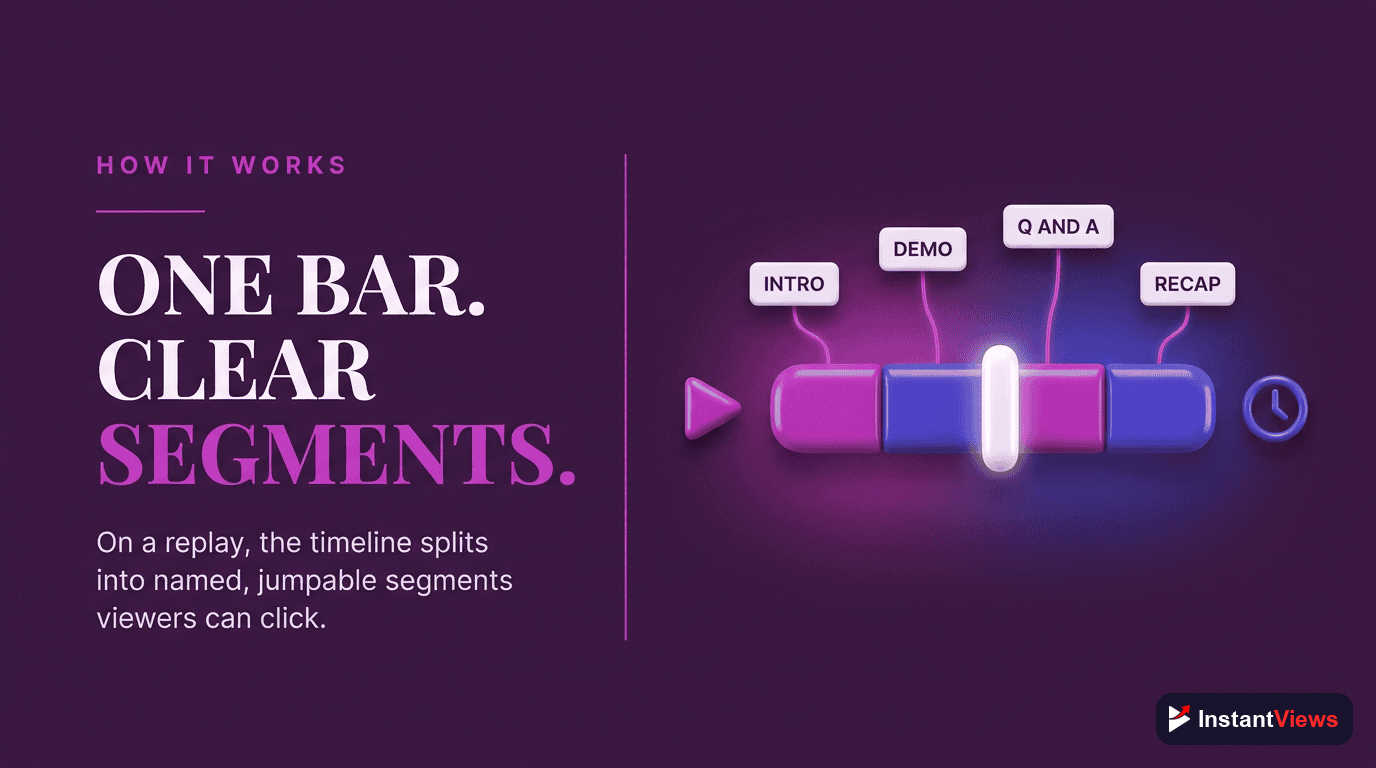
- Progress bar markers: Chapters show as white dots along the video timeline
- Hover previews: Hovering over chapters shows thumbnail previews from that timestamp
- Chapter titles visible: Current chapter title displays above the progress bar
- Description timestamps: Clicking timestamps in description jumps to that chapter
- Share with timestamp: Right-click chapters to share links starting at specific segments
Mobile vs Desktop Differences
| Feature | Desktop | Mobile |
|---|---|---|
| Chapter markers | Visible on progress bar | Visible on progress bar |
| Chapter list | Below video in description | Expandable chapter menu |
| Current chapter | Shows above player controls | Shows in notification bar |
| Skip between chapters | Click markers or use arrow keys | Tap markers or swipe forward/back |
Replay Watch Patterns with Chapters
Data shows viewers interact with chaptered stream replays differently:
- 35% skip to middle chapters - Viewers jump to specific segments instead of watching linearly
- Higher completion rates - Watching in segments leads to more complete views over time
- Return viewing - Viewers bookmark specific chapters to rewatch later
- Share specific moments - Chapter links get shared 3x more than generic stream links
Creating Stream Highlight Chapters
Not all stream moments deserve chapters. Focus on creating highlights that provide value to VOD viewers:
What Makes a Good Stream Chapter
High-Value Chapter Types
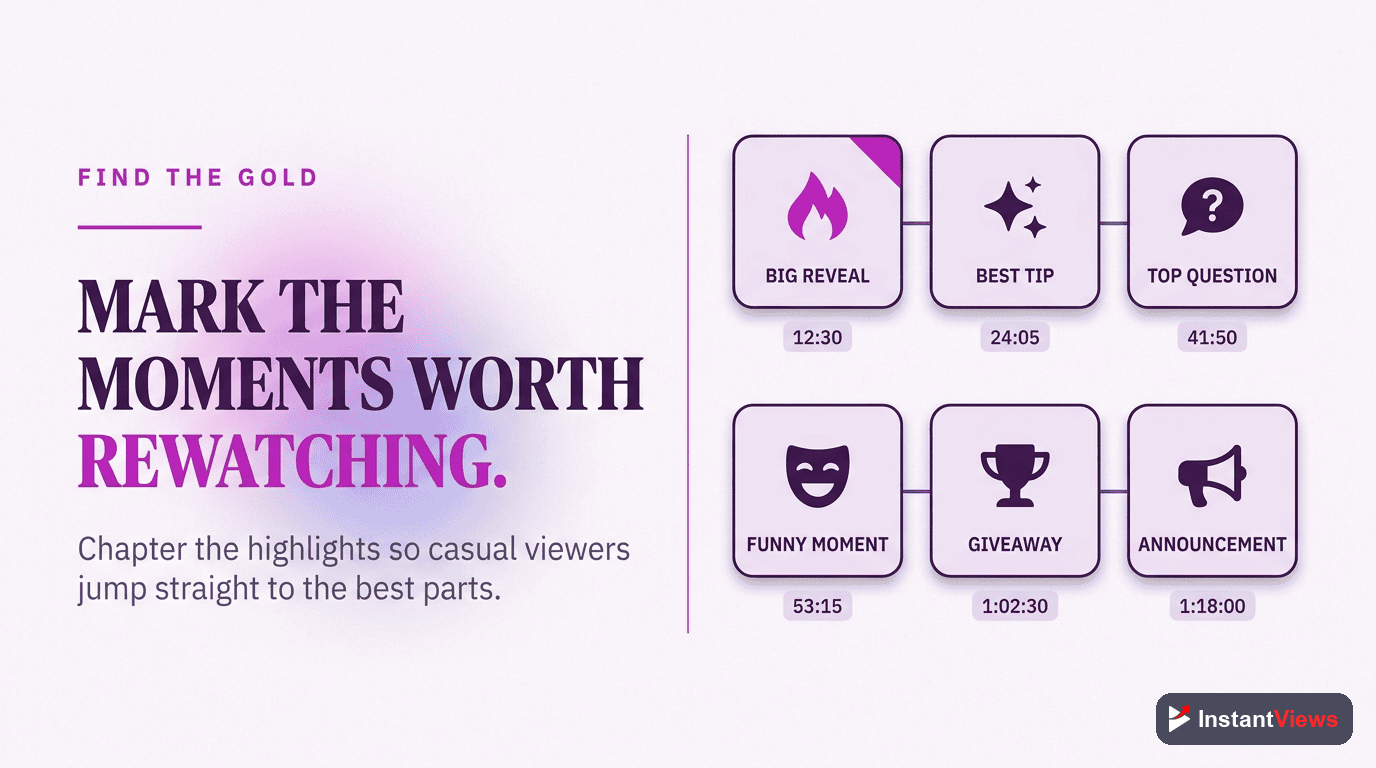
- Epic moments: Big wins, clutch plays, major achievements
- Game/segment changes: When you switch activities or games
- Special events: Guest appearances, subscriber interactions, milestone moments
- Key topics: Important announcements, Q&A sections, story segments
- Technical highlights: Tutorial sections, strategy explanations, build showcases
- Entertainment peaks: Funny moments, reaction highlights, dramatic events
Chapter Density Guidelines
| Stream Length | Recommended Chapters | Average Chapter Length |
|---|---|---|
| 1-2 hours | 5-8 chapters | 10-15 minutes each |
| 2-4 hours | 8-15 chapters | 12-18 minutes each |
| 4-6 hours | 15-25 chapters | 15-20 minutes each |
| 6+ hours | 20-35 chapters | 15-25 minutes each |
Community Timestamp Suggestions
Your community watched the stream live and knows which moments were peak content. Leverage their knowledge:
Method 1: Chat Timestamp Comments
Encourage viewers to post timestamps in live chat during epic moments:
- Pin a message at stream start: "Post timestamps of epic moments in chat!"
- After stream, review chat logs for timestamp suggestions
- Filter for messages containing time formats (1:23:45)
- Compile community-suggested highlights into chapters
Method 2: Post-Stream Comment Collection
After the stream ends, ask viewers to suggest timestamps in video comments:
- Pin a comment: "What were the best moments? Drop timestamps below!"
- Community upvotes the best timestamp suggestions
- Add top-voted timestamps as chapters within 24 hours
- Reply to commenters when their suggestions are added
Method 3: Discord / Community Server Crowdsourcing
If you have a Discord server or community platform:
- Create a dedicated channel or thread for timestamp suggestions
- Provide stream link and ask community to note highlights
- Use emoji reactions to vote on best suggested chapters
- Compile top suggestions into final chapter list
Always review community-suggested timestamps before adding. Verify accuracy, avoid spoilers in titles, and ensure appropriate content is highlighted.
Best Practices for Stream Chapters
Follow these best practices to maximize the value of chapters on your stream archives:
1. Consistent Chapter Format
Maintain consistent formatting across all stream VODs:
- Always start with 0:00 (required for chapters to work)
- Use H:MM:SS for streams over 1 hour
- Keep chapter titles under 100 characters
- Use consistent naming patterns (e.g., "Game: [Title] - [Activity]")
2. SEO-Friendly Chapter Titles
Chapter titles are searchable content. Optimize them:
- Include game names, character names, or topic keywords
- Use descriptive activity words (battle, tutorial, reaction, Q&A)
- Front-load important keywords
- Avoid clickbait or vague titles
3. Balance Granularity
Too many chapters = overwhelming. Too few = not useful.
- Aim for 8-15 minute average chapter length for most streams
- Group related content (don't chapter every single kill in a game)
- Create chapters for topic changes, not minor variations
4. Update Old Stream Archives
Your past streams are missing out on replay views without chapters:
- Prioritize adding chapters to high-performing old streams
- Use YouTube Analytics to identify which archives still get views
- Chapter your most popular game streams first
- Even approximate timestamps are better than no chapters
5. Template Your Stream Structure
If you follow consistent stream formats, create chapter templates:
Standard Stream Template:
0:00 Stream Starting Soon
[time] Intro & Stream Overview
[time] Main Game Session 1
[time] Break / Chat Section
[time] Main Game Session 2
[time] Secondary Game / Activity
[time] Q&A / Community Time
[time] Closing & Raid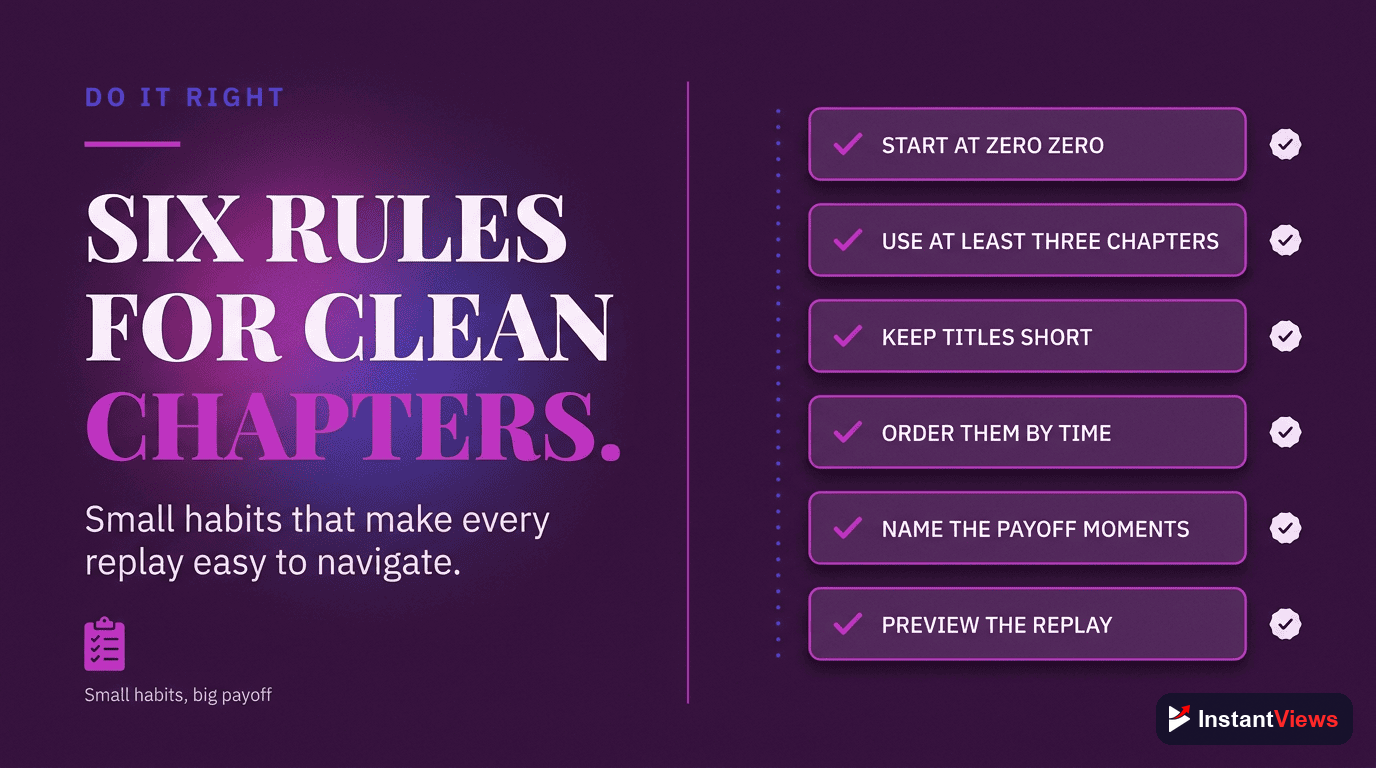
Frequently Asked Questions
No, you cannot add chapters during an active live stream. However, you can take detailed notes with timestamps during the broadcast, then add chapters immediately after the stream ends and converts to a VOD (video on demand).
Yes! You can add chapters to Premiere videos before they go live. The chapters will be visible and functional when the Premiere starts, giving viewers navigation options during the scheduled debut.
You can add chapters as soon as the live stream finishes processing into a regular video. This typically takes 5-30 minutes depending on stream length. There's no time limit—you can add chapters to old stream archives at any time.
Yes, trimming will shift all timestamps. If you plan to edit your stream, note timestamps relative to the trimmed version, or use timestamp notes as reference points and recalculate after editing.
Yes, viewers can post timestamps in comments during and after streams. Many streamers crowdsource chapter suggestions from their community, then add the best ones to the video description.
Yes, significantly. Stream archives with chapters see 30-45% higher average view duration because viewers can skip to highlights instead of abandoning the VOD entirely.
Chapter streams that have clear segments or multiple topics. Short streams (under 30 minutes) or single-topic broadcasts may not need chapters. Focus on chaptering streams you want to remain discoverable long-term.
Use descriptive but non-specific titles like "Boss Fight #3" or "Story Mission - Chapter 5" instead of revealing plot points. Balance discoverability with spoiler-consciousness for your audience.
Final Thoughts
Live streaming creates massive amounts of content, but without chapters, most stream archives become forgotten files taking up storage space. Chapters transform stream VODs into searchable, navigable, rewatchable content that continues generating views long after the broadcast ends.
Key takeaways for stream chapters:
- Note timestamps live: Use second monitors, bots, or community helpers to capture timestamps during streams
- Add chapters immediately: The sooner you add chapters post-stream, the more replay value you capture
- Focus on highlights: Chapter game changes, epic moments, and content segments viewers want to find
- Leverage your community: Crowdsource timestamp suggestions from engaged viewers
- Update your backlog: Add chapters to old stream archives that still get views
Whether you stream gaming, creative content, just chatting, or any other category, chapters are the difference between stream archives that die after broadcast and VODs that continue building your channel months later.
Related guides:
- How to Add Chapters to YouTube Videos (Complete Guide)
- Free YouTube Timestamp Generator Tool
- How YouTube Chapters Affect Watch Time