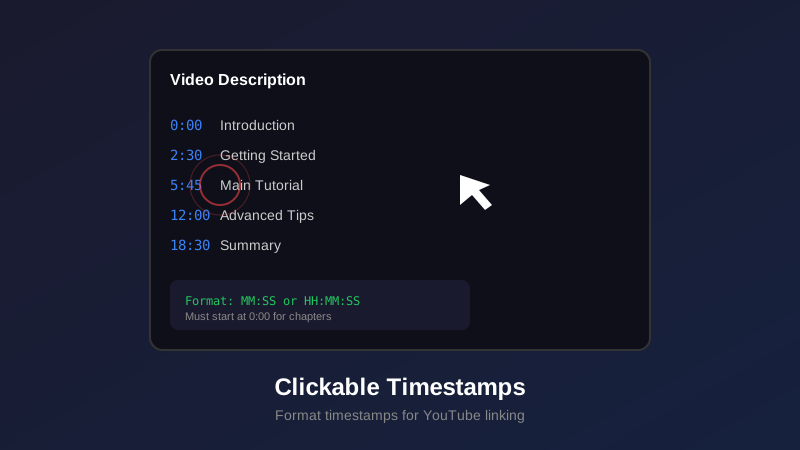
- Clickable timestamps use MM:SS or H:MM:SS format with colons, never periods
- Place timestamps in video description for chapters, or comments for additional navigation
- Always include a space between timestamp and description text
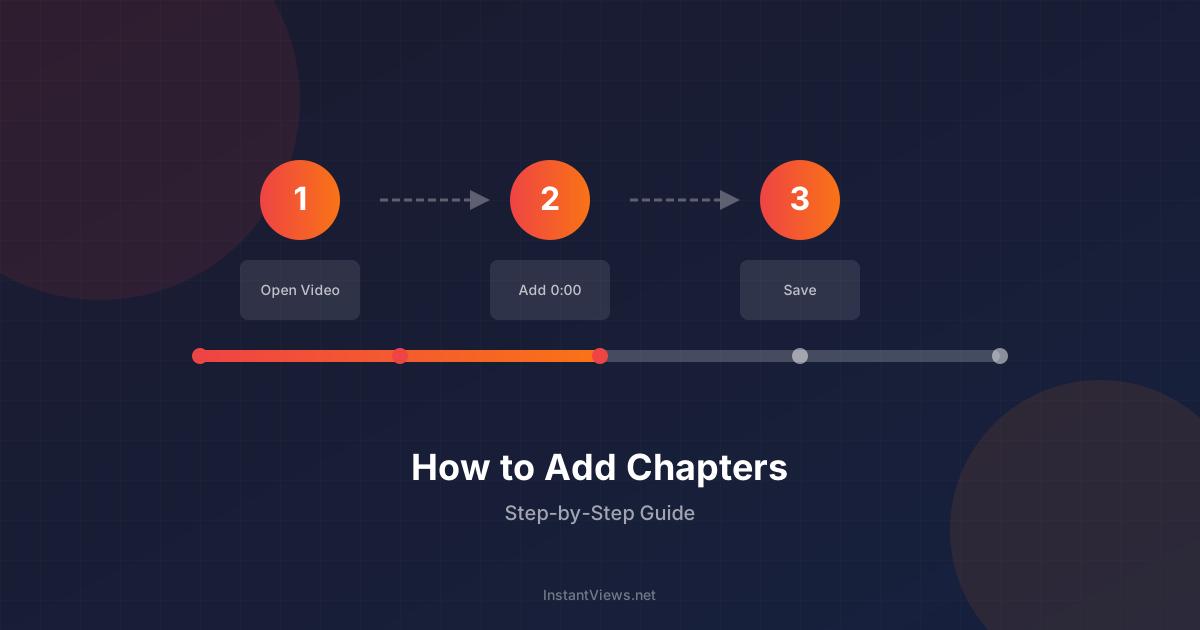
- First timestamp must be 0:00 to create chapter markers on progress bar
- Timestamps work identically in YouTube app and web browser
- You can create shareable links to specific timestamps using URL parameters
Clickable timestamps are one of YouTube's most powerful navigation features, allowing viewers to jump directly to specific moments in your videos. Whether you're creating educational content, tutorials, podcasts, or long-form videos, properly formatted timestamps dramatically improve viewer experience and engagement.
This comprehensive guide covers everything you need to know about creating clickable timestamps on YouTube, from basic formatting rules to advanced linking techniques that maximize viewer retention.
What Are Clickable Timestamps?
Clickable timestamps are time markers that appear as hyperlinks in your video description, comments, or anywhere on YouTube. When clicked, they instantly jump the video to that exact moment.
YouTube recognizes properly formatted timestamps and automatically converts them into clickable links. These timestamps serve two primary purposes:
- Video Navigation: Allow viewers to skip to specific sections without manually scrubbing
- Chapter Creation: When placed in the description starting at 0:00, they create visual chapter markers
- Content Discovery: Help viewers find exactly what they're looking for
- Shareability: Enable sharing specific moments instead of entire videos
Videos with clickable timestamps see 35% higher engagement rates because viewers can immediately access relevant content rather than abandoning the video.
YouTube Timestamp Format Requirements
YouTube has strict formatting requirements for timestamps. Follow these rules exactly to ensure your timestamps become clickable.
The Basic Format
Every clickable timestamp must follow this pattern:
TIME DESCRIPTIONWhere TIME is formatted with colons and DESCRIPTION is optional text separated by a space.
Time Format Based on Video Length
| Video Length | Format | Examples | Pattern |
|---|---|---|---|
| Under 10 minutes | M:SS | 0:00, 1:23, 9:59 | Single digit minute OK |
| 10-59 minutes | MM:SS | 10:00, 23:45, 59:59 | Two digit minute required |
| 1-9 hours | H:MM:SS | 1:00:00, 5:30:45 | Single digit hour OK |
| 10+ hours | HH:MM:SS | 10:00:00, 24:30:15 | Two digit hour required |
Critical Formatting Rules
- Use colons only: Never use periods, dashes, or other separators (1:30 not 1.30)
- Include space after time: Must have space between timestamp and text (0:00 Intro not 0:00Intro)
- Start with number: Timestamp must begin with a digit (not text first)
- Valid time values: Seconds must be 00-59, minutes 00-59 (no 1:75 or 90:00 for 90 minutes)
- No extra characters: Don't add brackets, parentheses, or symbols around timestamps
Where to Place Timestamps on YouTube
Location matters. Where you place timestamps determines their functionality and visibility.
1. Video Description (Primary Location)
The video description is the most important location for timestamps. When you follow specific rules, description timestamps create visual chapter markers.
How to Add Timestamps to Description
Go to YouTube Studio, select your video, and add timestamps in the description field:
0:00 Introduction and Overview
1:23 What You'll Learn Today
3:45 Step 1: Setting Up Your Workspace
7:30 Step 2: Installing Required Tools
12:15 Step 3: Configuration Process
18:40 Common Problems and Solutions
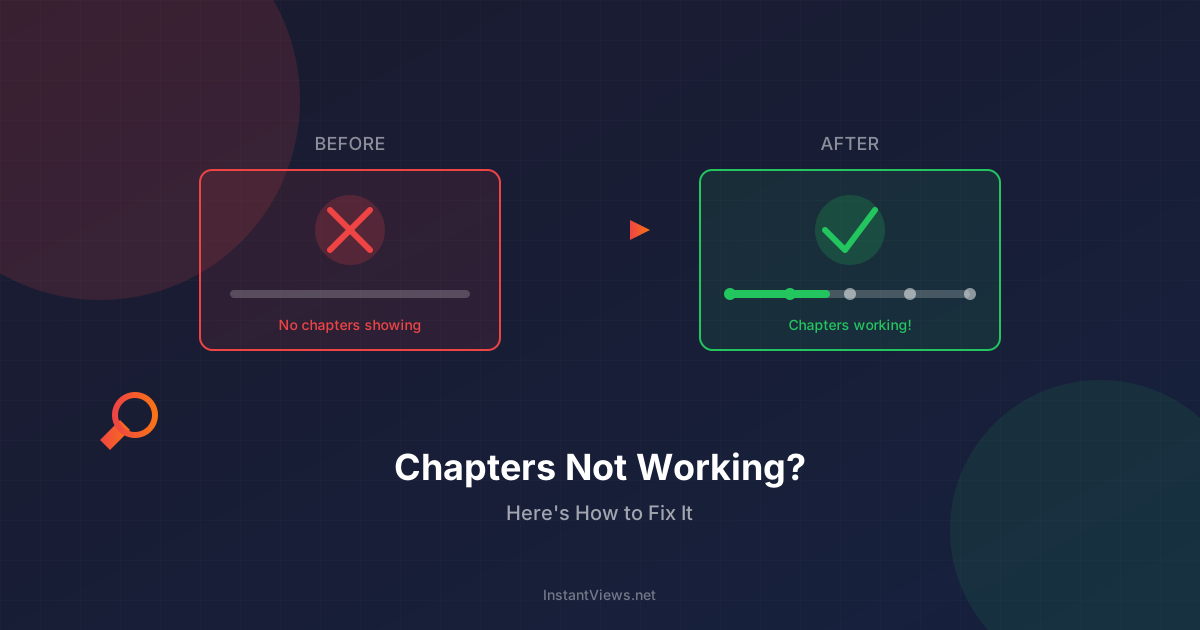
23:00 Final Thoughts and Next StepsTo create chapter markers: First timestamp MUST be 0:00, you need minimum 3 timestamps, and each chapter must be at least 10 seconds long. Otherwise timestamps remain clickable but won't create chapters.
2. Pinned Comment
Pinned comments appear at the top of your comments section, making timestamps highly visible.
Why use pinned comment timestamps?
- More visible than buried description text
- Can include more detailed annotations
- Doesn't require 0:00 start or minimum 3 timestamps
- Perfect for supplementary navigation points
Example pinned comment:
⏱️ Quick Navigation:
1:30 Introduction
5:45 Main topic begins
12:20 Real-world example
18:00 Advanced techniques
22:30 Conclusion

Drop a comment with your favorite timestamp!
3. Regular Comments
Any comment can contain clickable timestamps. This is useful for:
- Viewers referencing specific moments in discussions
- Highlighting funny or important moments
- Community-created navigation guides
- Creator responses pointing to relevant sections
4. Community Tab Posts
Timestamps also work in Community tab posts when linking to your videos. Format them the same way and include the video link.
Common Formatting Mistakes That Break Clickability
These seemingly minor errors prevent timestamps from becoming clickable.
| Mistake | Wrong Format | Correct Format |
|---|---|---|
| Using periods | 1.30 Introduction | 1:30 Introduction |
| No space after time | 0:00Introduction | 0:00 Introduction |
| Brackets around time | [0:00] Introduction | 0:00 Introduction |
| Invalid seconds | 1:75 Next section | 2:15 Next section |
| Text before timestamp | Intro at 0:00 | 0:00 Intro |
| Wrong separator | 1-30 or 1/30 | 1:30 |
| Multiple spaces | 0:00 Introduction | 0:00 Introduction |
Testing Your Timestamps
After adding timestamps, always verify they work:
- View your video as a viewer (not in Studio)
- Look for blue, underlined timestamp links in description
- Click each timestamp to verify it jumps to the correct moment
- Check that chapter markers appear on the progress bar (if using description timestamps starting at 0:00)
Clickable Timestamps: YouTube App vs Web
Timestamps work on both platforms, but with slight interface differences.
YouTube Web Browser
- Appearance: Timestamps show as blue hyperlinks
- Interaction: Click to jump to timestamp
- Chapter markers: Visible on progress bar with labels on hover
- Description: Full description visible, timestamps clickable in expanded view
YouTube Mobile App (iOS/Android)
- Appearance: Timestamps appear as tappable blue links
- Interaction: Tap to jump to timestamp
- Chapter markers: Appear on progress bar, tap for chapter list overlay
- Description: Tap "more" to expand and see timestamps
- Chapter navigation: Swipe video player right/left to move between chapters
| Feature | Web Browser | Mobile App |
|---|---|---|
| Clickable timestamps | Yes | Yes |
| Chapter markers | Yes | Yes |
| Chapter list view | Hover progress bar | Tap chapter icon |
| Swipe between chapters | No | Yes |
| Description visibility | Always visible | Requires expand |
Over 70% of YouTube watch time happens on mobile devices. Make sure to test your timestamps on the mobile app to ensure they work perfectly for your primary audience.
Advanced Timestamp Linking Techniques
Beyond basic clickable timestamps, you can use advanced techniques to link to specific moments.
1. URL Timestamp Parameters
You can create shareable links that start at specific timestamps by adding URL parameters.
Method 1: Using Seconds Parameter
Add ?t=XXs or &t=XXs to your video URL:
https://youtube.com/watch?v=VIDEO_ID&t=90sThis starts the video at 1 minute 30 seconds (90 seconds total).
Method 2: Using Minutes and Seconds
Use format ?t=XmYs for better readability:
https://youtube.com/watch?v=VIDEO_ID&t=2m30sThis starts at 2 minutes and 30 seconds.
Method 3: Right-Click Method
The easiest way to get a timestamp URL:
- Play your video to the desired moment
- Right-click the video player
- Select "Copy video URL at current time"
- Paste anywhere - YouTube automatically adds the timestamp parameter
2. Shortened URLs with Timestamps
YouTube's short URL format (youtu.be) also supports timestamps:
https://youtu.be/VIDEO_ID?t=90This creates a cleaner, more shareable link that still jumps to the timestamp.
3. Timestamp Links in End Screens and Cards
When creating YouTube end screens and cards, you can link to specific timestamps in other videos:
- Select the video you want to link to
- Add the timestamp parameter to the URL
- Viewers jump directly to that moment in the linked video
4. Playlist with Timestamp Start Points
Create playlists where each video starts at a specific timestamp by using URL parameters when adding videos.
Best Practices for Clickable Timestamps
1. Use Descriptive Labels
Don't just list timestamps - make them descriptive and keyword-rich.
| Weak Timestamp | Strong Timestamp |
|---|---|
| 0:00 Intro | 0:00 Why 90% Fail at Email Marketing |
| 2:30 Step 1 | 2:30 Setting Up Your First Campaign |
| 8:00 Tips | 8:00 5 Subject Lines That Get 50% Open Rates |
2. Strategic Timestamp Spacing
For optimal engagement:
- Short videos (under 5 min): 3-5 timestamps
- Medium videos (5-20 min): 5-10 timestamps
- Long videos (20-60 min): 10-15 timestamps
- Very long videos (1+ hour): 15-20 timestamps
3. Front-Load Important Content
Place your most valuable content in the first few chapters. Timestamp labels should make this obvious.
4. Test Timestamps Before Publishing
Always check timestamps work correctly before making the video public:
- Set video to "Unlisted" first
- View as a regular viewer (not in Studio)
- Click every timestamp to verify accuracy
- Adjust if any timestamps are off by more than 1-2 seconds
- Publish once verified
5. Update Timestamps for Edited Videos
If you edit your video after publishing, remember to update all affected timestamps. Even small edits can throw off timing.
6. Include Timestamps in Pinned Comment
Even if you have description timestamps, add them to a pinned comment for extra visibility. Many viewers check comments before the description.
Create Perfect Timestamps Instantly
Our AI-powered timestamp generator analyzes your video and creates properly formatted, clickable timestamps in seconds. No manual timing required.
Generate Timestamps FreeFrequently Asked Questions
Use MM:SS format for videos under 1 hour (like 0:00, 1:23, 45:30) or H:MM:SS for longer videos (like 1:00:00, 2:30:45). The timestamp must be followed by a space and description text. YouTube automatically makes properly formatted timestamps clickable.
Place timestamps in three locations: 1) Video description (primary location), 2) Pinned comment for visibility, 3) Regular comments for community engagement. Description timestamps create video chapters, while comment timestamps provide additional navigation points.
Yes, clickable timestamps work in both the YouTube mobile app and web version. Mobile users can tap timestamps to jump to that point. Chapter markers appear on the progress bar in both versions, though the mobile interface displays them slightly differently.
Common reasons: incorrect format (using periods instead of colons), missing space after timestamp, not following MM:SS format, or placing timestamps in unsupported locations. Ensure format is exactly "0:00 Description" with a colon separator and space after.
Yes, add ?t=XXs to your video URL (like youtube.com/watch?v=VIDEO_ID&t=90s for 1:30). You can also right-click the progress bar and select "Copy video URL at current time" to get a pre-formatted timestamp link.
No, only timestamps in the video description create chapters. Comment timestamps are clickable and allow navigation but do not appear as chapter markers on the progress bar. Use description timestamps for chapters and comment timestamps for additional reference points.
YouTube has no strict limit on timestamps, but for chapters you need minimum 3 and maximum around 100. For optimal user experience, use 5-15 chapter timestamps. You can add more timestamps in comments without affecting chapters.
Yes, editing timestamps in the description does not affect your view count or video URL. You can add, remove, or modify timestamps anytime. Changes appear immediately on published videos without requiring re-upload.