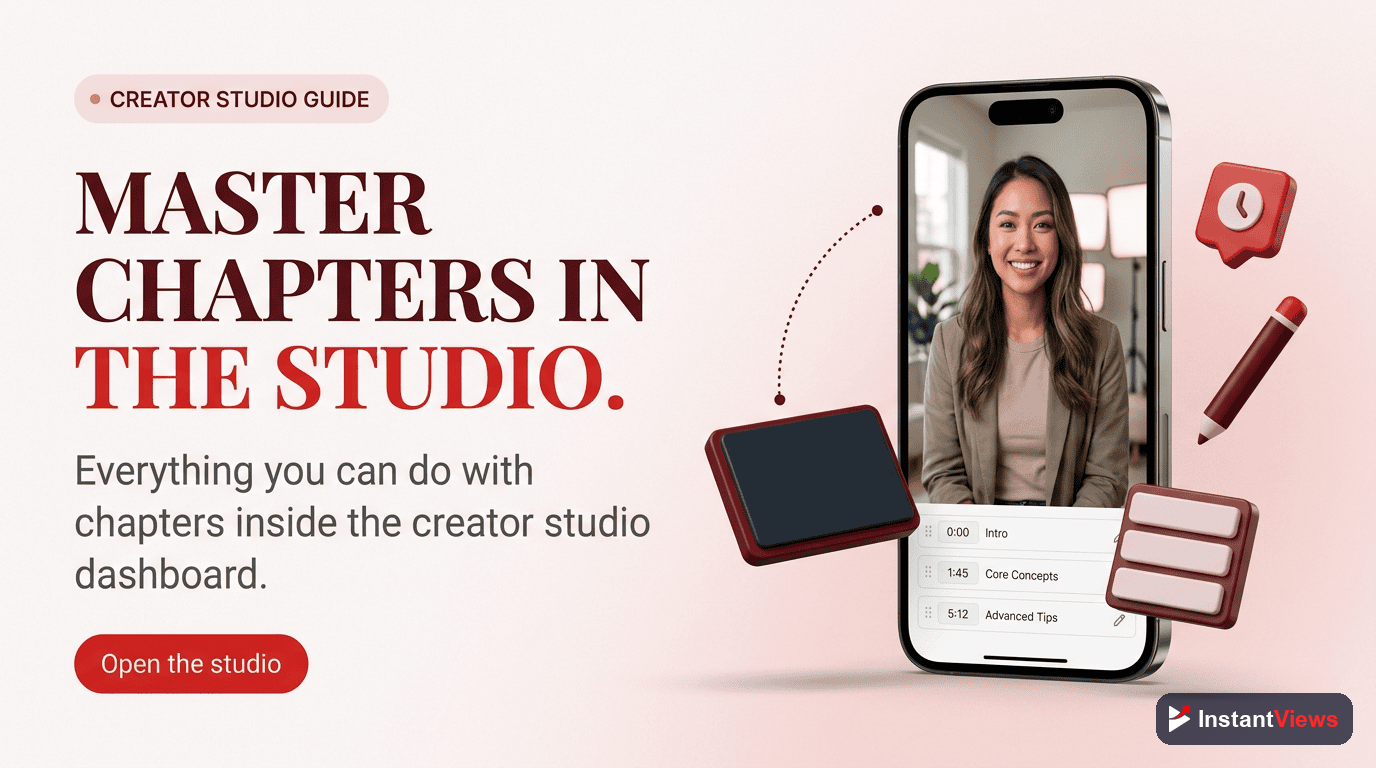
- YouTube Studio is the central hub for editing all video chapters and timestamps
- Chapter editing in Studio requires modifying the video description field
- You can preview chapters before publishing by saving and viewing the video
- Studio analytics show "Most viewed segments" that correspond to your chapters
- Manual chapters in Studio always override YouTube's auto-generated chapters
- Chapter edits take effect within 1-2 minutes of saving
YouTube Studio is your command center for managing video chapters, timestamps, and all video metadata. While YouTube doesn't yet have a dedicated visual chapter editor, Studio provides all the tools you need to add, edit, preview, and analyze your video chapters effectively.
In this comprehensive guide, you'll learn everything about YouTube Studio's chapter features—from the basic editing interface to advanced techniques like previewing chapters, analyzing chapter performance, and efficiently managing chapters across multiple videos.
YouTube Studio Chapter Interface Overview
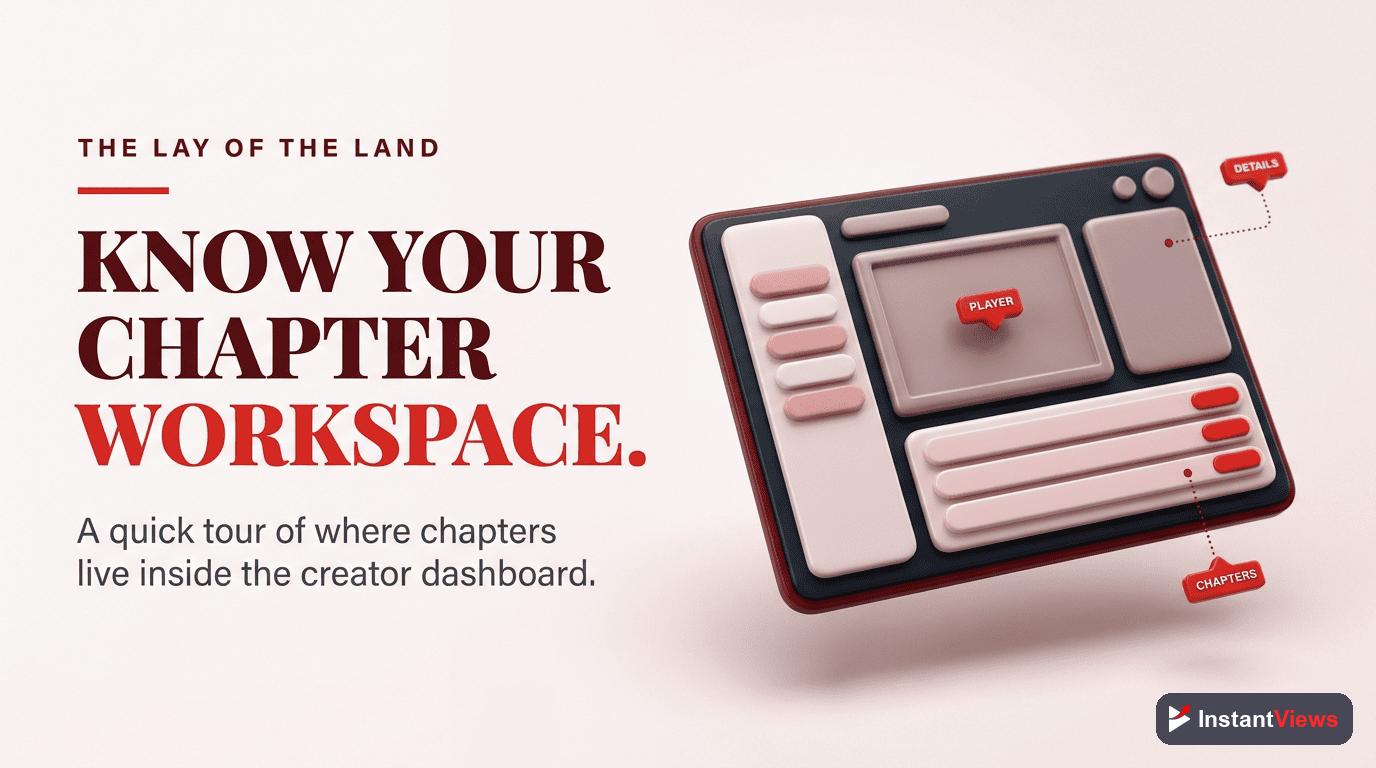
YouTube Studio's chapter management system is integrated into the video details editor. While there isn't a separate "Chapters" tab, all chapter functionality lives within the description editor with real-time validation and preview capabilities.
Where to Find Chapter Controls
Chapter management in YouTube Studio is accessed through:
- Video Details Page: The primary location for editing chapters
- Description Field: Where you add and modify timestamps
- Video Preview: Shows how chapters appear to viewers
- Analytics Dashboard: Displays chapter performance data
- Auto-Chapter Settings: Located in the "Show More" section
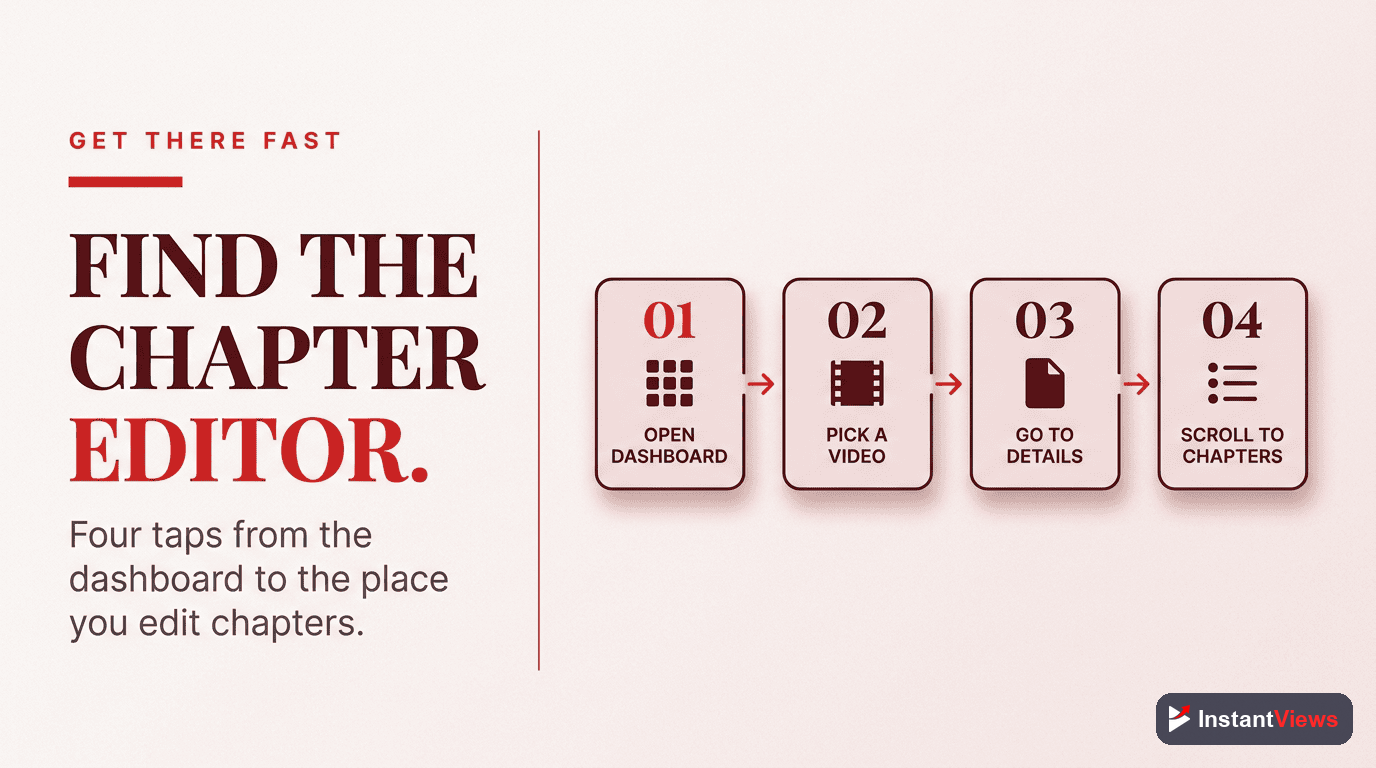
Accessing the YouTube Studio Chapter Editor
Open YouTube Studio
Go to Content Library
Select Video to Edit
- Click directly on the video thumbnail or title
- Hover over the video and click the pencil (edit) icon
- Use the search box to find specific videos quickly
Locate the Description Field
Adding Chapters in YouTube Studio
Adding chapters through YouTube Studio is straightforward, but proper formatting is critical. Here's the complete process:
Step-by-Step Chapter Creation
Format Your Timestamps
0:00 Introduction and Overview
1:45 Understanding the Basics
4:20 Advanced Techniques
7:35 Common Mistakes to Avoid
10:15 Best Practices
13:00 Conclusion and Next StepsFollow YouTube's Chapter Rules
- Start at 0:00: First timestamp must be the video start
- Minimum 3 chapters: You need at least 3 timestamps
- 10-second minimum: Each chapter must be at least 10 seconds
- Chronological order: Timestamps must be in ascending order
- Descriptive titles: Each chapter needs a title after the timestamp
Check for Validation
- Timestamps turn into clickable blue links
- Video preview shows chapter markers on progress bar
- No error messages appear below the description field
YouTube Studio won't create chapters if you make these mistakes: using periods instead of colons (1.30 instead of 1:30), forgetting chapter titles, having fewer than 3 chapters, or not starting at 0:00.

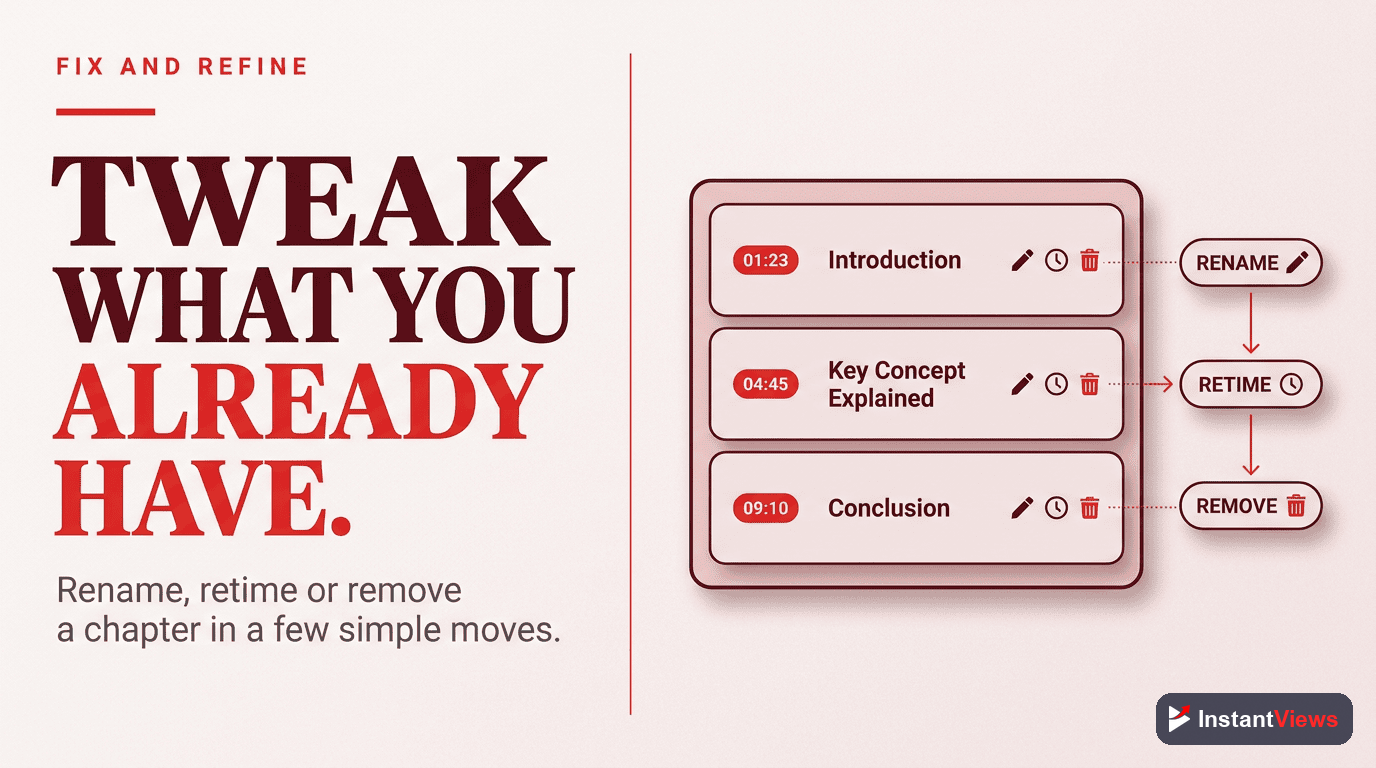
Editing Existing Chapters in Studio
Modifying existing chapters is just as simple as adding new ones. YouTube Studio makes it easy to update, refine, or completely revise your chapter structure.
How to Edit Chapters
- Navigate to Video: Go to YouTube Studio → Content → Select video
- Find Description: Scroll to the description field where your chapters exist
- Make Changes: Edit timestamp times or chapter titles directly
- Verify Format: Ensure all rules are still followed after editing
- Save Changes: Click "Save" in the top right corner
- Check Live Video: Chapters update within 1-2 minutes
Types of Chapter Edits You Can Make
| Edit Type | How to Do It | Use Case |
|---|---|---|
| Change Timestamp | Edit the time directly (e.g., 1:45 → 1:50) | Fine-tune chapter timing |
| Rename Chapter | Edit the text after the timestamp | Improve SEO or clarity |
| Add Chapter | Insert new timestamp line in order | Increase granularity |
| Remove Chapter | Delete the entire timestamp line | Simplify navigation |
| Reorder Chapters | Cut and paste lines in new order | Restructure video flow |
How to Preview Chapters Before Publishing
YouTube Studio provides multiple ways to preview your chapters before making your video public or before finalizing edits.
Method 1: In-Studio Preview (Fastest)
- Add or edit your chapters in the description field
- Click "Save" at the top right
- Look at the video preview player in the left panel
- Hover over the progress bar to see chapter markers and titles
- Click the progress bar to jump between chapters
Method 2: Unlisted Video Preview (Most Accurate)
For new videos or major chapter changes, use an unlisted video to preview exactly how viewers will experience your chapters:
Set Video to Unlisted
Add Your Chapters
Save and View Live
Test Chapter Navigation
- Chapter markers appear on the progress bar
- Chapter titles show when hovering
- Clicking chapters jumps to correct timestamps
- Chapter titles are readable and not cut off
- Chapter list appears in description
Make Adjustments and Go Public

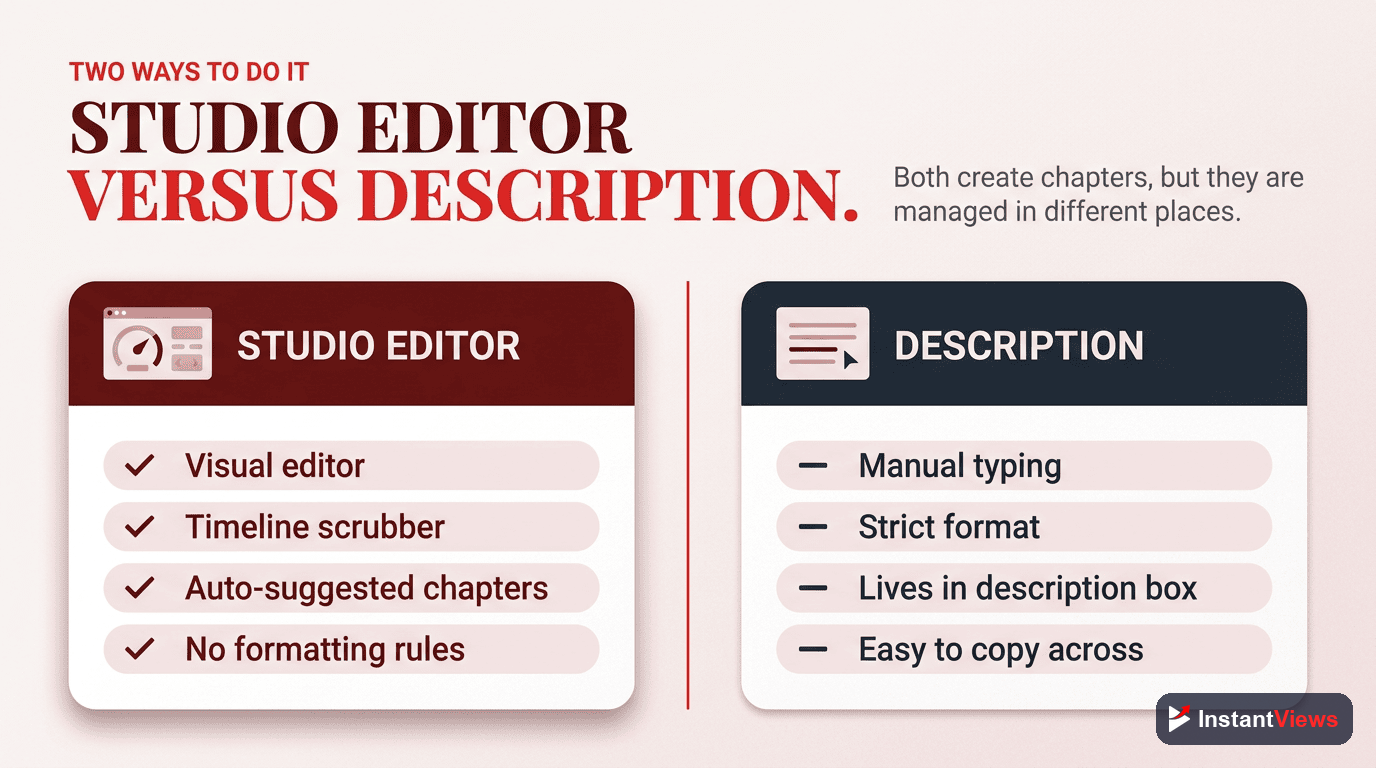
YouTube Studio vs Description Timestamps: What's the Difference?
Many creators wonder if there's a difference between adding chapters through YouTube Studio versus adding timestamps in the description. The answer: there's no functional difference—they're the same thing.
Understanding the Relationship
| Aspect | Explanation |
|---|---|
| YouTube Studio | The interface/tool you use to edit your video description |
| Description Timestamps | The actual chapter data (timestamps + titles) in your description |
| End Result | Identical—chapters work the same way regardless of how you add them |
| Editing Location | All chapter edits must be done through YouTube Studio's description editor |
Why the Confusion?
The confusion stems from terminology:
- "Adding chapters in Studio" means using the Studio interface to edit your description
- "Adding timestamps to description" means the actual text you type
- Both refer to the same process with the same outcome
YouTube Studio is simply the tool you use to access and edit your video description where chapters live. There's no separate chapter editor—it's all done through the description field.
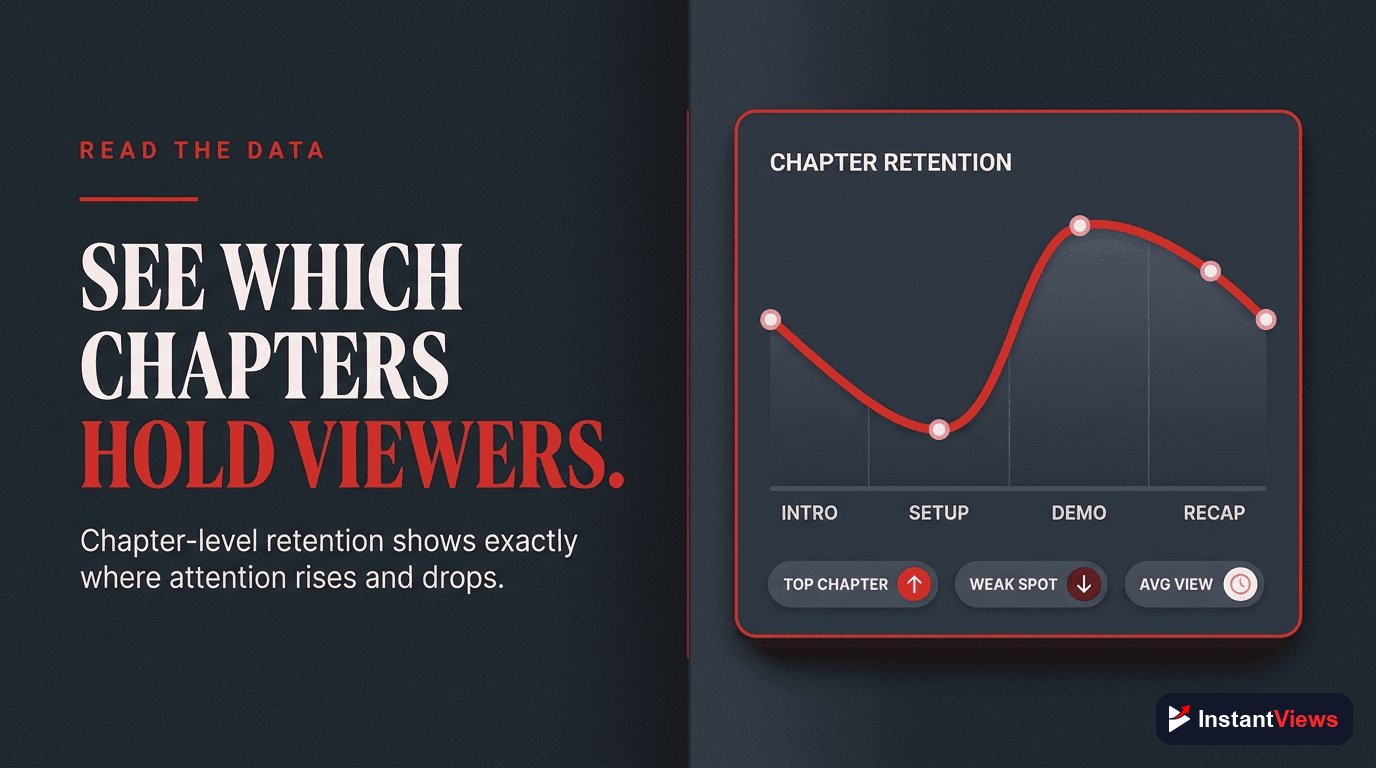
YouTube Studio Analytics for Chapters
One of the most powerful features of YouTube Studio is the ability to see how viewers interact with your chapters. This data helps you optimize future content and chapter placement.
Accessing Chapter Analytics
- Open YouTube Studio
- Click "Analytics" in the left sidebar
- Select "Engagement" tab at the top
- Scroll down to find "Key moments for audience retention"
- Click "See more" to view detailed segment data
Understanding "Most Viewed Segments"
YouTube Studio shows which parts of your video (corresponding to chapters) get the most attention:
| Metric | What It Means | How to Use It |
|---|---|---|
| Most Viewed | Chapters viewers watch most | Create more content like these chapters |
| Most Replayed | Chapters viewers rewatch | Identify your best content moments |
| Drop-off Points | Where viewers leave | Improve or shorten these chapters |
| Skip Patterns | Chapters viewers jump over | Consider removing or improving these |
Chapter Performance Indicators
Look for these patterns in your Studio analytics:
- High retention chapters: Viewers watch completely through
- Re-watched chapters: Viewers skip back to watch again
- Skipped chapters: Viewers fast-forward past
- Exit chapters: Where viewers leave the video
- Entry chapters: Where viewers start (from links or search)
Bulk Editing Chapters in YouTube Studio
Unfortunately, YouTube Studio doesn't offer built-in bulk chapter editing tools. However, you can use these workarounds to edit chapters across multiple videos more efficiently.
Template-Based Approach
For videos with similar structures (like podcast episodes or tutorial series):
Create a Chapter Template
0:00 Introduction
1:30 Main Topic Overview
5:00 Deep Dive Section
10:00 Examples and Case Studies
15:00 Common Questions
18:00 ConclusionAdjust Timestamps per Video
Paste into Studio
Efficiency Tips for Multiple Videos
- Open multiple tabs: Open several video edit pages in different tabs
- Use keyboard shortcuts: Ctrl+S (Cmd+S on Mac) to save quickly
- Copy successful chapters: Replicate high-performing chapter structures
- Use text editor: Prepare all chapters in a text editor before pasting into Studio
- Batch similar videos: Edit all videos of one type together
Third-party tools claiming to bulk-edit chapters may violate YouTube's Terms of Service. Always use YouTube Studio's official interface to edit video metadata.
Advanced YouTube Studio Chapter Tips
1. Disable Auto-Chapters
To turn off YouTube's auto-generated chapters and only use your manual chapters:
- Go to YouTube Studio → Content → Select video
- Click "Show More" in the video details
- Scroll to find "Allow automatic chapters"
- Uncheck the box to disable
- Click "Save"
2. Use Studio Mobile App
You can edit chapters on-the-go using the YouTube Studio mobile app:
- Download YouTube Studio app (iOS/Android)
- Navigate to Content → Select video
- Tap the pencil icon to edit
- Edit description and add timestamps
- Tap "Save" at the top right
3. Add Chapters During Upload
Save time by adding chapters during the initial upload process:
- Start uploading your video in Studio
- While video processes, add chapters to description
- Set visibility to "Public" or "Scheduled"
- Chapters go live when video publishes
4. Export Chapter Data
While Studio doesn't have a chapter export feature, you can:
- Copy chapters from description field
- Save to spreadsheet or document
- Use for analytics tracking or future reference
- Create a master chapter library for your channel
5. Monitor Chapter Changes
Track when chapters are updated:
- Studio shows "Last updated" timestamp for video details
- Use YouTube API (for developers) to track chapter changes
- Keep a changelog document for important videos
Generate Perfect Chapters in Seconds
Stop manually creating chapters. Our free YouTube Timestamp Generator creates Studio-ready chapters instantly. Just paste your video URL or transcript.
Try Free Generator
Frequently Asked Questions
Not yet. As of December 2025, YouTube Studio doesn't have a dedicated visual chapter editor. You must edit chapters by modifying the timestamps in your video description through YouTube Studio's description editor.
Add your timestamps to the description, click Save, then click the video thumbnail to preview. You'll see the chapter markers on the progress bar. You can make this a private/unlisted video to test before going public.
No, YouTube Studio doesn't support bulk chapter editing. You must edit each video's description individually. However, you can copy-paste chapter templates between similar videos to speed up the process.
YouTube Studio shows "Most viewed segments" in analytics, which corresponds to your chapters. You can see which chapters viewers watch most, rewatch, or skip, helping you understand content performance.
There's no difference in the end result. YouTube Studio is simply the interface where you edit your video description. Whether you add timestamps during upload or edit them later through Studio, they work the same way.
Yes. Go to YouTube Studio > Content > select video > Show More > uncheck "Allow automatic chapters." Adding manual chapters will also override auto-generated ones automatically.
Chapter updates are usually instant or take 1-2 minutes. If chapters don't appear, verify your timestamp format, ensure you have 3+ chapters starting at 0:00, and each is 10+ seconds long.
You can't drag-and-drop chapters. To rearrange, you must manually edit the timestamps in the description. Copy your chapter list to a text editor, rearrange, verify timestamps are in order, then paste back.