- YouTube Premieres create urgency and exclusivity, but only work when you can generate strong attendance
- Schedule 24-48 hours in advance and promote across all your platforms for maximum turnout
- Active participation in live chat during premiere can increase watch time by 35-50%
- Use Video Analyzer before scheduling to ensure your content is premiere-ready
- Poor premiere attendance can hurt algorithmic performance - use strategically for high-value content only
YouTube Premieres can be a game-changer for launching important videos - or they can be a disaster that hurts your channel's performance. The difference comes down to execution.
When done right, premieres create a sense of event and exclusivity. Your audience gathers together, the live chat buzzes with excitement, and YouTube sees strong engagement signals that boost your video in recommendations.
When done wrong, you premiere to a handful of viewers, send a poor engagement signal to the algorithm, and would have been better off with a regular upload.
This guide shows you exactly how to execute high-impact YouTube Premieres that drive views, engagement, and algorithmic success.
What is a YouTube Premiere?
A YouTube Premiere is a scheduled video launch where your video goes live at a specific time, and viewers can watch together in real-time with a live chat.
Here's what happens:
- You schedule your video to "premiere" at a specific date and time
- YouTube creates a public watch page with a countdown timer
- Subscribers get notified about the upcoming premiere
- Viewers can set reminders and gather before the premiere starts
- When it begins, everyone watches simultaneously with live chat enabled
- After premiere ends, it becomes a regular video on your channel
Think of it as a virtual movie premiere - you're creating an event around your content release.
When to Use Premieres (and When Not To)
Premieres aren't right for every video. Here's when they work best:
Use Premieres For:
- Milestone content - Channel anniversaries, subscriber milestones, major announcements
- High-production videos - Documentaries, music videos, short films
- Highly anticipated content - Series finales, reveal videos, collaboration launches
- Community-driven content - Q&A compilations, fan-selected topics
- Time-sensitive content - Product launches, event coverage, breaking news analysis
Skip Premieres For:
- Regular weekly uploads - Standard content performs better with immediate availability
- Tutorial/how-to videos - People search for solutions, they don't wait for premieres
- Evergreen content - SEO-focused videos benefit more from immediate indexing
- Small channels without engaged audience - Empty premiere chat hurts more than helps
- Daily vlogs - Frequency makes premieres lose their special appeal
If you can't confidently get at least 50-100 live viewers for your premiere, use a regular upload instead. A poorly attended premiere sends negative signals to YouTube's algorithm.
Pre-Launch Optimization
Before you schedule a premiere, your video needs to be optimized. Unlike regular uploads where you can edit metadata after publishing, premiere success depends on getting everything right before announcement.
Run Video Through Analyzer
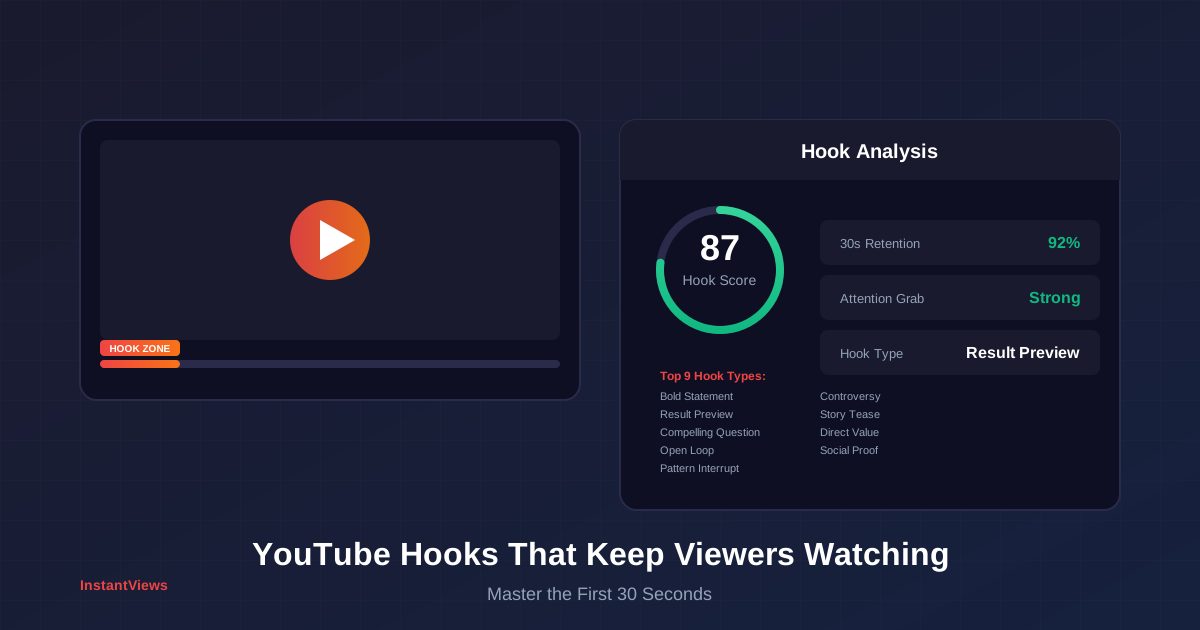
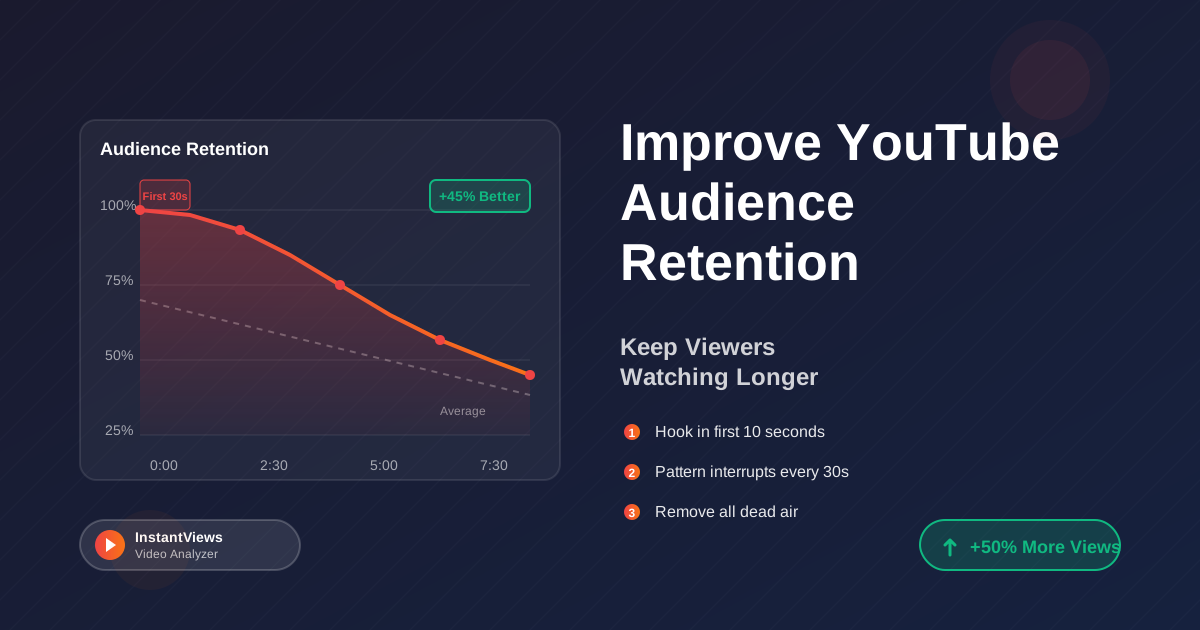
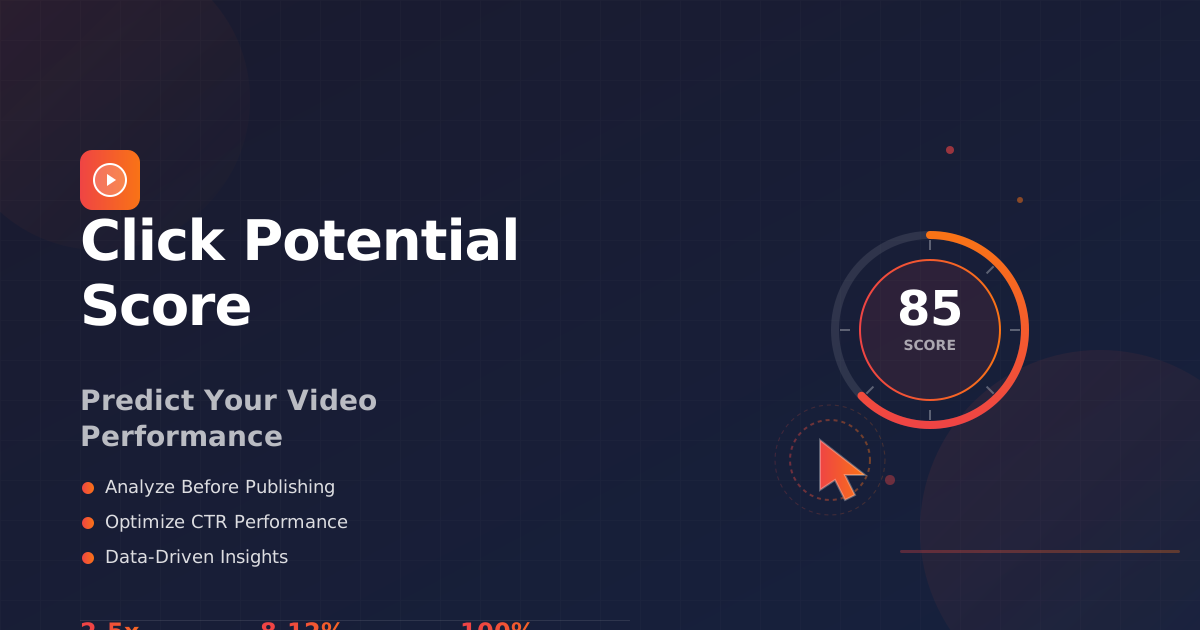
Use the InstantViews Video Analyzer to check your title, thumbnail, and opening hook before scheduling the premiere. You want your best possible version ready to go.
• Title click-through potential
• Thumbnail eye-tracking score
• First 30-second retention prediction
• Overall engagement forecast
Optimize Metadata
Your title, description, and tags should be premiere-optimized. Include words like "PREMIERE," the date/time, and create urgency.
"[Compelling Title] | WORLD PREMIERE - Dec 20 at 3PM ET"
Perfect Your Thumbnail
Add "PREMIERE" or "LIVE" badges to your thumbnail. Use countdown elements or "BE THERE" text to create urgency and distinguish it from regular uploads.
Scheduling Strategy
When you schedule your premiere matters as much as the content itself.
Optimal Timing:
| Factor | Recommendation | Why It Matters |
|---|---|---|
| Advance Notice | 24-48 hours | Time to promote without losing momentum |
| Day of Week | Tuesday-Thursday | Highest average engagement across niches |
| Time of Day | Match your analytics | Check when your subscribers are most active |
| Duration | Not too long | Long premieres (2+ hours) see 40% drop-off |
How to Find Your Best Time:
- Go to YouTube Studio > Analytics > Audience
- Scroll to "When your viewers are on YouTube"
- Find the darkest purple blocks (peak activity times)
- Schedule your premiere during those windows
Promotion Tactics
A premiere is only as successful as your ability to get people there. Here's how to drive attendance:
1. Community Tab Announcement
Post immediately after scheduling. Include:
- Thumbnail preview
- Premiere date/time in multiple time zones
- What makes this video special
- Clear call-to-action to set reminder
2. Social Media Countdown
Create a multi-platform campaign:
- Instagram Stories: Countdown sticker with premiere link in bio
- Twitter/X: Pin tweet with premiere details, quote tweet with updates
- TikTok: Tease the content, drive to YouTube premiere
- Discord/Telegram: Direct notification to your community
3. Email Your List
If you have an email list, send a dedicated premiere announcement 24 hours before and a reminder 1 hour before.
4. Create Promo Graphics
Design shareable countdown graphics with:
- Premiere date/time
- Compelling hook about the content
- Channel branding
- QR code or short link to premiere page
Live Chat Engagement
The live chat during your premiere is critical for success. Active chat engagement signals to YouTube that your content is valuable and should be recommended more.
Before Premiere Starts:
- Arrive 15 minutes early - Greet early viewers, build excitement
- Welcome people by name - Personal acknowledgment increases participation
- Ask warm-up questions - "Where are you watching from?" "What are you most excited about?"
- Set expectations - Tell them what to expect, when to comment specific things
During Premiere:
- Comment on key moments - Point out important details viewers might miss
- Answer questions - Provide context or behind-the-scenes insights
- Create participation moments - "Drop a 🔥 if you agree" at strategic points
- Pin important comments - Highlight great viewer contributions
After Video Ends:
- Thank attendees - Show appreciation for their time
- Tease next video - Keep them subscribed and engaged
- Ask for feedback - "What did you think? Comment below!"
- Stay for 10-15 minutes - Continue engaging with lingering viewers
Post-Premiere Strategy
Your work doesn't end when the premiere finishes. What you do in the next 24 hours significantly impacts long-term performance.
Immediate Actions (First Hour):
- Update thumbnail - Remove "PREMIERE" elements for evergreen appeal
- Pin a top comment - Summarize key points or add resources
- Respond to comments - YouTube rewards creator-viewer interaction
- Share replay - Post on social that premiere is now available to watch
Next 24 Hours:
- Monitor analytics - Check retention, CTR, and engagement metrics
- Engage with comments - Continue responding to build momentum
- Share highlights - Create clips or quote cards from best moments
- Community tab update - Thank attendees, share interesting stats
Week After:
- Analyze performance - Compare to regular uploads, note what worked
- Reference in next video - Keep the momentum going
- Add to playlists - Ensure it's discoverable long-term
Optimize Your Premiere Video
Before scheduling your premiere, use our Video Analyzer to ensure your title, thumbnail, and hook are optimized for maximum impact.
Analyze Your Video →Common Premiere Mistakes to Avoid
1. Over-Using Premieres
Using premieres for every video dilutes their special appeal. Reserve them for truly important content. Recommended frequency: 1-2 premieres per month maximum.
2. Insufficient Promotion Time
Scheduling a premiere only 2-3 hours in advance doesn't give people time to plan. Most successful premieres have 24-48 hours of promotion.
3. Ignoring the Chat
Not participating in your own premiere chat is a massive missed opportunity. Your engagement drives viewer engagement, which drives algorithmic success.
4. Poor Timing
Premiering at 3 AM your audience's time, or during major competing events (Super Bowl, holidays), guarantees low attendance.
5. Weak Content
No amount of premiere strategy can save a weak video. If your content isn't premiere-worthy, it will show in the retention and engagement data.
"Premieres are amazing for building community, but only if you treat them as events, not just delayed uploads. Show up, engage, and make it special." - YouTube Creator Best Practices
Final Premiere Checklist
7 Days Before:
- Video is finalized and ready
- Run through Video Analyzer for optimization
- Create premiere-specific thumbnail
- Prepare promotional graphics
24-48 Hours Before:
- Schedule premiere at optimal time
- Post Community tab announcement
- Share on all social platforms
- Email your list
- Brief moderators on chat management
1 Hour Before:
- Send final reminder on social media
- Test your setup and internet connection
- Prepare talking points for chat
During Premiere:
- Arrive 15 minutes early
- Welcome viewers in chat
- Provide commentary and insights
- Encourage participation
- Stay 10-15 minutes after end
After Premiere:
- Update thumbnail immediately
- Pin top comment
- Respond to comments
- Share replay on social
- Monitor and analyze performance
Frequently Asked Questions
Schedule premieres 24-48 hours in advance for best results. This gives you time to promote it, build anticipation, and allows YouTube to send notifications to subscribers. Avoid weekends unless your analytics show strong weekend engagement.
Premieres work best for milestone content, special announcements, or highly anticipated videos. For regular content, standard uploads often perform better because they're immediately watchable. Use premieres strategically, not for every video.
Promote on Community tab, Instagram Stories, Twitter, and email list. Create countdown graphics. Engage in the chat before premiere starts. Offer exclusive perks like first-look insights or Q&A during premiere. Build hype with teaser clips.
Absolutely. Your participation in the live chat significantly increases engagement and watch time. Arrive 10-15 minutes early, welcome viewers, answer questions, and provide commentary during the video. This creates community and encourages longer viewing.
Low premiere attendance can hurt initial performance because YouTube measures engagement rate. If only 100 subscribers attend a premiere promoted to 10,000, that's a poor signal. Only use premieres when you can generate strong attendance.
The 2-minute countdown built into YouTube is optimal. Some creators extend this with pre-show content, but viewers often drop off during long waits. Keep pre-content under 5 minutes total, focused on building excitement and welcoming viewers.