- Copy timestamps directly from YouTube video descriptions in seconds
- Extract and reuse timestamp structures for your own videos
- Learn proper timestamp formats for seamless YouTube compatibility
- Create shareable links with timestamps to specific video moments
- Export chapter data to spreadsheets, notes, or documentation
Need to copy timestamps from a YouTube video? Whether you're taking notes, creating study guides, adapting chapter structures for your own content, or sharing specific video moments with others, knowing how to properly copy and extract YouTube timestamps is an essential skill for creators and viewers alike.
YouTube timestamps aren't just clickable links in video descriptions - they're a powerful reference tool that lets you navigate, share, and repurpose video content efficiently. This comprehensive guide shows you exactly how to copy timestamps, understand their formats, export them for various uses, and even create shareable timestamp links.
By the end of this guide, you'll master every method for working with YouTube timestamps, from basic copying to advanced extraction techniques.
What Are YouTube Timestamps?
YouTube timestamps are time markers in video descriptions that link to specific moments in a video. When formatted correctly, they become clickable chapter markers that appear both in the description and on the video progress bar.
A typical timestamp looks like this:
0:00 Introduction
2:15 Main Topic Begins
5:43 Key Concepts Explained
10:20 Practical Examples
15:05 Conclusion and Resources
Each line contains three elements:
- Time marker: The exact moment in the video (MM:SS or H:MM:SS format)
- Separator: A space between the time and title
- Chapter title: A descriptive name for that video section
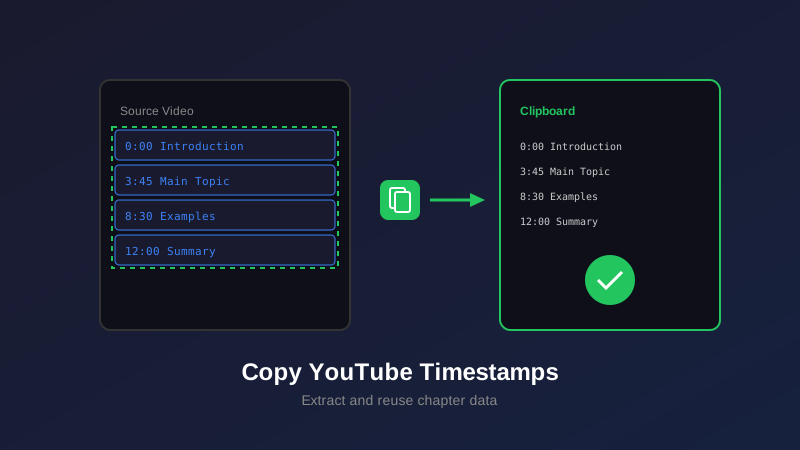
When you copy timestamps from a video, you're capturing this structured data that defines how the video is segmented into navigable chapters.
YouTube automatically converts properly formatted timestamps in descriptions into interactive chapter markers. Videos with chapters see 15-30% higher engagement than videos without them.
How to Copy Timestamps from Video Descriptions
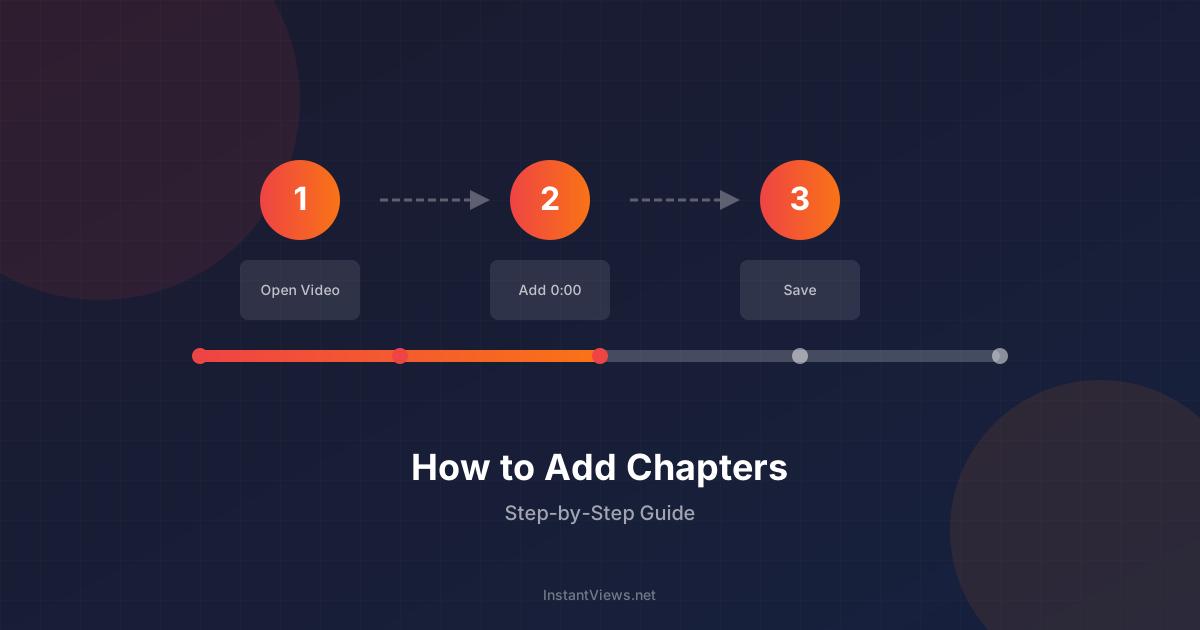
Copying timestamps from a YouTube video description is straightforward once you know where to look:
Navigate to the Video
Expand the Full Description
Select All Timestamp Lines
Copy to Clipboard
- Windows/Linux: Ctrl + C
- Mac: Cmd + C
Paste and Use
Understanding YouTube Timestamp Formats
YouTube recognizes specific timestamp formats. Understanding these formats ensures your copied timestamps work correctly when reused:
Standard Format Requirements
For YouTube to recognize timestamps as chapters, they must follow these rules:
- Start at 0:00: The first timestamp must always be 0:00
- Minimum 3 chapters: At least three timestamps required
- Minimum 10 seconds per chapter: Each chapter must be at least 10 seconds long
- Chronological order: Timestamps must be in ascending time order
- Proper spacing: One space between timestamp and title
Time Format Variations
YouTube accepts multiple time format styles depending on video length:
| Video Length | Format | Example |
|---|---|---|
| Under 1 hour | M:SS or MM:SS | 0:00, 2:15, 35:42 |
| 1-10 hours | H:MM:SS | 1:05:30, 2:45:18 |
| 10+ hours | HH:MM:SS | 10:30:45, 15:22:10 |
What Happens When You Copy
When you copy timestamps from a YouTube description, the format typically preserves as plain text. Here's what a copied timestamp list looks like:
0:00 Introduction to the Topic
3:24 Understanding the Basics
7:51 Advanced Techniques
12:15 Common Mistakes to Avoid
18:30 Best Practices
22:05 Final Thoughts
This plain text format makes timestamps highly portable - you can paste them into any text editor, document, or description field without special formatting.
Don't add extra characters like brackets, dashes, or multiple spaces when copying timestamps. YouTube won't recognize malformed timestamps as chapters. Keep the format clean: "0:00 Title" with a single space separator.
Methods to Extract Timestamp Lists
Beyond manually copying from descriptions, several methods exist for extracting timestamp data from YouTube videos:
1. Manual Selection (Best for Short Lists)
The standard copy-paste method works perfectly for videos with 5-15 chapters. Simply expand the description, select the timestamp section, and copy.
Advantages: No tools required, works on any device, immediate results
Limitations: Time-consuming for long timestamp lists, prone to selection errors
2. Browser Extensions (Best for Bulk Extraction)
Several browser extensions can automatically extract all timestamps from a video with one click:
- YouTube Timestamp Extractor: Chrome extension that copies all timestamps to clipboard
- Video Chapter Generator: Firefox add-on that exports timestamps as formatted lists
- Timestamp Tools: Multi-browser extension with export options
Advantages: Fast extraction, handles long lists easily, often includes export options
Limitations: Requires installation, may have privacy concerns, browser-specific
3. Web-Based Tools (Best for Format Conversion)
Online tools can extract timestamps and convert them to various formats:
- CSV format for spreadsheet import
- JSON format for programming applications
- Markdown format for documentation
- Plain text lists for general use
Advantages: No installation needed, format flexibility, works on any platform
Limitations: Requires internet connection, may have rate limits or ads
4. YouTube Data API (Best for Developers)
Developers can use YouTube's official API to programmatically extract video chapter data, including timestamps and titles.
Advantages: Automated extraction, bulk processing, integration capabilities
Limitations: Requires programming knowledge, API key setup, quota limitations
- Casual users: Manual selection
- Frequent users: Browser extension
- Format needs: Web-based tools
- Automation: YouTube API
- Mobile devices: Manual selection
- Video has 50+ chapters (manual)
- Privacy concerns exist (extensions)
- Offline work needed (web tools)
- No coding skills (API approach)
- Need instant results (API setup)
Creating Shareable Timestamp Links
One of the most useful applications of copying timestamps is creating shareable links that jump directly to specific video moments:
Standard Timestamp Link Format
YouTube timestamp links follow this structure:
https://youtube.com/watch?v=VIDEO_ID&t=TIME_IN_SECONDSFor example, to link to 2 minutes 15 seconds (135 seconds) in a video:
https://youtube.com/watch?v=dQw4w9WgXcQ&t=135Converting Timestamps to Links
To create shareable timestamp links from copied timestamps:
Convert Time to Seconds
Add to Video URL
Share the Complete Link
Alternative: Right-Click Method
The easiest way to get a timestamp link without manual conversion:
- Pause the video at your desired moment
- Right-click directly on the video player
- Select "Copy video URL at current time"
- Paste the link wherever you want to share it
Exporting Timestamps to Documents and Spreadsheets
Once you've copied timestamps, you may want to export them to various formats for different uses:
Exporting to Text Documents
Plain text editors preserve timestamp formatting perfectly:
- Notepad/TextEdit: Paste directly for basic text files
- Microsoft Word/Google Docs: Maintains line breaks and formatting
- Markdown editors: Convert timestamps to formatted lists easily
Exporting to Spreadsheets
Spreadsheets offer powerful organization and analysis capabilities:
Paste into First Column
Split into Separate Columns
Add Additional Data
Exporting to Study Guides
Copied timestamps make excellent study guide foundations:
Video: "Complete Python Tutorial 2025"

Chapter Notes:
-------------
0:00 - Introduction
  • Overview of Python basics
  • Course structure explained

5:23 - Variables and Data Types
  • String manipulation
  • Integer and float operations
  • Type conversion methods

12:45 - Control Flow
  • If/else statements
  • For and while loops
  • Break and continue keywords
This format transforms simple timestamps into comprehensive study materials with space for notes under each chapter.
Students commonly copy timestamps from educational videos to create structured study guides. This allows them to reference specific sections quickly during review sessions without rewatching entire videos.
Common Use Cases for Copied Timestamps
Understanding why people copy timestamps reveals the versatility of this simple action:
1. Content Creation Reference
Video creators copy timestamp structures from successful videos in their niche to:
- Understand how top creators organize content
- Model effective chapter structures
- Adapt proven formats to their own style
- Learn optimal video pacing strategies
2. Academic and Research Notes
Students and researchers copy timestamps to:
- Create citation references for video sources
- Build structured notes from lectures
- Share specific video sections with study groups
- Track progress through educational content
3. Video Editing Planning
Video editors copy timestamps for:
- Planning their own video structure before filming
- Creating editing timelines and shot lists
- Coordinating multi-camera footage
- Organizing b-roll insertion points
4. Team Collaboration
Teams use copied timestamps to:
- Share specific meeting moments with colleagues
- Document training video sections for onboarding
- Create internal wikis with video references
- Facilitate asynchronous team communication
5. Content Marketing
Marketers copy timestamps for:
- Creating blog post summaries of video content
- Extracting key points for social media posts
- Building email newsletter content
- Developing multi-format content strategies
Need to Generate Your Own Timestamps?
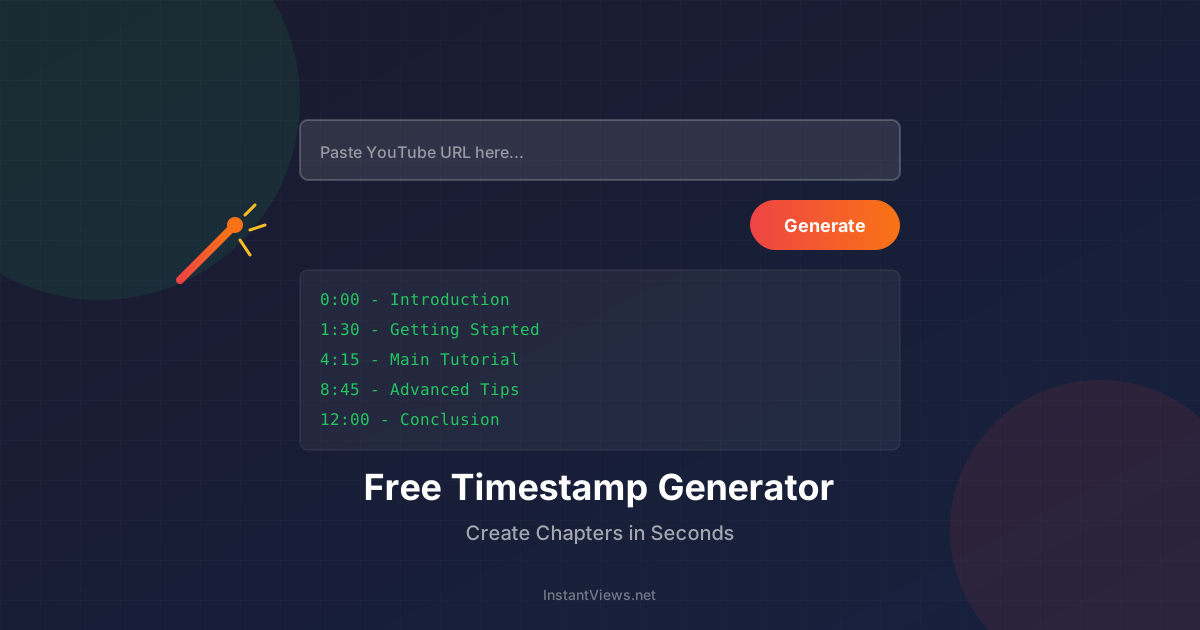
Our free timestamp generator creates professional video chapters in seconds using AI. No signup required.
Generate Timestamps FreeBest Practices for Working with Copied Timestamps
Follow these best practices when copying and reusing timestamps:
1. Verify Timestamp Accuracy
After pasting copied timestamps into your own video description, verify each timestamp links to the correct moment. Video lengths differ, so timestamps from one video rarely work perfectly for another without adjustment.
2. Customize Chapter Titles
Don't copy chapter titles verbatim. Customize them to:
- Match your video's specific content
- Include relevant keywords for SEO
- Reflect your unique presentation style
- Appeal to your target audience
3. Respect Copyright and Attribution
While timestamp formats aren't copyrightable, directly copying unique chapter titles without modification may raise ethical concerns. Use copied timestamps as inspiration, not direct content theft.
4. Maintain Proper Formatting
When copying and pasting timestamps across platforms, ensure formatting remains consistent:
- Each timestamp on its own line
- Single space between time and title
- No extra characters or symbols
- Chronological time order maintained
5. Save Timestamp Libraries
Build a personal library of effective timestamp structures organized by:
- Video type (tutorial, vlog, review, etc.)
- Video length (short, medium, long-form)
- Content niche or industry
- Successful examples from top creators
Timestamps from other videos should serve as structural inspiration only. Always create timestamps that accurately reflect your own video's content and timing. Misleading timestamps harm viewer experience and channel reputation.
Frequently Asked Questions
Open the video, click "Show More" under the description, then select and copy the timestamps. They appear as clickable links with time markers (e.g., 0:00, 1:30). Copy all lines containing timestamps for the complete chapter list.
Yes, you can copy timestamps from any public YouTube video for personal reference or study. However, republishing someone else's timestamp structure as your own work without attribution may violate fair use principles.
Copied timestamps appear in the format "0:00 Chapter Title" with each chapter on a new line. The time format is MM:SS for videos under an hour, and H:MM:SS for longer videos.
Yes, as long as the timestamps match valid points in your new video. Ensure your first timestamp is 0:00, you have at least 3 chapters, and each chapter is 10+ seconds long for YouTube to recognize them.
Yes, browser extensions and specialized tools can extract timestamps automatically. Our timestamp generator can also copy existing chapter structures from videos that already have timestamps.
Absolutely. Copying timestamps is useful for sharing specific video sections, creating study guides, making notes, or referencing content in discussions. You can also create shareable links with timestamps included.
No, copied timestamps are static text. If the creator updates their timestamps, you'll need to copy them again to get the updated version.
Yes, after copying timestamps, you can paste them into Excel, Google Sheets, Word, or any text editor. The format usually preserves well, though you may need to adjust column separation manually.
Create Perfect Timestamps for Your Videos
Use our free AI-powered timestamp generator to create professional video chapters in seconds.
Try Timestamp Generator